Wizard
The Wizard widget provides the design and configuration of a pattern that guides users through a multi-step process in a structured, sequential manner. Wizards are commonly used to simplify complex tasks by breaking them into smaller, manageable steps. This pattern is particularly useful for forms, onboarding flows, or configuration processes.
Key Features of Wizard
- Supports step-by-step navigation for guided workflows.
- Allows configuration of Counter-based or Widget-based steps.
- Each step (Wizard Item) can have visibility, enable/disable controls, and event bindings.
- Provides a visual step indicator for tracking progress.
- Enables droppable container for widgets in Widget-based Wizards for dynamic step content.
Basic Configuration
- Wizard Type (Counter or Widget) Counter-Based Wizard:
- Requires assigning a static step value to each Wizard Item through configuration.
- Ensures that steps follow a predefined order and numbering.
- Widget-Based Wizard:
- Allows dragging and dropping widgets inside wizard items.
- Provides flexibility to customize each step dynamically.
- Orientation (Horizontal or Vertical): Horizontal Orientation:
-
Steps are displayed side by side, moving left to right (or right to left for RTL layouts).
-
Ideal for progress indicators, navigation menus, and step-based wizards. Example: A checkout process with steps arranged in a row.
Vertical Orientation:
-
Steps are stacked one below the other, moving from top to bottom.
-
Best for mobile-friendly designs, sidebar menus, or limited horizontal space.
-
Example: A vertical form with sequential steps displayed in a column.
- Bindings: Visibility
- Uses an expression builder to determine when the wizard should be visible.
- The wizard will only appear if the provided expression evaluates to true.
- Active Item (Supports String Models, Not Arrays)
- Defines the current step in the wizard.
- Useful in responsive mode, where the user navigates between steps.
- CSS Class
- Select a CSS class to style the wizard.
- The selected class applies to the root navigation element of the wizard.
Steps to Use a Wizard
- Drag and drop Wizard widget from the widget explorer to the screen designer.
- On dropping the wizard, by default 3 steps (wizard items) are added.
- Select the Wizard Type — Counter or Widget.
- Add Wizard Items (steps) with the required configurations from the wizard's action bar (+) button.
- Assign the Event Bindings for step interactions in required wizard items.
Following are the properties to be configured for the wizard:
| Property | Description | Comments |
|---|---|---|
| Basic Configuration | ||
| Wizard Type | Select the type of wizard. Either Counter or Widget. | Counter-Based Wizard: When the wizard type is set to "Counter", all child wizard items must be assigned a static value for each item through configuration settings. This ensures predefined values are maintained throughout the wizard process. Widget-Based Wizard: When the wizard type is set to "Widget", all child items are enabled for widget drag-and-drop functionality in wizard items, allowing users to add, arrange, and customize supported widgets dynamically within the wizard steps. |
| Orientation | Select the type of orientation. Either Horizontal or Vertical. | Choose based on layout needs. 1. Horizontal Orientation: Elements are aligned side by side, moving left to right (or right to left in RTL layouts). Best suited for navigation menus, progress indicators, and step-based wizards where users follow a linear sequence. Commonly used in tabs, toolbars, and horizontal form layouts. Example: A multi-step wizard with steps displayed in a row. 2. Vertical Orientation: Elements are stacked one below the other, moving top to bottom. Ideal for sidebar menus, accordions, and multi-step forms where space is limited horizontally. Often used in mobile-friendly designs to improve readability. Example: A vertical navigation bar where menu items appear in a list. |
| Bindings | ||
| Visibility | Provide the expression using the expression builder. The control is visible only if the evaluated expression is true. | - |
| Active Item | Specify the active item in the wizard. Supports string model binding (not arrays). | This binding is used in responsive mode only. The active item highlights the current step the user is interacting with. On wizard item click event, assign the clicked wizard item's name to this binding. |
| CSS Class | Select the CSS class from the drop-down. | The selected CSS class will be applied at the root-level <nav> element of the wizard. |
| Additional Configuration | ||
| Id* | Provide a unique identifier. | An ID is created by default. User can change the unique ID as required. |
| Comment | Select either Yes or No. | On selecting Yes, the wizard will not generate. |
Note: An asterisk (*) denotes that the property is mandatory for adding a Wizard.
The "Configuration saved successfully" message displays upon successfully adding the widget.
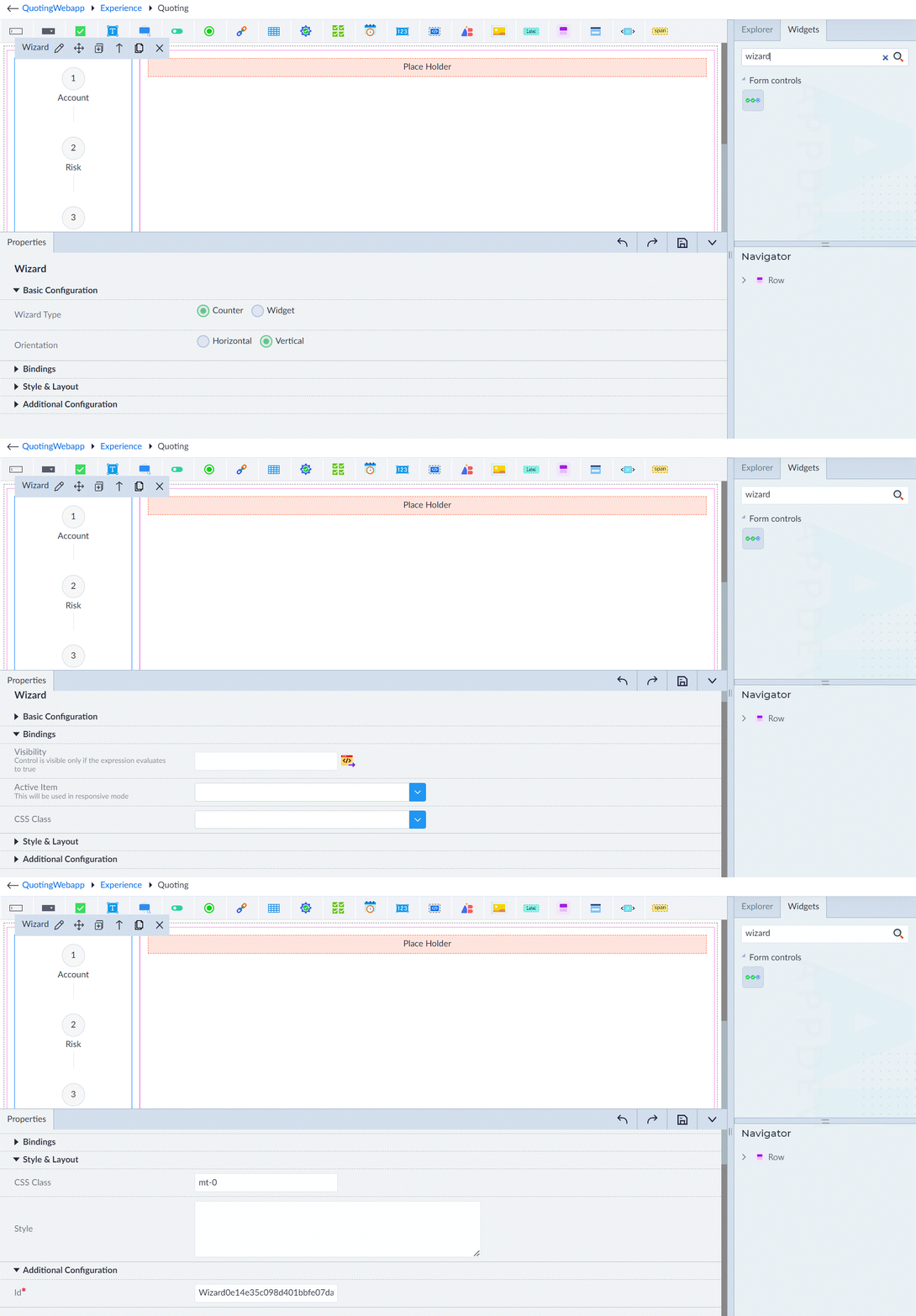
Note: Style and layout group, Style bindings, ARIA attributes bindings — These groups need to be referred and added from the common docs.
Wizard Item
A Wizard Item represents a step within a Wizard in OwlGen. Each item defines the content and behaviour for a specific step in the multi-step process. Depending on the Wizard Type, a Wizard Item can either display a counter-based step or embed a supported widget.
Following are the properties to be configured for the wizard item:
| Property | Description | Comments |
|---|---|---|
| Basic Configuration | ||
| Name | Provide the name of the wizard item. | The wizard item name will be displayed at each step of the wizard, providing clear identification for every stage in the process. |
| Step Value | Specify the step value (an integer) for the wizard item, ranging from 1 to 99. This value determines the sequential order of the step within the wizard flow. | The step value will be displayed inside the wizard item's circular indicator, visually representing the step number in the sequence. |
| Bindings | ||
| Visibility | Provide the expression using the expression builder. The control is visible only if the evaluated expression is true. | - |
| Enable/Disable | Provide the expression using the expression builder. The binding expression for dynamically enabling or disabling the wizard item. | - |
| CSS Class | Select the CSS class from the drop-down. | - |
| Click* | Provide the click event for the wizard item. | - |
| Additional Configuration | ||
| CSS Class | Provide the custom CSS class for styling the wizard item. | - |
| Style | Provide the CSS rule sets for customizing the wizard item styling. | - |
| Id* | Provide a unique identifier. | An ID is created by default. User can change the unique ID as required. |
Wizard Item
A Wizard Item represents a step within a Wizard in OwlGen. Each item defines the content and behaviour for a specific step in the multi-step process. Depending on the Wizard Type, a Wizard Item can either display a counter-based step or embed a supported widget.
Following are the properties to be configured for the wizard item:
| Property | Description | Comments |
|---|---|---|
| Basic Configuration | ||
| Name | Provide the name of the wizard item. The name will be displayed at each step, providing clear identification. | - |
| Step Value | Specify the step value (1-99). Determines the sequential step order and appears inside the circular indicator. | - |
| Bindings | ||
| Visibility | Provide the expression using the expression builder. Visible only if the evaluated expression is true. | - |
| Enable/Disable | Provide the expression using the expression builder. Used to dynamically enable or disable the step. | - |
| CSS Class | Select the CSS class from the drop-down. | - |
| Click* | Provide the click event for the wizard item. | - |
| Additional Configuration | ||
| CSS Class | Provide the custom CSS class for styling the wizard item. | - |
| Style | Provide the CSS rule sets for customizing the wizard item styling. | - |
| Id* | Provide a unique identifier. | An id is created by default. User can change the unique id as required. |
Note: An asterisk (*) denotes that the property is mandatory for Wizard Item.
The "Configuration saved successfully" message displays upon successfully configuring the wizard item.
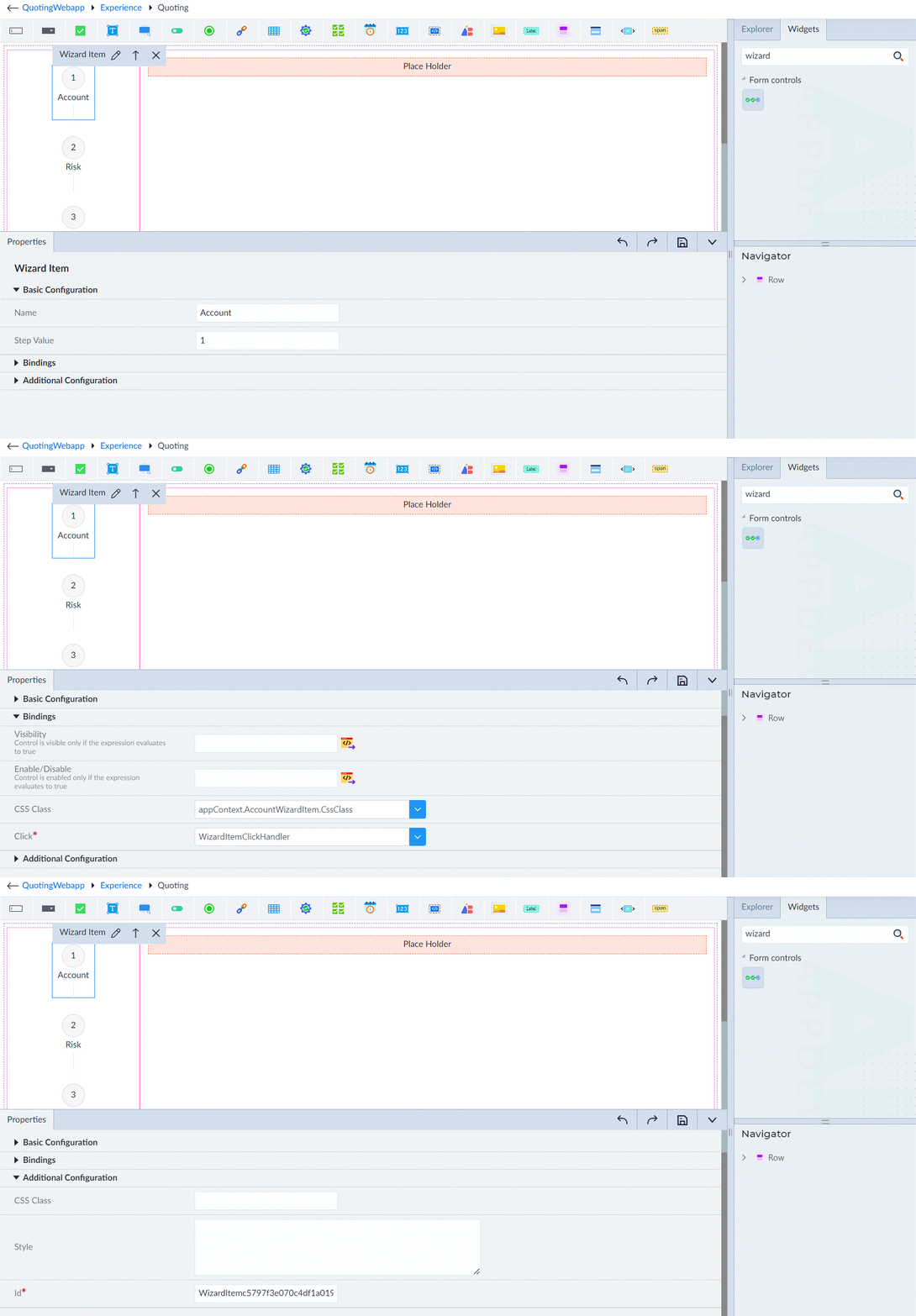
Note: ARIA attributes bindings need to be referred and added from the common docs.