Interfaces
An interface represents a distinct view or screen that users navigate to within the application. It consists of containers, widgets, and event handlers that enable user interactions. Interfaces allow developers to design responsive and dynamic user experiences using a drag-and-drop UI builder and configurable properties.
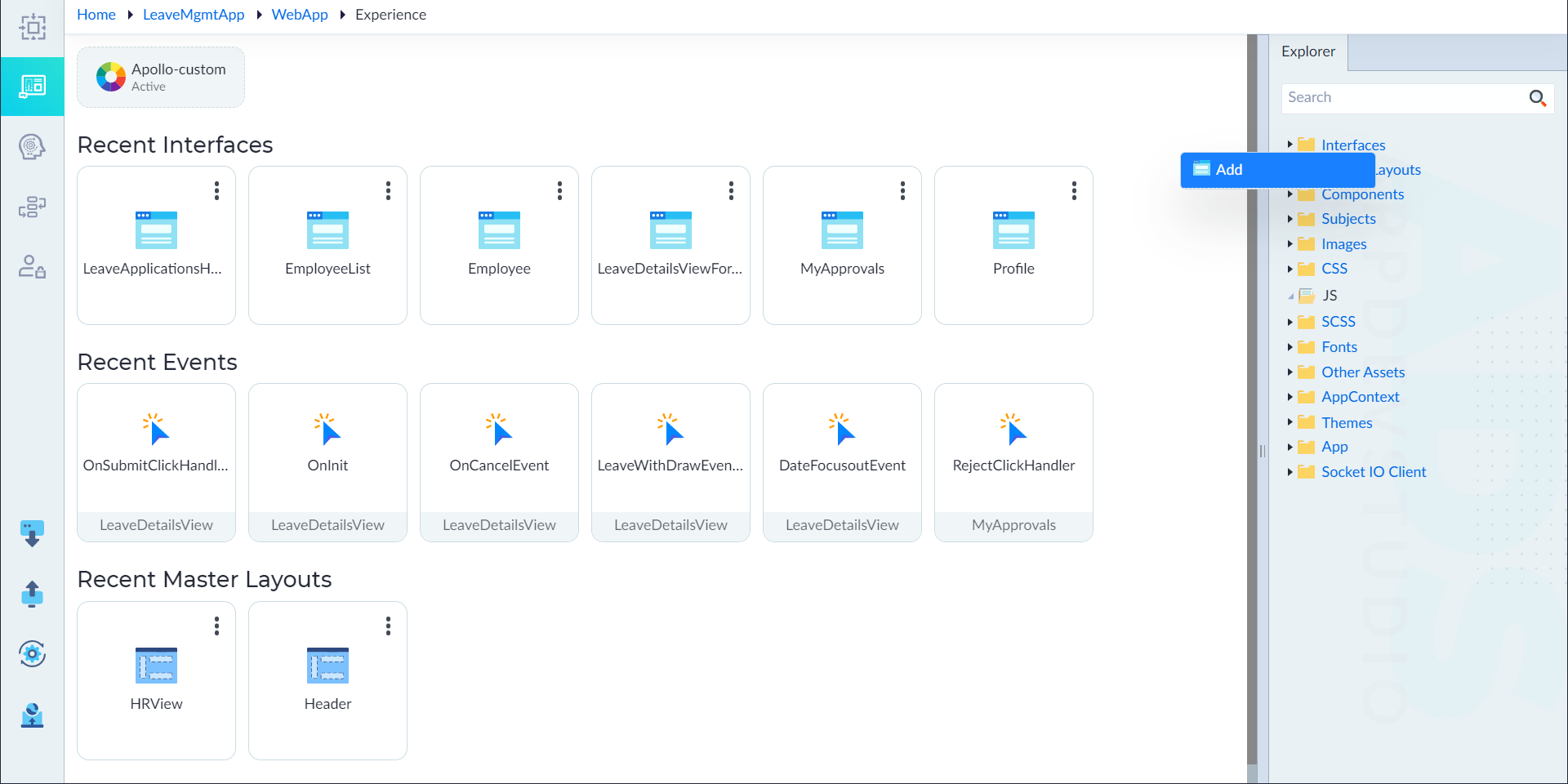
Unlike traditional multi-page applications, OwlGen generates SPA pages that does not require a full page reload; instead, they are dynamically injected into the main content area of the Master Layout.
Pages typically contain specific UI elements, forms, tables, charts, or any other components relevant to a particular feature or function.
They are often defined as routes in the application's routing system.
| Property | Description | Comments |
|---|---|---|
| Screen Type* | Type of the screen. | By default, it is set to Interface. It cannot be changed. |
| Screen Name* | Name of the screen. | Name must start with a character followed by alphanumeric or '_'. No spaces are allowed. Except underscore (_), no other special characters are allowed. Name cannot start with a number. |
| Path | Specifies the path. | |
| a path that user sees the browser. This defaults to the interface name if not specified | ||
| Ex: /<master layout path>/<path> | ||
| Description | Specifies the summary for the interface. | - |
| Parent Layout | Select the parent layout if required. | - |
| Landing Page | A landing page is the first page users see when they visit the application. It serves as an entry point and is typically designed to capture user interest, convey key information, and guide users toward a specific action (e.g., signing up, logging in, exploring features). Specifies whether the current interface being created is a landing page. Either Yes or No. | By default, No is selected. |
| Dirty Guard Check | A Dirty Check Guard is used to prevent users from navigating away from a page with unsaved changes. Specifies whether to detect the unsaved changes or not. Either Yes or No. | By default, Yes is selected. |
| Change Detection | The apps configured with the OwlGen are converted to Angular code during the build process. As Angular supports 2-way binding for synchronizing the state between model and view, choosing the appropriate change detection strategy is important for performance. Change Detection is the mechanism that tracks changes in the application state and updates the DOM (Document Object Model) accordingly. It ensures that the UI stays in sync with the underlying data model. | Two strategies are available: Default — checks the entire component tree when a change happens, runs on every event, timer, or observable update. OnPush — optimized for performance, only checks when the component's @Input() properties change, an event inside the component modifies the state, or a manual detection call (detectChanges()) is made. |
| Allow Anonymous Access | This option allows users to access the page without authentication or logging in. Commonly used for public-facing content, such as landing pages, blogs, or product catalogs, where authentication is not required. Specifies whether this interface can be accessed anonymously. Either Yes or No. | By default, No is selected. This field is visible only when 'Enable Authentication' is set to Yes in Module Info tab while creating or editing a module. |
| CSS Class | Specifies CSS Class for the whole interface content. | - |
| isActive | Specifies whether the interface is active. Either Yes or No. The interface is excluded from generation if set to No. | By default, Yes is selected. |
External Imports
External imports are used to bring in services, classes, and functions required for a component to function properly.
| Name | Type | Instance Name | Path | Action |
|---|---|---|---|---|
| Specifies the Name of the External Class or Function or Service | Specifies the Type which we want to import | Specifies Instance name | Path specifies where a module, service, component, or dependency is located. The path determines whether the import is from Angular's core libraries, third-party libraries, or local project files. | The remove icon is used to delete an added import statement. |
Note: An asterisk (*) denotes that the property is mandatory for creating an interface.
The "Interface created successfully" message displays upon successful creation.
Structure of a Interface
The created interface contains the following folders:
- Event Handlers and Functions
- Models
- Popups
- Sidebar
- Subscriptions
- Validation Groups
Design an Interface
Follow the below steps to design an interface:
- From the explorer menu, double-click the created interface. The properties panel slides up from the bottom and visual designer displays.
- In the visual designer, user can drag and drop the predefined widgets and configure them as applicable. For more information on widgets, refer to Widgets.
- Click save icon when the design is completed.