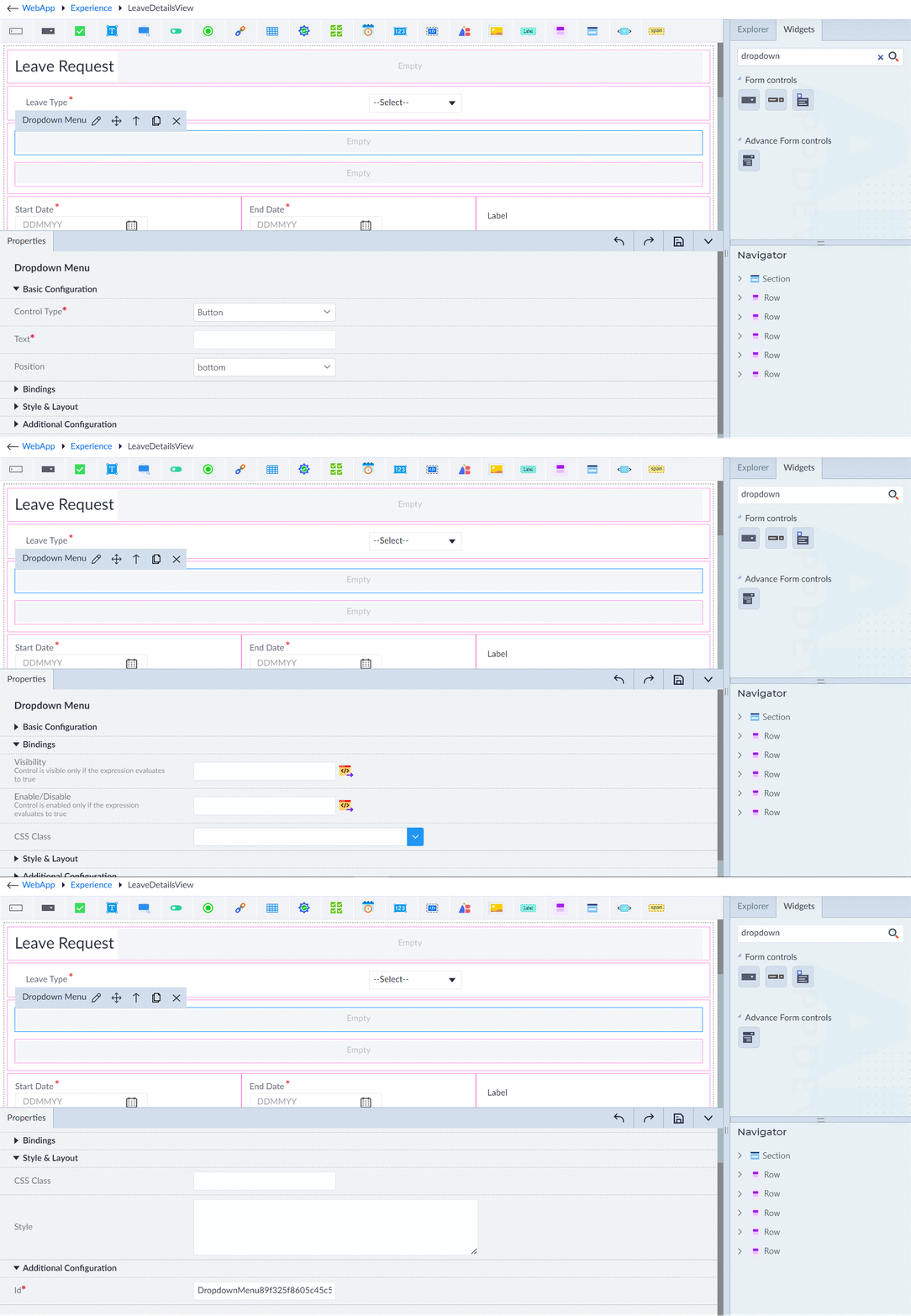
Dropdown Menu
A menu that appears when the user clicks on a Dropdown button. Following are the properties to be configured for this widget:
| Property | Description | Comments |
|---|---|---|
| Basic Configuration | ||
| Control Type* | Select the type of control. Button Image Icon Link | - |
| Text | Provide the text to be displayed on the control. | This option is visible when button or link is selected as control type. |
| Source* | Provide the source for the image. | This option is visible when image is selected as control type. |
| Alt Text | Provide the alternate text for the image | This option is visible when image is selected as control type. |
| Icon Name* | Provide the icon name. | Only google icons are supported. |
| Title | Provide the title. | This option is visible when image or icon is selected as control type. |
| Position | Select the position. left right top bottom | - |
| Bindings | ||
| Visibility | Provide the expression using the expression builder. The control is visible only if the evaluated expression is true. | - |
| Enable/Disable | Provide the expression using the expression builder. The control is enabled only if the evaluated expression is true. | - |
| CSS Class | Select the CSS class. | - |
| Style & Layout | ||
| CSS Class | Provide the custom CSS class for styling the dropdown menu. | - |
| Style | Provide the CSS rule sets for customizing the dropdown menu. | - |
| Additional Configuration | ||
| Id* | Provide a unique identifier. | An id is created by default. User can change the unique id as required. |
Note: An asterisk (*) denotes that the property is mandatory for adding a drop-down menu.
The "Configuration saved successfully" message displays upon successfully adding the widget.