Models
Models are variables that help manage data, state and behaviour within an interfaces/master layouts/components. OwlGen uses Angular two-way data binding which allows automatic synchronization of data between the Model and the View, ensuring seamless user interactions.
They can be utilized in widget bindings, the expression builder, popup, sidebar, event logic and subscription logic.
Create a Model
Follow the below steps to create a Models Variable:
-
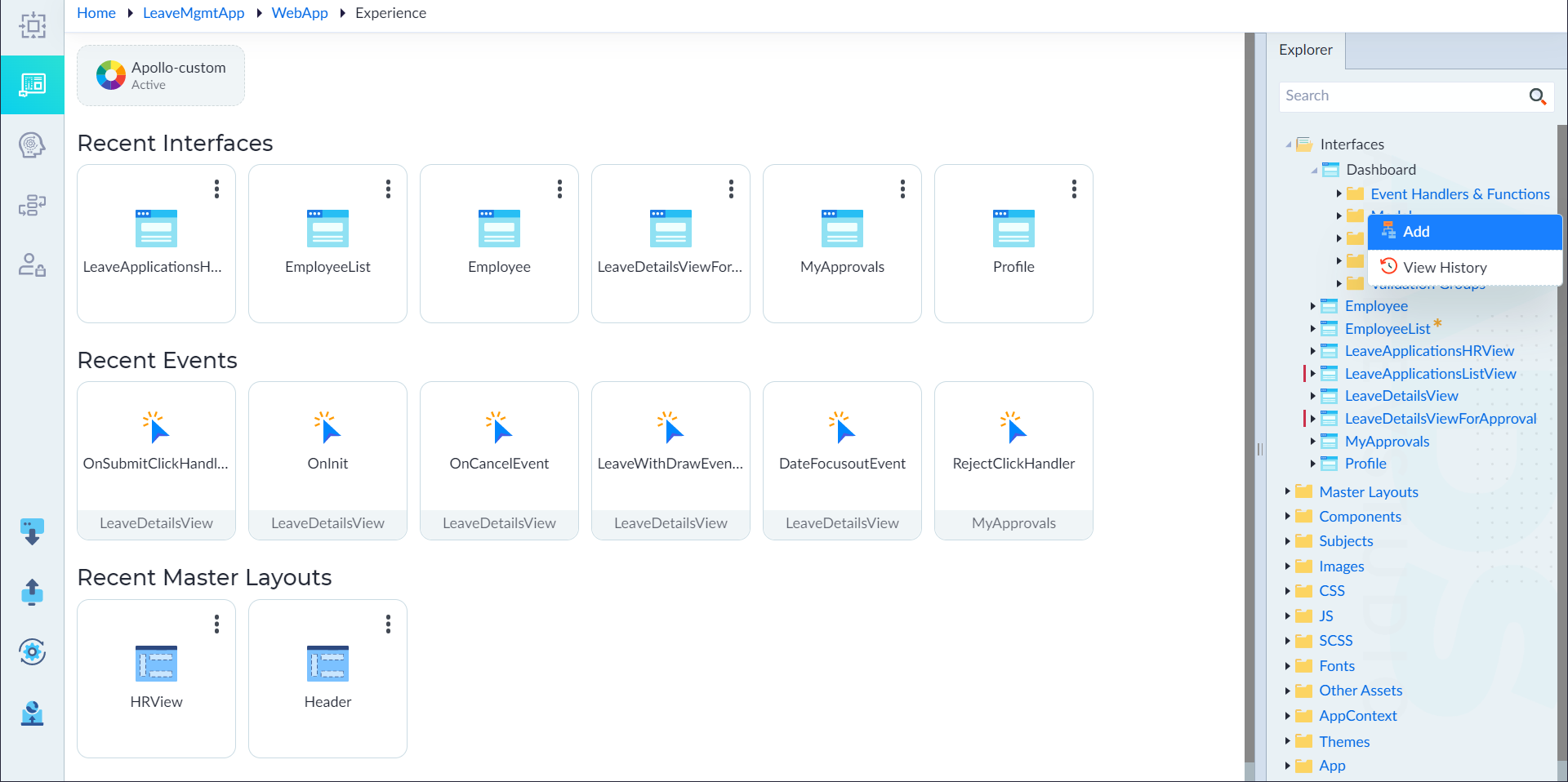
From the explorer menu, right-click on Models and select Add.
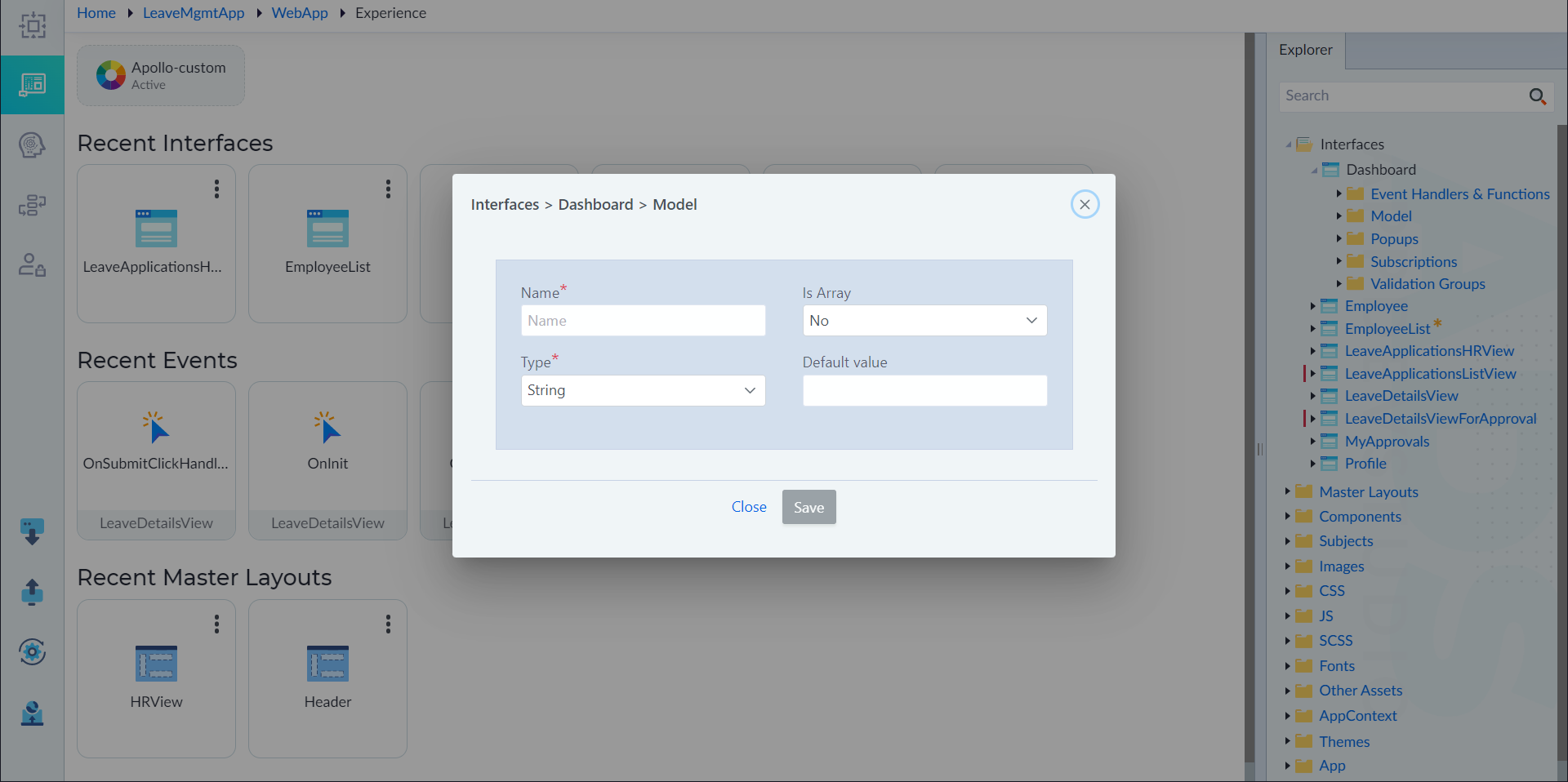
The following configuration will be shown in the Basic Model Variable Configuration:
- Name Field:
- Specifies the name of the Models Variable.
- This is a required field.
- Is Array:
- Defines whether the property is an array or a single value.
- Options:
- Yes: Defines the property as an array.
- No: Defines it as a single value.
- Behaviour:
- When Is Array = Yes, the Initialize as New Object field becomes visible.
- When Is Array = No, the Default Value field appears for primitive types only.
- Data Type Selection
- Type:
- Defines the data type of the property.
- Options include:
- Any: Accepts any type of value.
- Service or Db entities: Represents a custom complex entity.
- Map: Defines a key-value collection.
- Primitive Types: String, Integer, Double, Long, Boolean, and Date Time.
- Type:
- Default Value Configuration
- The Default Value field is only visible when:
- The Is Array field is set to No.
- The selected type is primitive (e.g., String, Integer, Double, Long, Boolean, DateTime).
- It is NOT visible when:
- The type is Any.
- The type is Map.
- Is Array = Yes.
- A complex type is selected.
- Default Value Controls:
- Boolean: Dropdown with True and False options.
- String: Textbox for string input.
- Integer, Double, Long: Numeric textbox.
- DateTime: Two options:
- Fixed: Displays a calendar for date selection.
- Current: Uses the current date and time.
- The Default Value field is only visible when:
- Map Configuration
- When the Map type is selected, additional fields appear:
- Key Type:
- Specifies the data type of the map's keys.
- Supports all primitive types.
- Value Type:
- Defines the data type of the map's values.
- Supports both primitive and complex types.
- Map types are not allowed as value types.
- Is Array (for Value Type):
- Determines if the value type should be an array.
- The Is Array checkbox controls the array status of the value type only.
- Behaviour:
- The Default Value field is NOT visible when the Map type is selected.
- Key Type:
- When the Map type is selected, additional fields appear:
- Object Initialization
- Initialize As New Object:
- Specifies whether the Models Variable should be initialized as a new object by default.
- Visible for:
- Complex types.
- Map types.
- Primitive types when Is Array = Yes.
- Options:
- Yes: Initializes the Models Variable as a new object.
- No: Does not auto-initialize.
- Initialize As New Object:
- Name Field:
-
In the popup window, configure the properties as required and then click Save.
| Property | Description | Comments |
|---|---|---|
| Basic Configuration | ||
| Models Variable Name | Provide the name for the property. | Name must start with a character followed by alphanumeric or ''. No spaces are allowed. Except underscore (), no other special characters are allowed. Name cannot start with a number. |
| Is Array | Specify whether the Models Variable is an array. Either Yes or No. | Default set to No. |
| Data Type* | Specify the data type of the Models Variable. | - |
| Default value | Provide default value | - |
| Key Type | Select the data type for the key type | Supports only primitive types |
| Value Type | Select the data type for the value type | Supports primitive, complex except map type |
| Is Array | Select the check box for the value type to be an array | - |
Note: An asterisk (*) denotes that the property is mandatory for creating a model.
The "Model created successfully" message displays upon successful creation.