Theme
A layout or base theme is a predefined style framework that defines the look and feel of an application. A custom theme enables easy customization of primary, secondary, and tertiary colors, as well as component scaling, while preserving the core structure of application.
Purpose of a Theme
- Consistency – Ensures a uniform design across the application.
- Maintainability – Makes it easier to update styles without affecting the entire codebase.
- Scalability – Helps in managing large projects with multiple design variations.
Supports six base themes (layouts) out of the box:
- Apollo
- Ares
- Athena
- Phoenix
- Plutus
- Zeus
These base themes define the default look and feel of the application. Users can further customize them using the theme builder, while advanced modifications can be achieved through custom CSS. Although multiple custom themes can be created, only one theme can be applied at a time.
Create Theme
Users can create custom themes based on the default theme in the experience center. Follow the below steps to create a theme:
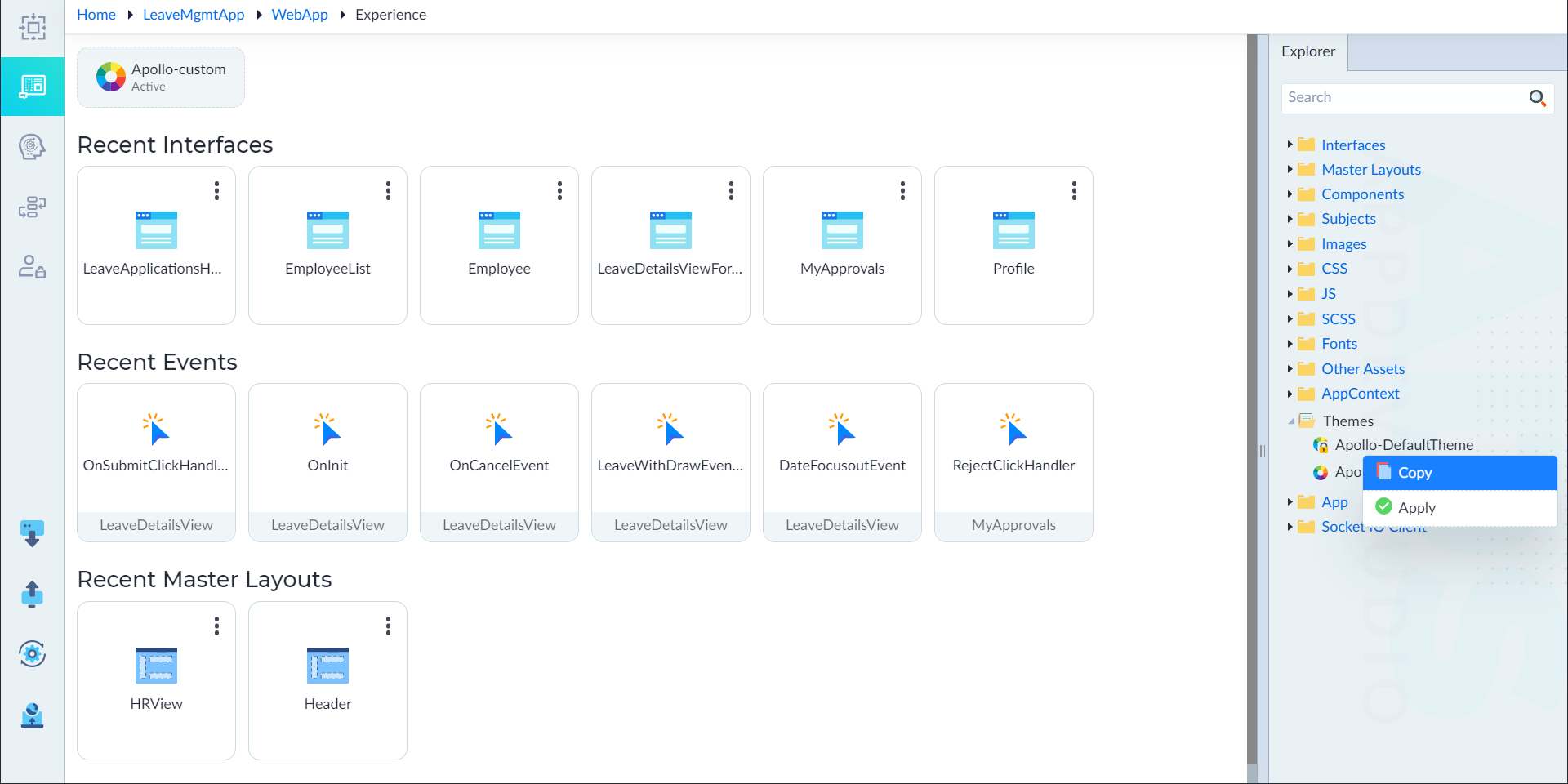
- From the explorer menu, right-click the default theme in Themes and select Copy.
- In the properties panel, configure the properties as required and then click save.
| Property | Description | Comments |
|---|---|---|
| Name* | Provide the name of the theme. | Name must start with a character followed by alphanumeric or '_'. No spaces are allowed. Except underscore (_), no other special characters are allowed. Name cannot start with a number. |
| Based On* | Specifies the base theme. | This field is disabled and set to theme name from where it is copied. It cannot be changed. |
| Description | Provide the summary about the theme. | - |
| Id* | Provide the id for the theme. | This property is populated automatically with an id by default. |
Note: An asterisk (*) denotes that the property is mandatory for creating a theme.
The "Theme created successfully" message displays upon successful creation.
Customize a Theme
Follow the below steps to design a theme:
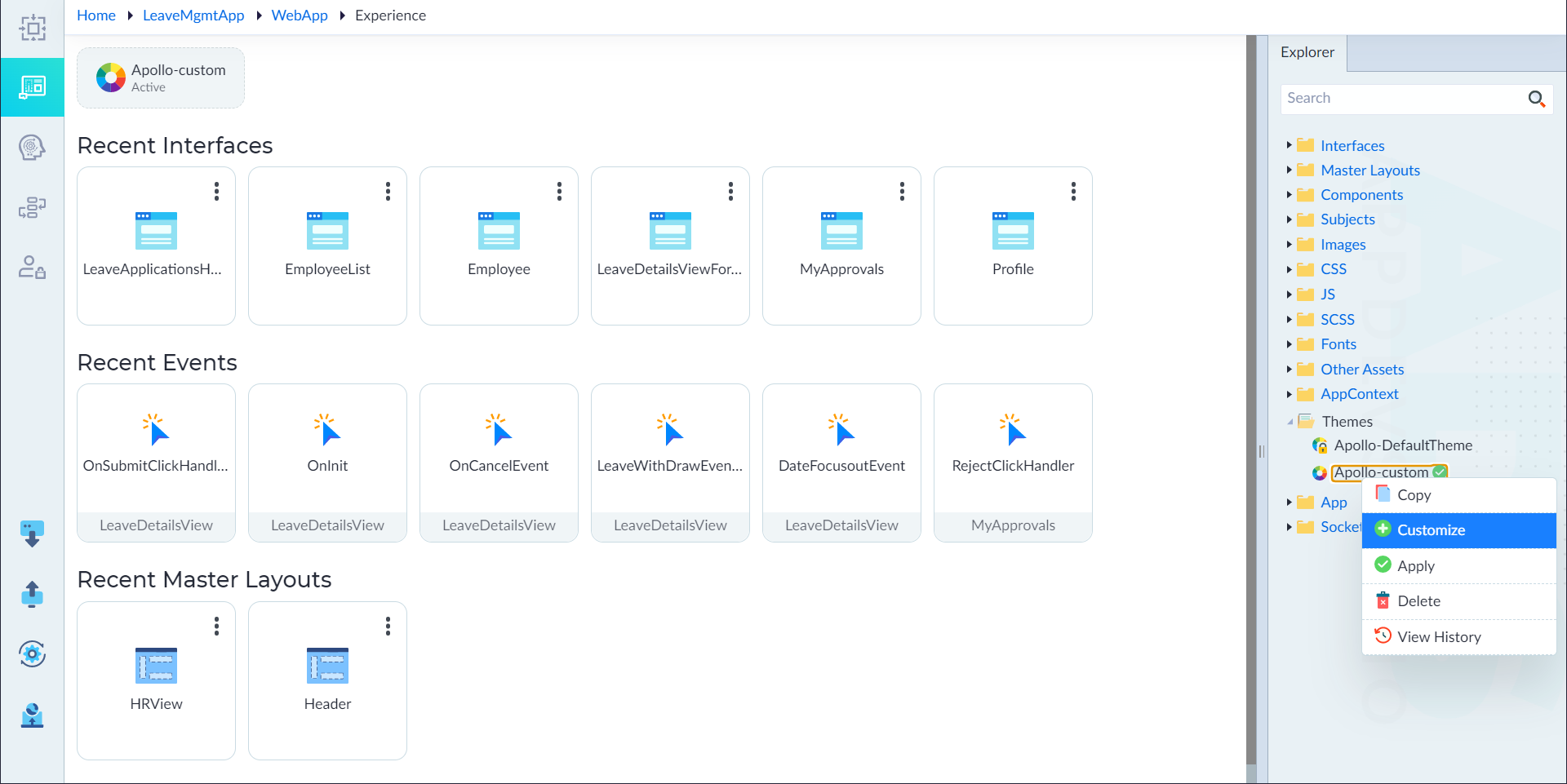
- From the explorer menu, right-click the created theme and select Customize.
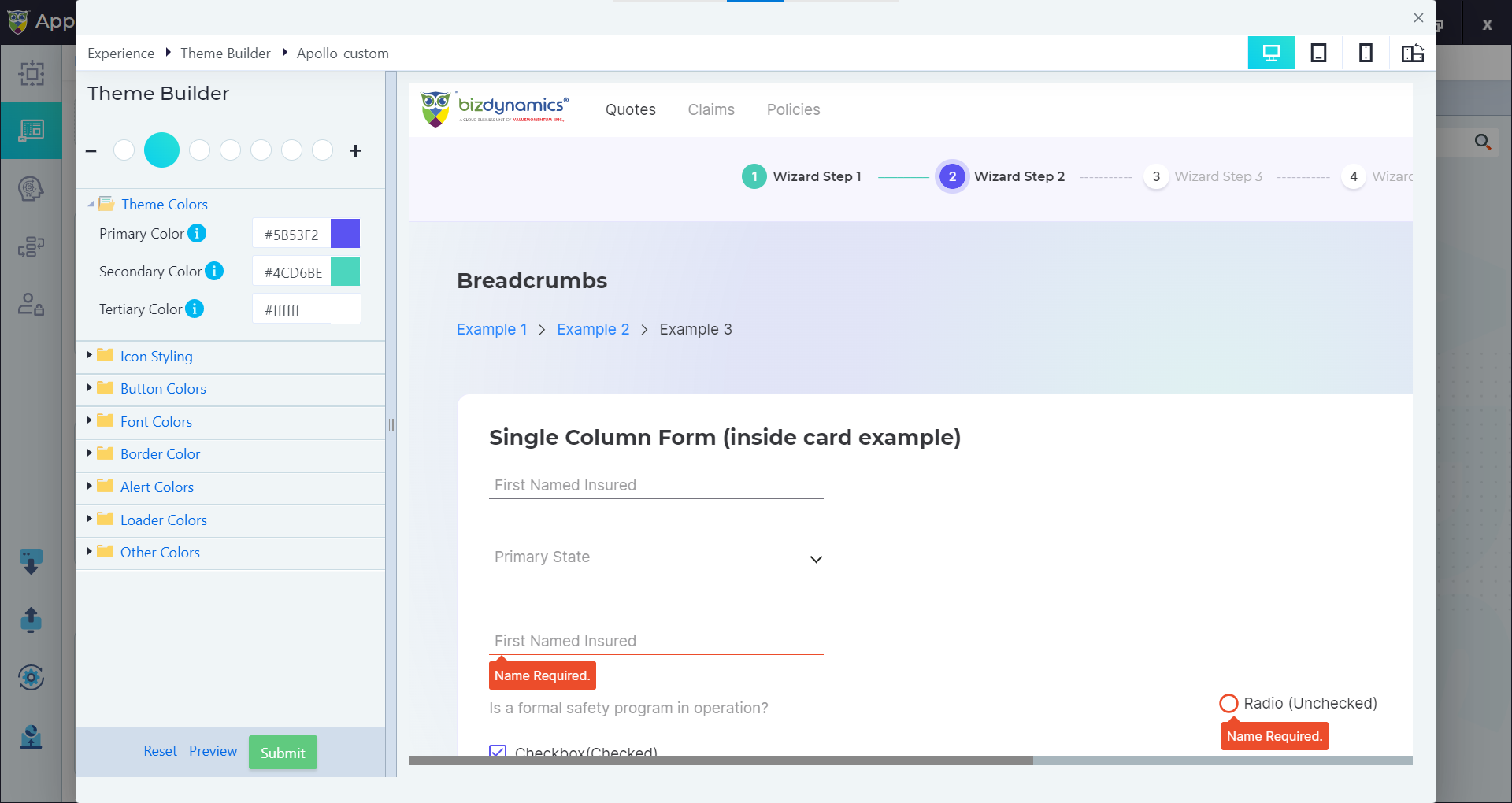
- The theme builder displays.
- Customize the colours accordingly from the theme builder left menu.
- Click Preview to view the changes.
- The "Preview loaded" success message displays.
- Click the desktop, tablet, and mobile icons on the top right corner to view the changes in different mediums.
- Click Submit to save the theme.
- The "Theme details updated successfully" message displays.
- Click Reset to revert the recent changes applied on the theme.
After creating a theme, right-click on it and select "Apply" to set it as the active theme for the application.
Note: If all custom themes are deleted, the default theme will automatically be applied to the module.
Theme Builder
Theme Builder enables customization of the visual appearance of application using theme variables. It provides a preview of all the widgets that are supported out of the box. It also provides various customization options for different elements of the theme, including colors, icons, fonts, borders, alerts, and other UI components.
The left menu in the Theme Builder contains various options that can be used to customize/create a theme:
Component Scaling
Component scaling in a theme refers to adjustment of widgets sizes across the UI. It maintains consistency and improves usability across different screen sizes and resolutions. It ensures that buttons, icons, text, and other elements scale appropriately based on user preferences or design requirements.
Theme Colors
Enables customization of primary, secondary, and tertiary colors used throughout the theme.
| Variable Name | Usage | Example |
|---|---|---|
| Primary Color (--color-primary) | Used to change color of Nav Bar background color, Wizard Item, Tab Item and Menu Item active color. It helps establish branding, improve usability, and create visual hierarchy. | - |
| Secondary Colour (--color-secondary) | Used to change Accordion header background color, Data Grid column header background color. | - |
| Tertiary Colour (--color-tertiary) | Used to change colour of surface content backgrounds. | Accordion, Tab list background, Section background |
Icon Styling
Allows customization of icon appearance, including color, size, and shape. It supports 2 types of icon styles:
- Outline — The entire icon is just an outline with no fill.
- Filled — The icon is completely filled with colour instead of just having an outline.
| Variable Name | Usage |
|---|---|
| Weight (--icon-weight) | Icon weight refers to the visual thickness or boldness of an icon's lines, strokes, or fills. |
| Color (--icon-color) | Color of the icon. |
Button Colors
Provides options to customize button colors, including background, text, and hover states.
| Variable Name | Usage | Example |
|---|---|---|
| Primary Color (--button-primary) | The primary color is commonly applied to buttons that perform key actions. | Submit, Save, Confirm |
| Secondary Color (--button-secondary) | A secondary color is typically used for less prominent actions or secondary options. | Cancel, Back |
Font Colors
Allows customization of primary, secondary, and tertiary font colors for text elements.
| Variable Name | Usage | Example |
|---|---|---|
| Primary Color (--font-color-primary) | To change heading colors of the application. | h1, h2, h3, h4 etc. |
| Secondary Color (--font-color-secondary) | To change the color of main text used in the body tag of the application. | body, p, span, label |
| Tertiary Colour (--font-color-teritiary) | Used as a background color where white text is applied. | Primary Button Text, Text on Dark Backgrounds |
Border Colors
Enables customization of border colors for various UI components.
| Variable Name | Usage | Example |
|---|---|---|
| Color (--border-color) | Border color is the color applied to the outline of an element or surface. | Input fields, Dropdown, grid borders, tab list borders, accordion borders |
Alert Colors
Allows customization of colors used for alerts, including success, warning, error, and info messages.
| Variable Name | Usage | Example |
|---|---|---|
| Success (--color-success) | Used for positive actions or confirmations. | Success messages, confirmation dialogs, Toaster |
| Info (--color-info) | Used for informational messages. | Notifications, Toaster |
| Warning (--color-warning) | Used for cautionary messages. | Warnings, potential issues, validation hints |
| Danger (--color-danger) | Used for errors or critical warnings. | Error messages, border of input fields, Inline Validation backgrounds, Toaster |
Loader Colors
Allows customization of the colors used in loading indicators, such as spinners or progress bars, to match the theme.
| Variable Name | Usage |
|---|---|
| Color | Used to change the loader color. |
| Backdrop Color | Used to change the loader backdrop color. |
| Text Color | Used to change the loader text color. |
Other Colors
Enables customization of additional colors used in various UI elements and components beyond the primary, secondary, and tertiary colors.
| Variable Name | Usage |
|---|---|
| Badge Color (--badge-color) | Used to apply for badge background color. |
| Tooltip Color (--tooltip-color) | Used to apply on tooltip background color. |
| Radio/Checkbox/Switch Color (--radio-checkbox-active-color) | Used to apply Active Color of Checkbox, radio button and switch widgets. |