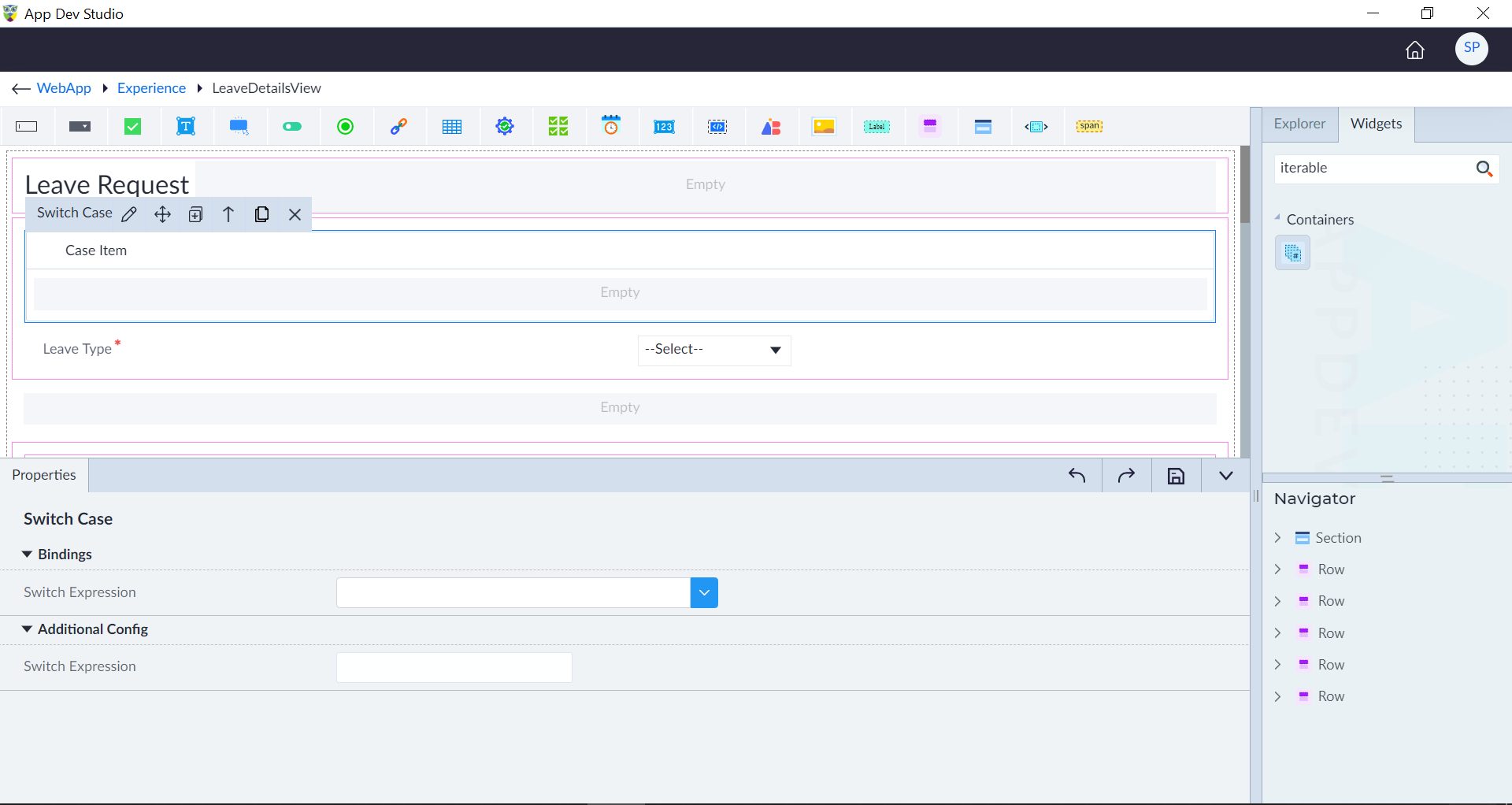
Switch Case
The Switch Case widget functions similarly to a switch statement in programming languages. It allows you to conditionally display different content based on the value of a specific variable or expression.
Key Features
- Enables conditional rendering based on dynamic values.
- Allows branching logic to control the UI display.
- Improves readability and reduces the need for multiple if-else widget containers.
How to Use
- Drag switch case widget from the widget explorer and drop it on the designer area.
- On drop over, a default case will be added.
- Assign switch expression under the switch case properties panel.
- To add case items, click the + button in the Switch Case widget's action bar.
- Assign Case expression under the switch case item properties panel
- Configure each case item template
- Default case item will not have any expressions support
The following are the properties of the switch case widget.
| Property | Description | Comments |
|---|---|---|
| Bindings | ||
| Switch Expression | Provide the expression using the expression builder. | The expression or value in a switch statement determines which case will be executed. It supports various types, including: String-Based Switching – The switch expression holds a string value, and cases are matched against predefined string options (e.g., user roles like "admin," "user," or "guest"). Number-Based Switching – The switch expression contains a numeric value, and cases match specific numbers (e.g., HTTP status codes like 200, 404, or 500). Object Property-Based Switching – The switch expression evaluates a property within an object, and cases match possible values of that property (e.g., a user’s status being "active" or "inactive"). Each case is compared against the switch expression, and when a match is found, the corresponding case item is rendered. If no cases match, a default case (if provided) will be executed. |
| Comment | Select either Yes or No | On selecting Yes, the widget will not generate. |
Note: An asterisk (*) denotes that the property is mandatory for adding a Switch Case.
Switch Case Item
The Switch's Case Item works as the individual case block within the Switch case widget. It defines the content to display when the Switch variable matches the specified case value.
Key Features
- Represents individual cases within the Switch statement.
- Each Case Item has a condition value to match against the Switch variable.
- You can add multiple Case Items under a single Switch widget by using + icon in the switch action bar.
- Includes an optional default case (for handling unmatched conditions).
- Users can drag supported widgets into Case Item blocks.
Execution Order
- Evaluate the switch expression.
- Compare it sequentially with each case.
- Execute the first matching case.
- Execute Default Case if no match is found. (The default case is typically placed at the bottom)
- Exit the switch block.
How They Work Together
- Switch defines the variable to evaluate (e.g., userRole).
- Case Items define the possible values (Admin, User, Guest) and their corresponding UI content.
- When the variable's value matches a Case Item, the corresponding content is displayed.
- If no match is found, the default case (if defined) is shown.
| Property | Description | Comments |
|---|---|---|
| Bindings | ||
| Case Expression | Provide the expression using the expression builder. | Each case item expression is compared against the switch expression, and when a match is found, the corresponding case item is rendered. If no cases match, a default case (if provided) will be executed. |
| Comment | Select either Yes or No | On selecting Yes, the widget will not generate. |
The "Configuration saved successfully" message displays upon successfully adding the widget.