Run
After configuring the databases, workflows, and server flows, the subsequent phase in the development process involves building the application. The Run enables users to perform testing and execute the application to confirm its functionality and performance.
Run offers a streamlined and efficient way for launching the application and executing various modules, workflows, and actions within it. User can observe the application in action, interact with its functionalities, and validate its behavior against the desired outcomes.
From the left menu, user can click on Run to access the configuration tabs. Follow the below sections to configure the settings for building and executing an application.
Create Profiles
In the "Select Profile" tab, the dropdown is set to "Default," indicating the primary configuration.
To add a new profile, click the Add symbol, and create custom profiles tailored to specific deployment environments. Additionally, users can also streamline profile creation by copying existing profiles, by clicking the Copy button. In doing so, it duplicates the selected profile, allowing users to quickly replicate configurations and make necessary adjustments, as needed.

Launch Profile
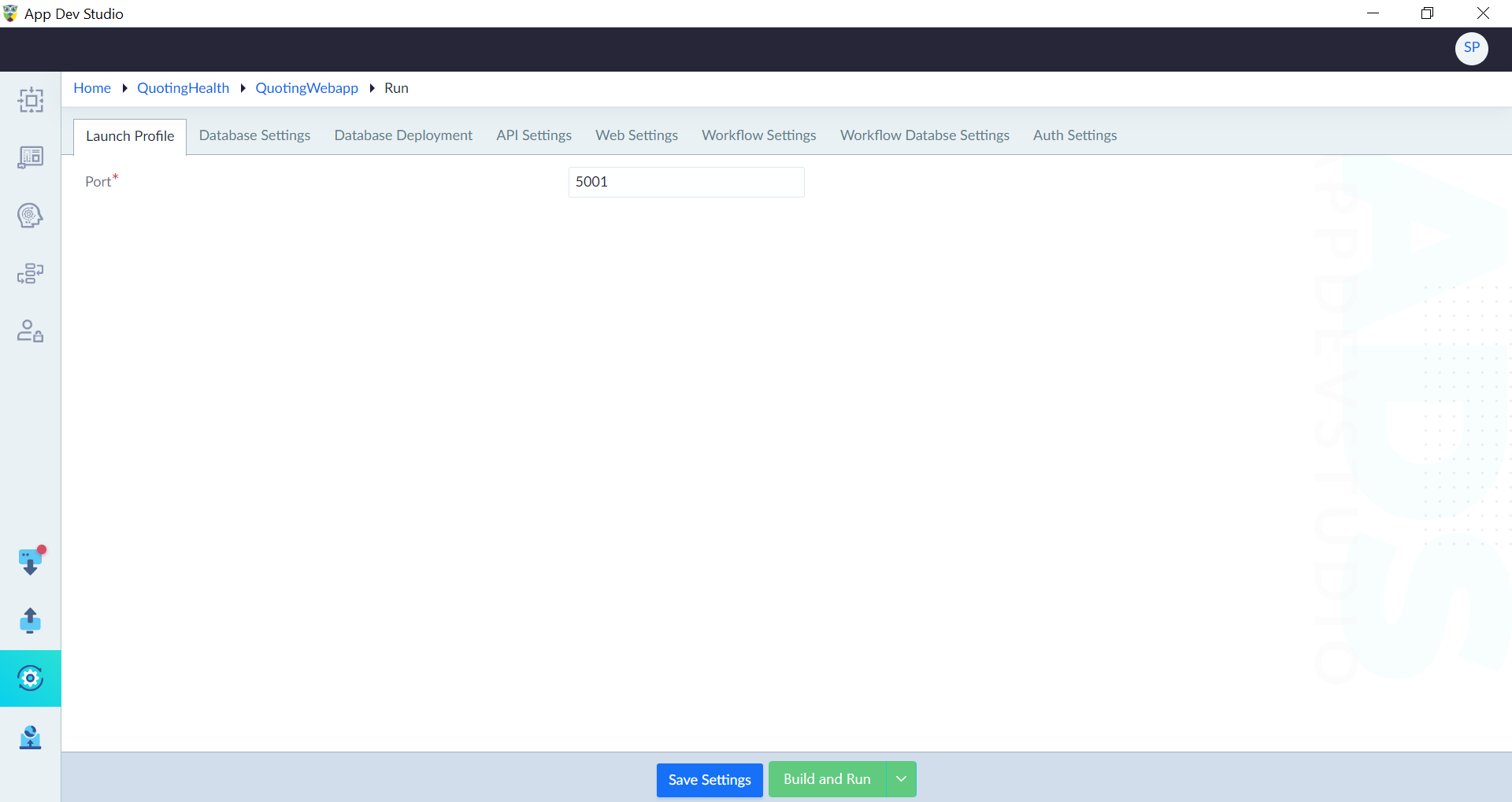
The Launch Profile allows the user to configure the network port on which the application will listen for incoming requests. The port number, given within the Launch Profile, defines the exact port used for communicating with other devices or services.
By configuring the port number in the Launch Profile, users can define the entry point for accessing the application. This property ensures that the application is reachable on the specified port, enabling it to handle requests from clients or users.
For instance, if the Port property is set to "5000", the application will receive incoming requests on port 5000. Clients or users can access the application by providing the appropriate URL with the corresponding port number (e.g., http://localhost:5000).
After configuring the port number, click on Save Settings to save the configuration.
Database Settings
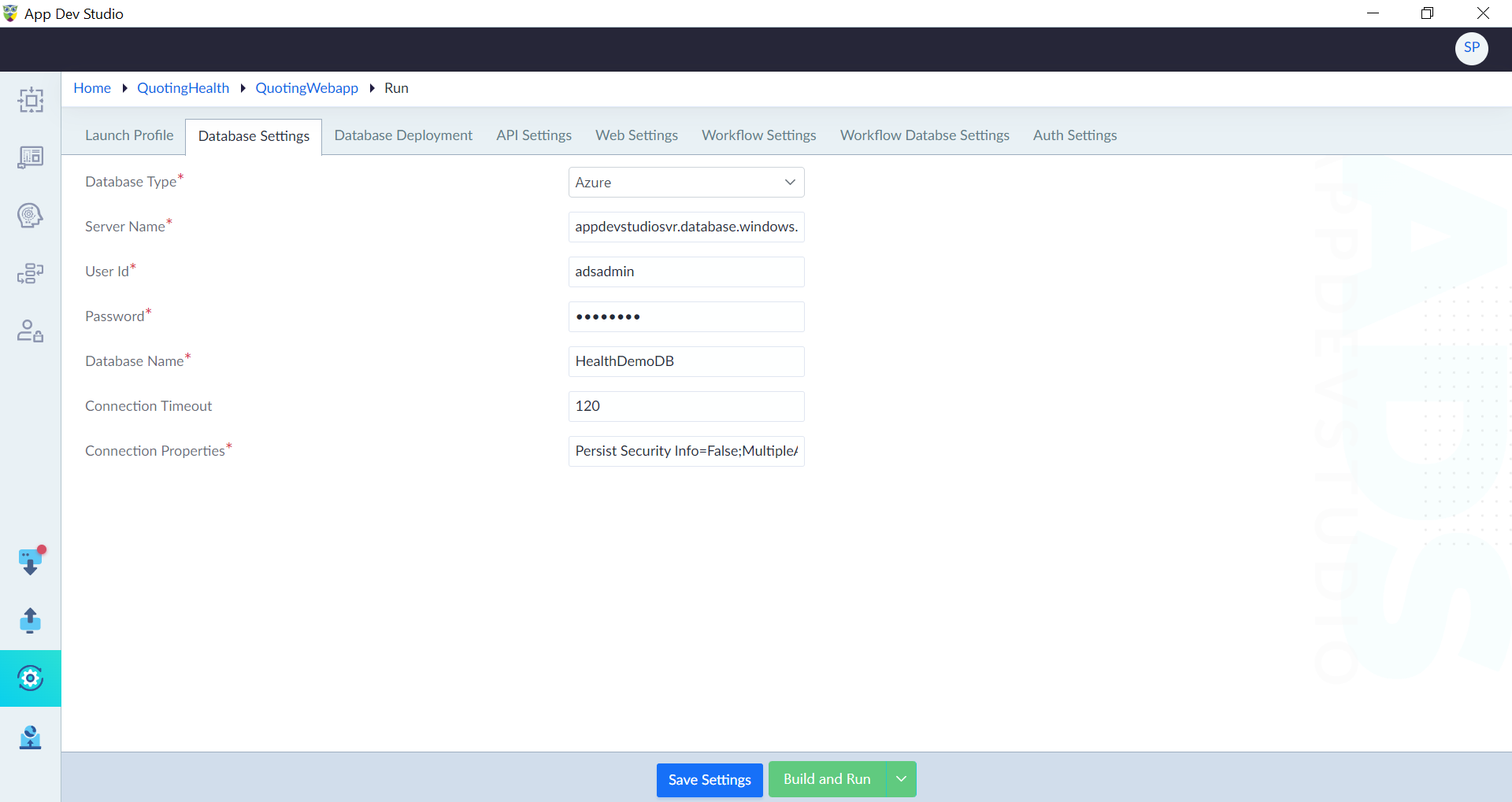
Database settings enables an application to interact with a specific database. It ensures that the application can establish a reliable and secure connection to the database, authenticate users, and effectively manage data operations.
Follow the below steps configure the database settings:
- Click Database Settings tab in Run.
- Configure the properties as required and click Save Settings.
| Property | Description | Comments |
|---|---|---|
| Database Type* | Specify the type of database. Either local or Azure. | - |
| Server Name* | Provide the name of the database server. | - |
| Authentication* | Select the type of Authentication. Either SQL Authentication or Windows Authentication. | This option is visible only if the user selects the database type as local. User needs to specify the User Id and Password according to the selected authentication type. |
| User Id* | Provide the username of the database server. | - |
| Password* | Provide the password associated with the User Id. | - |
| Database Name* | Provide the database name that is created for this application. | - |
| Connection Timeout | Provide the duration, in seconds, for which the application will attempt to establish a connection to the database before timing out. | - |
| Connection Properties* | Provide the additional settings or parameters required for establishing a successful connection to the database. | The additional settings or parameters can include options like SSL encryption, character encoding, pooling, and other database-specific configuration parameters. |
Note: An asterisk (*) denotes that the property is mandatory for configuring the database settings.
Add External Database
To add an external database to your application, follow the steps as mentioned below:
- Navigate to the Run Window.
- Go to Database Settings, and click on "Add External Database."
- In the property panel that appears, provide values for the following properties, and click Save.
| Property | Description | Comments |
|---|---|---|
| Name | Name of the external database connection. | Mandatory field. |
| Database Type | Type of the external database (e.g., MySQL, PostgreSQL) | Mandatory field. |
| Server Name | Hostname or IP address of the database server. | Mandatory field. |
| Authentication | Method used for authentication (e.g., Windows, SQL). | Mandatory field. |
| User Id | User ID for authenticating to the database. | Mandatory field if Authentication requires user credentials. |
| Password | Password for authenticating to the database. | Mandatory field if Authentication requires user credentials. |
| Database Name | Name of the database to connect to. | Mandatory field. |
| Connection Timeout | Timeout period for establishing a database connection. | Provide a timeout value in milliseconds. |
| Connection Properties | Additional properties for configuring the database connection. | Optional. |
Database Deployment
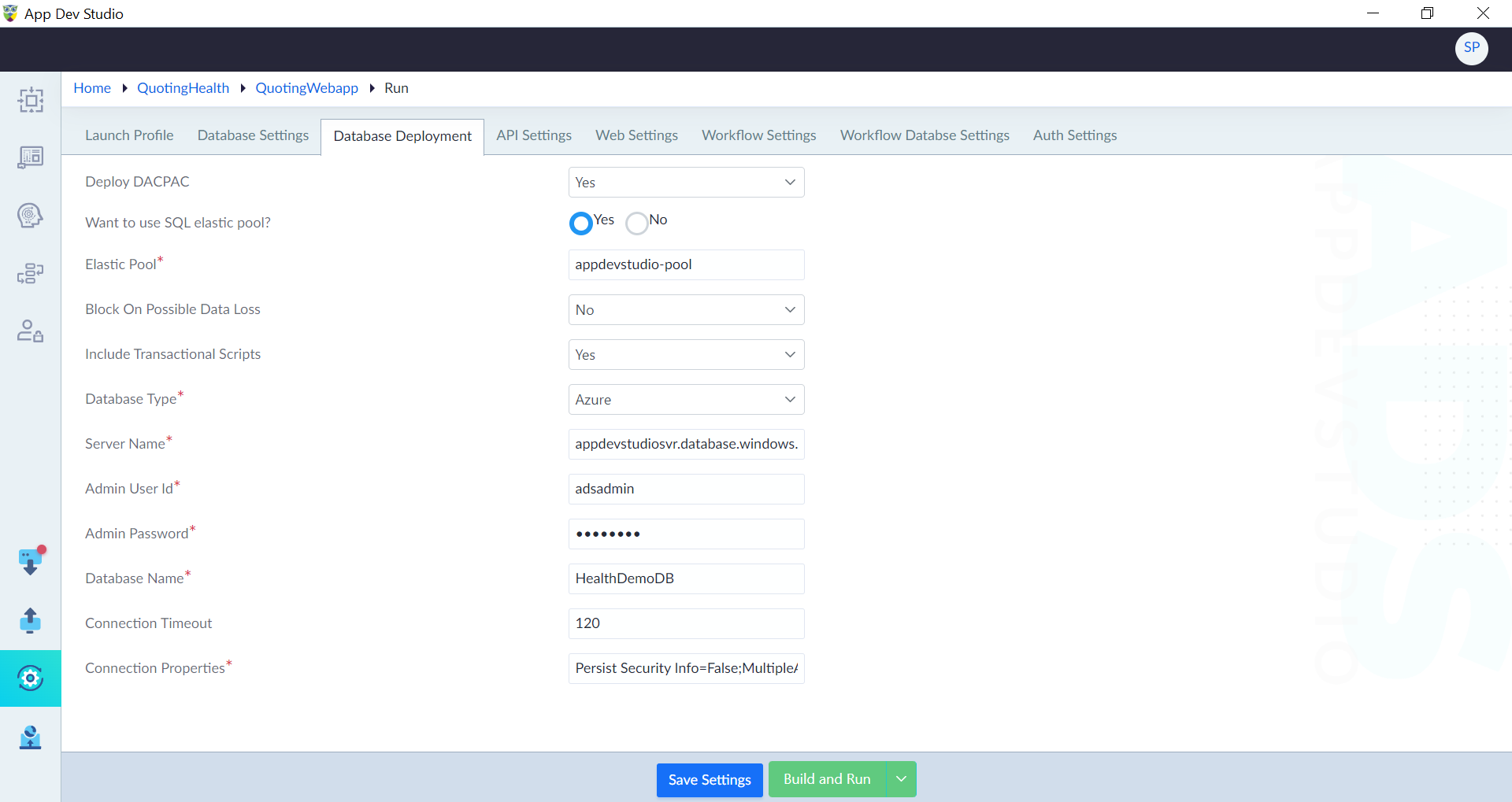
Deploying DACPAC includes creating a database or updating an existing database. It involves configuring various properties to ensure a smooth and secure deployment process. By defining the deployment options, connection details, and other relevant settings, a user can effectively deploy databases and manage the necessary changes in the database schema and objects.
Follow the below steps configure the database deployment settings:
- Click Database Deployment tab in Run.
- Configure the properties as required and click Save Settings.
| Property | Description | Comments |
|---|---|---|
| Deploy DACPAC | Select whether to deploy the DAPAC. Either Yes or No. | - |
| Want to use SQL elastic pool? | Select whether to use SQL elastic pool. Choose Yes or No and select the corresponding radio button. | This is available only if the user selects Yes to Deploy DACPAC option. |
| Elastic Pool* | Provide the elastic pool. | This is available only if the user selects Yes to Deploy Want to use SQL elastic pool? option. |
| Block On Possible Data Loss | Specify whether to block the deployment process if there is a possibility of data loss. Either Yes or No. | When set to "Yes", the deployment will be blocked to prevent potential data loss during the deployment. |
| Include Transactional Scripts | Specify whether to use transactional scripts during deployment. Either Yes or No. | This is available only if the user selects Yes to Deploy DACPAC option. |
| Database Type* | Specify the type of database. Either local or Azure. | - |
| Server Name* | Provide the name of the database server. | - |
| Admin User Id* | Provide the administrator username of the database server. | - |
| Admin Password* | Provide the password associated with the administrator User Id. | - |
| Database Name* | Provide the database name that is created for this application. | - |
| Connection Timeout | Provide the duration, in seconds, for which the application will attempt to establish a connection to the database before timing out. | - |
| Connection Properties* | Provide the additional settings or parameters required for establishing a successful connection to the database. | The additional settings or parameters can include options like SSL encryption, character encoding, pooling, and other database-specific configuration parameters. |
Note: An asterisk (*) denotes that the property is mandatory for configuring the database deployment.
API Settings
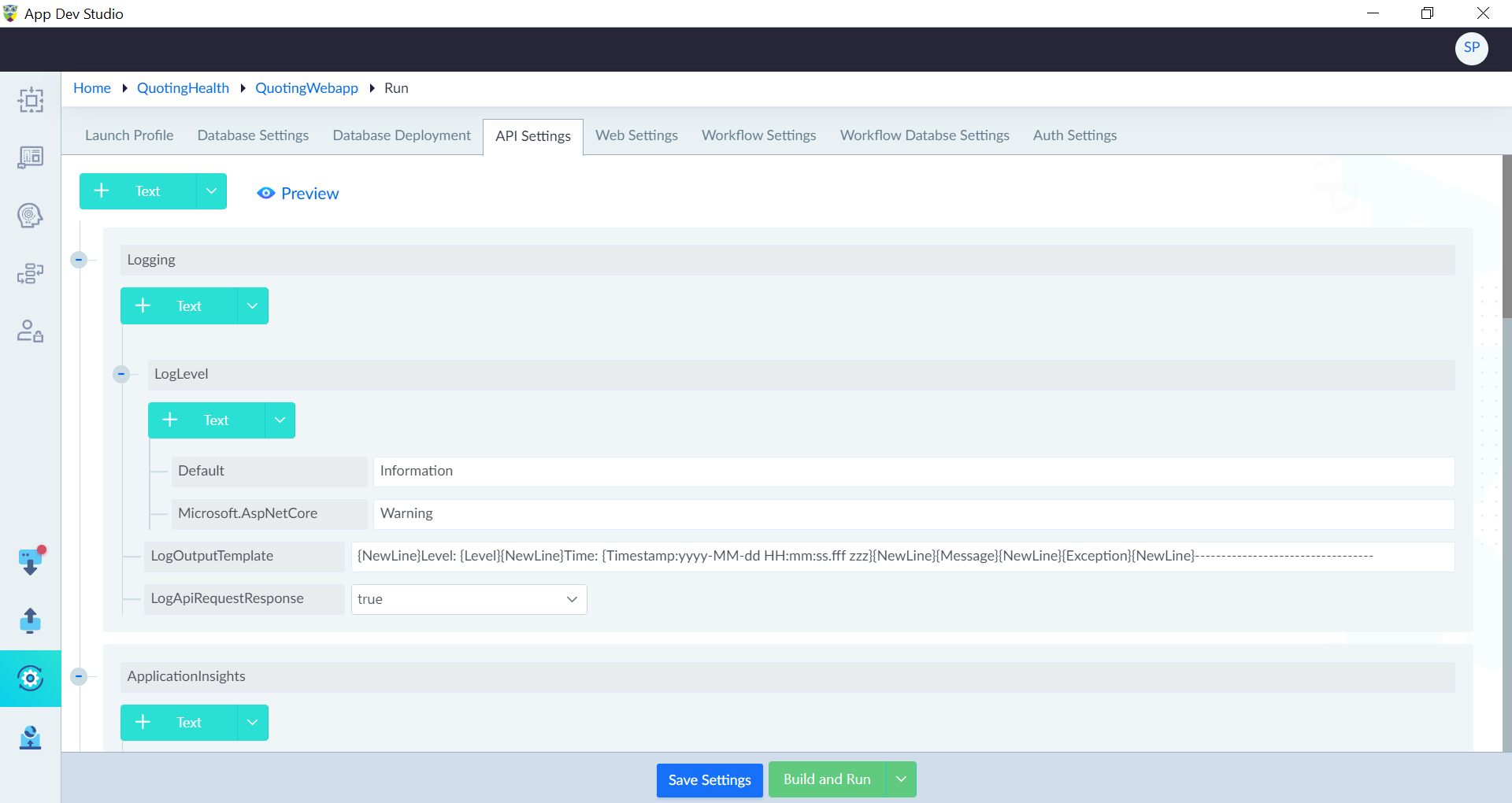
API Settings configuration is an essential aspect of running an application, allowing administrators and developers to customize and optimize various aspects of the API behavior. By configuring these settings, the API can be fine-tuned to meet specific requirements, enhance security, monitor performance, and ensure seamless integration with other services. Each property within the API Settings provides granular control over different aspects of the API functionality, allowing for a tailored and optimized runtime environment for the application.
Follow the below steps configure the API settings:
- Click API Settings tab in Run.
- Configure the default properties, add custom key value pairs as required and click Save Settings.
IMPORTANT To view the profile created in the Run section within the Deployment environment, users must navigate to the API Settings tab in the Run module, locate the drop-down menu for the "IsProduction" field. Select "true" from the drop-down menu to indicate that the deployment environment aligns with the production settings specified in the profile, confirming the choice by setting the IsProduction values.
| Property | Description | Comments |
|---|---|---|
| Logging | ||
| LogLevel | Provide the desired logging level for the API. It determines the severity of log messages that are recorded during the execution of the API. Default: The default logging level. For example, Information. Microsoft.AspNetCore: Specify the specific logging level for Microsoft.AspNetCore components. For example, Warning. | - |
| LogOutputTemplate | Provide the template for log output. | - |
| LogApiRequestResponse | Specify whether to log API request and response. Either true or false. | - |
| Application Insights | ||
| Connection String | Provide the connection string to connect to application insights. | - |
| Enable | Specify whether to enable application insights. Either true or false. | - |
| CorsPolicy | ||
| AllowedOrigins | Specify the allowed origins. | - |
| AllowedHeaders | Specify the allowed headers. | - |
| AllowedMethods | Specify the allowed methods. | - |
| HttpSecurityHeaders | ||
| Content-Security-Policy | Specify which sources of content are considered trusted. | - |
| X-Content-Type-Options | To mitigate MIME type sniffing attacks, which occur when a web browser attempts to interpret a response with an incorrect MIME type. | Setting this header to "nosniff" instructs the browser not to perform MIME type sniffing and to trust the server's declared content type. |
| X-Frame-Options | Specify to prevent clickjacking attacks. | - |
| X-XSS-Protection | Specify to protect against cross-site scripting (XSS) attacks by enabling the browser's built-in XSS protection mechanisms. | - |
| Holidays | ||
| RecurringHolidays | Provide the recurring holidays in mm/dd format. | - |
| OtherHolidays | Provide the other holidays in mm/dd format. | - |
| Weekends | Provide the weekends. | - |
| MemCacheSettings | ||
| CacheSizeLimit | Provide the cache size limit. | - |
| Workflow | ||
| ContainerName | Provide the name of the container. | - |
| Others | ||
| HashingAlgorithm | Provide the hashing algorithm for encryption. | - |
Web Settings
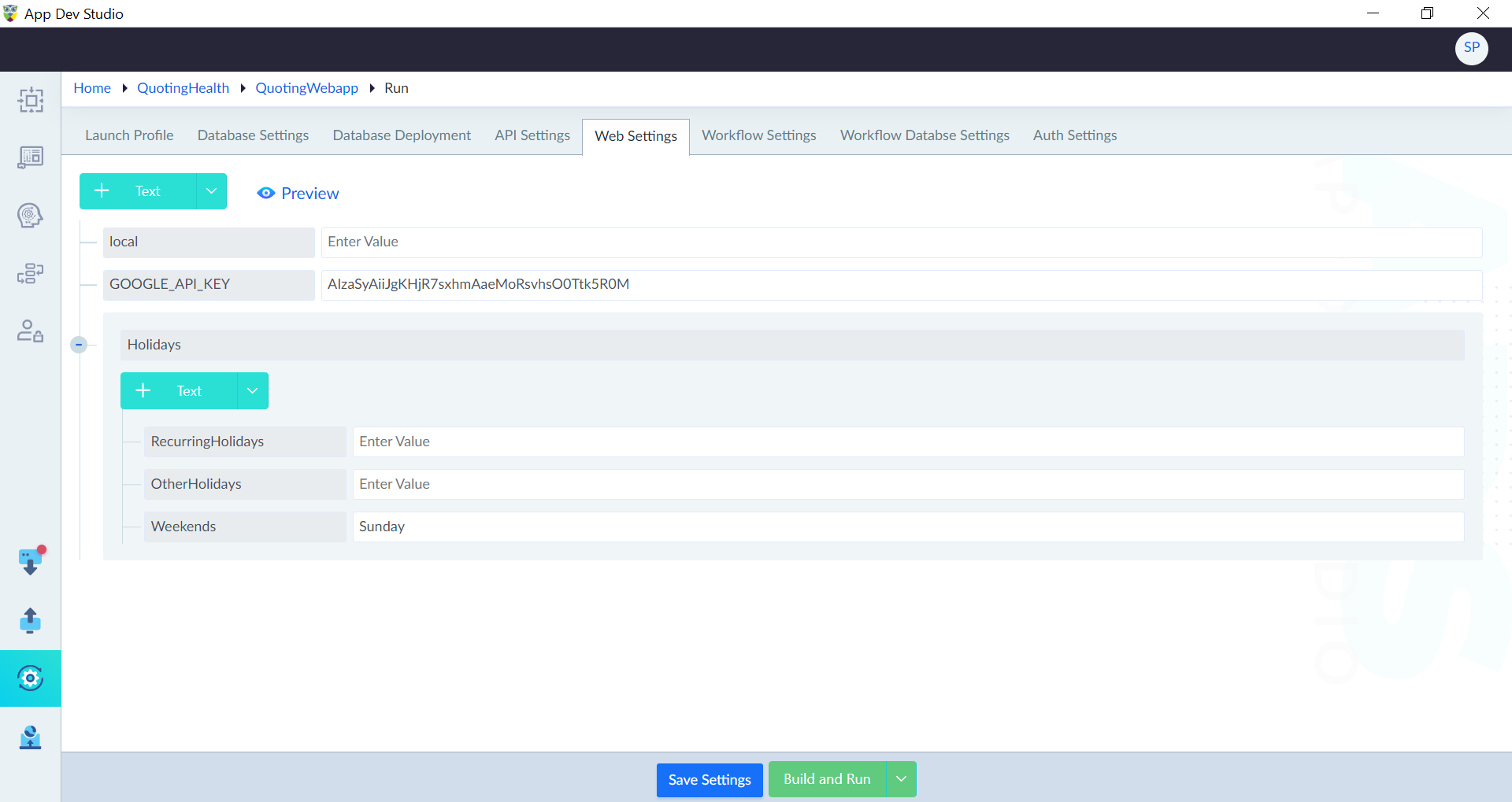
To configure Web settings, follow the steps as mentioned below:
- Click Web Settings tab in Run.
- Configure the default properties, add custom key value pairs as required and click Save Settings.
IMPORTANT To view the profile created in the Run section within the Deployment environment, users must navigate to the Web Settings tab in the Run module, locate Production field from the drop-down menu, and select True. This actions ensures that the deployment environment is configured to reflect the settings specified in the profile created during the Run phase.
| Property | Description | Comments |
|---|---|---|
| local | Provide the local web URL to access the application. | - |
| GOOGLE_API_KEY | Provide the google API key. | The API key is typically obtained from the Google Cloud Console and is necessary for accessing and utilizing Google services within the application. |
Workflow Settings
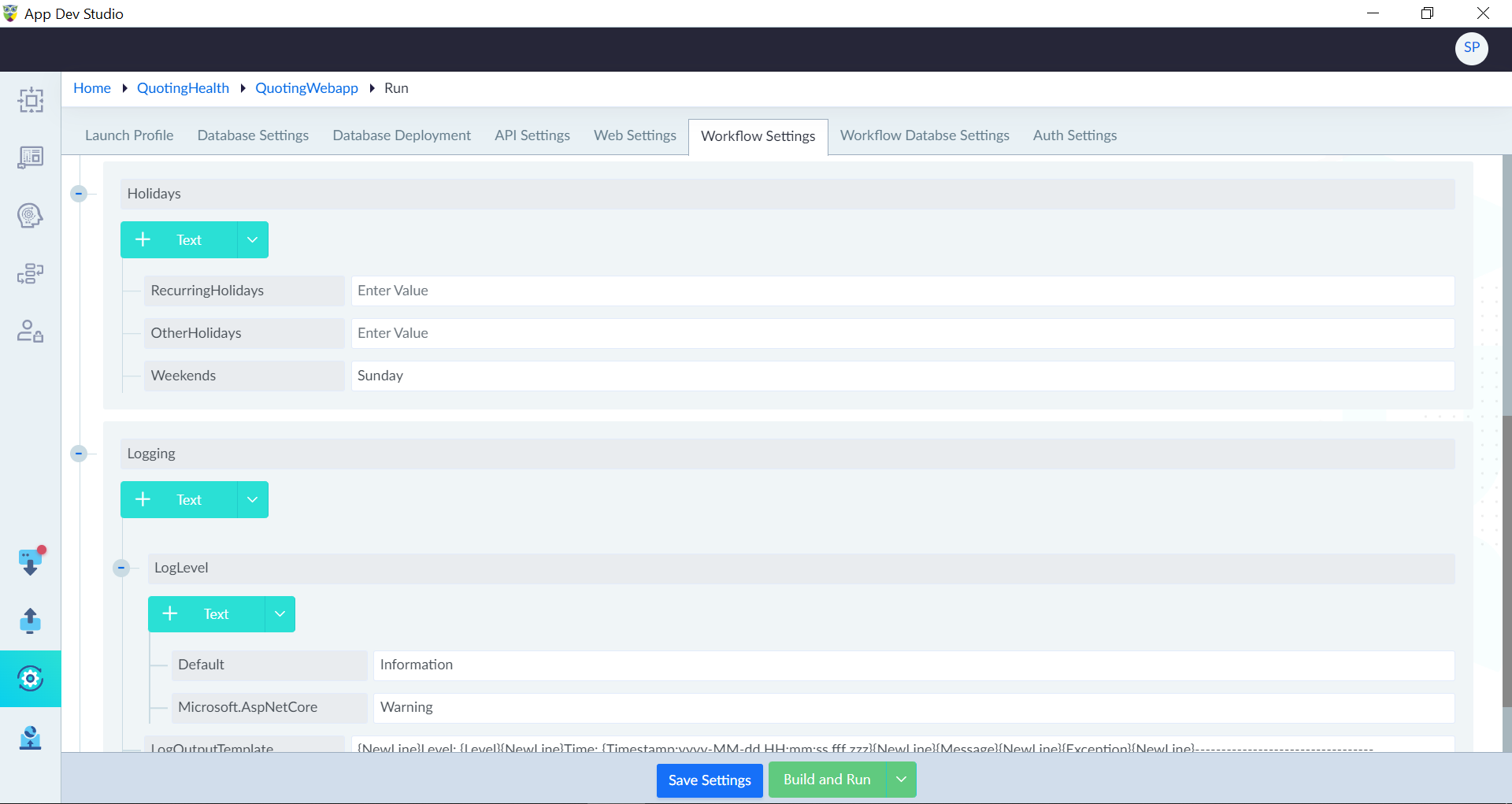
Follow the below steps configure the Workflow settings:
- Click Workflow Settings tab in Run.
- Configure the default properties, add custom key value pairs as required and click Save Settings.
| Property | Description | Comments |
|---|---|---|
| local | Provide the local web URL to access the application. | - |
| Holidays | ||
| RecurringHolidays | Provide the recurring holidays in mm/dd format. | - |
| OtherHolidays | Provide the other holidays in mm/dd format. | - |
| Weekends | Provide the weekends. | - |
| Logging | ||
| LogLevel | Provide the desired logging level for the API. It determines the severity of log messages that are recorded during the execution of the API. Default: The default logging level. For example, Information. Microsoft.AspNetCore: Specify the specific logging level for Microsoft.AspNetCore components. For example, Warning. | - |
| LogOutputTemplate | Provide the template for log output. | - |
| LogApiRequestResponse | Specify whether to log API request and response. Either true or false. | - |
Workflow Database Settings
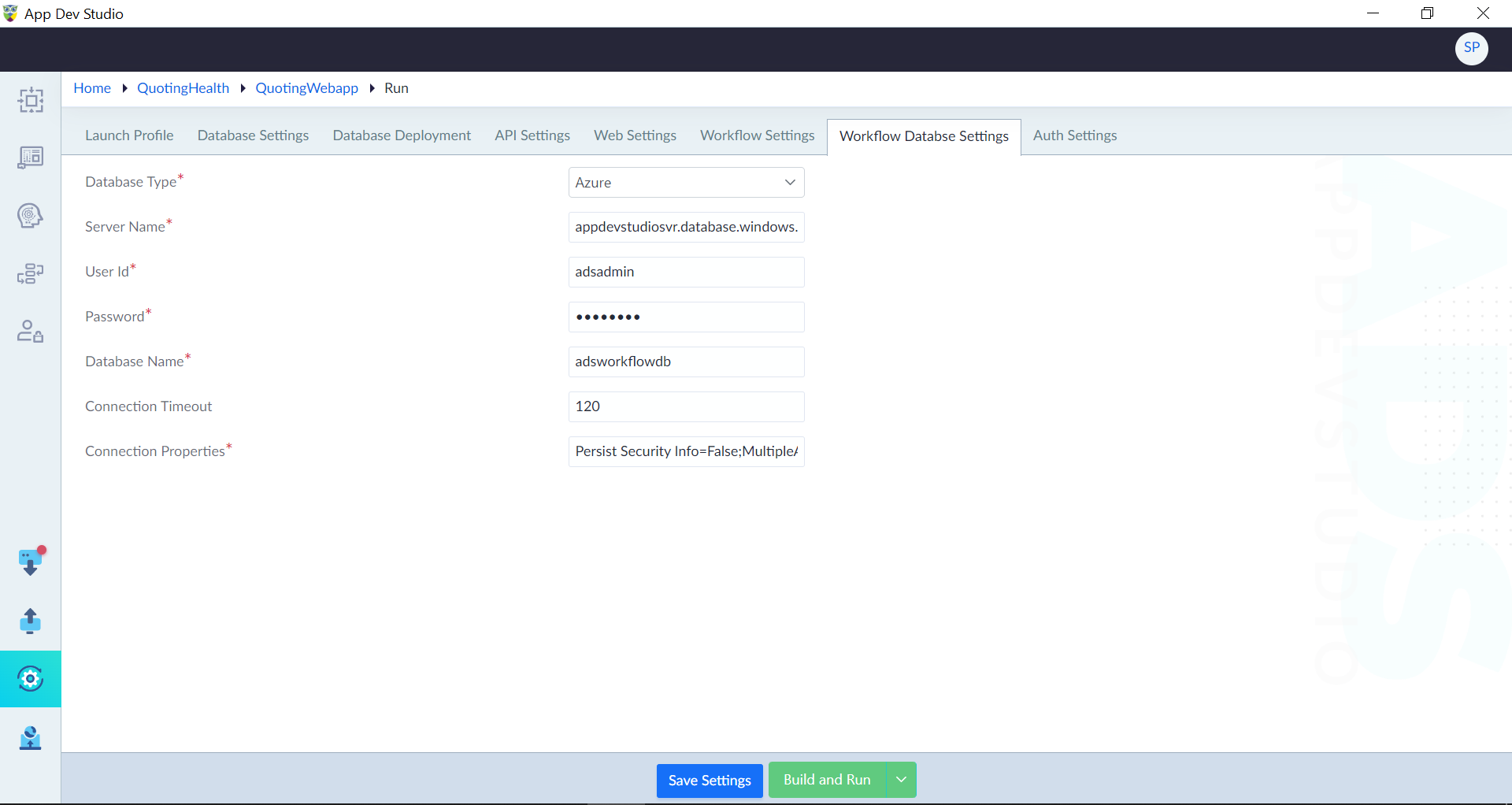
Follow the below steps configure the Workflow Database Settings:
- Click Workflow Database Settings tab in Run.
- Configure the properties as required and click Save Settings.
| Property | Description | Comments |
|---|---|---|
| Database Type* | Specify the type of database. Either local or Azure. | - |
| Server Name* | Provide the name of the database server. | - |
| Authentication* | Specify the type of authentication. Either SQL Authentication or Windows Authentication | This option is visible only when database type is set as Local. |
| User Id* | Provide the username of the database server. | This option is visible only when database type is set as Azure (or) Local and its authentication is set as SQL Authentication. |
| Password* | Provide the password associated with the User Id. | This option is visible only when database type is set as Azure (or) Local and its authentication is set as SQL Authentication. |
| Database Name* | Provide the database name that is created for this application. | - |
| Connection Timeout | Provide the duration, in seconds, for which the application will attempt to establish a connection to the database before timing out. | - |
| Connection Properties* | Provide the additional settings or parameters required for establishing a successful connection to the database. | The additional settings or parameters can include options like SSL encryption, character encoding, pooling, and other database-specific configuration parameters. |
Note: An asterisk (*) denotes that the property is mandatory for configuring the workflow database deployment.
Auth Settings
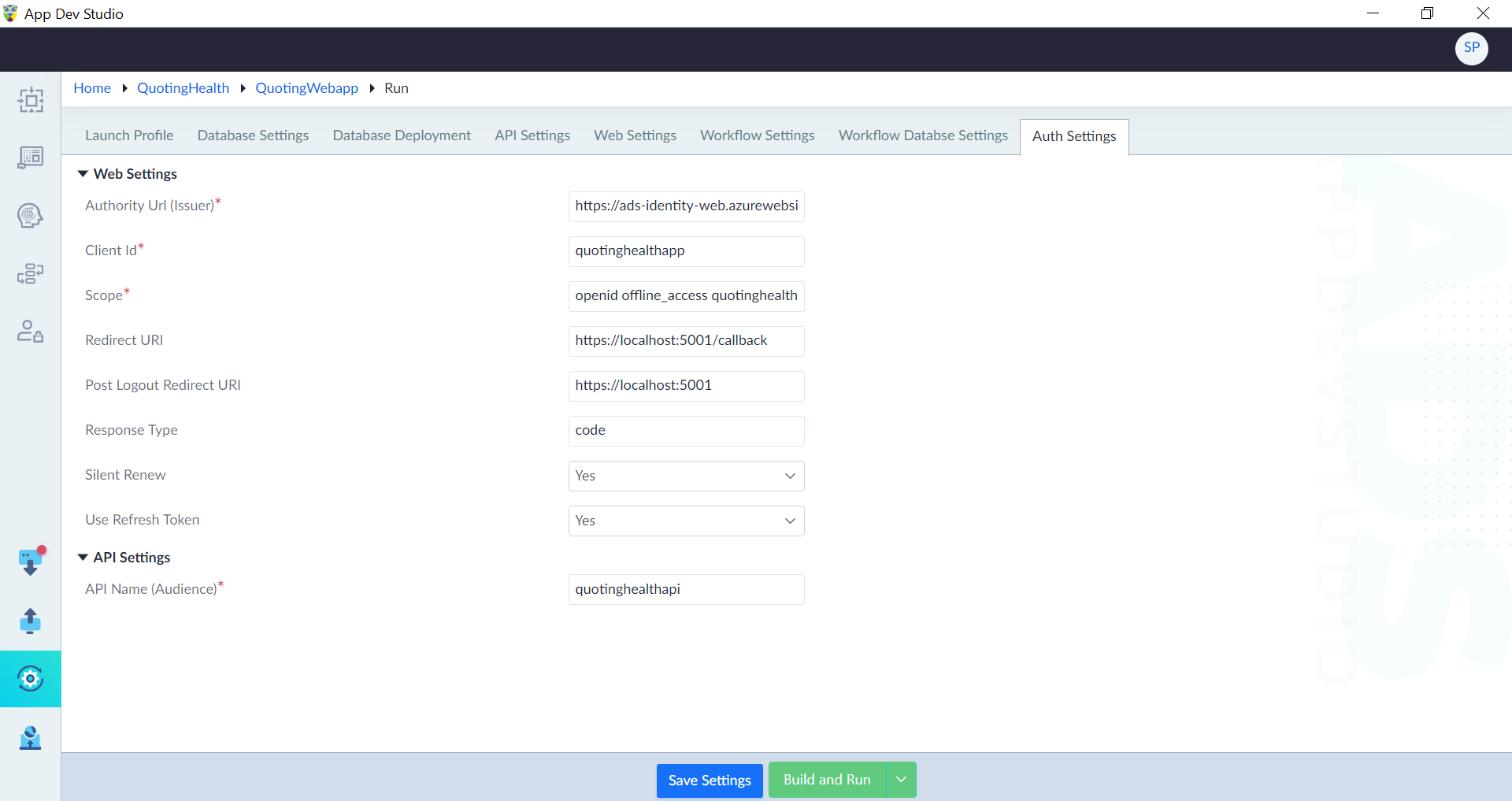
Auth settings help in configuring the authentication mechanism for an application. These settings are responsible for establishing secure communication between the application and the authentication provider. Within the auth settings tab, various properties must be defined to ensure proper authentication flow and authorization. Follow the below steps configure the Auth settings:
- Click Auth Settings tab in Run.
- Configure the properties as required and click Save Settings.
| Property | Description | Comments |
|---|---|---|
| Web Settings | ||
| Authority Url (Issuer)* | Provide the URL of the authentication provider or issuer, which is responsible for validating user credentials and issuing access tokens. | - |
| Client Id* | Provide the unique identifier assigned to the application by the authentication provider, ensuring that the requests are coming from a trusted client. | - |
| Scope* | Provide the specific permissions or resources that the application requests access to from the authentication provider. | - |
| Redirect URI | Provide the callback URL where the user is redirected after successful authentication. | |
| Post Logout Redirect URI | Provide the logout redirect URI. | |
| Response Type | Provide the type of response expected from the authentication provider during the authentication process. | |
| Silent Renew | Specify whether to renew the authorization token recieved. Either Yes or No. | |
| Use Refresh Token | Specify whether to use the refresh token. Either Yes or No. | |
| API Settings | ||
| API Name (Audience)* | Provide the name or identifier of the API or resource that the application intends to access or interact with, ensuring proper authorization and access control. | - |
Build and Run
Once the required fields in all tabs are configured, the Build and Run button will become active. Click Build and Run to build and execute the application. A new window opens that shows the web app and workflow logs with the following options:
- Clear - Clear the run window console
- Refresh - Useful to re-generate UI components and test without terminating the application (only available in Web App tab)
- Run - Run the app without regenerating
- Build and Run - Build and run the application
- Stop - Stop the application
- Move Down - Scroll to the end of the window
- Move Up - Scroll to the top of the window