Tree View
The TreeView widget is used to represent hierarchical data structures visually. It allows users to expand and collapse nodes, making it ideal for displaying nested relationships such as file directories, category structures, organizational hierarchies, and more.
Key Features
- Dynamically renders hierarchical data structures.
- Supports single and multi-selection of tree nodes.
- Allows custom icons and labels for each node.
- Provides event bindings for node selection.
How to Use
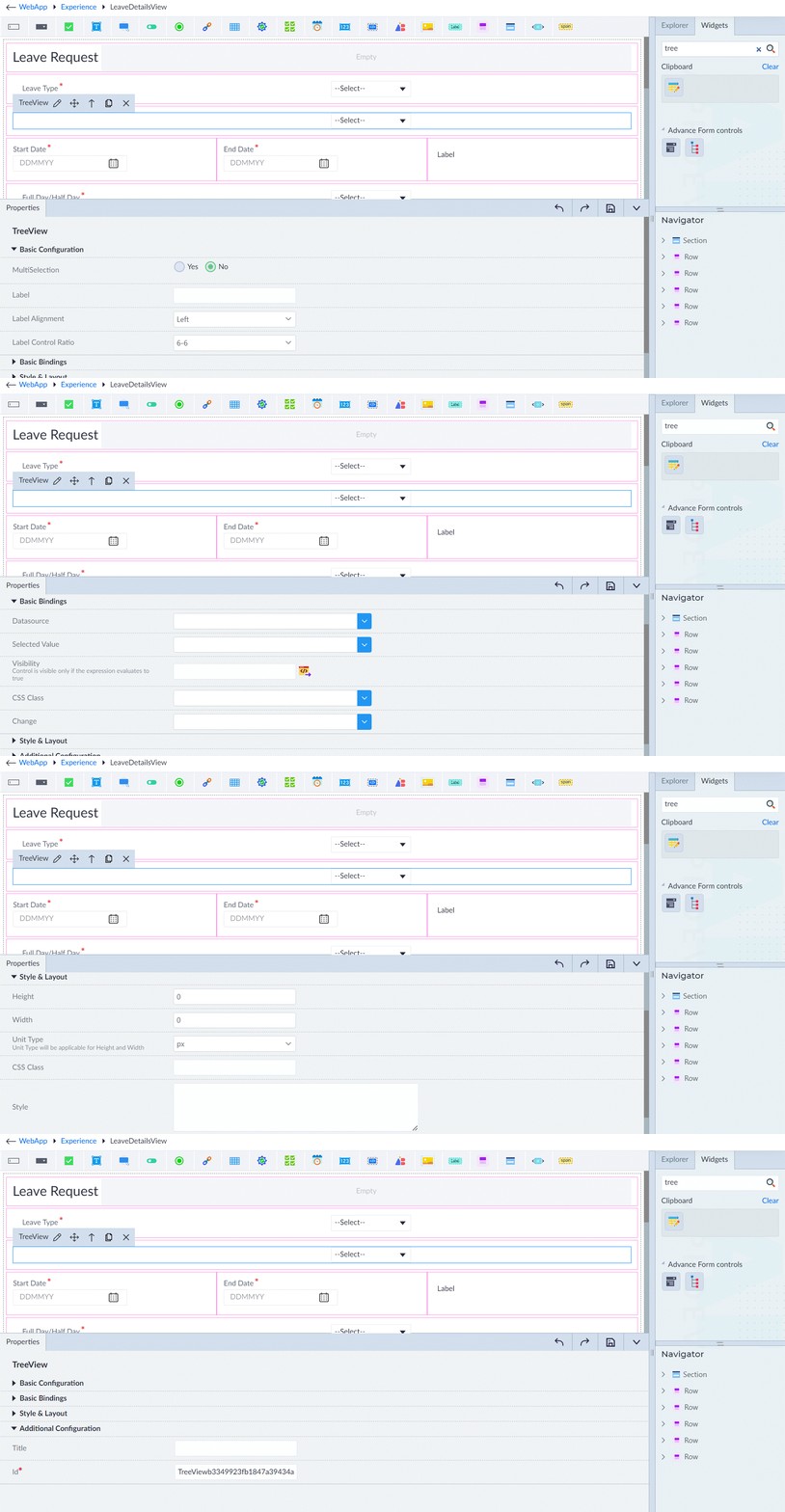
- Drag Tree view widget from the widget explorer and drop it on the designer area.
- Select the selection type (Multi / Single).
- Provide the datasource.
- On selection / deselection, listen to the change event emitter and perform the custom logic based on the selected/deselected node.
Sample Datasource — Displaying a Company Hierarchy:
[
  {
    "label": "Head Office",
    "children": [
      {
        "label": "HR Department",
        "children": [
          { "label": "Recruitment Team" },
          { "label": "Employee Relations" }
        ]
      }
    ]
  },
  {
    "label": "Engineering",
    "children": [
      { "label": "Frontend Team" },
      { "label": "Backend Team" }
    ]
  }
]
Following are the properties to be configured for this widget:
| Property | Description | Comments |
|---|---|---|
| Basic Configuration | ||
| MultiSelection | Specify whether multiple selections are allowed. Select either Yes or No. | Single selection: only one node can be selected at a time. Multi-selection: multiple nodes can be selected at once, stored in selectedValue binding. |
| Label | Provide the label for the tree view. | - |
| Label Alignment | Specify the label alignment. | Left, Right, Top. |
| Label Control Ratio | Select the column ratio for the label. | - |
| Basic Bindings | ||
| Datasource | Select the data source from the dropdown. | An array of objects where each object represents a node. Each node can have: label – text displayed, data – optional extra data, children – array of child nodes, expanded – boolean to expand initially (optional), icon – custom icons (optional). |
| Selected Value | Select the value that needs to be selected by default from drop-down. | Single Selection: the corresponding node object is stored as a single entity. Multi-Selection: an array of selected node objects is stored. |
| Visibility | Provide the expression using the expression builder. The control is visible only if the evaluated expression is true. | - |
| CSS Class | Select the CSS class. | - |
| Change | Select the event that needs to happen when an item is selected from the tree view. | The change event is triggered when a node is selected. It provides the selected node object as an event parameter. |
| Style & Layout | ||
| Height | Provide an integer value. | - |
| Width | Provide an integer value. | - |
| Unit Type | Select the unit type: px, rem, %. | Applicable for Height and Width. |
| CSS Class | Provide the CSS class binding using an expression builder. | Applied at the tree root level. |
| Style | Provide the CSS rule sets for customizing the tree view. | Applied at the tree root level. |
| Additional Configuration | ||
| Title | Provide the title. | - |
| Id* | Provide a unique identifier. | An id is created by default. User can change the unique id as required. |
| Comment | Select from Yes or No options. | Default is No. Select Yes to comment the Treeview. |
Note: An asterisk (*) denotes that the property is mandatory for adding a Tree View.
Style and layout group, Style bindings, ARIA attributes bindings, and Attribute configuration need to be referred and added from the common configuration groups document.
The "Configuration saved successfully" message displays upon successfully adding the widget.