Deployment Process
The deployment in OwlGen facilitates the process of taking a developed application and making it available for actual usage or distribution. It provides a set of tools and features to configure, package, and deploy your applications to various target environments, ensuring smooth and efficient deployment.
It streamlines the complex task of transitioning an application from the development phase to a production or live environment. It encompasses a range of functionalities, including configuring deployment settings, bundling application files, managing dependencies, and automating deployment workflows.
From the left menu, user can click on Deployment to access the configuration tabs. Follow the below sections to configure the settings for building and executing an application.
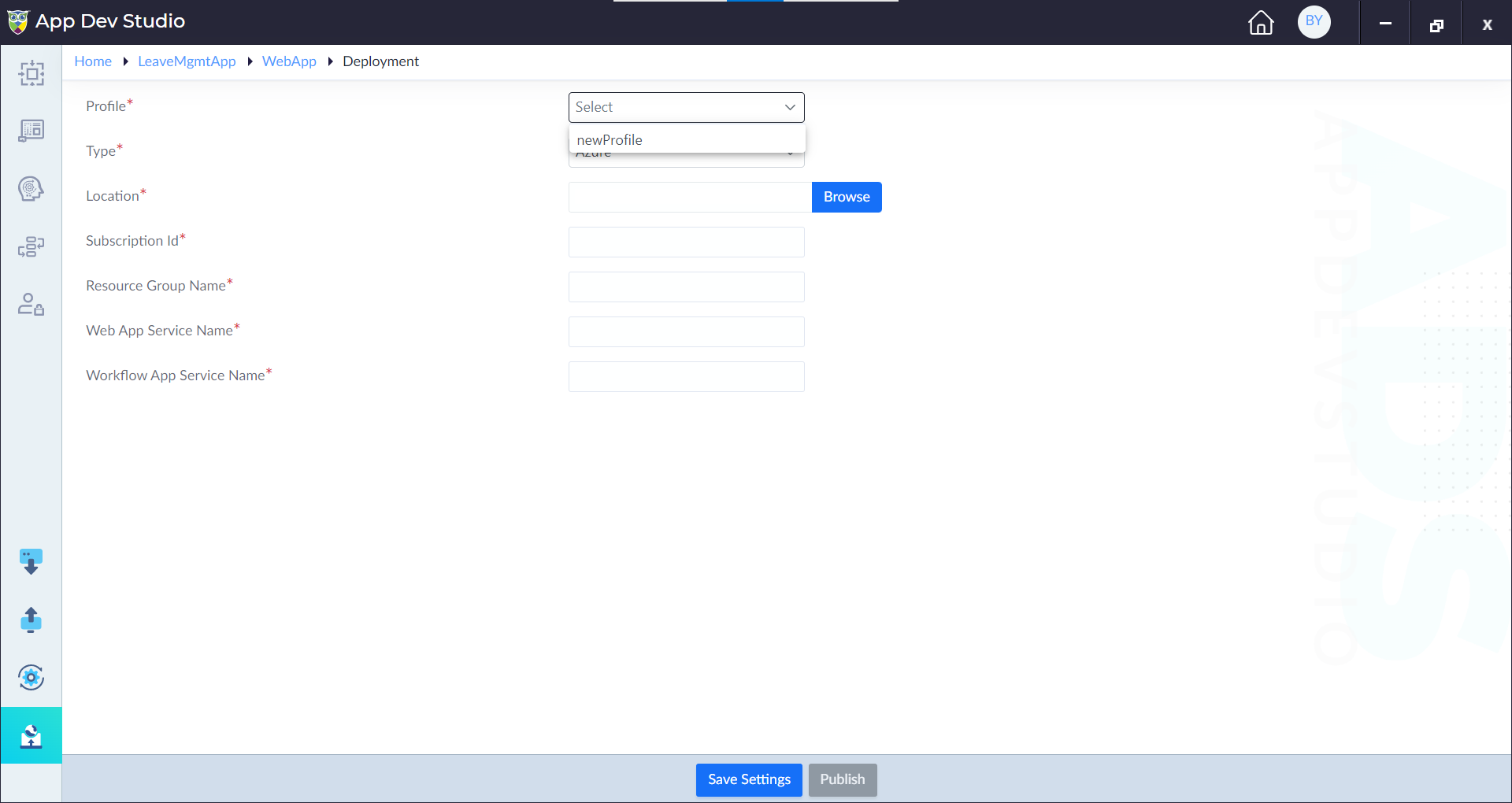
Choose and Publish Profile
The Publish Profile allows the user to manage and configure deployment settings and options when publishing an application.
The purpose of configuring properties in the Publish Profile tab is to streamline the process of deploying an application by providing a centralized location to define deployment parameters. It offers a convenient way to specify the target environment, deployment methods, and associated configurations.
Follow the below steps configure the Publish Profile:
- Click Publish Profile tab in Deployment.
- Configure the properties as required and click Save Settings.
| Property | Description | Comments |
|---|---|---|
| Profile | Choose the Profile created in the Run module. | - |
| Type* | Specify the type of deployment. Either local or Azure. | - |
| Location* | Provide the specific destination where the application will be deployed. It could either be the URL, or the path of the Azure service or the folder location based on the chosen deployment type (Azure or Folder). | - |
| Subscription Id* | Provide the subscription ID. | This option is visible only when the type is set as Azure. |
| Resource Group Name* | Provide the resource group name. | This option is visible only when the type is set as Azure. |
| Web App Service Name* | Provide the web app service name. | This option is visible only when the type is set as Azure. |
| Workflow App Service Name* | Provide the workflow app service name. | This option is visible only when the type is set as Azure. |
Note: An asterisk (*) denotes that the property is mandatory for configuring the Publish Profile.
Database Settings
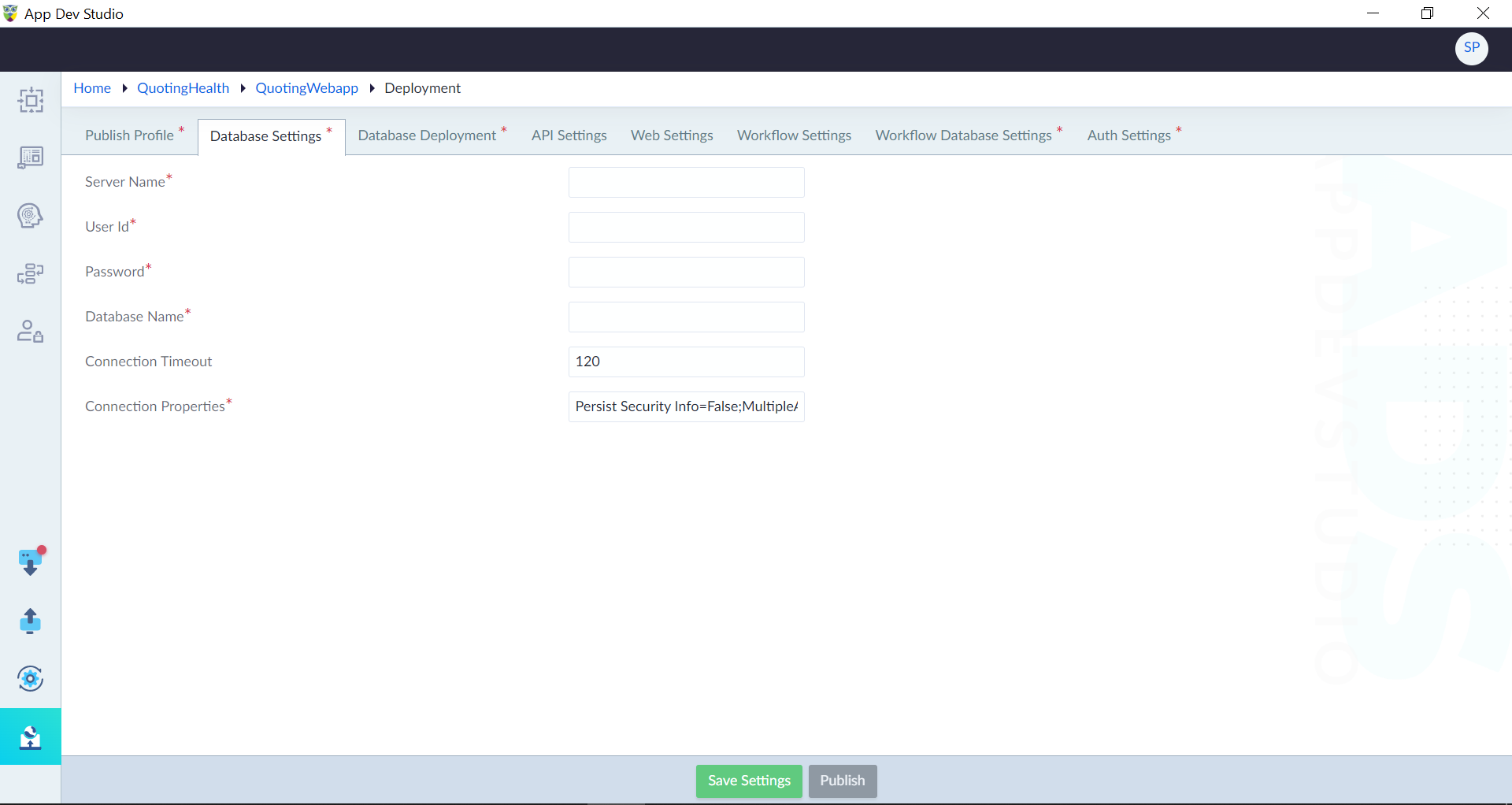
Database settings enables an application to interact with a specific database. It ensures that the application can establish a reliable and secure connection to the database, authenticate users, and effectively manage data operations.
Follow the below steps configure the database settings:
- Click Database Settings tab in Deployment.
- Configure the properties as required and click Save Settings.
| Property | Description | Comments |
|---|---|---|
| Server Name* | Provide the name of the database server. | - |
| User Id* | Provide the username of the database server. | - |
| Password* | Provide the password associated with the User Id. | - |
| Database Name* | Provide the database name that is created for this application. | - |
| Connection Timeout | Provide the duration, in seconds, for which the application will attempt to establish a connection to the database before timing out. | - |
| Connection Properties* | Provide the additional settings or parameters required for establishing a successful connection to the database. | The additional settings or parameters can include options like SSL encryption, character encoding, pooling, and other database-specific configuration parameters. |
Note: An asterisk (*) denotes that the property is mandatory for configuring the database settings.
Database Deployment
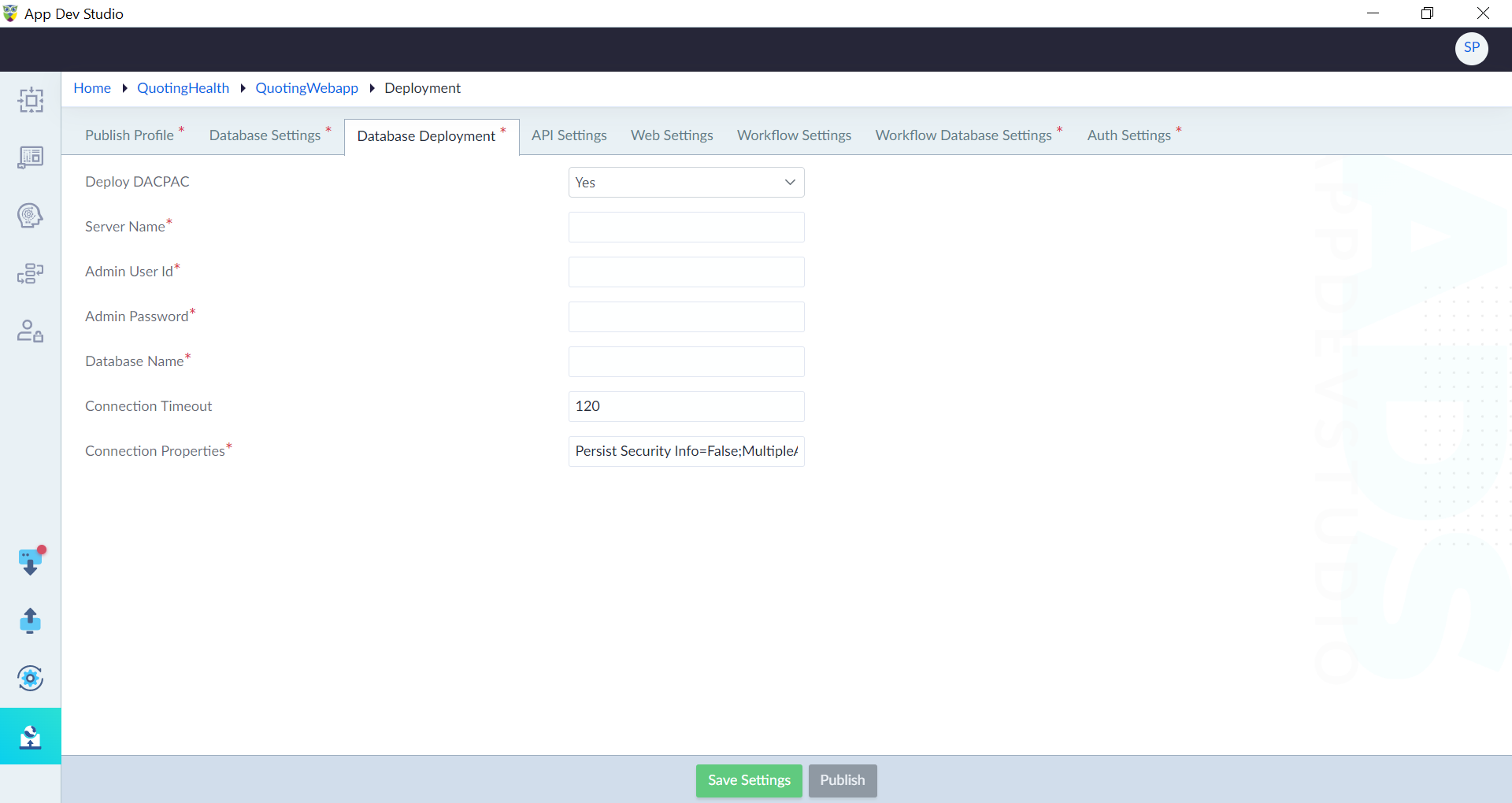
Deploying DACPAC includes creating a database or updating an existing database. It involves configuring various properties to ensure a smooth and secure deployment process. By defining the deployment options, connection details, and other relevant settings, a user can effectively deploy databases and manage the necessary changes in the database schema and objects.
Follow the below steps configure the database deployment settings:
- Click Database Deployment tab in Deployment.
- Configure the properties as required and click Save Settings.
| Property | Description | Comments |
|---|---|---|
| Deploy DACPAC | Select whether to deploy the DAPAC. Either Yes or No. | - |
| Server Name* | Provide the name of the database server. | This option is visible only when Deploy DACPAC is set to Yes. |
| Admin User Id* | Provide the administrator username of the database server. | This option is visible only when Deploy DACPAC is set to Yes. |
| Admin Password* | Provide the password associated with the administrator User Id. | This option is visible only when Deploy DACPAC is set to Yes. |
| Database Name* | Provide the database name that is created for this application. | This option is visible only when Deploy DACPAC is set to Yes. |
| Connection Timeout | Provide the duration, in seconds, for which the application will attempt to establish a connection to the database before timing out. | This option is visible only when Deploy DACPAC is set to Yes. |
| Connection Properties* | Provide the additional settings or parameters required for establishing a successful connection to the database. | This option is visible only when Deploy DACPAC is set to Yes. The additional settings or parameters can include options like SSL encryption, character encoding, pooling, and other database-specific configuration parameters. |
Note: An asterisk (*) denotes that the property is mandatory for configuring the database deployment.
API Settings
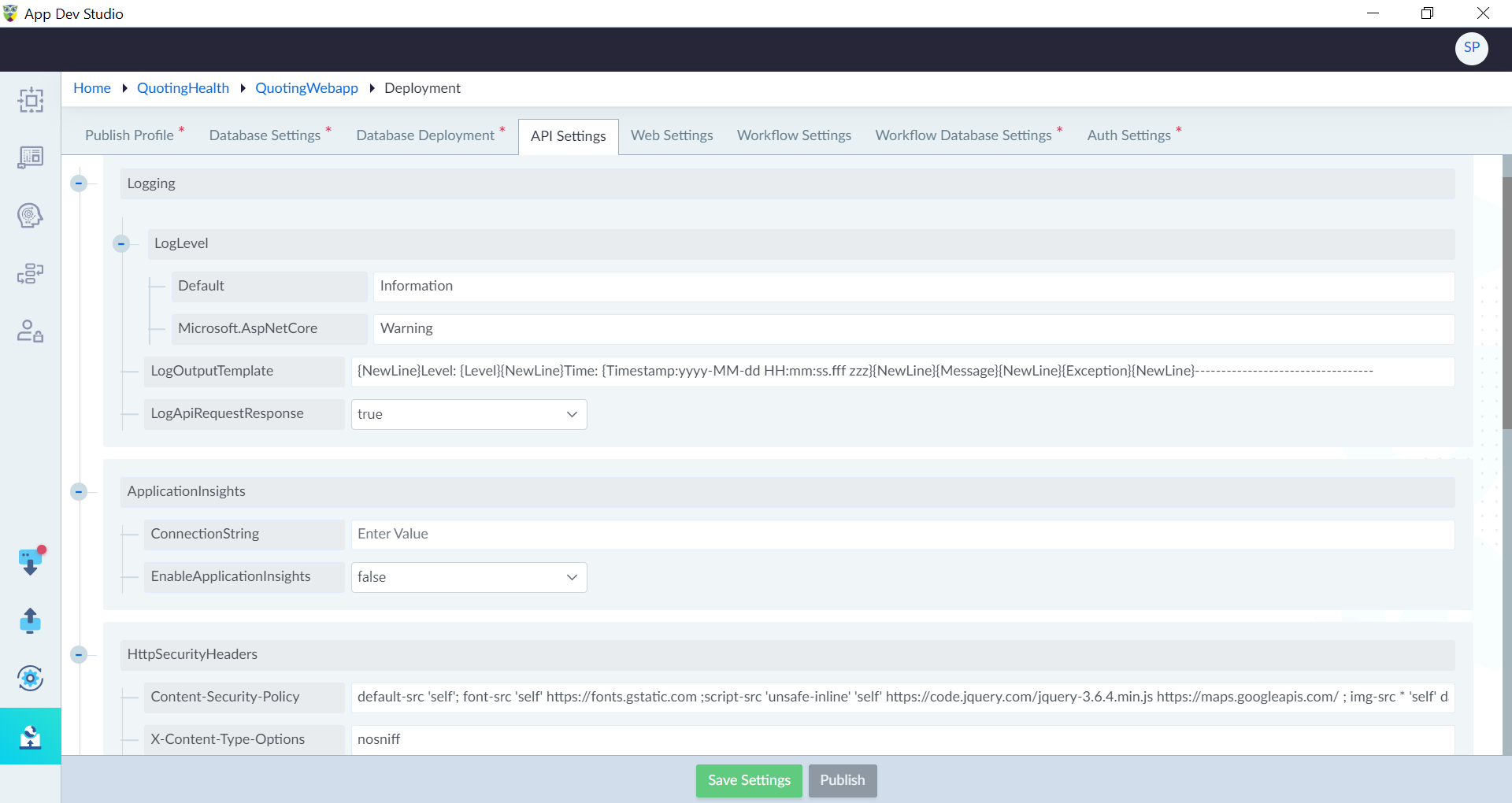
API Settings configuration is an essential aspect of running an application, allowing administrators and developers to customize and optimize various aspects of the API behavior. By configuring these settings, the API can be fine-tuned to meet specific requirements, enhance security, monitor performance, and ensure seamless integration with other services. Each property within the API Settings provides granular control over different aspects of the API functionality, allowing for a tailored and optimized runtime environment for the application.
Follow the below steps configure the API settings:
- Click API Settings tab in Deployment.
- Configure the default properties and edit the custom key-value pairs as required and click Save Settings.
Note: User cannot add any custom key-value pairs. The key-value pairs defined in Run module will be automatically displayed and user can only edit the values of that particular key.
| Property | Description | Comments |
|---|---|---|
| Logging | ||
| LogLevel | Provide the desired logging level for the API. It determines the severity of log messages that are recorded during the execution of the API. Default: The default logging level. For example, Information. Microsoft.AspNetCore: Specify the specific logging level for Microsoft.AspNetCore components. For example, Warning. | - |
| LogOutputTemplate | Provide the template for log output. | - |
| LogApiRequestResponse | Specify whether to log API request and response. Either true or false. | - |
| Application Insights | ||
| Connection String | Provide the connection string to connect to application insights. | - |
| Enable | Specify whether to enable application insights. Either true or false. | - |
| CorsPolicy | ||
| AllowedOrigins | Specify the allowed origins. | - |
| AllowedHeaders | Specify the allowed headers. | - |
| AllowedMethods | Specify the allowed methods. | - |
| HttpSecurityHeaders | ||
| Content-Security-Policy | Specify which sources of content are considered trusted. | - |
| X-Content-Type-Options | To mitigate MIME type sniffing attacks, which occur when a web browser attempts to interpret a response with an incorrect MIME type. | Setting this header to "nosniff" instructs the browser not to perform MIME type sniffing and to trust the server's declared content type. |
| X-Frame-Options | Specify to prevent clickjacking attacks. | - |
| X-XSS-Protection | Specify to protect against cross-site scripting (XSS) attacks by enabling the browser's built-in XSS protection mechanisms. | - |
| Holidays | ||
| RecurringHolidays | Provide the recurring holidays in mm/dd format. | - |
| OtherHolidays | Provide the other holidays in mm/dd format. | - |
| Weekends | Provide the weekends. | - |
| MemCacheSettings | ||
| CacheSizeLimit | Provide the cache size limit. | - |
| Workflow | ||
| ContainerName | Provide the name of the container. | - |
| Others | ||
| HashingAlgorithm | Provide the hashing algorithm for encryption. | - |
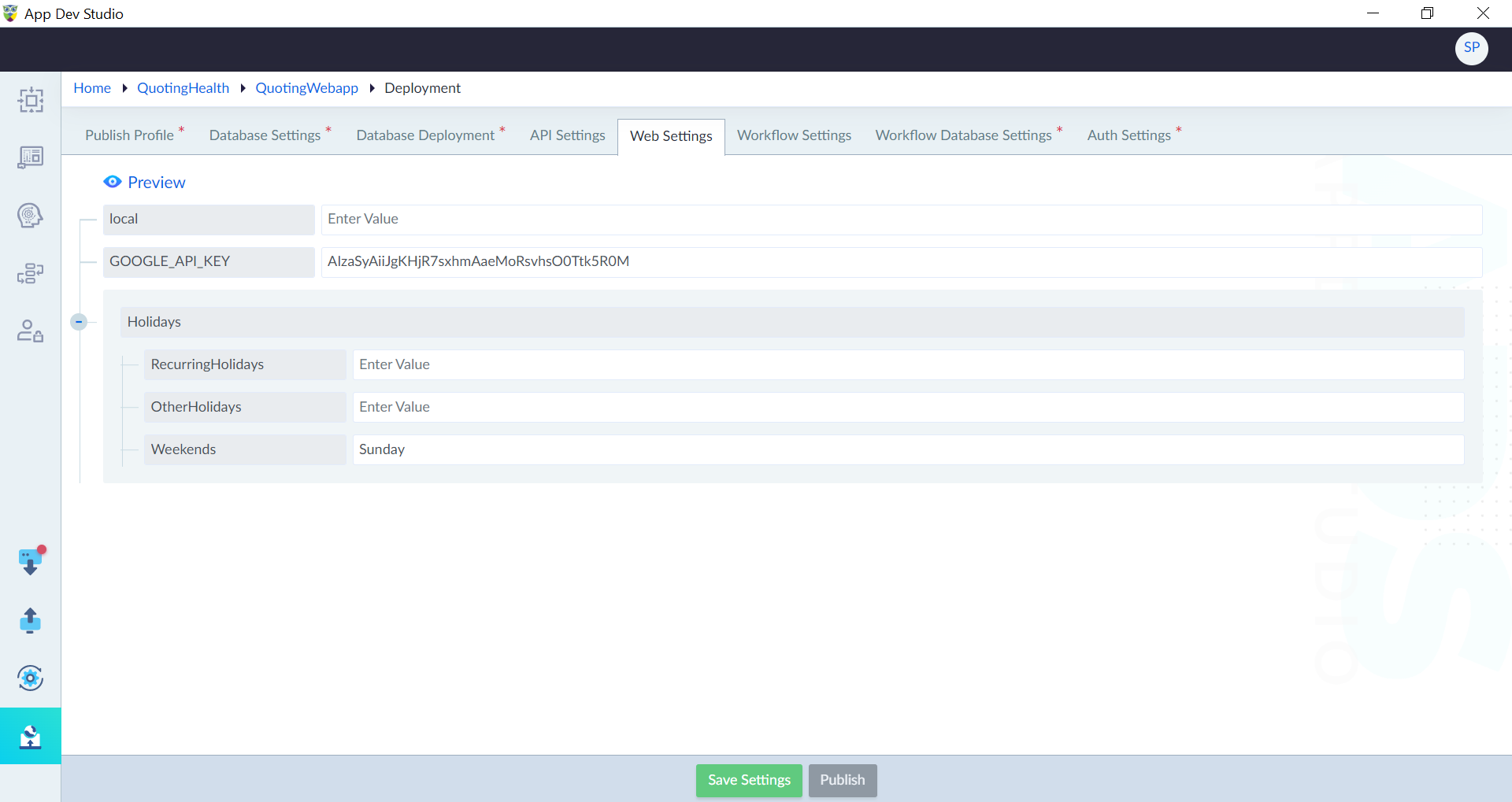
Web Settings
Follow the below steps configure the Web settings:
- Click Web Settings tab in Deployment.
- Configure the default properties and edit the custom key value pairs as required and click Save Settings.
Note: User cannot add any custom key-value pairs. The key-value pairs defined in Run module will be automatically displayed and user can only edit the values of that particular key.
| Property | Description | Comments |
|---|---|---|
| local | Provide the local web URL to access the application. | - |
| GOOGLE_API_KEY | Provide the google API key. | The API key is typically obtained from the Google Cloud Console and is necessary for accessing and utilizing Google services within the application. |
Workflow Settings
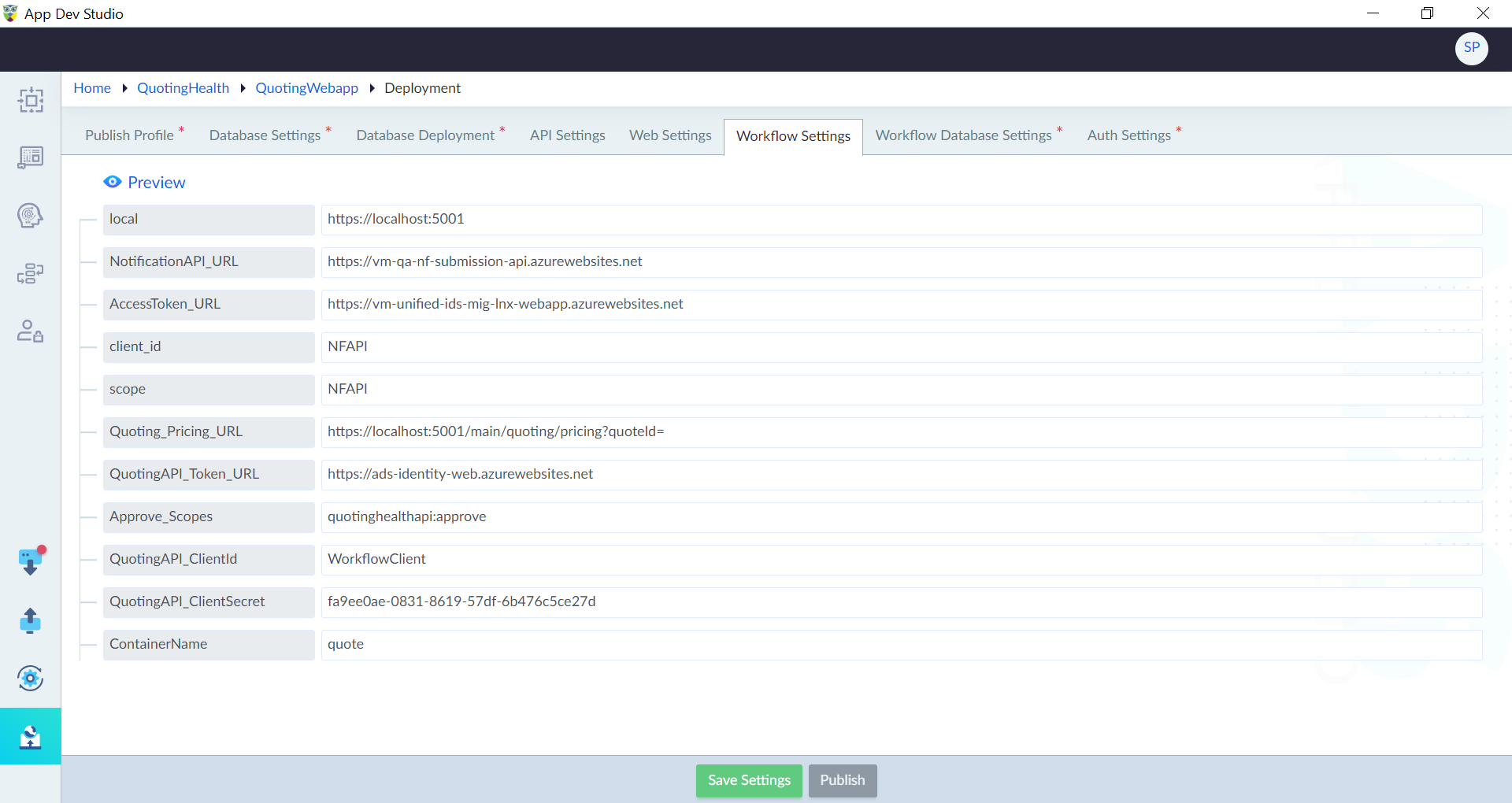
Follow the below steps configure the Workflow settings:
- Click Workflow Settings tab in Deployment.
- Configure the default properties and edit the custom key value pairs as required and click Save Settings.
Note: User cannot add any custom key-value pairs. The key-value pairs defined in Run module will be automatically displayed and user can only edit the values of that particular key.
| Property | Description | Comments |
|---|---|---|
| local | Provide the local web URL to access the application. | - |
| Holidays | ||
| RecurringHolidays | Provide the recurring holidays in mm/dd format. | - |
| OtherHolidays | Provide the other holidays in mm/dd format. | - |
| Weekends | Provide the weekends. | - |
| Logging | ||
| LogLevel | Provide the desired logging level for the API. It determines the severity of log messages that are recorded during the execution of the API. Default: The default logging level. For example, Information. Microsoft.AspNetCore: Specify the specific logging level for Microsoft.AspNetCore components. For example, Warning. | - |
| LogOutputTemplate | Provide the template for log output. | - |
| LogApiRequestResponse | Specify whether to log API request and response. Either true or false. | - |
Workflow Database Settings
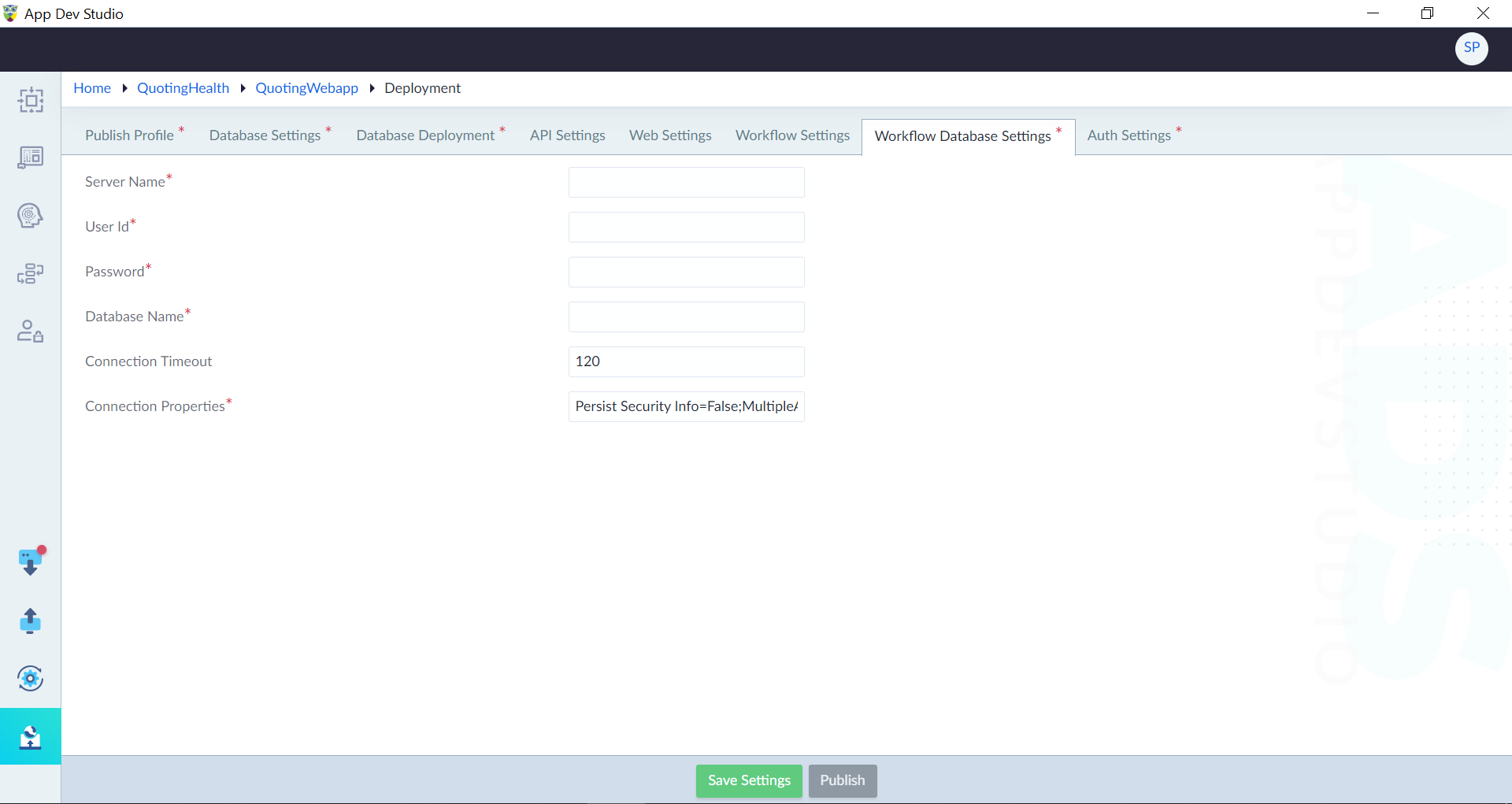
Follow the below steps configure the Workflow Database Settings:
- Click Workflow Database Settings tab in Deployment.
- Configure the properties as required and click Save Settings.
| Property | Description | Comments |
|---|---|---|
| Server Name* | Provide the name of the database server. | - |
| Admin User Id* | Provide the administrator username of the database server. | - |
| Admin Password* | Provide the password associated with the administrator User Id. | - |
| Database Name* | Provide the database name that is created for this application. | - |
| Connection Timeout | Provide the duration, in seconds, for which the application will attempt to establish a connection to the database before timing out. | - |
| Connection Properties* | Provide the additional settings or parameters required for establishing a successful connection to the database. | The additional settings or parameters can include options like SSL encryption, character encoding, pooling, and other database-specific configuration parameters. |
Note: An asterisk (*) denotes that the property is mandatory for configuring the workflow database deployment.
Auth Settings
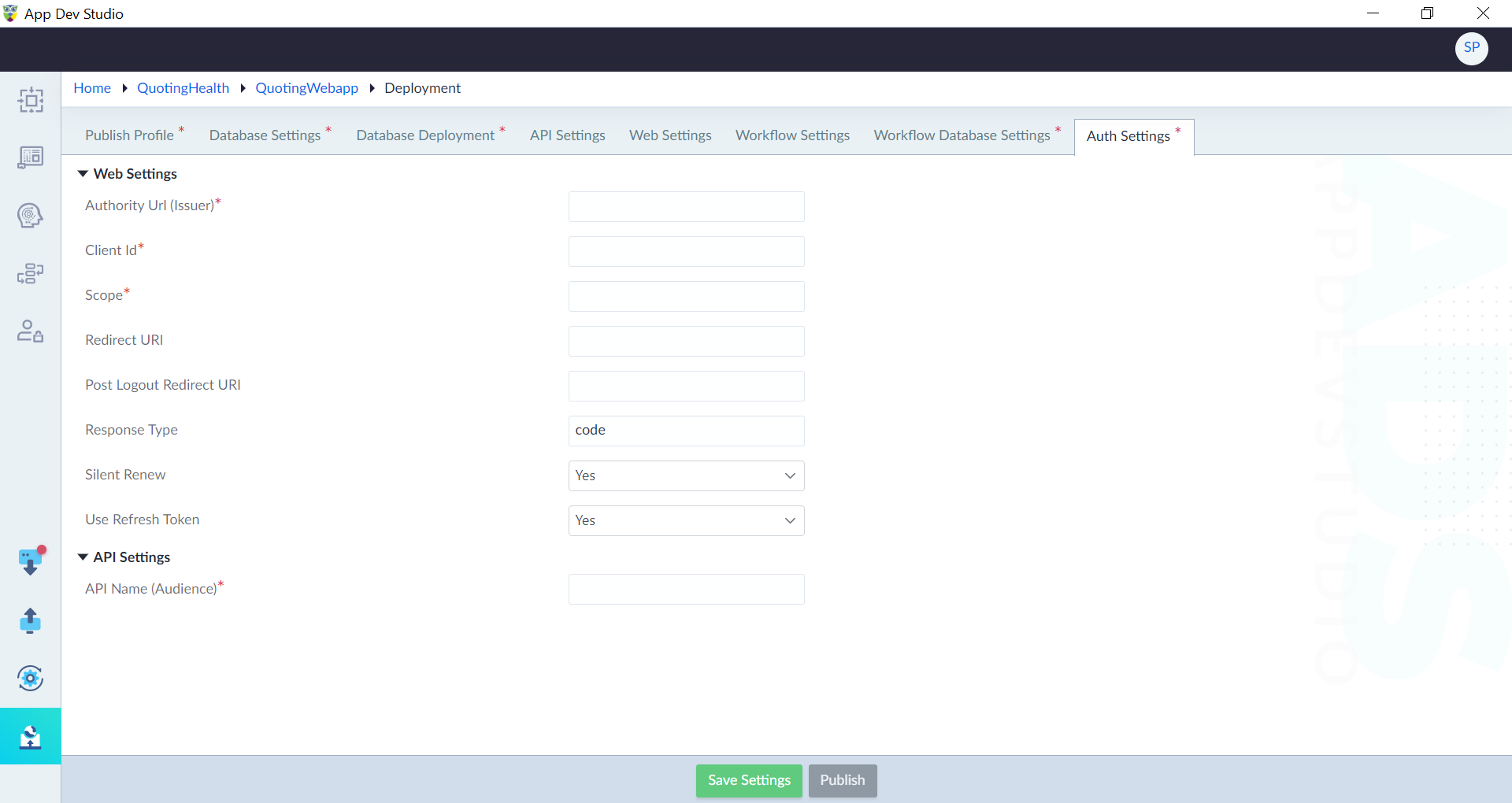
Auth settings help in configuring the authentication mechanism for an application. These settings are responsible for establishing secure communication between the application and the authentication provider. Within the auth settings tab, various properties must be defined to ensure proper authentication flow and authorization. Follow the below steps configure the Auth settings:
- Click Auth Settings tab in Deployment.
- Configure the properties as required and click Save Settings.
| Property | Description | Comments |
|---|---|---|
| Web Settings | ||
| Authority Url (Issuer)* | Provide the URL of the authentication provider or issuer, which is responsible for validating user credentials and issuing access tokens. | - |
| Client Id * | Provide the unique identifier assigned to the application by the authentication provider, ensuring that the requests are coming from a trusted client. | - |
| Scope* | Provide the specific permissions or resources that the application requests access to from the authentication provider. | - |
| Redirect URI | Provide the callback URL where the user is redirected after successful authentication. | |
| Post Logout Redirect URI | Provide the logout redirect URI. | |
| Response Type | Provide the type of response expected from the authentication provider during the authentication process. | |
| Silent Renew | Specify whether to renew the authorization token recieved. Either Yes or No. | |
| Use Refresh Token | Specify whether to use the refresh token. Either Yes or No. | |
| API Settings | ||
| API Name (Audience)* | Provide the name or identifier of the API or resource that the application intends to access or interact with, ensuring proper authorization and access control. | - |
Publish
After configuring all the necessary properties, the "Publish" button will become active. Simply click Publish to release the application within the designated environment. A new window will appear, presenting users with a log that captures both successful messages and any potential errors encountered during the application's publish process.