Data Grid
The Data Grid widget is a powerful UI component designed for displaying, managing, and interacting with large datasets efficiently. It provides sorting, filtering, pagination and event handling, making it a crucial component for building data-driven applications.
Use Cases of Data Grid
Displaying Large Datasets
- Example: Showing a list of customers, orders, or transactions fetched from an API.
Data Analysis & Reporting
- Enable sorting, filtering, and exporting for business reports.
Master-Detail Views
- Clicking a row can load detailed information about the selected record.
Configuring a Data Grid
Steps to Add a Data Grid
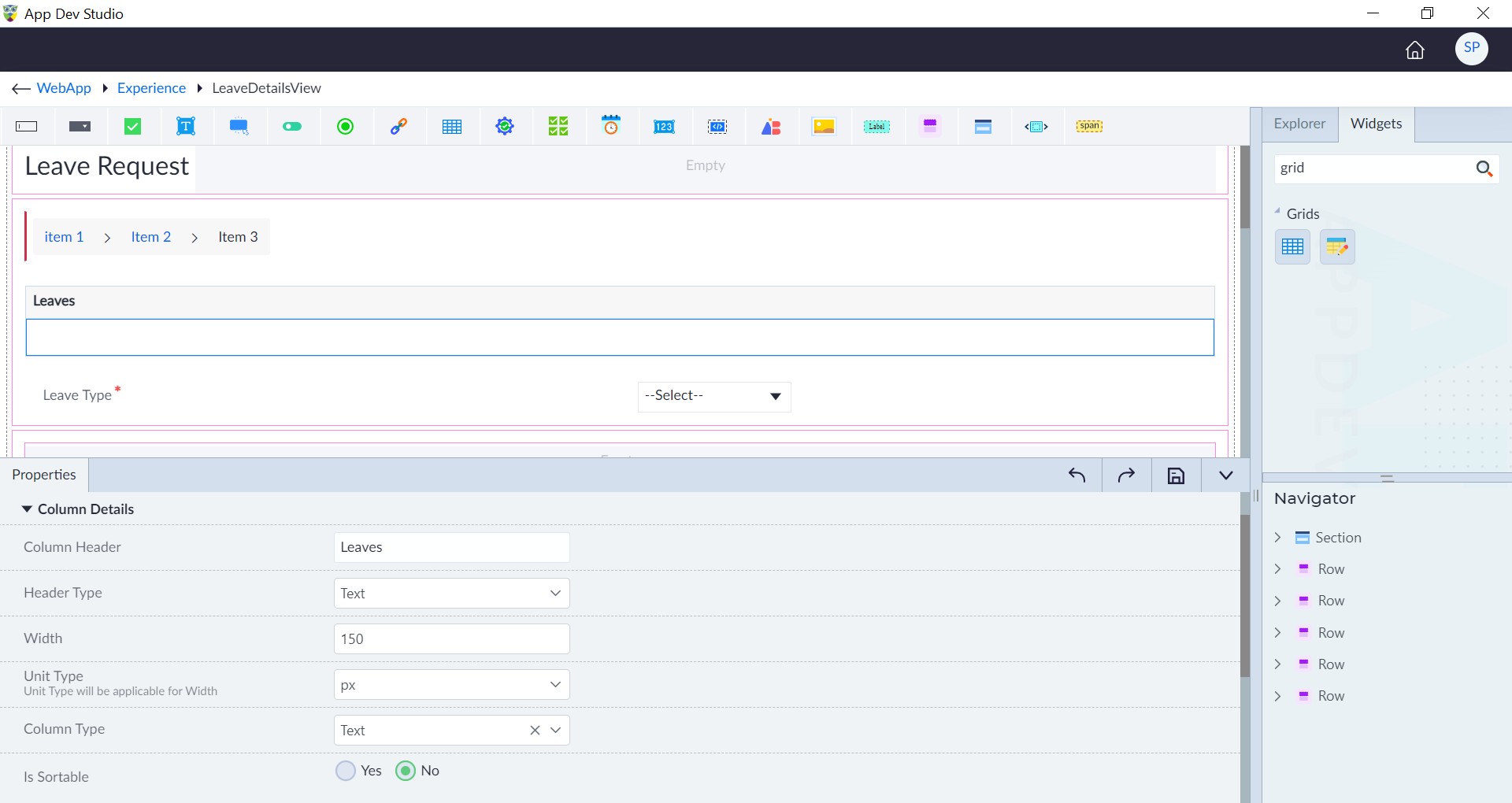
- Drag and Drop a Data Grid widget into the designer area.
- In doing so, the grid in the designer is rendered with one column.
- Add the columns using the data grid's action bar + button.
- Bind Data Source – Connect it to an API response or local variable.
- Configure Columns – Define column, column templates, and visibility.
- Enable Features – Turn on sorting, filtering, pagination, and row selection.
- Define Actions – Add edit/delete buttons or event triggers.
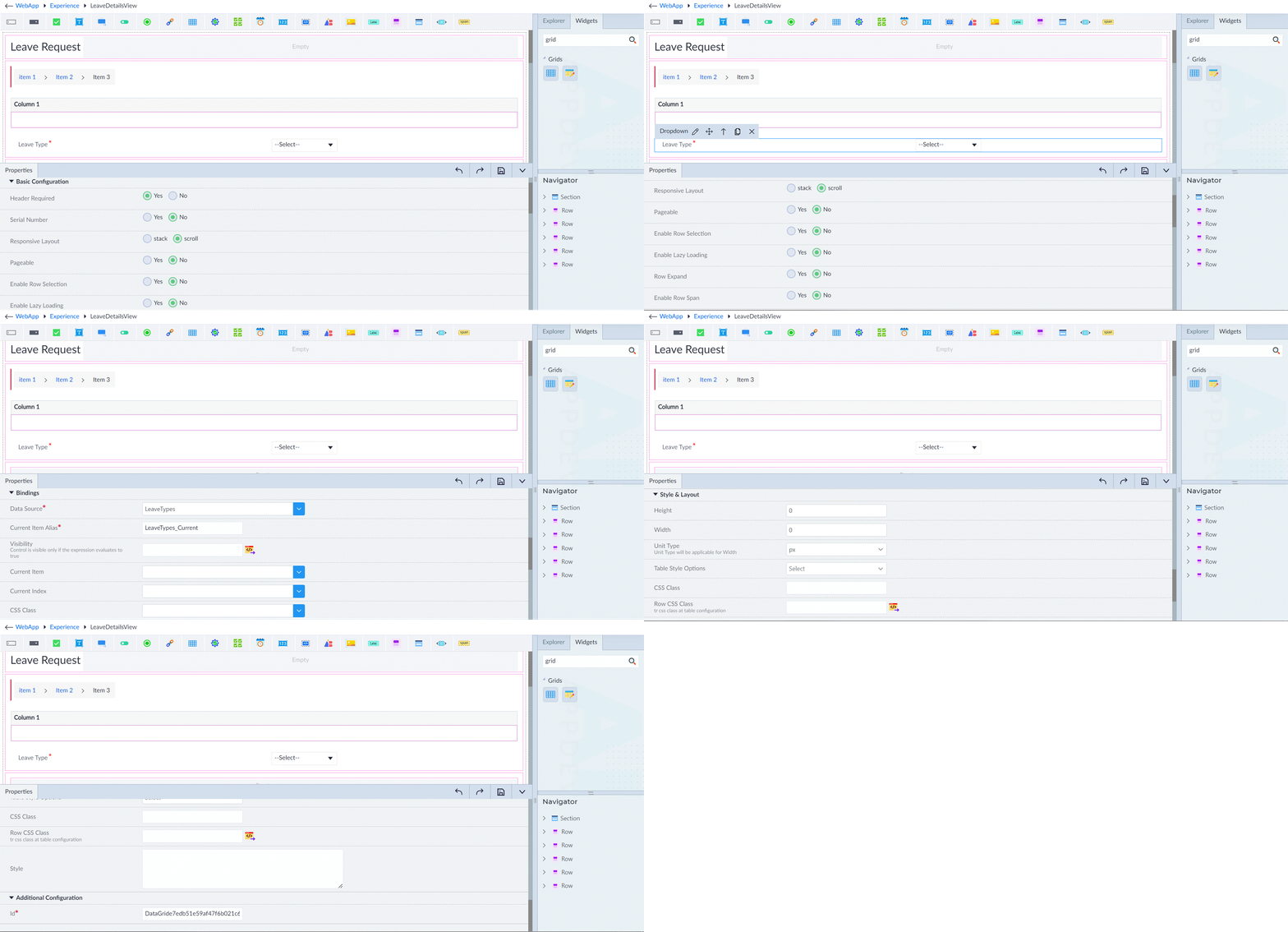
Following are the properties to be configured for this widget:
| Property | Description | Comments |
|---|---|---|
| Basic Configuration | ||
| Header Required | Select "Yes" to configure the data grid with a table header, or "No" to display the data grid without a table header. | - |
| Serial Number | Select "Yes" to include a default column with an auto-incrementing index value in the grid, or "No" to configure the grid without it. | - |
| Enable Virtual Scroll | Select "Yes" to enable virtual scroll. | Virtual Scroller is a performance-oriented approach to efficiently handle large datasets by only displaying visible rows instead of loading everything at once. When set to "Yes", providing a virtualScrollItemSize in pixels is sufficient to enable this functionality. |
| Virtual Scroll Item Size | Provide the height of a row to use in calculations of virtual scrolling. E.g., 45. | Visible only when Enable Virtual Scroll is set to Yes. |
| Scroll Height | Provide the height of the scroll viewport in fixed pixels. E.g., 400. | Visible only when Enable Virtual Scroll is set to Yes. |
| Responsive Layout | Select the required radio button: stack or scroll. Stack Layout converts rows to vertical format on small screens. Scroll Layout enables smooth scrolling for large datasets. | Stack Layout converts table rows into a stacked (vertical) format on smaller screens. Scroll Layout enables both horizontal and vertical scrolling. |
| Pageable | Select "Yes" to enable pagination in the grid, or "No" to configure the grid without pagination. | - |
| Page Size | Enter the page size to define the number of rows displayed per page when pagination is enabled. | Visible only when Pageable is set to Yes. Default is 10. |
| Rows Per Page Options | Provide the options to customize the number of rows displayed per page, separated by commas. | Visible only when Pageable is set to Yes. Default is 10,25,50. |
| Enable Row Selection | Select Yes to enable or No to disable row selection. | Row selection allows selecting one or multiple rows for actions like deleting or processing data. A checkbox in the table header allows users to select or deselect all rows at once. |
| Selection Type | Select either Current Page or Complete Grid. | Visible only when Enable Row Selection is set to Yes. |
| Enable Lazy Loading | Select Yes or No. | Lazy loading optimizes performance by loading data on demand. When "Yes" is selected, the OnLazyLoad event binding must be provided. |
| Row Expand | Select Yes or No. | On selection of "Yes", a sub grid is rendered inside the main data grid in the designer. |
| Enable Row Span | Select Yes or No. | Visible when Row Expand is set to No. Row span allows merging multiple rows for a column when consecutive rows contain the same data. |
| Group Mode | Select subheader or rowspan. | Visible when Row Span is set to Yes. |
| Group Rows By | Select the value from the autocomplete to group the rows. | Visible when Row Span is set to Yes. Options are attributes of the data source's entity. |
| Table Layout | Select auto or fixed. | Auto: column widths adjust automatically based on content. Fixed: each column takes a fixed width. |
| Bindings | ||
| Data Source* | Select the data source from the drop-down. | A data source is a complex array. |
| Current Item Alias* | Provide the alias name for the current item. | Represents the data object for the current row being rendered. The widget configured inside the grid column can access this alias in bindings and expression builder. |
| Current Index Alias Name | Provide the alias name for the index of the current item. | Represents the index of the current row (e.g., 0 for the first row). |
| Unique Property Name | Select a value from the options (attributes of the data source's entity). | Visible when Enable Row Selection is Yes. A property to uniquely identify a record, e.g., Id, UserId. |
| Visibility | Provide the expression using the expression builder. | The control is visible only if the evaluated expression is true. |
| Selected Rows | Select the same data type of binding as that of data source. | Visible when Enable Row Selection is Yes. Selected records will be updated in the bound property. |
| On Header Checkbox Toggle | Select an event binding. | Visible when Enable Row Selection is Yes. Used to handle logic when header checkbox is checked or unchecked. |
| On Row Select | Select an event binding. | Visible when Enable Row Selection is Yes. Used to handle logic when a row checkbox is selected. |
| On Row Unselect | Select an event binding. | Visible when Enable Row Selection is Yes. Used to handle logic when a row checkbox is unselected. |
| Current Item | Select the current item in the grid. | - |
| CSSClass | Provide the CSS class binding using an expression builder. | - |
| First | Select an integer value binding. | Determines the index of the first row to be displayed. Helps reset or programmatically navigate to a specific page. |
| Loading* | Select a Boolean value binding. | Used to display a loader to indicate data load is in progress. |
| Total Records* | Select an integer value binding. | Used to display number of total records, defaults to length of data source when not defined. |
| OnLazyLoad* | Select the required callback function. | Visible if Enable Lazy Loading is Yes. Callback to invoke when paging, scrolling, sorting or filtering happens in lazy mode. |
| Style & Layout | ||
| Height | Provide the height. | - |
| Width | Provide the width. | - |
| Unit Type | Specify the type of unit in which height and width are given. | Px, rem or %. |
| Table Style Options | Select the appropriate table style option/s from the provided built-in style options. | Provides multiple styling options to control the appearance, layout, and responsiveness of the table. |
| Paginator Alignment | Select an option from left, right and centre. | Controls the alignment of the paginator (pagination controls). |
| CSSClass | Provide the CSS class name for styling. | These classes will be applied at the <table> tag level. |
| Row CSSClass | Provide the CSS class using expression builder. | Used to assign CSS classes to table rows (<tr>) statically, dynamically or via row class function. |
| Style | Provide the CSS rule sets. | These styles will be applied at the <table> tag level. |
| Additional Configuration | ||
| Id* | Provide the id. | An id is created by default. User can change the unique id as required. |
| Comment | Select from Yes or No options. | Default is No. Select Yes to comment the DataGrid and it will not get generated. |
Note: An asterisk (*) denotes that the property is mandatory for configuring the Data Grid widget.
The "Configuration saved successfully" message displays upon successfully configuring the widget.
Column Details
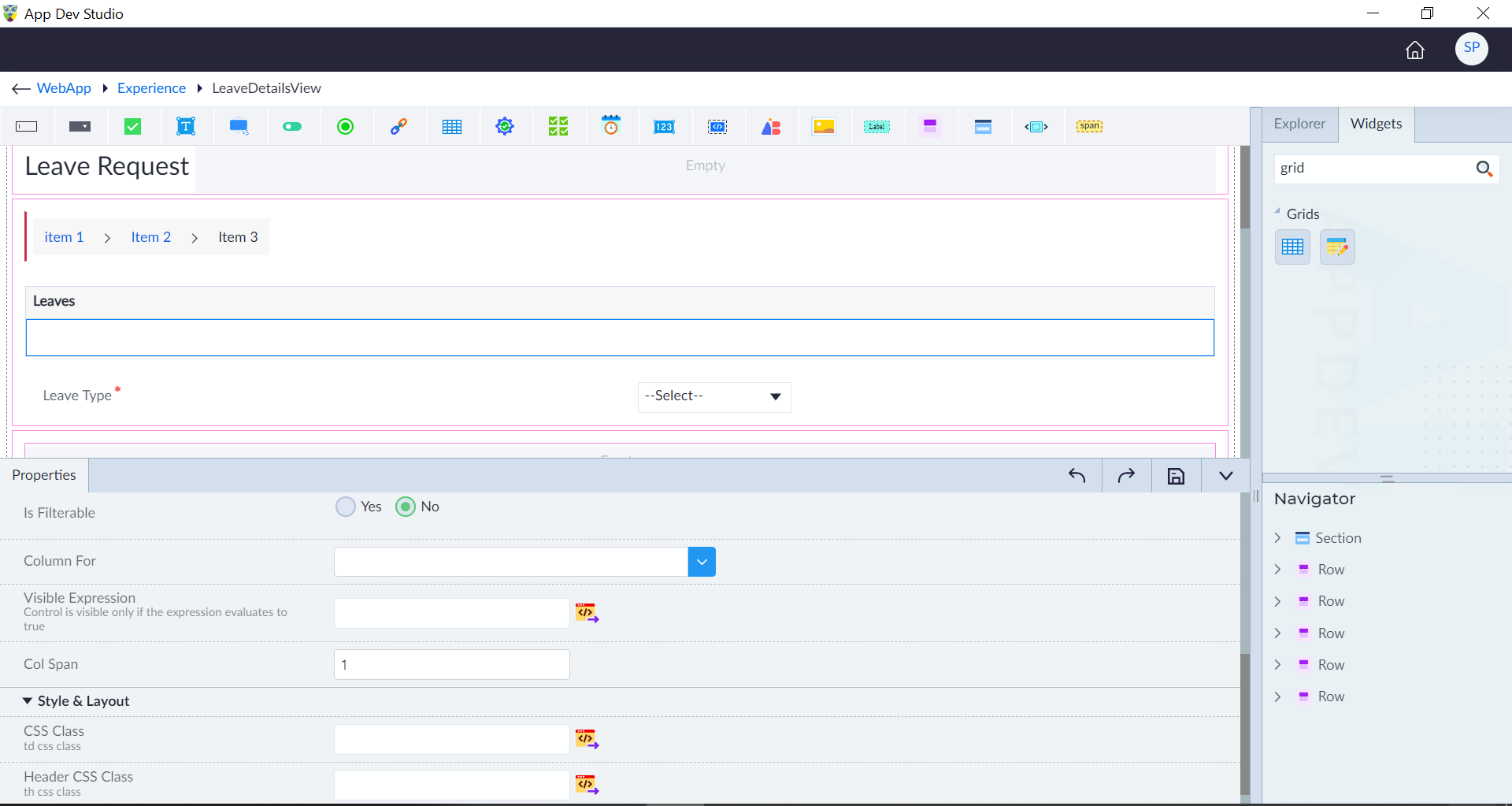
A column represents a vertical section of data, where each cell in the column corresponds to a specific property or field from the data source.
New columns can be added to the data grid by clicking the "+" button in the action bar.
To rearrange columns, use the left and right arrow buttons in the respective column's action bar to adjust their position.
Following are the properties to be configured for a column in data grid:
| Property | Description | Comments |
|---|---|---|
| Column Details | ||
| Column Header | Provide the name of the column header. | Visible when the header type is selected as Text. |
| Header Type | Select the type of the header: Text or Template. | If set to "Template", supported widgets can be dragged and dropped for configuration. If set to "Text", a static text value can be provided manually. |
| Width | Provide the width of the column. | A default width of 150px will be assigned automatically. |
| Unit Type | Select the type of the unit. | Px, rem, %. |
| Column Type | Select the column type: Text, Template, or Expression. | Text: displays static text values. Template: allows custom content using Angular templates (buttons, icons, hyperlinks). Expression: value is derived dynamically using an expression. |
| Is Frozen Column | Select Yes or No. | Used to fix specific columns while allowing the rest of the table to scroll horizontally. |
| Is Sortable | Select Yes or No. | When "Yes" is selected, the grid will be sorted based on the value of the columnFor attribute. |
| Is Filterable | Select Yes or No. | When "Yes" is selected, the grid will be filtered based on the value of the columnFor attribute. |
| Column For | Select an option from the dropdown (attributes of the data source entity). | The selected attribute value will be rendered dynamically in the column. Based on the data type, formatter group configuration will be available. |
| Visible Expression | Provide the expression using the expression builder. | The column is visible only if the evaluated expression is true. |
| Col Span | Provide an integer value. Default is 1. | Applicable to the header. Used to merge multiple header columns into a single header/cell. |
| Style and Layout | ||
| CSS Class | Provide the value using an expression builder. | Applied at every cell of the Data Grid. |
| TD Style | Provide the CSS ruleset for style tag. | Applied at every cell of the Data Grid. |
| Header Class | Provide the value using an expression builder. | Applied at header of the DataGrid. |
| Header Style | Provide the CSS ruleset for style tag. | Applied at header of the Data Grid. |
| Formatters | ||
| Mode | Select an option from Currency and Decimal. | Visible only if the ColumnFor data type is Number. If data type is Date Time, date-specific formatting options are available. If data type is String, text formatting options like Lowercase, Uppercase, and Title Case are available. |
| Minimum Number of Digits | Provide a value between 1 to 10. | Default is 1. Visible when the selected mode is decimal or currency. |
| Min Fraction Digit | Provide a value between 1 to 10. | Default is 1. Visible when the selected mode is decimal or currency. Min fraction value cannot be more than Max fraction value. |
| Max Fraction Digit | Provide a value between 1 to 10. | Default is 1. Visible when the selected mode is decimal or currency. |
| Country Code | Provide supported country code e.g.: INR, JPY, CAD, USD etc. | Visible when the selected mode is currency. |
| Is Symbol Narrow | Select Yes or No. | Narrow symbols are used in compact designs where space is limited. E.g., $1,000 instead of US$1,000. |
The "Configuration saved successfully" message displays upon successfully configuring the widget.