Socket IO Client
Socket IO is a powerful library that facilitates real-time, bidirectional communication between web clients and servers. This guide explains how to configure and use the SocketIO client within a chat interface in an application, specifically focusing on setting up real-time communication for sending and receiving messages using a text box and buttons.
The Socket IO Client is typically used in scenarios such as:
- Real-time dashboards and analytics
- Chat or messaging applications
- Notifications and alerts
How it Works:
- Socket Connection: Establishes a persistent connection to a Socket.IO server using the Connect to Socket IO/Websockets server.
- Events: Use Send and Receive events to send and receive custom messages between client and server. These can be predefined or dynamic.
- Emit: Client sends an event to the server. Messages can be sent using the Send Message Using Socket IO/Websockets construct.
- On/Listen: Receive Events listens for events emitted by the server.
Adding and Configuring the Socket IO Client
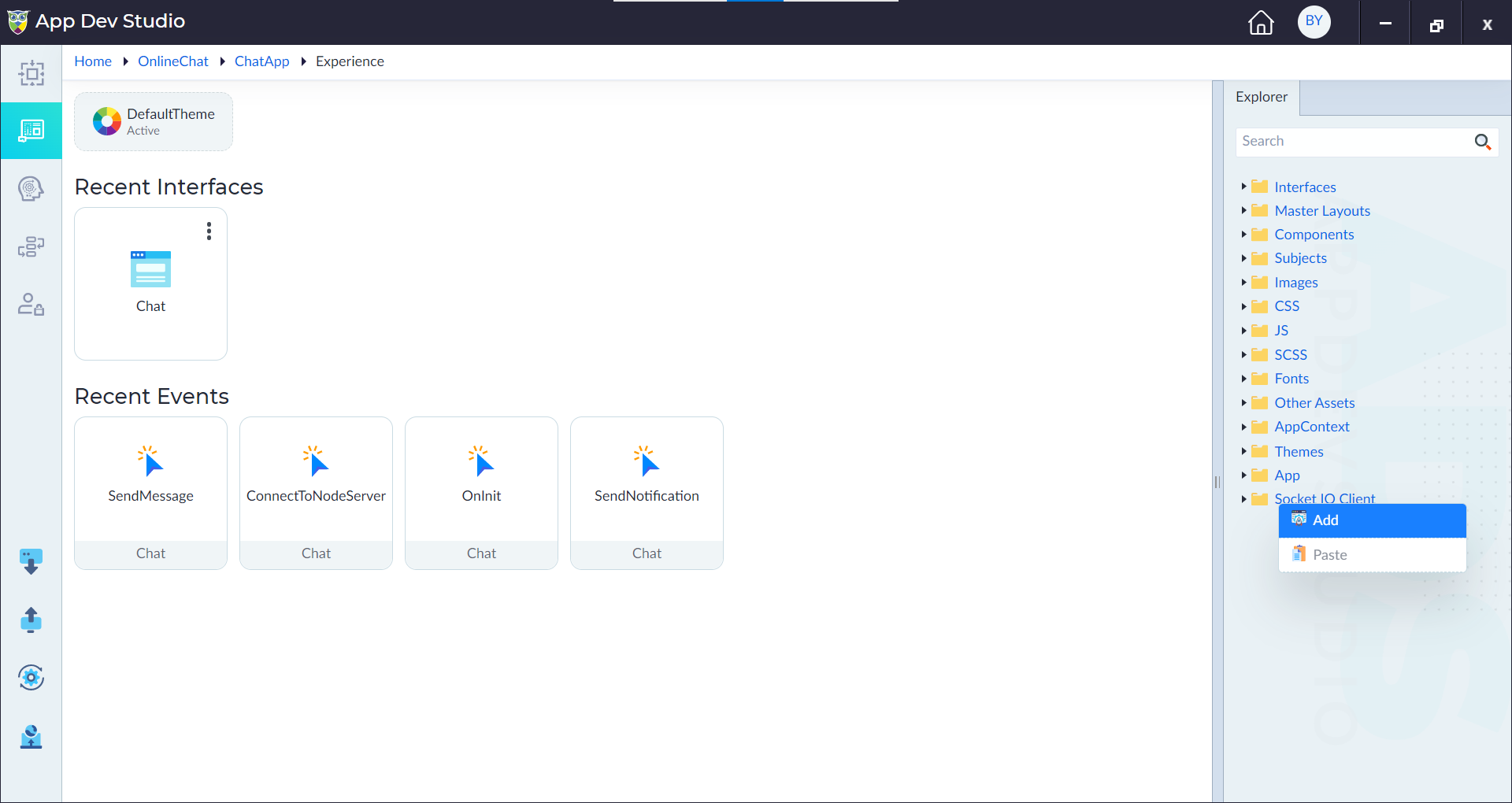
- In the Explorer menu of your application, locate the Socket IO Client folder.
- Right-click on the folder and select Add.
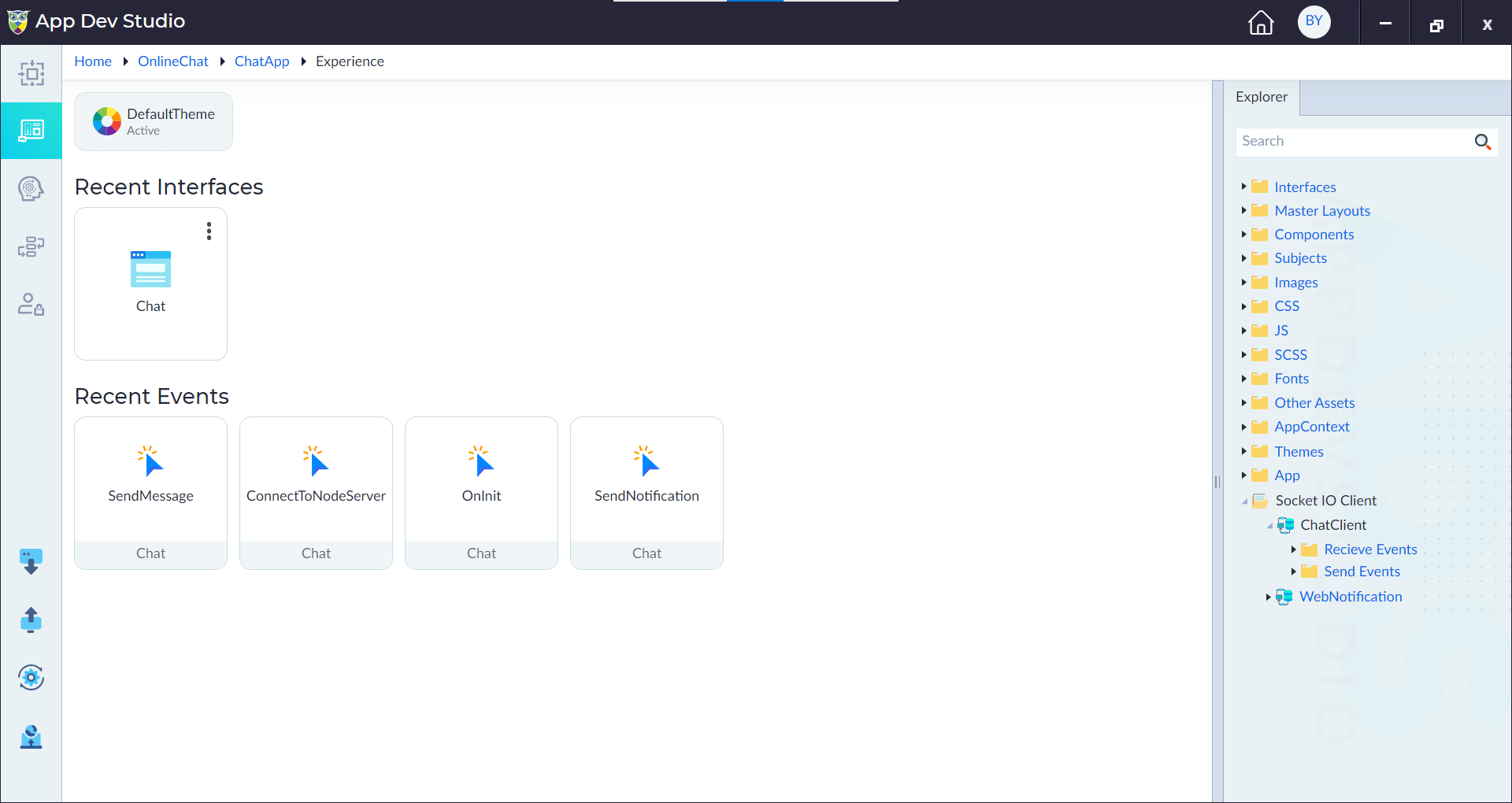
- Upon adding the new client, two folders are created by default - Receive Events and Send Events.
- In the Properties pane that appears, fill in the following details:
| Property | Description |
|---|---|
| Name | Name of the Socket IO Client. |
| URL | The Socket IO server URL (e.g., https://your-server-domain.com, ws://your-server-domain.com). |
| Is Active | Indicates whether the Socket.IO client is enabled or disabled. |
| Description | Summary of the Socket.IO client configuration. |
Configure Receive and Send Events
Receive Events Configuration
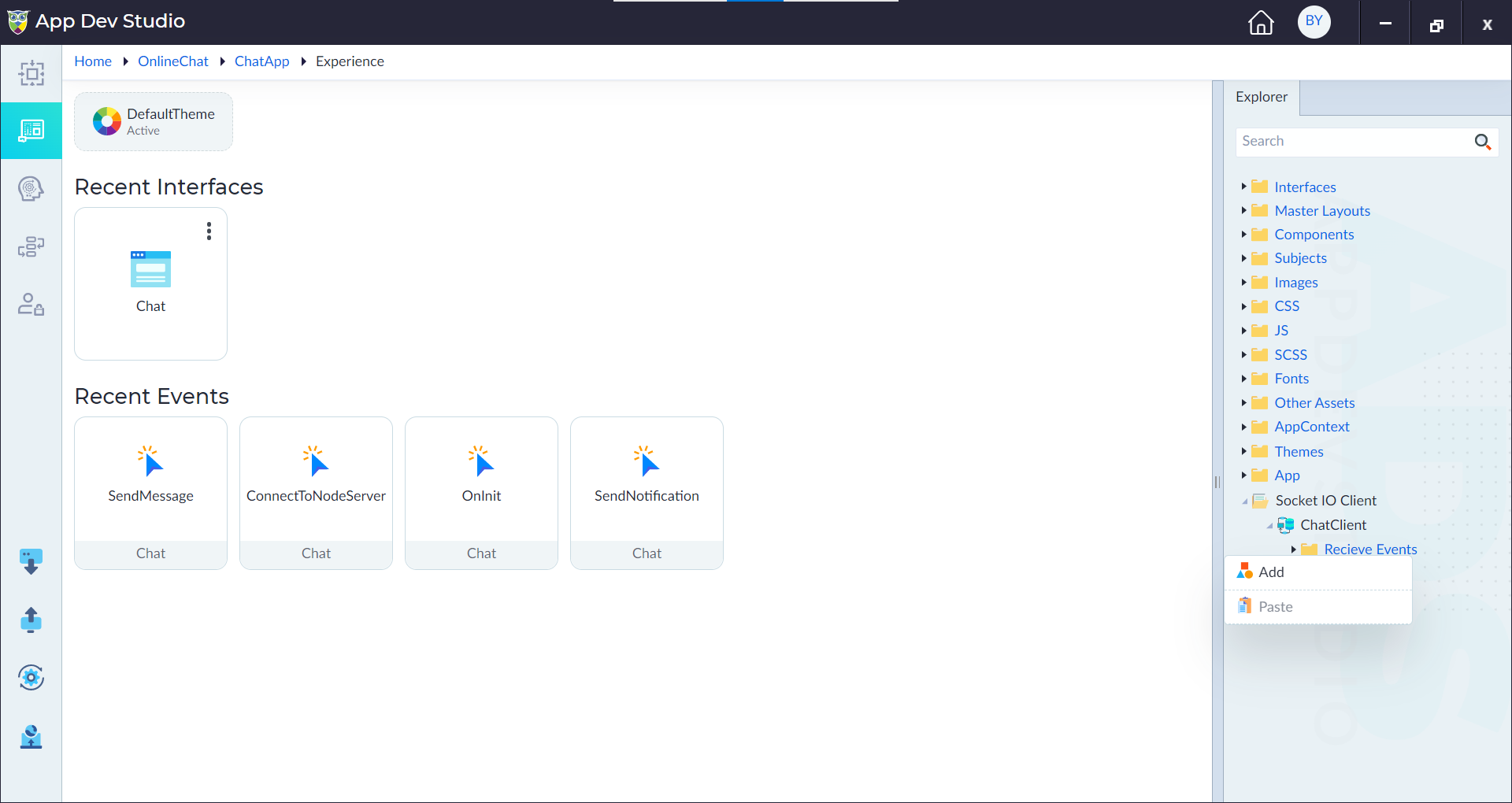
- Navigate to the Receive Events folder.
- Right-click and select Add Event and configure the following properties.
| Property | Description |
|---|---|
| Name | Name of the event. |
| Event Name | Name of the event to listen for (e.g., getMessage). |
| Async Operation | Executes independently without waiting for completion (Default: Yes). |
| Is Active | Indicates whether the event is active or inactive. By Default, 'Yes' is selected. |
| Description | Summary of the event. |
The created Receive Event contains:
- Output Parameters
- Variables
Adding Output Parameters and Variables
Users can add Output Parameters and Variables to an event as applicable.
Steps:
- Right-click on Output Param or Variables and select Add. A pop-up window appears.
- Configure the required properties and click Save.
| Property | Description | Comments |
|---|---|---|
| Parameter Name* | Name of the parameter. | Must start with a letter, followed by alphanumeric characters or '_'. No spaces or special characters (except '_'). Cannot start with a number. |
| Is Array | Specify whether the parameter is an array or not. | Default: No. |
| Data Type* | Select the data type from the drop-down. | String, Integer, Long, Double, Boolean, DateTime, Any, Map, and Entities. |
| Default Value | Specify the default value if required. | - |
| Description | Provide a brief summary describing the purpose of the parameter or variable. | - |
Note: An asterisk (*) denotes a mandatory property for creating a parameter or variable.
A success message will display upon successfully adding a parameter or variable.
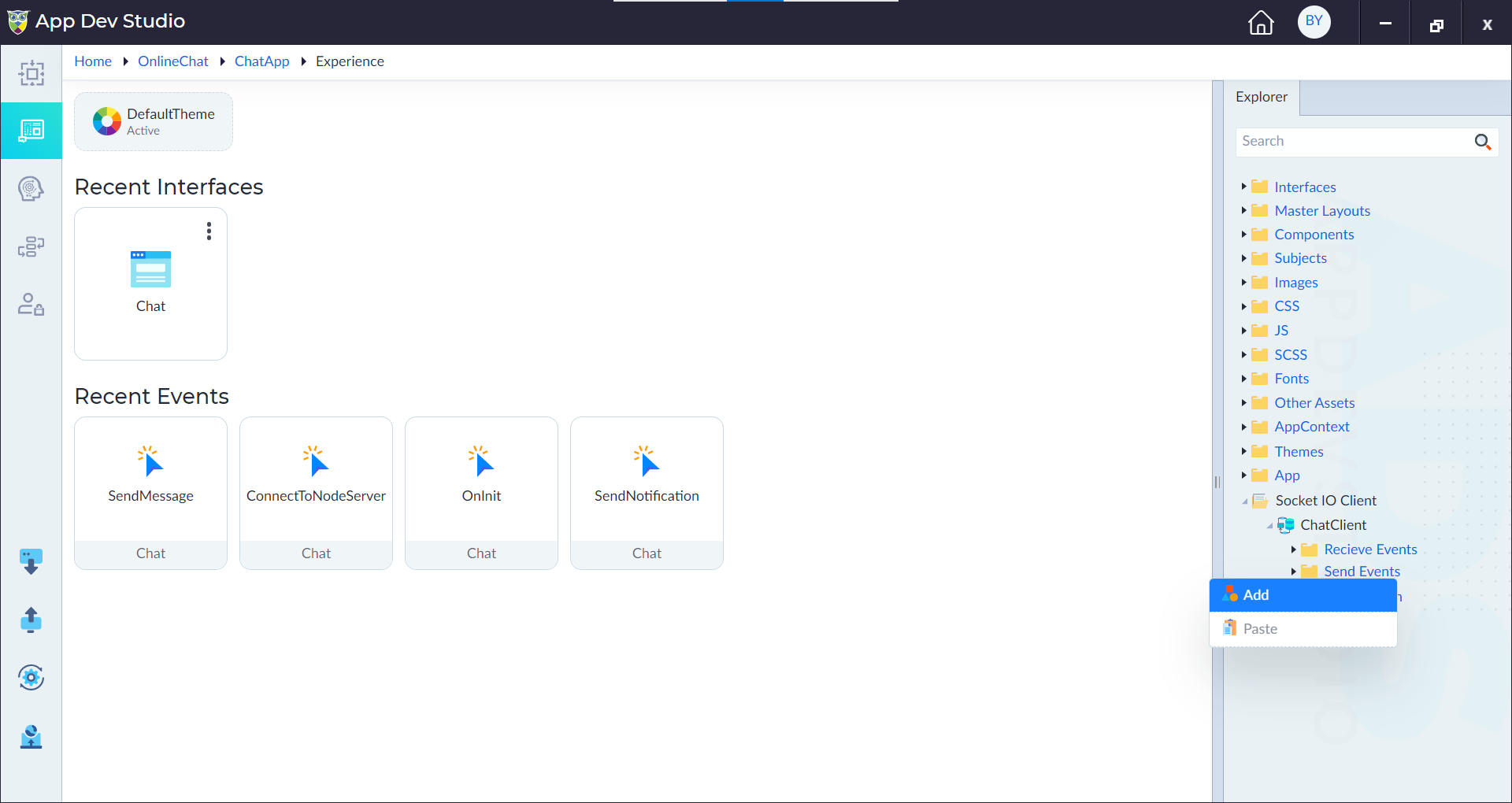
- Navigate to the Send Events folder.
- Right-click and select Add Event and configure the following properties.
| Property | Description |
|---|---|
| Name | Name of the event. |
| Event Name | Name of the event to emit. |
| Async Operation | Executes independently without waiting for completion (Default: Yes). |
| Is Active | Indicates whether the event is active or inactive. |
| Description | Summary of the event. |
The created Send Event contains:
- Input Parameters
- Variables
Adding Input Parameters and Variables
Users can add Input Parameters and Variables to an event as applicable.
Steps:
- Right-click on Input Param or Variables and select Add. A pop-up window appears.
- Configure the required properties and click Save.
| Property | Description | Comments |
|---|---|---|
| Parameter Name* | Name of the parameter. | Must start with a letter, followed by alphanumeric characters or '_'. No spaces or special characters (except '_'). Cannot start with a number. |
| Is Array | Specify whether the parameter is an array. | Default: No. |
| Data Type* | Select the data type from the drop-down. | String, Integer, Long, Double, Boolean, DateTime, Any, Map, and Entities. |
| Description | Provide a brief summary describing the purpose of the input parameter or variable. | - |
Note: An asterisk (*) denotes a mandatory property for creating a parameter or variable.
A success message will display upon successfully adding a parameter or variable.