File Upload
Implement File Upload
In the context of leave management application, when a user wants to apply a leave, it is required to upload a doctor certificate in the form. The below sections provide information to users on implementing a file upload functionality in an application.
Following are the pre-requisites for file upload:
- A binary type entity.
- Model.
- File upload handler logic.
Create a Binary Entity
Follow the steps given in Create DB Entity and create a DB entity. Here the DB entity is created with name as "SickLeaveAttachment" and data type as "binary".
Create a Model
Follow the steps given in Model to create a model. Here a model is created with name as "files" and data type as "any".
File Upload Handler Logic
Follow the below steps to create the file upload handler logic.
- Right-click Events in the interface where file upload option needs to be added and select Add.
- Provide the name as CertificateUploadHandler and then click save.
- In the designer canvas, use the Call REST API construct to call the CreateSickLeaveAttachment API and then click save. Configure the Call Rest API as shown in Call REST API. For CertificateUploadHandler, the configuration is given as below:
- Label: call certificate upload API
- API Definition: CreateSickLeaveAttachment
- FormData: Sys.GetFormdata(this.files). The expression is created using the system function and model created.
- Execution Mode: Sequential
- Activity Handle: CreateSickLeaveAttachment
- Activity Response: CreateSickLeaveAttachmentResponse
- Comment: No
- In the designer canvas, use the if construct to check the status of the api response. The configuration is as below:
- Label: check for status code
- Expression: CreateSickLeaveAttachmentResponse.StatusCode ==200 || CreateSickLeaveAttachmentResponse.StatusCode == 201 The expression is used to check the status of the rest api.
- Comment: No
- In the designer canvas, use the Assignment construct to assign the id and then click save. The configuration is as below:
- Label: set attachment Id
- Expression: this.AttachmentId = CreateSickLeaveAttachmentResponse.Content; this.LeaveRequest.CertificateId = this.AttachmentId ; The expression assigns id to the uploaded file.
- Comment: No
File Upload Widget
Follow the below steps to add the file upload widget.
- Open the interface where file upload option needs to be added.
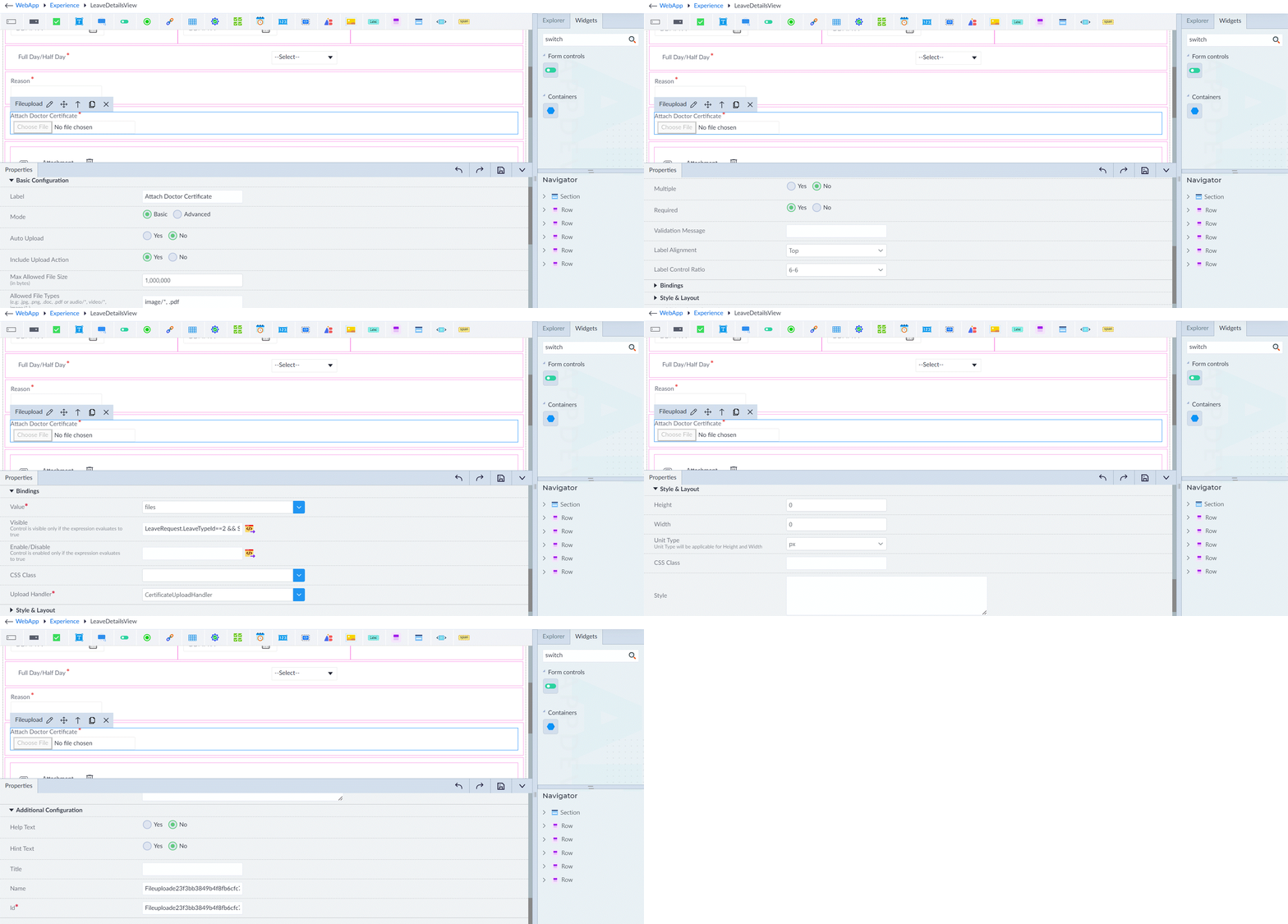
- From the widgets panel. drag and drop the file upload widget and configure it as follows (main parameters are shown below):
- Label: Attach Doctor Certificate
- Mode: Basic
- Auto Upload: No
- Include Upload Action: Yes
- Maximum Allowed File Size: 1,000,000
- Allowed File Types: image/*, .pdf
- Multiple: No
- Required: Yes
- Label Alignment: Top
- Label Control Ratio: 6-6
- Value: files (model created for file upload is selected from drop-down)
- Visibility: LeaveRequest.LeaveTypeId==2 && Sys.CalculateBusinessDays(LeaveRequest.StartDate, LeaveRequest.EndDate, true, true)+1>2 && LeaveRequest.Id==0 (Expression is to say that the file upload option is visible only when this expression result is true.)
- UploadHandler: CertificateUploadHandler (file upload handler created for uploading files)
- Id: Fileuploade23f3bb3849b4f8fb6cfc713f15815e8 (id to uniquely identify the file upload widget).