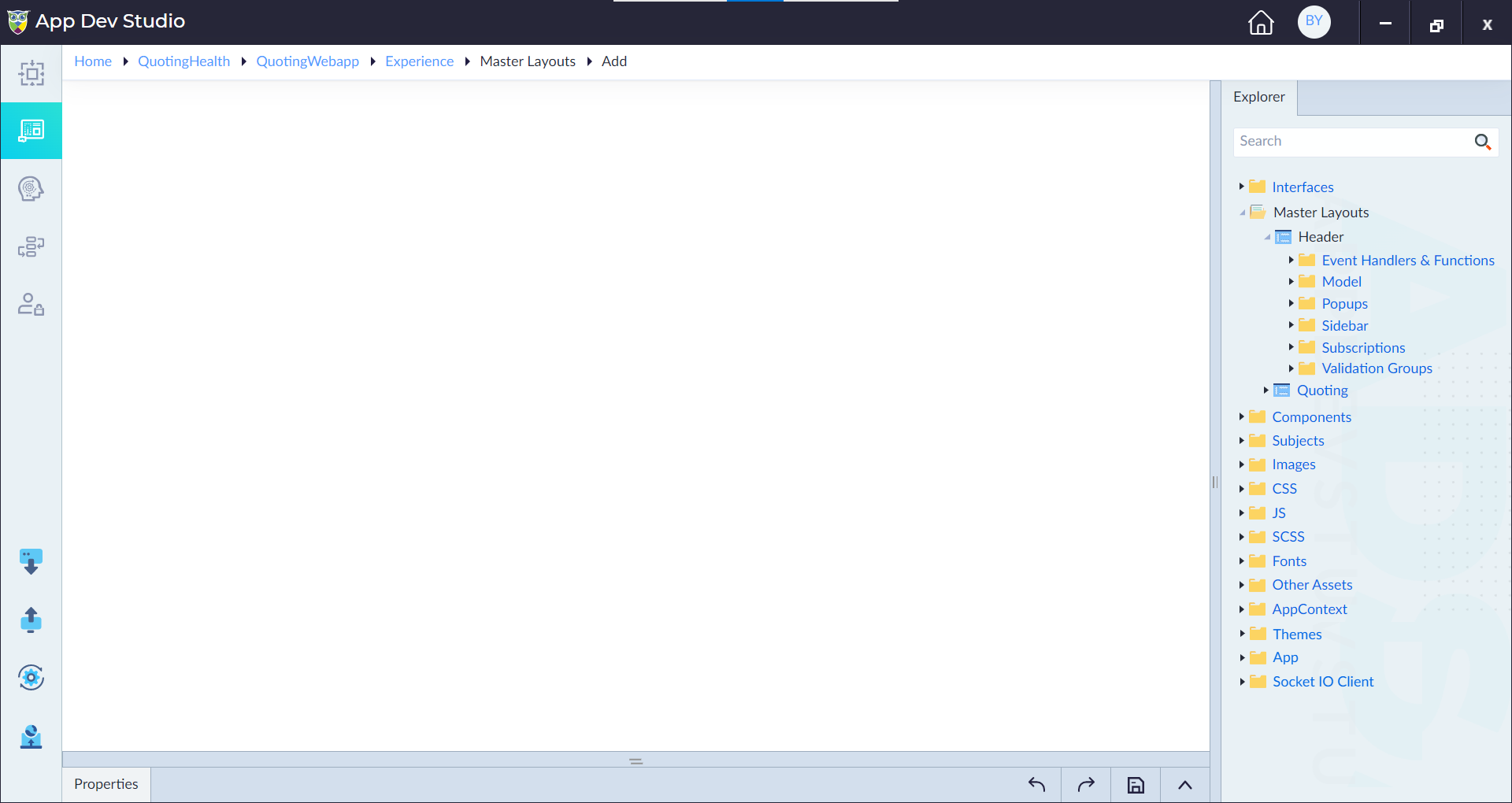
Master Layouts
A Master Layout is a reusable template that provides a consistent structure and appearance across multiple pages in the SPA. It typically includes common UI elements like:
- Header (Navigation bar, logo)
- Sidebar (Menu, links)
- Footer (Copyright, social links)
Single Page Application (SPA) Overview
In a Single Page Application (SPA), all application functions exist within a single HTML page. Instead of reloading the entire page when users navigate, the browser dynamically updates only the relevant sections. This approach significantly improves performance and enhances the user experience by reducing page load times.
Role of Master Layouts in SPAs
Master Layouts provide a structured way to build SPA layouts, enabling developers to define common UI elements such as headers, footers, and sidebars for application navigation.
- A Master Layout contains UI components and a placeholder (a designated section that refreshes when users navigate between pages).
- A Master Layout can be based on another layout, forming a hierarchy.
- A Master Layout without a parent automatically becomes the root layout.
Example:
- Header/Footer Master Layout – Contains a static navigation bar and footer.
- Content Placeholder – The portion of the page that updates when switching between views.
Page Transitions within Master Layouts
Master Layouts control how different sections of the UI update during navigation:
i. Transitioning Between Pages Within the Same Layout
- Only the placeholder portion is refreshed.
- The rest of the UI (header, sidebar, footer) remains unchanged.
- This ensures seamless navigation without data loss in static sections.
ii. Transitioning Between Layouts with a Parent Layout
- When switching pages under different child layouts that share a parent layout, only the child layout section refreshes.
- The parent layout (e.g., header/sidebar) remains static.
- This reduces unnecessary UI reloading and improves performance.
Performance Benefits
- Avoids full-page reloads, enhancing user experience.
- Reduces redundant rendering of static components like headers and footers.
- Optimizes navigation speed by refreshing only dynamic content.
- Maintains state and common data across multiple views.
Example Scenario:
- A user navigates through different application pages.
- The header/footer (master layout) loads once and remains unaffected after the initial load.
- Only the child page content refreshes dynamically.
This structure ensures a smooth, fast, and efficient navigation experience.
Properties
| Property | Description | Comments |
|---|---|---|
| Screen Type* | Type of the screen. | By default, it is set to Master Layout. It cannot be changed. |
| Screen Name* | Provide the name of the screen. | Name must start with a character followed by alphanumeric or '_'. No spaces are allowed. Except underscore (_), no other special characters are allowed. Name cannot start with a number. |
| Path | Specify the path. | - |
| Description | Provide the summary for the layout. | - |
| Parent Layout | Select the parent layout if the layout currently being created depends on a parent layout. | - |
| Landing Page | Specify whether the current layout being created is a landing page or not. Either Yes or No. | By default, No is selected. |
| Dirty Guard Check | Specify whether to detect the unsaved changes or not. Either Yes or No. | By default, Yes is selected. |
| Allow Anonymous Access | Specify whether the page created using this layout can be accessed anonymously or not. Either Yes or No. | By default, No is selected. |
| isActive | Specify whether the layout is active or not. Either Yes or No. | By default, Yes is selected. |
Note: An asterisk (*) denotes that the property is mandatory for creating a master layout.
The "Master Layout created successfully" message displays upon successful creation.
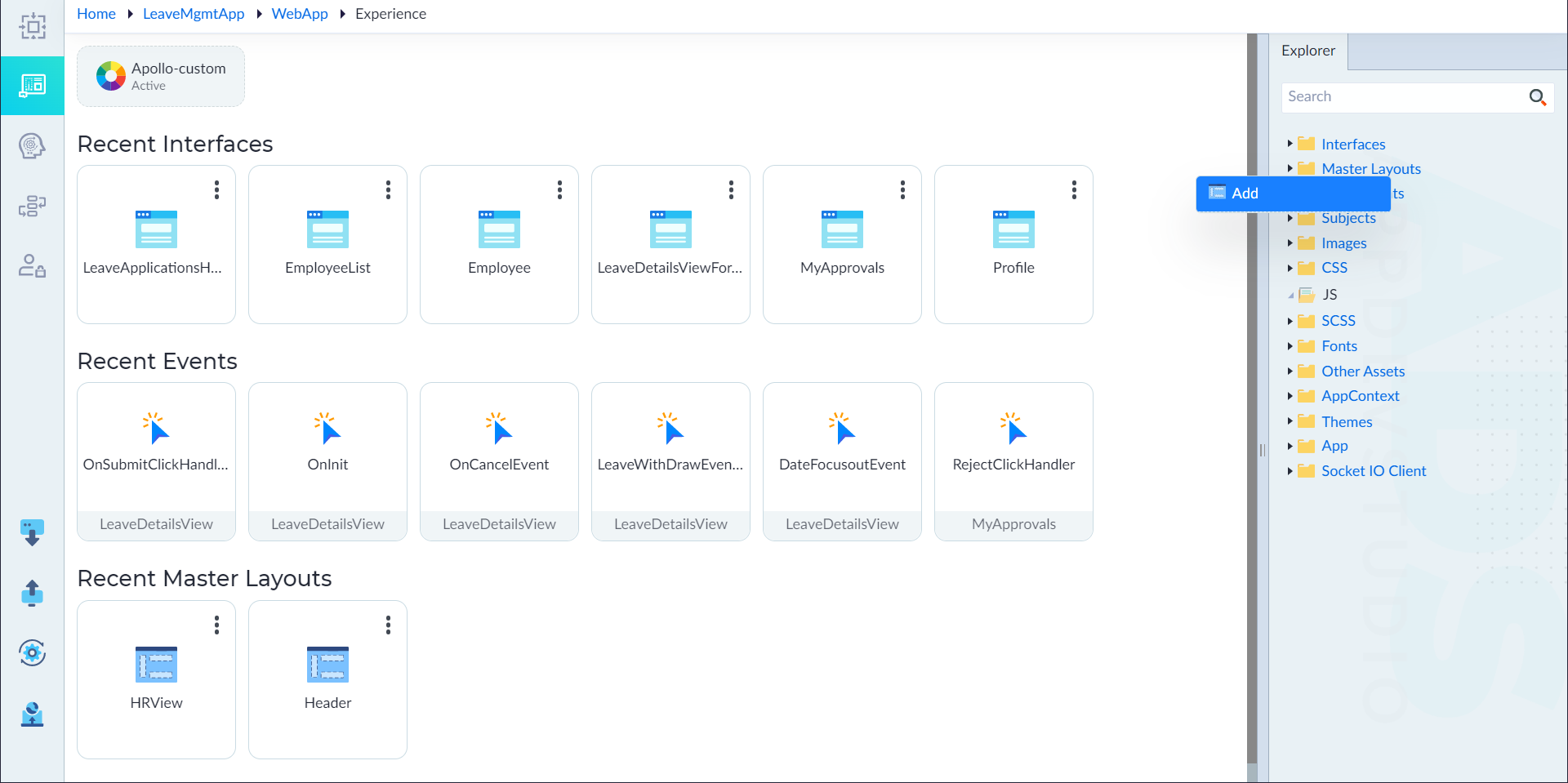
Module Imports
Modules are used to organize the application into smaller, reusable, and maintainable units. When you import a module, you make its components, directives, and services available in another module.
For example, to use NgxSliderModule, you need to import the corresponding module by providing below details in the required master layout.
| Name | Alias Name | Path | Action |
|---|---|---|---|
| Specifies external Module Name (e.g., NgxSliderModule) | Specifies an alias name for the imported module (e.g., SilderModule) | Path specifies where a module is located (e.g., ngx-slider-v2) | The remove icon is used to delete an added import statement. |
Note: Add "ngx-slider-v2" package dependency in External Dependencies tab while creating or editing a module. e.g., Package Name: ngx-slider-v2, Version: 17.0.2
Providers Configuration
The providers are used to register services, factory functions, and dependency injection tokens at the module level. It allows to create and inject instances of the provided dependencies throughout the application.
| Name | Alias Name | Path | Use Value | Action |
|---|---|---|---|---|
| Specifies the provider name (e.g., RECAPTCHA_V3_SITE_KEY) | Specifies an alias name (e.g., recpatchav3) | Path specifies where provider is located (e.g., ng-recaptcha) | The useValue is used to provide a static value instead of a class-based service. It is commonly used for configuration settings, constants (e.g., Sys.GetConfiguration("Site_Key")) | Allows to remove item. |
External Imports
External imports are used to bring in services, classes, and functions required for a component to function properly.
| Name | Type | Instance Name | Path | Action |
|---|---|---|---|---|
| Specifies the Name of the External Class or Function or Service | Specifies the Type which we want to import | Specifies Instance name | Path specifies where a module, service, component, or dependency is located. The path determines whether the import is from Angular's core libraries, third-party libraries, or local project files. | The remove icon is used to delete an added import statement. |
Structure of a Master Layout
The created master layout contains the following folders:
- Event Handlers and Functions
- Models
- Popups
- Sidebar
- Subscriptions
- Validation Groups