Assets
Assets refer to static resources that are used to enhance the application's UI, functionality, and styling. These include:
- CSS - Stylesheets that define the visual appearance of the application.
- JavaScript (JS) - Scripts that add interactivity and logic to the UI.
- SCSS - An enhanced version of CSS with features like variables, nesting, and mixins.
- Other Assets - Additional resources like HTML templates, JSON files and TypeScript files.
Manage Assets
Allows users to organize assets efficiently by managing them in a folder-wise structure. This helps maintain a structured and easily accessible asset library for Images, CSS, JS, SCSS, Videos, Fonts and other files.
Create Assets
Following sections provide information on how to create CSS, JS, SCSS, Fonts and Other Assets required for developing an application.
Create CSS
Steps to Create CSS:
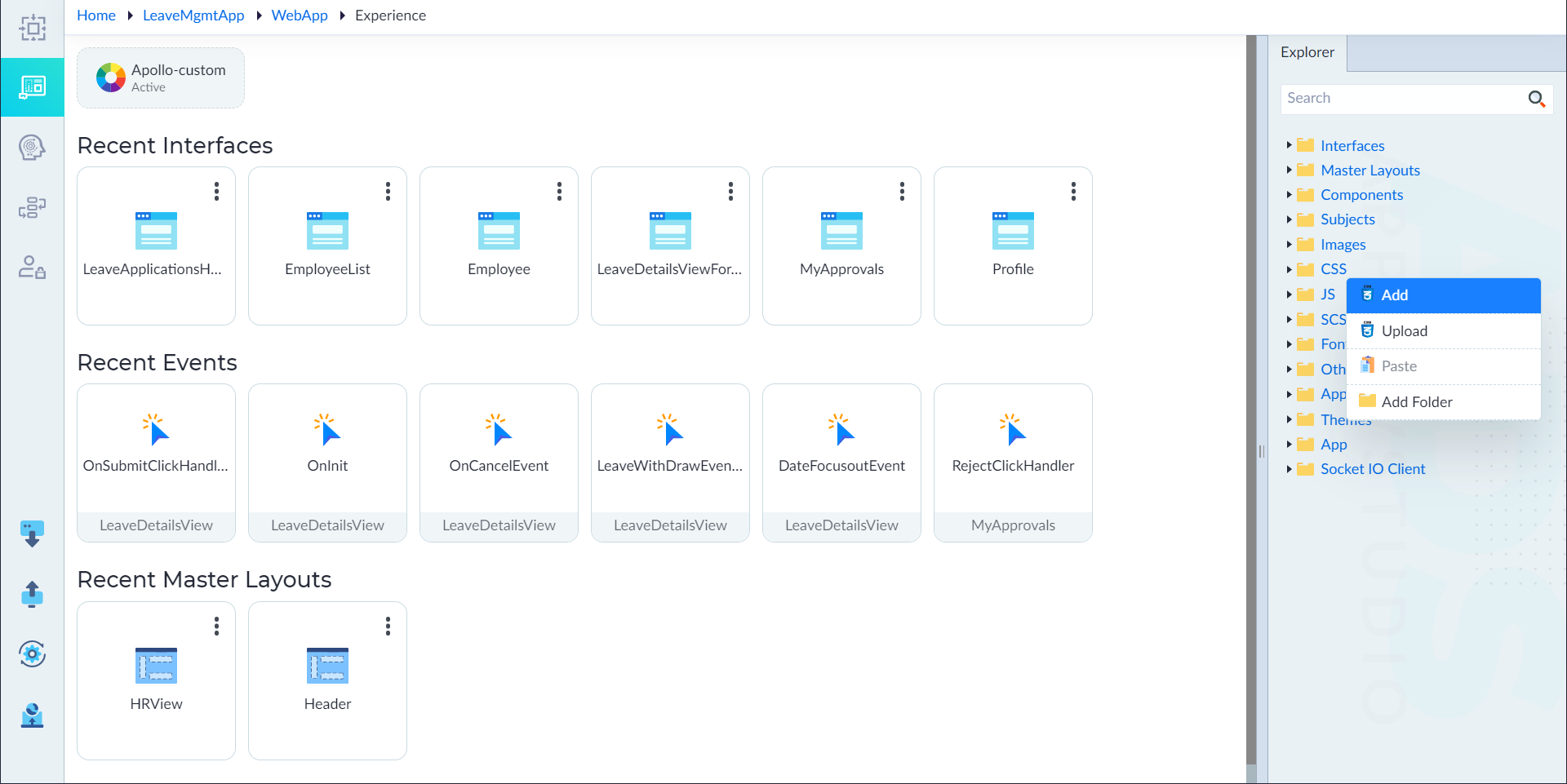
- From the explorer menu, right-click CSS and select Add. The Properties panel slides up from the bottom.
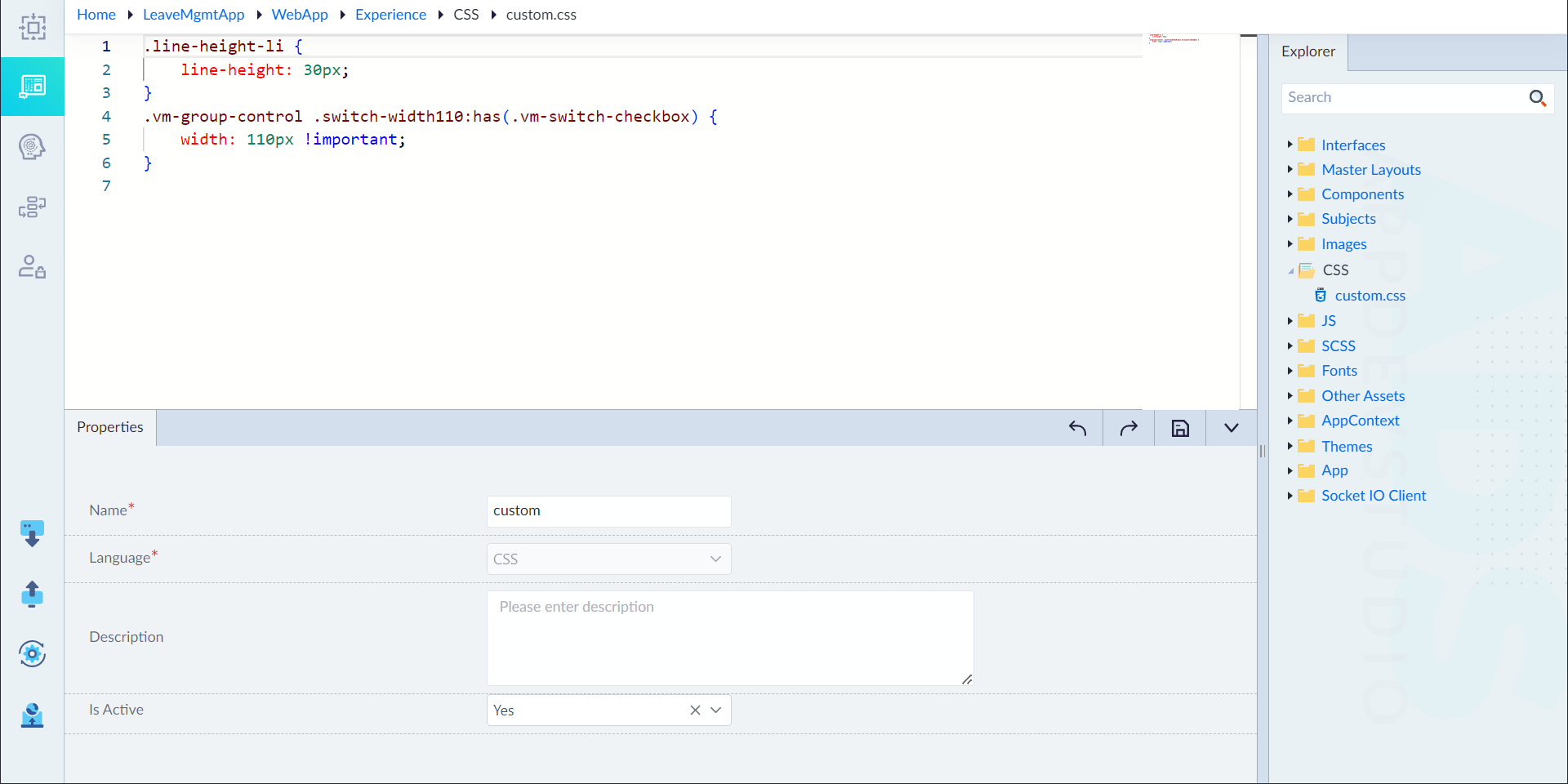
- Configure the required properties and provide CSS rule-sets in the editor.
- Click Save to complete the process.
- A message "CSS added successfully" will be displayed upon successful creation.
| Property | Description | Comments |
|---|---|---|
| Name* | Provide a name for the CSS. | Name must start with a character followed by alphanumeric or ''. No spaces are allowed. Except underscore (), no other special characters are allowed. Name cannot start with a number. |
| Language* | Type of language. | By default, CSS is selected. It cannot be changed. |
| Description | Provide the summary for the CSS. | - |
| isActive | Specify whether the CSS is active or not for accessing. Either Yes or No. | By default, Yes is selected. |
Note: An asterisk (*) denotes that the property is mandatory for creating a CSS.
Create JS
Follow the below steps to create JS:
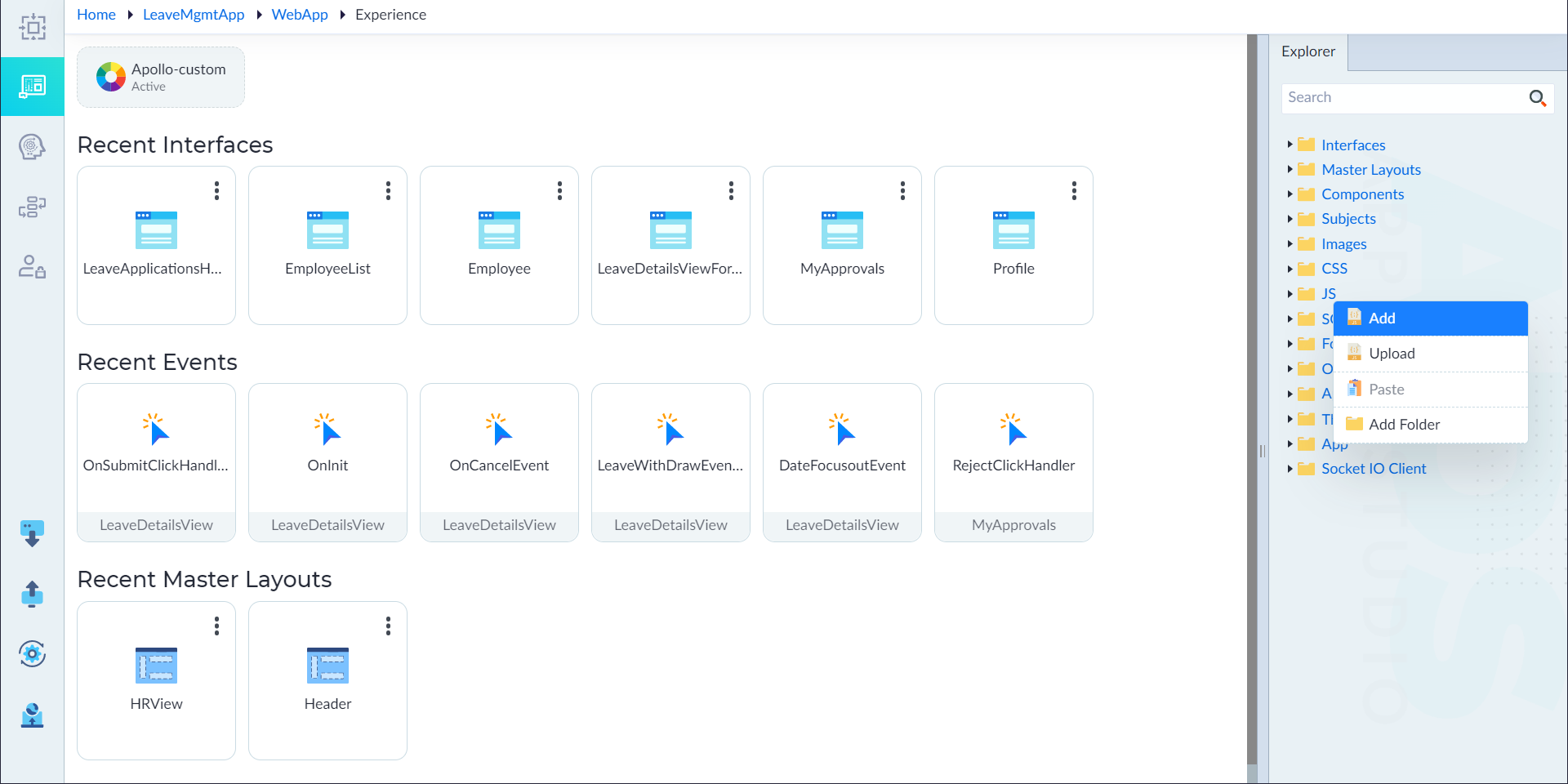
- From the Explorer menu, right-click JS and select Add.
- The Properties panel slides up from the bottom.
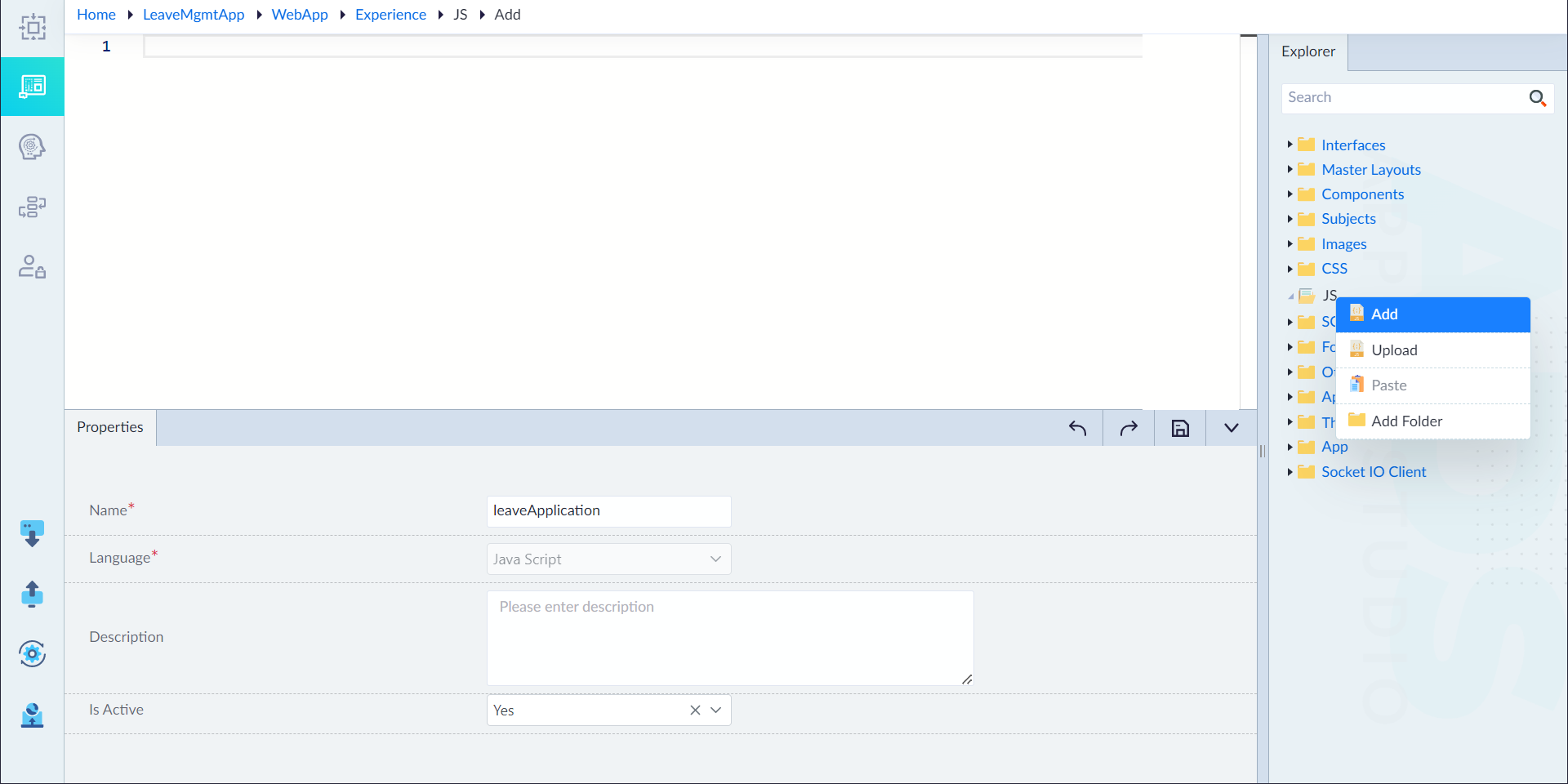
- Configure the required properties and provide JS content in the editor.
- Click Save to complete the process.
- A message "JS added successfully" will be displayed upon successful creation.
| Property | Description | Comments |
|---|---|---|
| Name* | Provide a name for the JS. | Name must start with a character followed by alphanumeric or ''. No spaces are allowed. Except underscore (), no other special characters are allowed. Name cannot start with a number. |
| Language* | Type of language. | By default, Java Script is selected. It cannot be changed. |
| Description | Provide the summary for the JS file. | - |
| isActive | Specify whether the JS is active or not for accessing. Either Yes or No. | Accepts "Yes" or "No". By default, "Yes" is selected. |
Note: An asterisk (*) denotes that the property is mandatory for creating a JS.
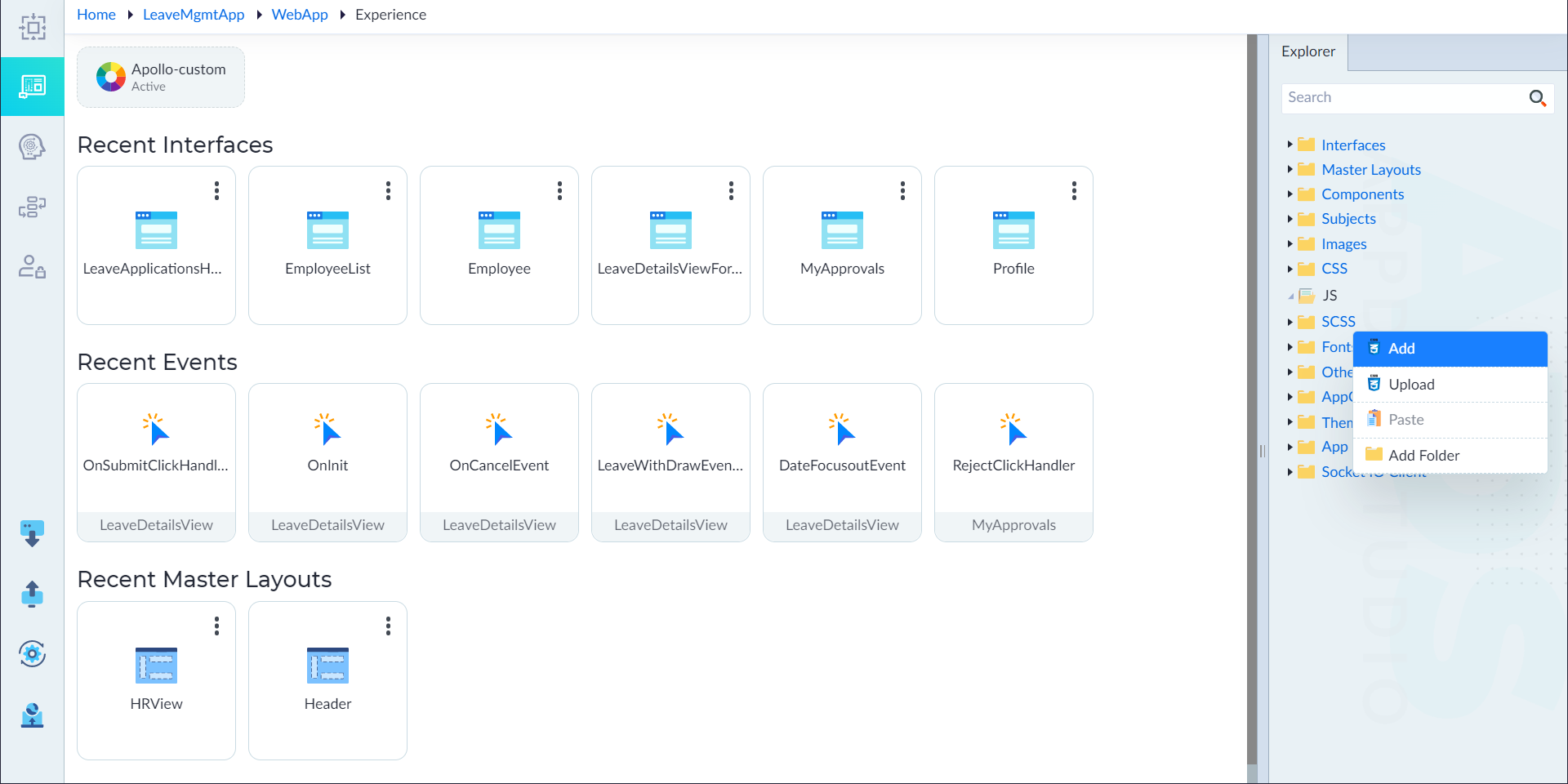
Create SCSS
Follow the below steps to create SCSS:
- From the Explorer menu, right-click JS and select Add.
- The Properties panel slides up from the bottom.
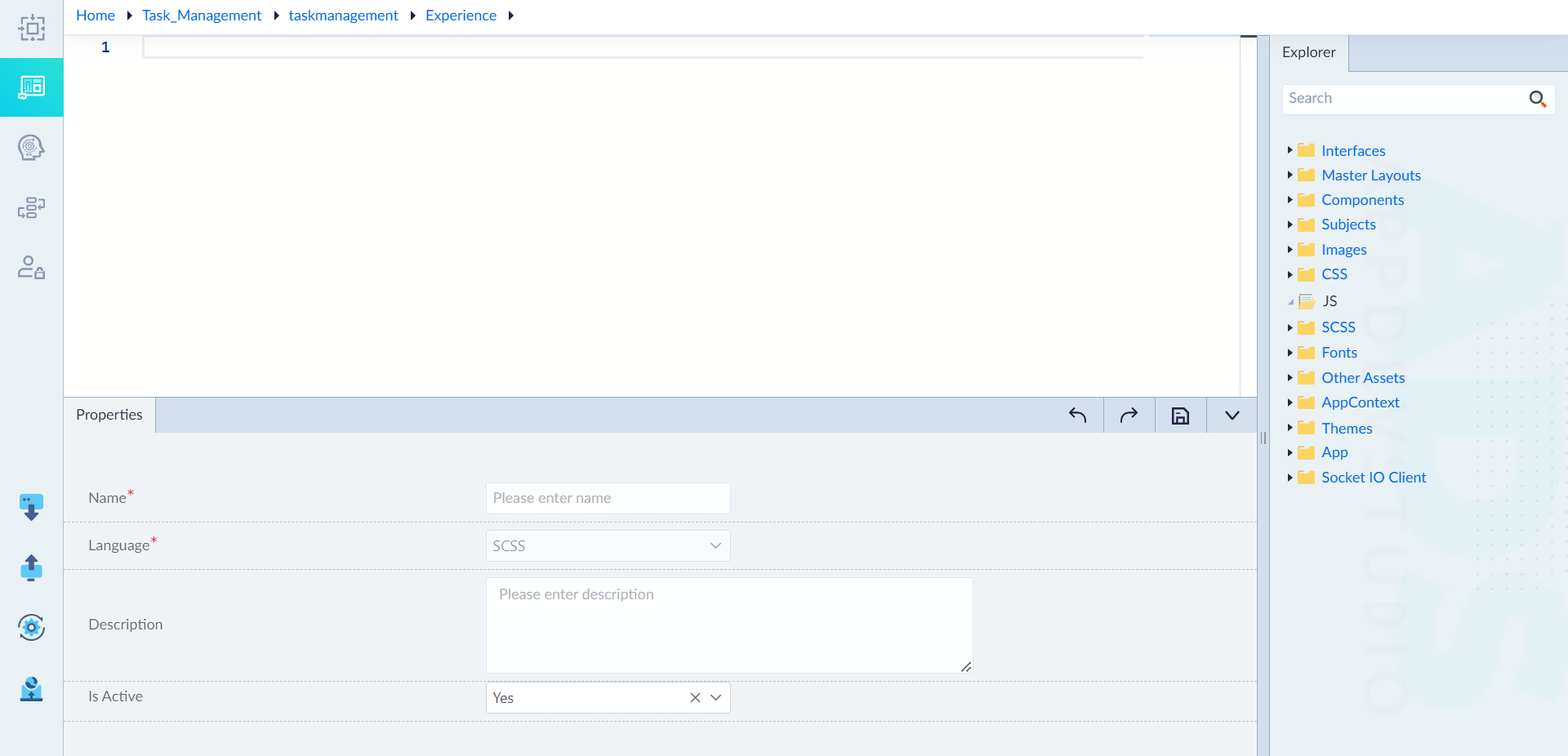
- Configure the required properties and provide SCSS content in the editor.
- Click Save to complete the process.
- A message "SCSS added successfully" will be displayed upon successful creation.
| Property | Description | Comments |
|---|---|---|
| Name* | Provide a name for the SCSS. | Name must start with a character followed by alphanumeric or ''. No spaces are allowed. Except underscore (), no other special characters are allowed. Name cannot start with a number. |
| Language* | Type of language. | By default, SCSS is selected. It cannot be changed. |
| Description | Provide the summary for the SCSS file. | - |
| isActive | A dropdown that allows the user to set whether the uploaded SCSS file is active or not. | Accepts "Yes" or "No". By default, "Yes" is selected. |
Note: An asterisk (*) denotes that the property is mandatory for creating a SCSS.
Create Other Assets
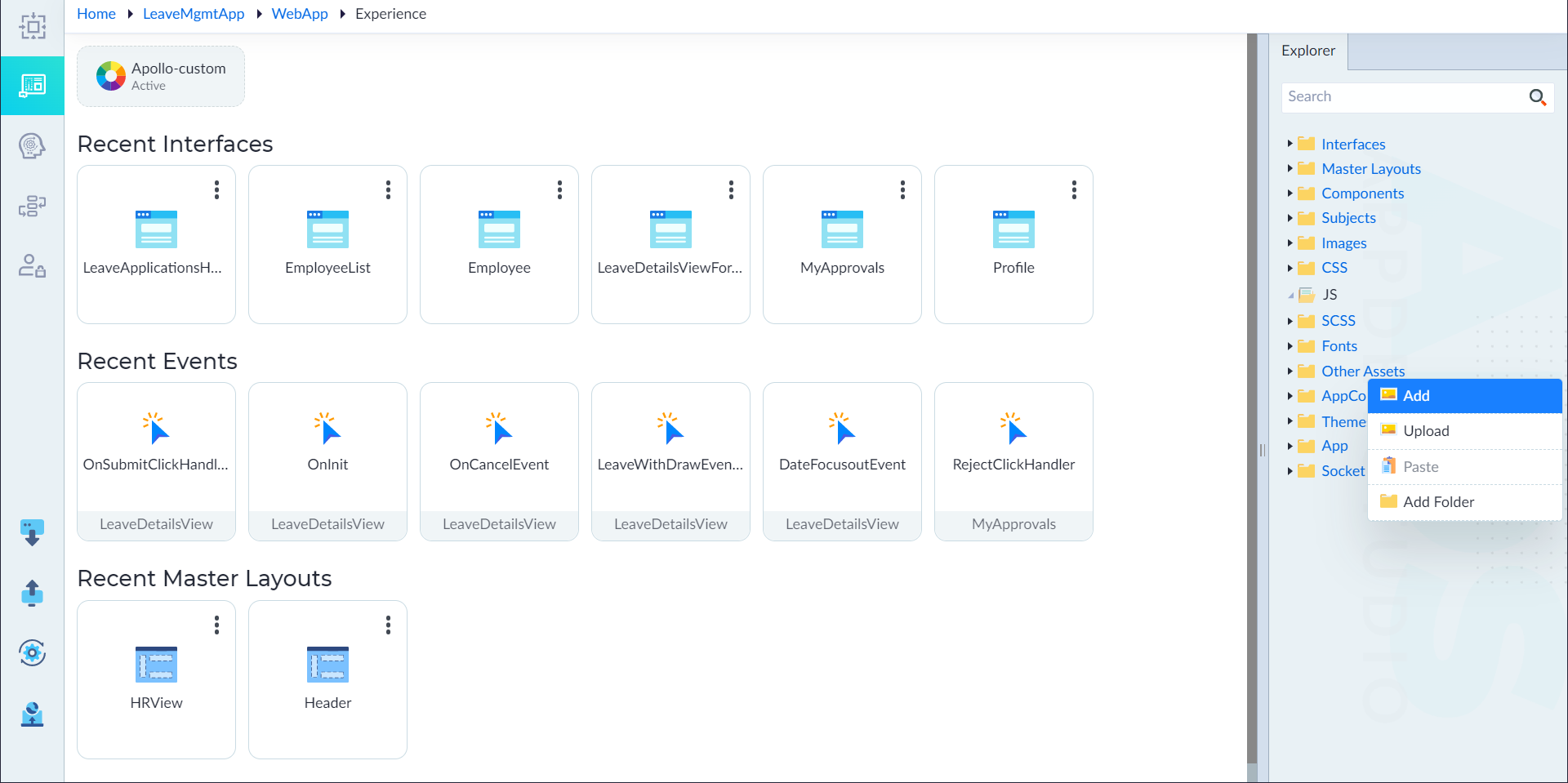
Follow the below steps to create other assets:
- From the Explorer menu, right-click Other Assets and select Add.
- The Properties panel slides up from the bottom.
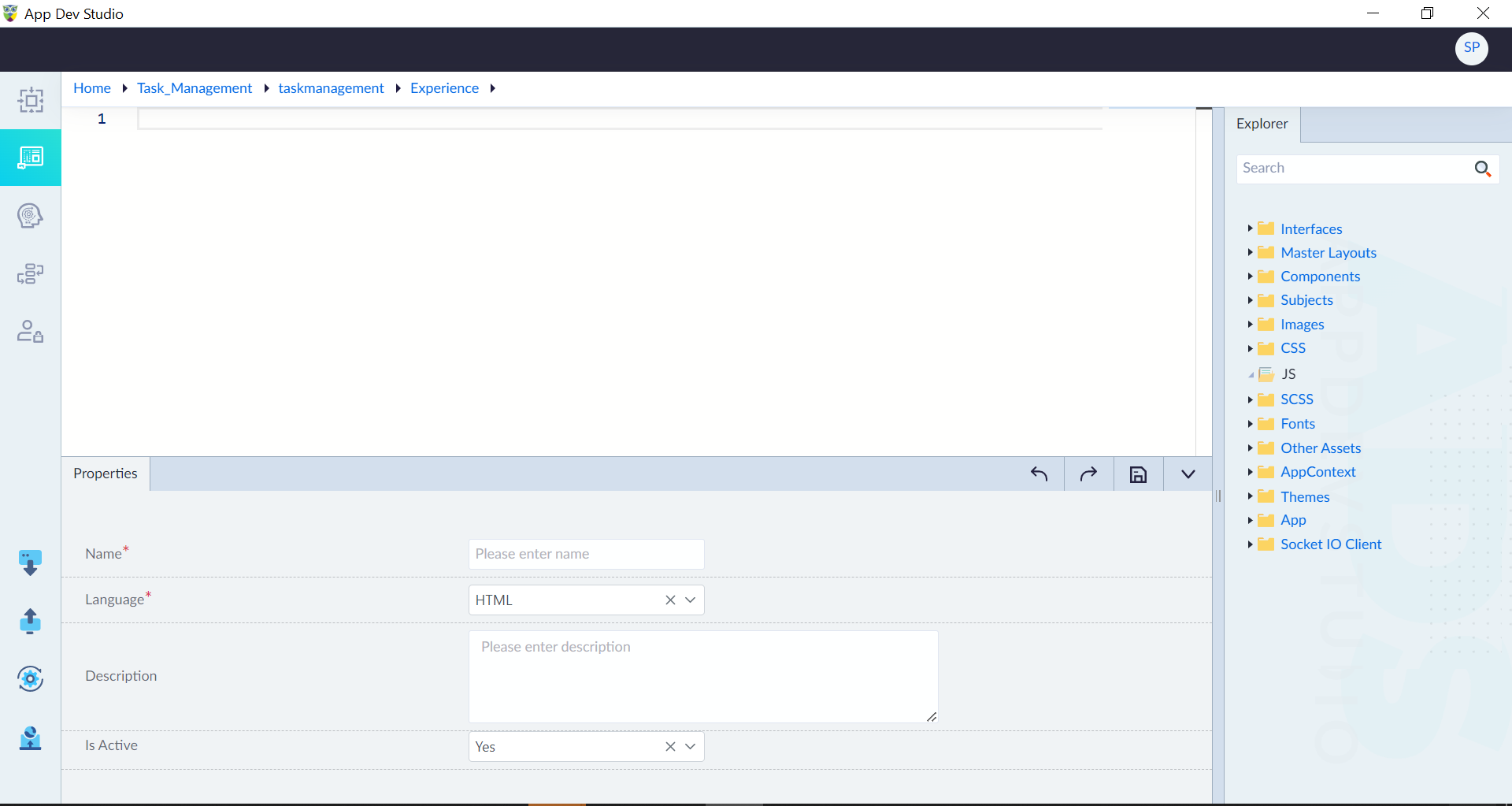
- Configure the required properties and provide Other Assets content in the editor.
- Click Save to complete the process.
- A message "Other Assets added successfully" will be displayed upon successful creation.
| Property | Description | Comments |
|---|---|---|
| Name* | Provide a name for the asset. | Name must start with a character followed by alphanumeric or ''. No spaces are allowed. Except underscore (), no other special characters are allowed. Name cannot start with a number. |
| Language* | Type of language. User can choose one of the following: HTML C# Java Script CSS SCSS JSON TypeScript XML SQL | By default, HTML is selected. |
| Description | Provide a summary of the file being added. | - |
| isActive | A dropdown that allows the user to set whether the uploaded file is active or not. | Accepts "Yes" or "No". By default, "Yes" is selected. |
Note: An asterisk (*) denotes that the property is mandatory for creating other assets.
Upload Assets
Users can upload images, fonts, and previously created CSS, JS and SCSS files. Following sections provide information on how to upload the assets required for developing application.
Upload Images, CSS, JS and SCSS
Follow the below steps to upload Images, CSS, JS, SCSS and Other Assets:
- From explorer, right-click the respective folder (Images (or) CSS (or) JS (or) SCSS (or) Other Assets) and select Upload. A pop-up window displays to browse for the required files.
- Configure the properties as required, and then click Upload. Upon successful upload, a success message is displayed.
| Property | Description | Comments |
|---|---|---|
| File* | Browse for the required file from the local file system and click Open. | - |
| Description | Provide a summary of the file being uploaded. | - |
| Is Active | Specify whether the file is active or not for accessing. Either Yes or No. | By default, Yes is selected. |
Note: An asterisk (*) denotes that the property is mandatory for creating other assets. User can upload TypeScript, JSON and Video files under Other Assets folder.
Upload Fonts
Follow the below steps to upload fonts:
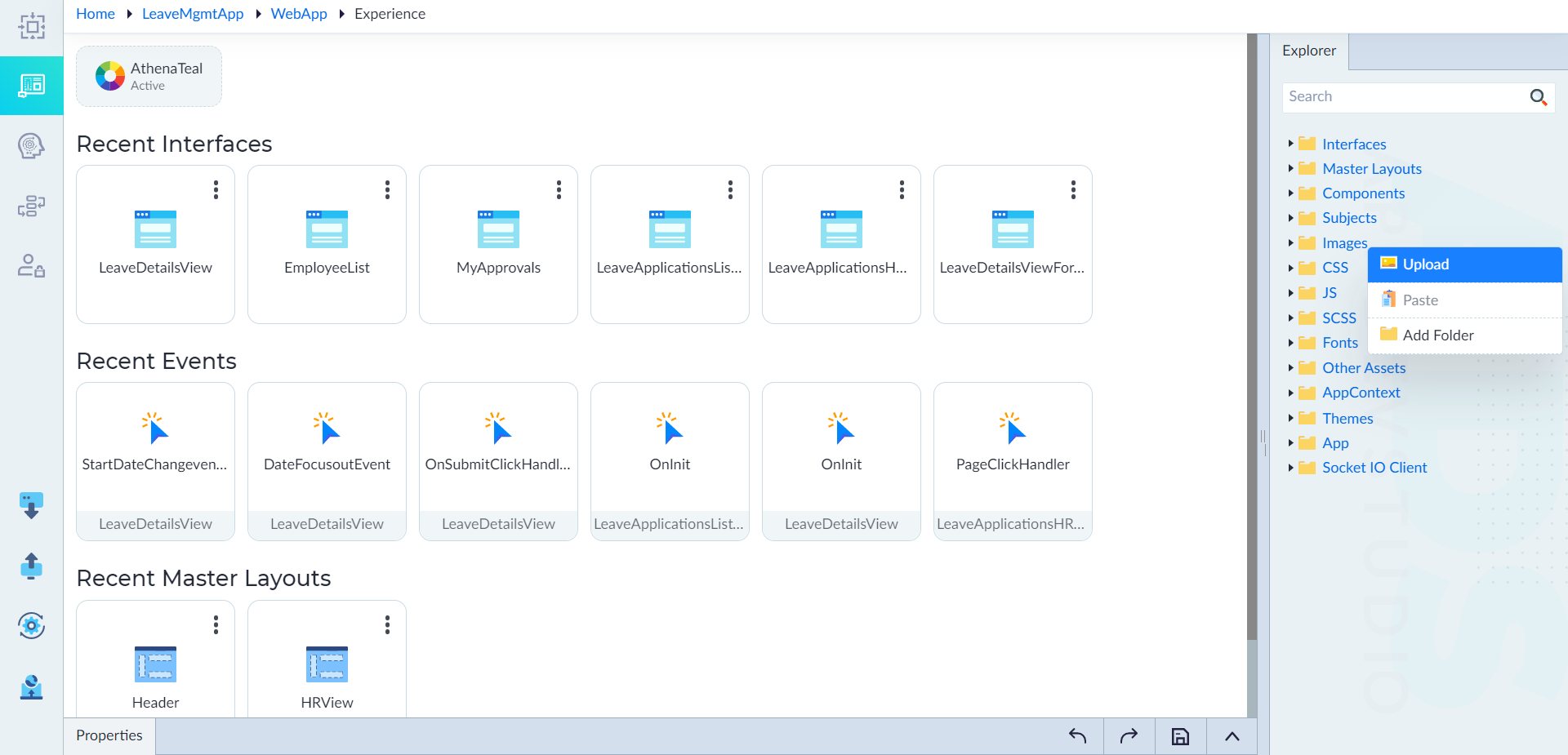
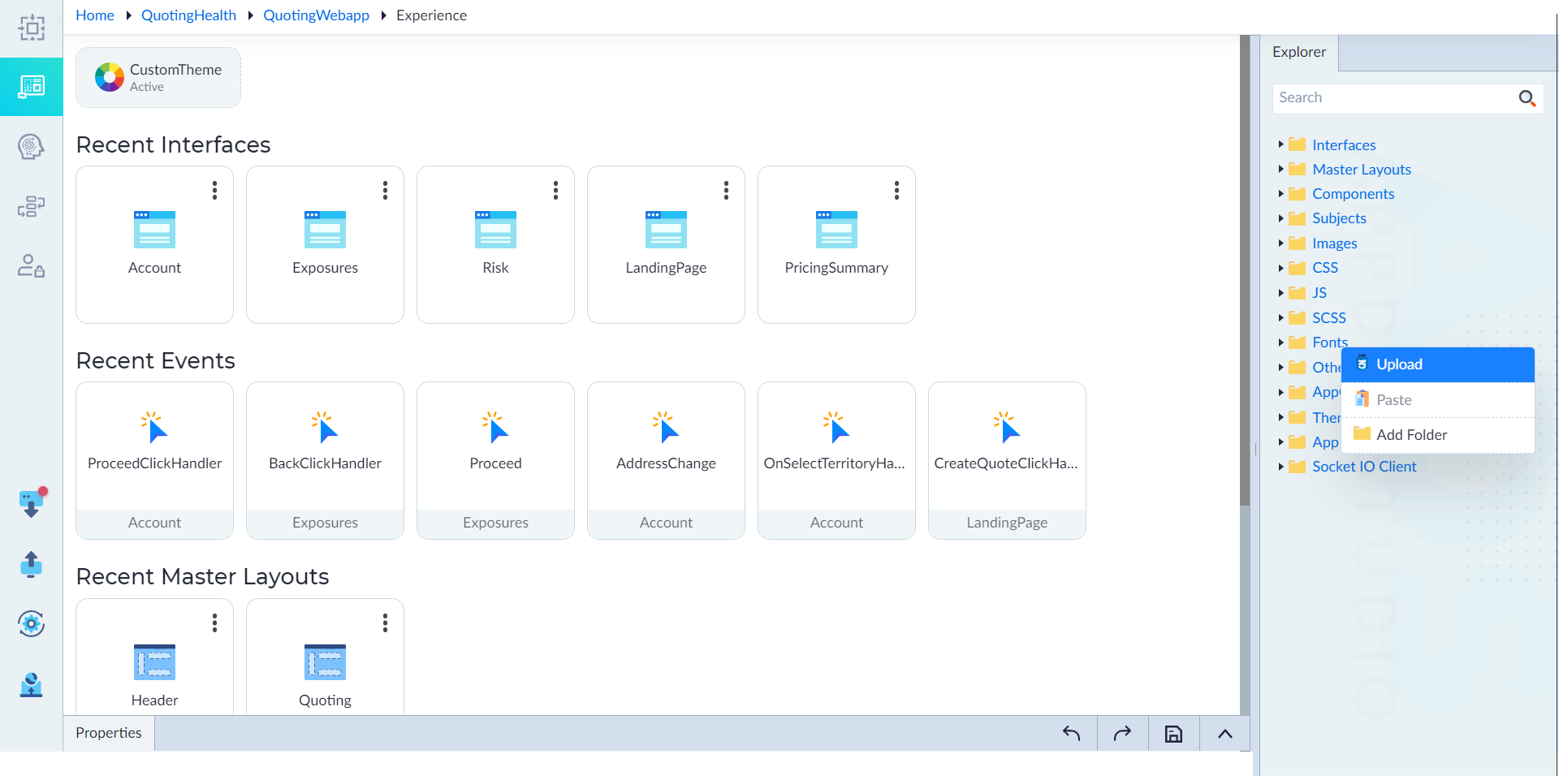
- From explorer, right-click Fonts and select Upload.
- The Upload Font pop-up window displays to browse for the required files.
- Configure the properties as required, and then click Upload.
| Property | Description | Comments |
|---|---|---|
| File* | Browse for the required file from the local file system and click Open. | - |
| Font Family Name* | Specify the name of the font family to be applied to text elements. | User can apply the font using the 'Font Family Name' in CSS. |
| Is Active | • Specify whether the file is active or not for accessing. Either Yes or No. | By default, Yes is selected. |
Note: An asterisk (*) denotes that the property is mandatory for uploading fonts. Upon successful upload, the message "Font file uploaded successfully" is displayed.
Manage Assets
Users can edit the assets as applicable and can delete the asset files which are no longer in use. Following sections provide information on how to manage the assets.
Edit CSS, JS, SCSS and Other Assets
Follow these steps to edit asset files:
- From the Explorer panel, double-click the desired file under CSS, JS, SCSS, or Other Assets.
- In the Properties panel, modify the configured properties and edit the content in the editor as required.
- Click Save to apply the changes.
- Upon successful update, a confirmation message will be displayed. For more details on asset properties, refer to the Create Assets section.
Segregate Assets
To enhance management and accessibility, users can organize assets into folders using cut, copy, and paste operations. Follow these steps to segregate assets:
- In the Explorer panel, right-click Images, CSS, JS, SCSS, Fonts, or Other Assets, then select Add Folder.
- Provide a name for the new folder.
- Right-click an asset file and select Cut or Copy as needed.
- Right-click the target folder and select Paste to move the asset file into the created folder.
Deleting Assets
Follow these steps to delete asset files:
- In the Explorer panel, right-click the asset file under Images, CSS,JS,SCSS,Fonts,****orOther Assets, then select Delete.
- A Delete Confirmation pop-up will appear.
- Click Confirm to proceed with the deletion.
- Upon successful deletion, a confirmation message will be displayed.