Authorization
OwlGen provides a robust authorization framework using authorization policies on Roles, Scopes, Claims, to control:
- Access to Screens or the Entire Master Layout
- Visibility of UI Sections (Show/Hide)
- Interactivity of UI Components (Enable/Disable Controls)
- Securing API Endpoints using Role-Based and Claim-Based Authorization
Authorization is enforced both at the UI level (restricting access to containers, widgets interfaces, master layouts) and at the API level (controlling access to server-side operations).
OwlGen leverages open-source Identity Server for IAM capabilities, including:
Authentication Mechanisms
- Single Sign-On (SSO): Users can log in once and access multiple applications without needing to re-authenticate.
- Two-Factor Authentication (2FA): Adds an extra layer of security by requiring users to verify their identity using an additional method (OTP).
- OAuth2 & OpenID Connect (OIDC): Supports industry-standard authentication protocols.
- External Identity Providers: Can integrate with Google, Azure AD, or other external providers.
User & Role Management via API or Admin Portal
- User Registration & Management: Create, modify, and delete users.
- Role Assignments: Assign and modify user roles dynamically.
- Audit Logging & Monitoring: Track authentication and access control events.
IMPORTANT Authorization is only available when the Enable Authentication option is set to Yes while selecting the Authentication Type during application creation.
Authorization Tools
OwlGen provides a comprehensive set of tools to manage authorization policies efficiently. These tools can be accessed from the Authorization Panel in the left menu.
Authorizations can be implemented using policies.
An Authorization Policy defines the rules that determine whether a user is granted or denied access to a specific resource, such as:
- An interface/master layout.
- A container in an interface/master layout
- A widget in an interface/master layout
- A Server flow exposed as API
- Entity actions exposed as API
Authorization policies are enforced using roles and claims. Policies can be configured to check if:
- A user has a specific role (e.g., "StudioAdministrator").
- A user has a specific claim (e.g., "CanModifySettings").
- A user meets multiple conditions (e.g., has a claim and belongs to a role).
Dashboard
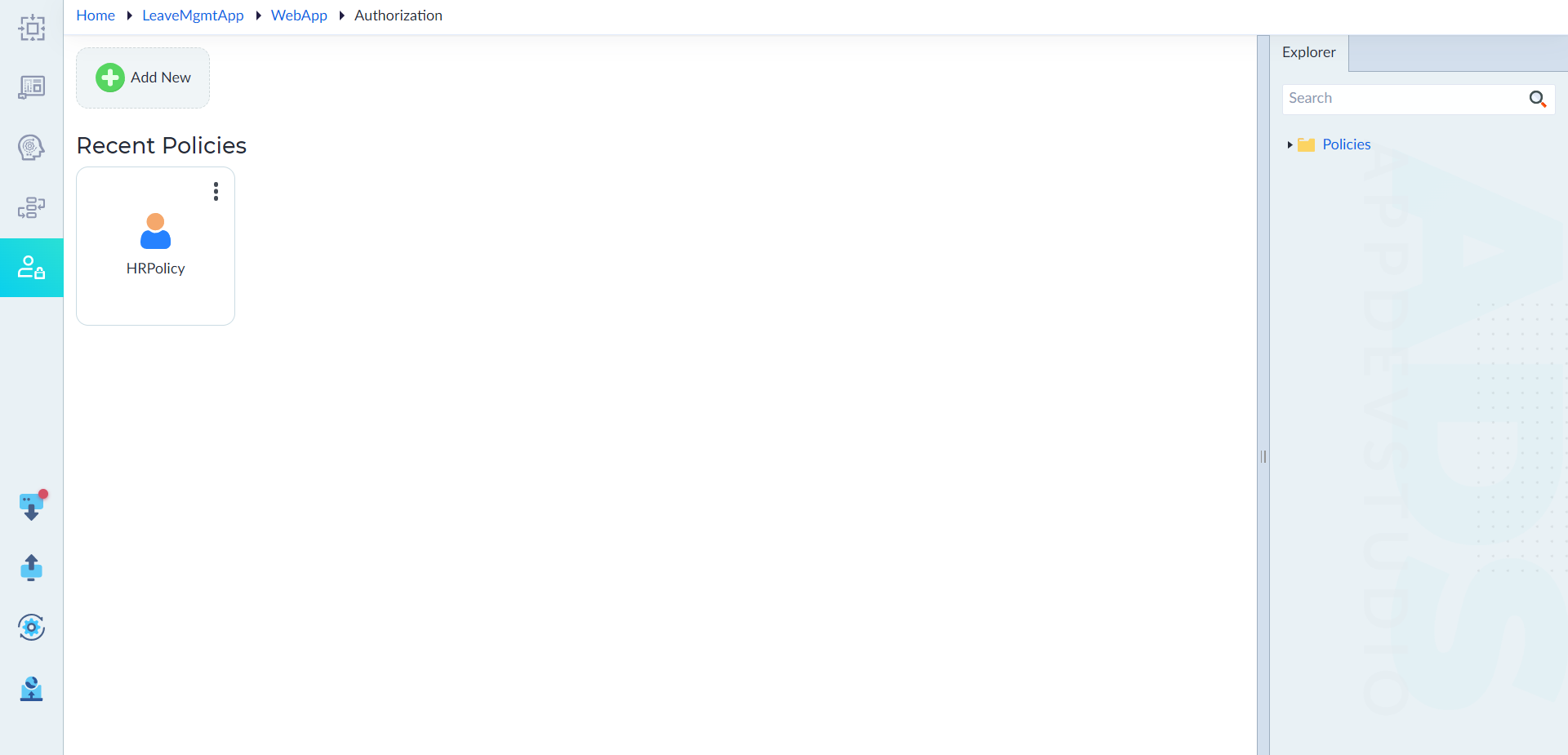
The Authorization Dashboard provides users with a quick overview and easy access to existing policies. It contains the following sections:
- Add New - Enables users to create a new authorization policy.
- Recent Policies - Displays recently created or modified policies for quick access and editing.
If a user accesses the Authorization Center for the first time, an empty screen with the text "No Policies Found" appears, along with an Add New button to create a new policy.
Explorer Panel
The Explorer Panel allows users to create and manage policies. It includes:
- Search: A search bar to find existing policies quickly.
- Policies: A section to create, view, and manage authorization policies.
Creating an Authorization Policy
Follow these steps to create a new authorization policy:
Steps to Create a Policy
- Navigate to the Explorer Menu.
- Right-click Policies and select Add, or click Add New in the dashboard.
- In the Basic Details window, configure the properties as required.
- Click Save to create the policy.
Dashboard contains the following information:
- Add New
- Recent Policies
This helps the user to access the recent items quickly and edit as required.
If a user is accessing the Authorization center for the first time, an empty screen with "No Policies Found" text displays along with an "Add New" button to create a new policy.
Policy Properties & Descriptions
| Property | Description | Constraints & Notes |
|---|---|---|
| Name* | Name of the policy. | - Must start with a character. - Only alphanumeric characters and underscores (_) are allowed. - No spaces or other special characters. - Cannot start with a number. |
| Active Status | Specifies whether the policy is active. | Accepts Yes or No (default: Yes). |
| Description | A summary of the policy. | Optional. |
Confirmation Message
After successful creation, the message "Policy added successfully" appears.
Defining Authorization Rules & Conditions
Once a policy is created, users can define specific conditions to regulate access. These conditions can be configured as follows:
Adding Conditions to a [Policy
- Click Conditions in the created policy.
- Click Add Condition to define authorization rules.
- Users can add the following types of rules:
- Role-Based Rules – Restricts access based on predefined user roles.
- Scope-Based Rules – Limits access depending on defined scopes.
- Claim-Based Rules – Defines access permissions based on claims (such as user attributes).
- Click Add Group to define sets of rules separated by AND or OR conditions.
- Click Save to finalize the conditions.
Mapping Policies to Entities actions, Server flows, and Layouts
Authorization policies can be applied to specific components within an application:
Entity Mappings
- Users can select an action on which the authorization policy should be enforced.
- Click Save to finalize the mappings.
Server Flow Mappings
- Visible only when the Expose API option is set to Yes during serverflow creation.
- Users can select a serverflow where authorization policies will apply.
- Click Save to update mappings.
Interface & Master Layout Mappings
- Users can restrict access to specific parts of an interface or master layout.
- The AuthGuard feature can be enabled using a radio button.
- Individual widgets within an interface/master layout can be assigned specific access rules.
Confirmation Messages
- After successfully applying policy mappings, the message "Policy Mappings updated successfully" appears.
Best Practices for Authorization in OwlGen
- Use Role-Based Access Control (RBAC): Assign permissions based on predefined user roles to streamline access management.
- Apply the Principle of Least Privilege: Grant users the minimum access necessary to perform their tasks.
- Regularly Review and Update Policies: Ensure that authorization rules remain relevant and secure.
- Enable Multi-Layered Security: Combine authentication, authorization, and encryption for enhanced application security.
- Use Conditions Wisely: Group rules efficiently to prevent excessive restrictions or overly permissive access.