Logic
Logic in OwlGen serves as a centralized hub for managing client flows, server flows, API definitions, exceptions and other associated items in the application. It allows the user to view, create, and manage logic of a particular program in an application.
Client Flows
Client flows refer to the sequence of actions and interactions that occurs on the client side of a software application. They are essential for defining how the user interface should behave, how data should be presented, and how user interactions should be handled in an application. OwlGen offers a visual and user-friendly approach in designing client-side logic, making it accessible for a broader range of developers.
Client flows are eventually be converted to Javascript during deployment. The logic implemented would run in the browser reducing the need for constant server requests. Re-usable front-end logic can be implemented as client flows and can be called from events and other client flows.
Server Flows
Server flows are commonly employed to incorporate backend business logic, which usually entails managing data storage, processing, and retrieval, and frequently entails linking with other systems or services. These flows can be employed to establish APIs or server-side logic that are reusable within the application. Once implemented, they may eventually be transformed into C# services or web APIs when deployed.
Logic Tools
From left menu, user can click Logic to view the following.
- Dashboard
- Explorer Panel
- Properties Panel
Dashboard
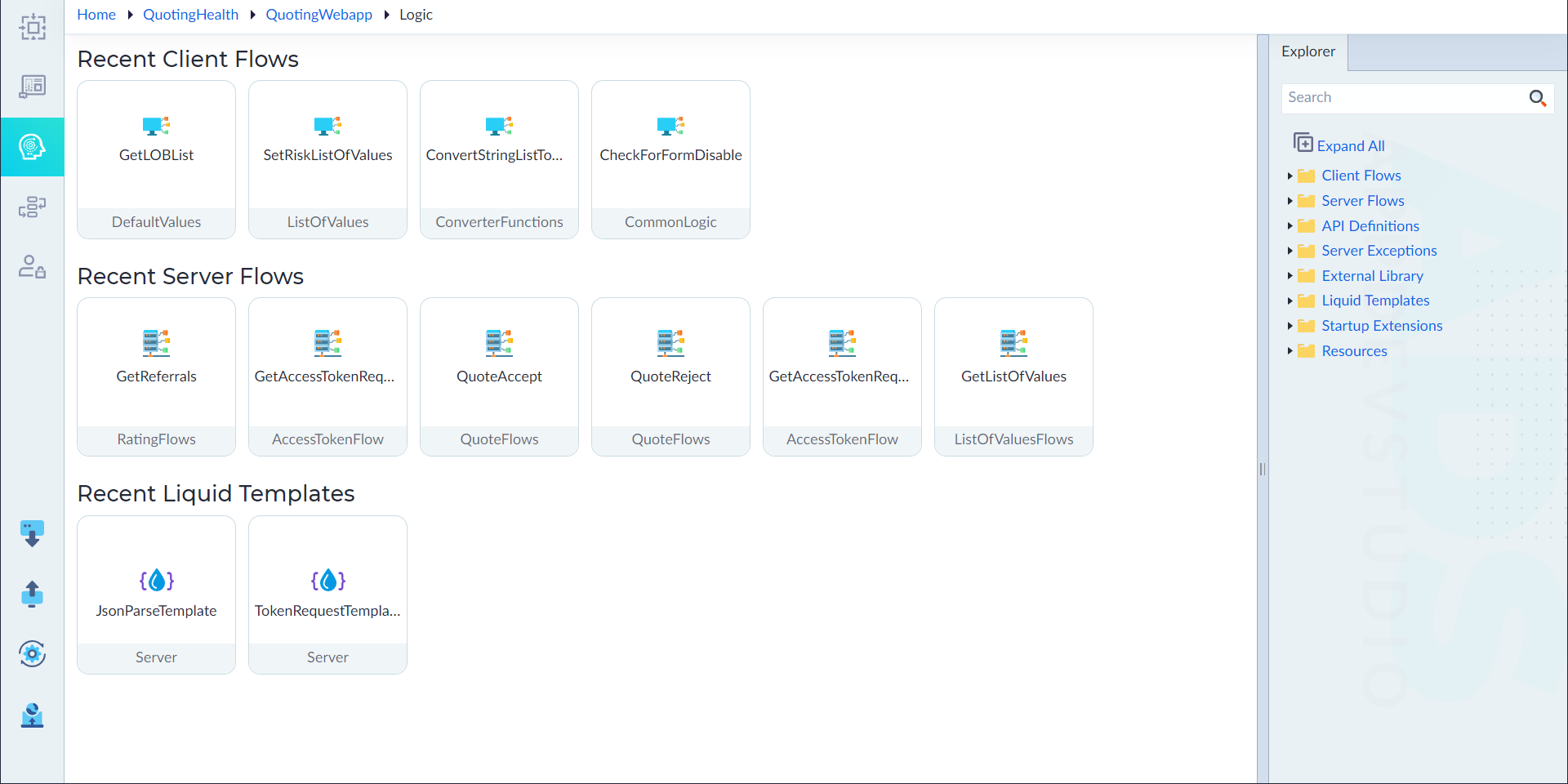
Dashboard contains the following information:
- Recent Client Flows
- Recent Server Flows
- Recent Liquid Templates
This helps the user to access the recent items quickly and edit as required.
If a user is accessing the Logic for the first time, an empty screen with "No Logics Found" text displays.
Explorer
Users can create client flows, server flows and respective items regarding logic part of an application from explorer panel. The structure of the Explorer panel is as follows:
| Option | Functionality |
|---|---|
| Search | To search the created client flows, server flows, libraries, etc. |
| Client Flows | To create and manage a client flow. |
| Server Flows | To create and manage a server flow. |
| API Definitions | To create and manage API definitions. |
| Server Exceptions | To create and manage exceptions. |
| External Libraries | To store and manage external libraries. |
| Liquid Templates | To create and manage liquid templates. |
| Resources | To add, upload, store, and organize resources, including documents and JSON files, within logic and workflow processes. |
Properties
When creating or updating client flows, server flows, etc, the properties panel slides up to show the attributes that can be configured for a particular item.
The slide up/down button is used to expand and collapse the properties panel as applicable. It also contains Zoom-in, Zoom-out, Auto-align, undo and redo options which are useful while creating server flows and client flows in the designer canvas.