Widgets
Widgets are an essential tool for designing and organizing the user interface of your app. These visual elements serve as the fundamental building blocks for accelerating UI development. The primary benefits of using widgets is their re-usability.
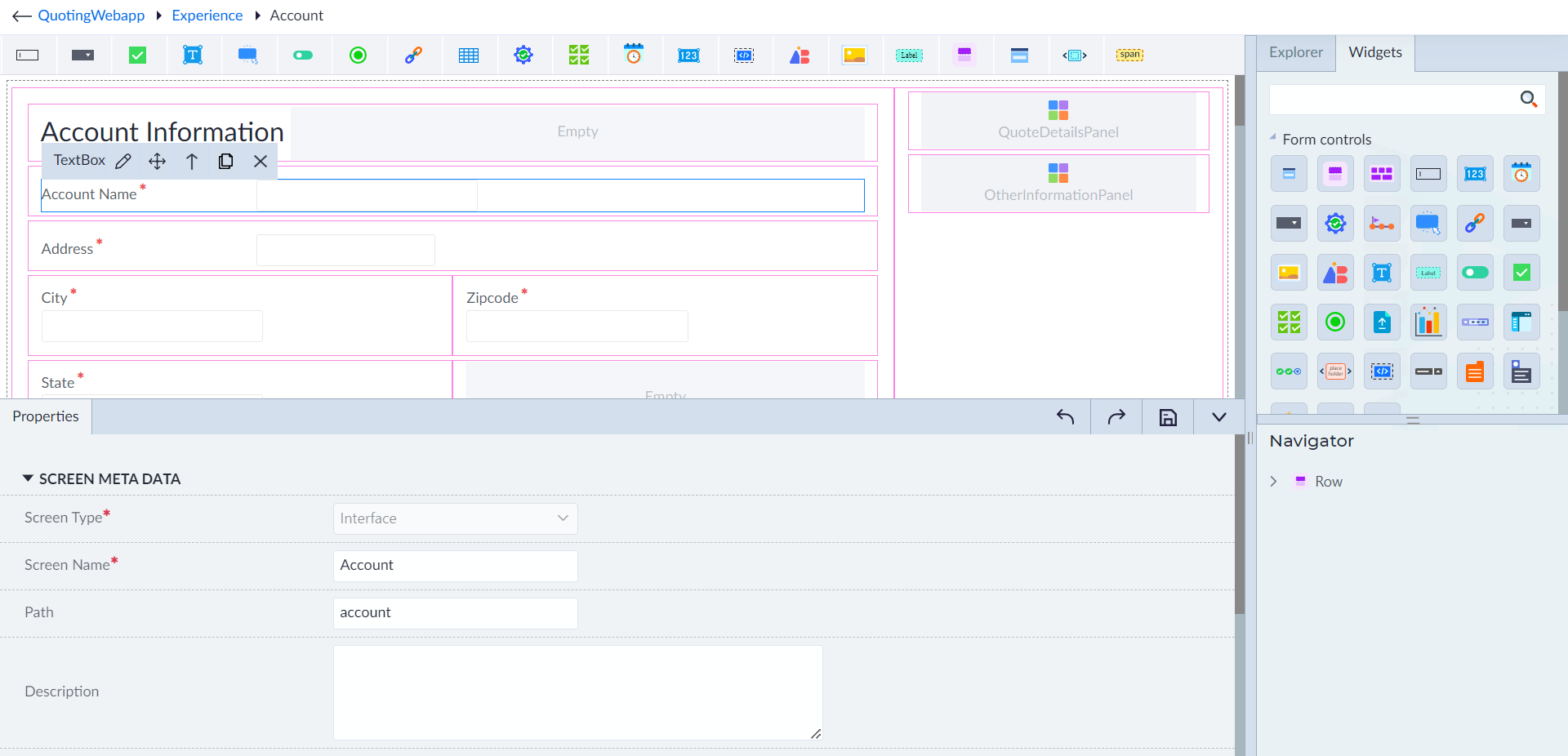
OwlGen provides pre-defined widgets to use. Users can find these widgets next to the explorer panel. They can be used in Interfaces, Master Layouts and Components as applicable.
Users can simply drag and drop the widgets into the designer canvas and configure the properties to customize it accordingly.
The following are the pre-defined widgets available in OwlGen:
| Widgets |
|---|
| Form Controls |
| Section |
| Numeric Text Box |
| Breadcrumb |
| Icon |
| Checkbox |
| Chart |
| PlaceHolder |
| Dropdown Menu |
| Grids |
| Data Grid |
| Containers |
| FlexRow |
| Span |
| List |
| If Else Container |
| Advance Form Controls |
| Dropdown Treeview |
| Google Maps |
Additionally, the widget panel contains the components created. These components can be used to design an interface or master layout.
Add Widgets
Users can add the widgets to an interface (or) master layout (or) component as applicable. To add, follow the below steps:
- Double-click the created interface (or) master layout (or) component. The designer canvas displays.
- From the widgets panel, drag and drop the applicable widget onto the canvas. The designer canvas also contains a ribbon to access the widgets quickly.
- Configure the properties of the widget and then click Save.
Manage Widgets
Users can edit the widgets as required and delete the used widget if there is any change in design or requirement. Follow the below steps to manage a widget:
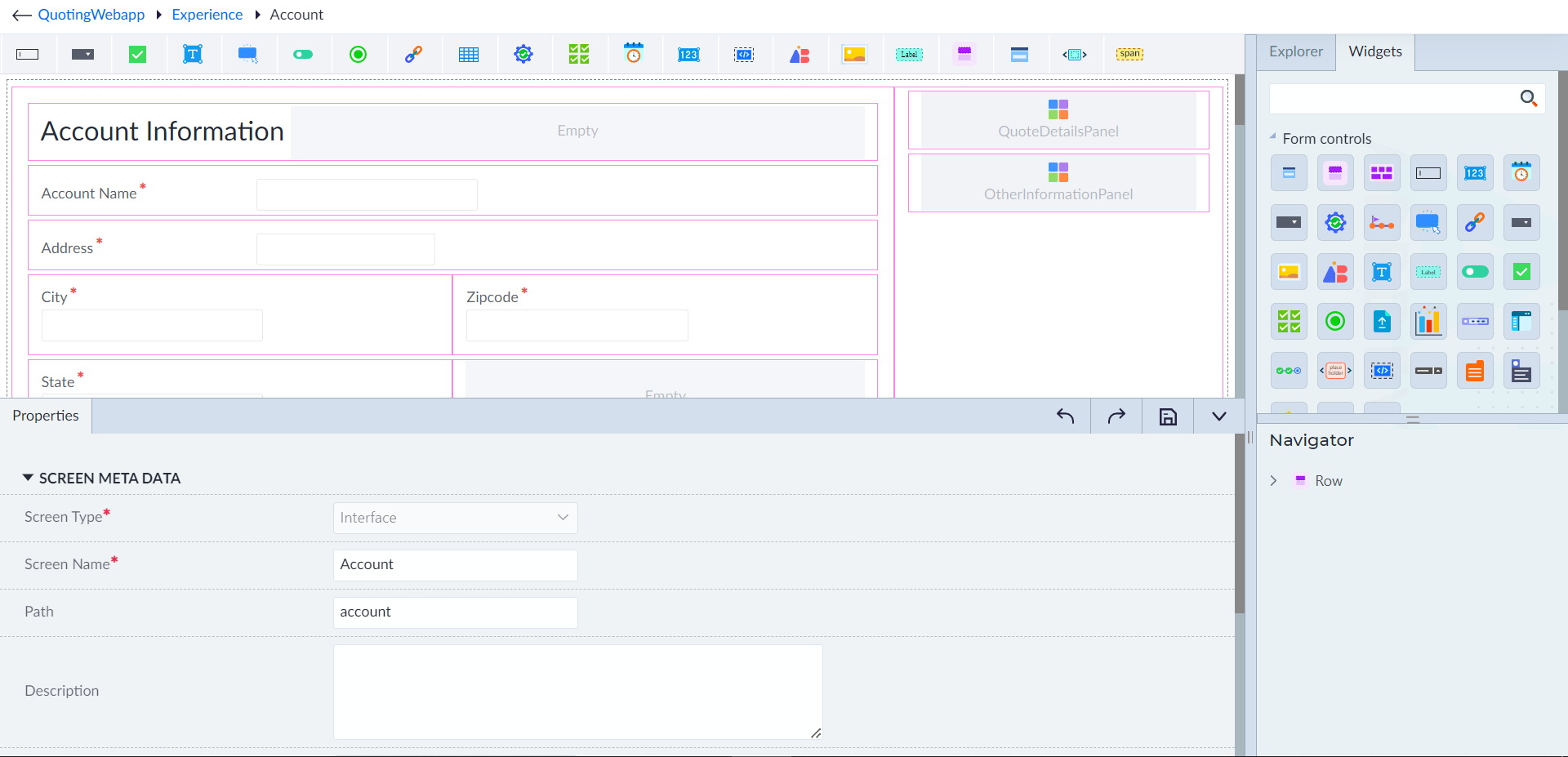
- In an interface (or) master layout (or) component, hover over a widget. The widget context menu displays with the following options.
- Edit: To customize the widget.
- Move: To move the widget in the canvas.
- Parent Selector: To select the parent item of a widget.
- Navigator: To see the hierarchy of a particular widget layout.
- Copy: To copy a widget.
- Delete: To delete a widget.
- Use the options in widget context menu as required and do the customization.