Breadcrumb
The Breadcrumb Widget is a navigation aid that displays the user’s location within an application hierarchy. It allows users to track their navigation path and move back to previous levels easily. This is particularly useful in multi-level or nested structures like dashboards, e-commerce platforms, or content management systems.
Steps to Use the Breadcrumb Widget
- Drag & Drop the Breadcrumb Widget onto the designer canvas.
- Bind the Data Source – Connect it to an API response or local entity.
- Define the Structure – Ensure the data source has label, path, and isClickable attributes.
- Customize Appearance – Set separators, styles, and click actions.
- Handle Click Events – Define what happens when a breadcrumb item is clicked (e.g., navigation, API call).
Breadcrumb Data Source
The Breadcrumb Widget only supports complex types, as each breadcrumb requires multiple attributes to function correctly.
Example Data Source (Complex Type)
[ { "label": "Home", "path": "/home", "isClickable": true }, { "label": "Products", "path": "/products", "isClickable": true }, { "label": "Electronics", "path": "/products/electronics", "isClickable": false } ]
Why Only Complex Types?
- Supports multiple attributes – Label, path, interactivity.
- Ensures scalability – Easily extendable with icons, tooltips, etc.
- Facilitates dynamic navigation – Works well with API-driven routes.
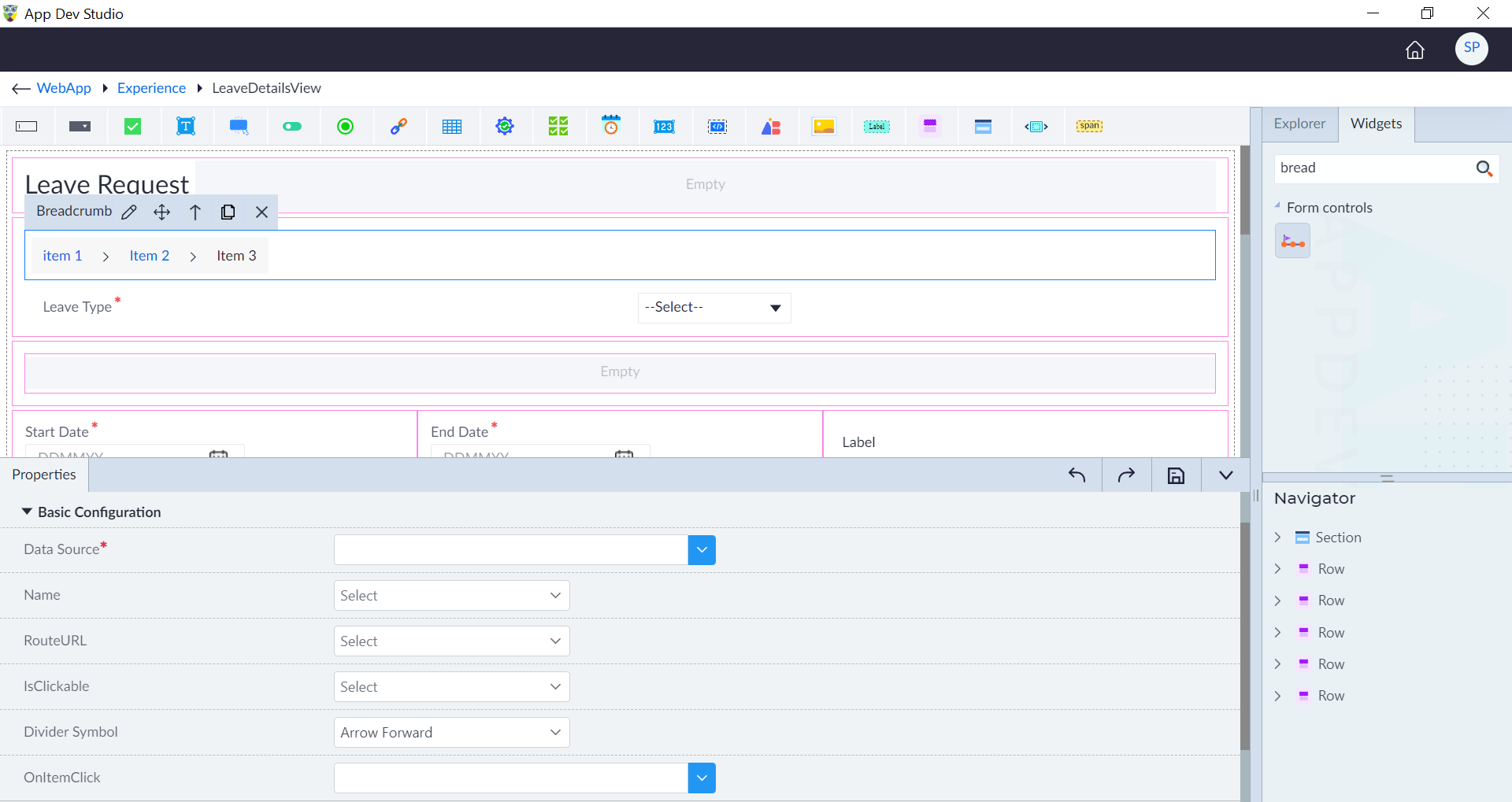
| Property | Description | Comments |
|---|---|---|
| Basic Configuration | ||
| Data Source* | Provide the data source for the breadcrumb. | The data source options may come from AppContext variables or Page Models. The data source array object should include at least: A string attribute that represents the label to display. A Boolean flag that indicates whether a particular breadcrumb item is clickable. |
| Name | Select a string attribute that represents the label to display. | The drop-down contains options with attributes present in the data source’s entity. |
| IsClickable | Select a Boolean flag attribute that indicates whether a particular breadcrumb item is clickable. | The drop-down contains options with attributes present in the data source’s entity. |
| Divider Symbol | Select the type of divider to be used for breadcrumbs. User can choose one of the following: Arrow Forward Double Arrow Arrow Right Forward Slash | - |
| OnItemClick | Select an event from the drop-down options to trigger when an item is clicked. | When the isClickable value in a breadcrumb’s data source item object is true, the (onItemClick) bound event/function will be triggered, passing the clicked item object as an event parameter. |
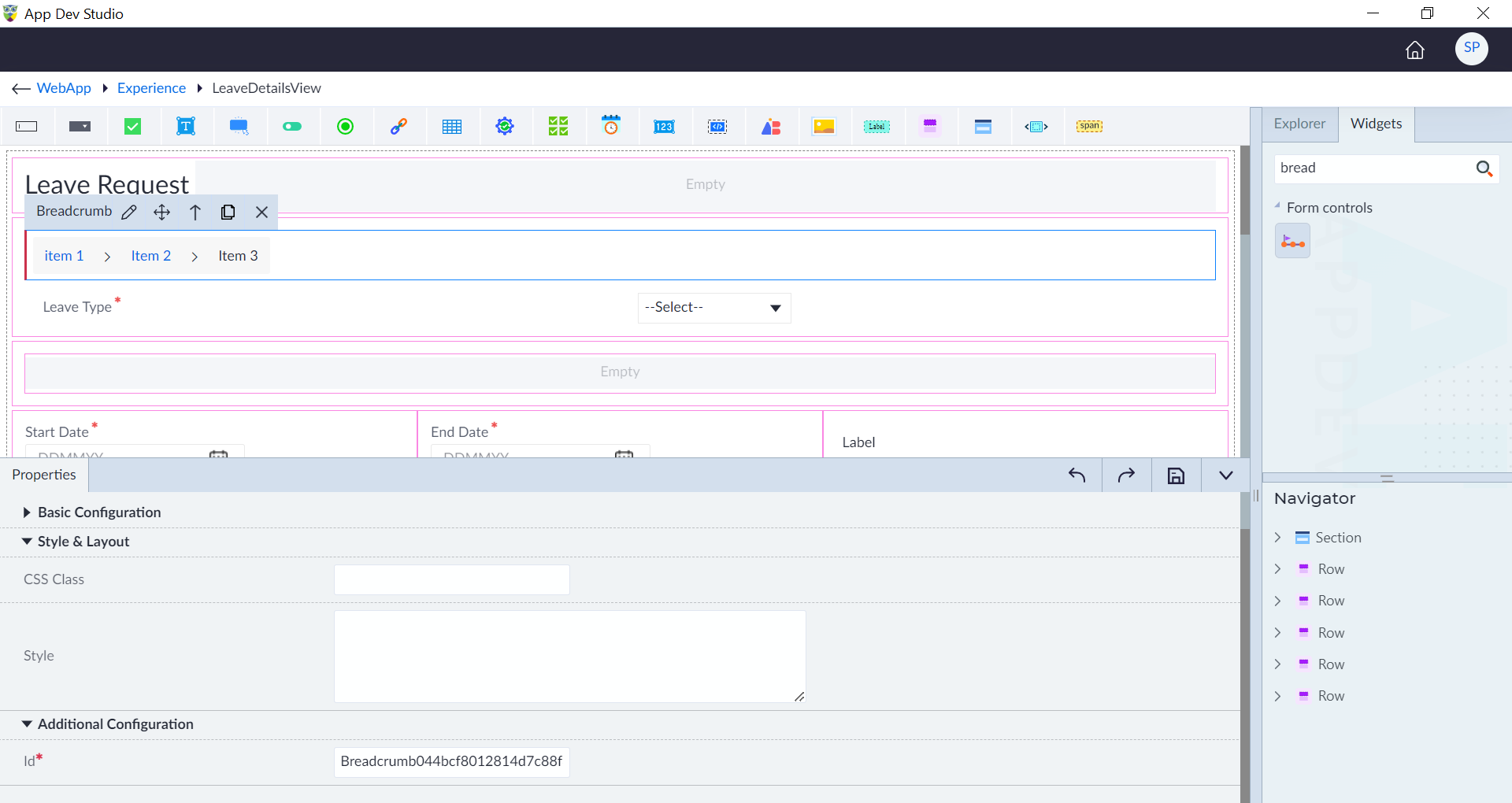
| Additional Configuration | ||
| Id* | Provide a unique identifier. | An id is created by default. User can change the unique id as required. |
| Comment | Select Yes or No | On selecting Yes, the widget will not generate. |
Note:
- Style and layout group
- Style bindings
- ARIA attributes bindings — These groups need to be referred and add from the common configuration groups document.
- An asterisk (*) denotes that the property is mandatory for adding a breadcrumb.
The "Configuration saved successfully" message displays upon successfully adding the breadcrumb widget.
Additional Notes
Breadcrumb vs. Wizard – Understanding the Differences
Both Breadcrumbs and Wizards help users navigate within an application, but they serve different purposes and are used in different contexts. Below is a detailed comparison:
Breadcrumb Widget
Purpose:
- Provides a navigation trail that helps users track their position in a multi-level structure.
- Allows users to jump back to previous levels without following a strict sequence.
Key Features:
- Displays hierarchical navigation.
- Supports clickable and non-clickable items.
- Can fetch items dynamically from a data source.
- Helps in navigating through nested content or categories.
- Works well in content-driven applications.
Use Cases
- Website navigation (e.g., E-commerce, Blogs, File systems).
- Multi-level category browsing (e.g., Home → Electronics → Mobile Phones).
- Dashboard navigation in enterprise applications.
- File management systems (e.g., Folder hierarchy).
Wizard Widget
Purpose:
- Helps users progress step-by-step through a structured process.
- Ensures a sequential flow where each step must be completed before proceeding.
Key Features:
- Guides users through a multi-step process.
- Supports step validation to ensure required inputs.
- Can have different layouts (horizontal/vertical).
- Allows custom actions like "Next", "Previous", and "Finish".
- Useful for forms, onboarding, and multi-step workflows.
Use Cases
- Form submission processes (e.g., Checkout process in an online store).
- User onboarding (e.g., Setting up a profile).
- Configuration wizards (e.g., Setting up a new software tool).
- Multi-step approval workflows (e.g., Loan applications).