Editable Grid
An editable grid widget is a table-like UI component that allows users to view, edit, and manage data in a tabular format. It supports row edit (editing all cells in a row at once) and cell edit (editing individual cells), along with additional features like sorting, searching, and frozen columns.
Steps to Use an Editable Grid
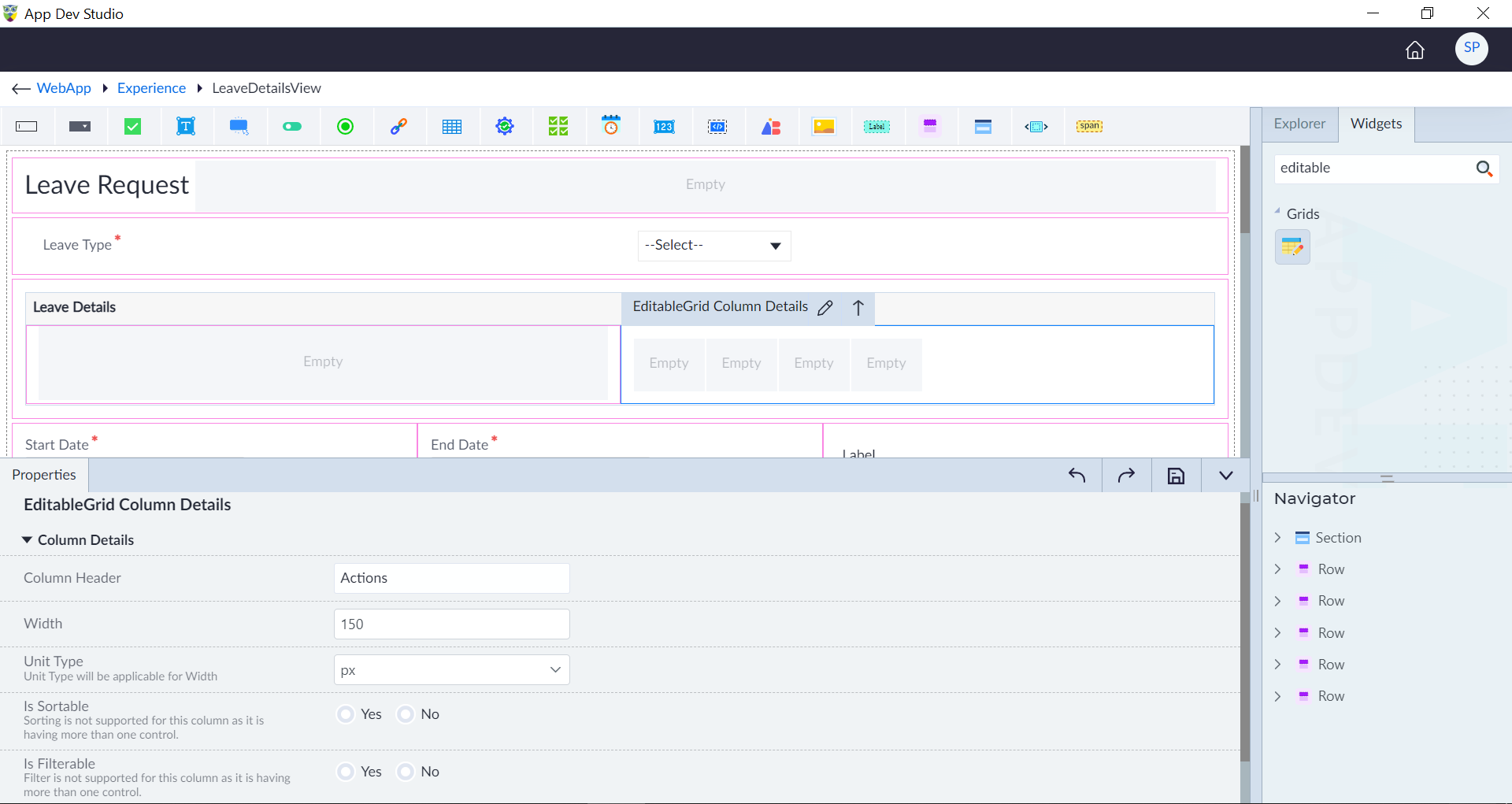
- Search for and drag the Editable Grid Widget from the widget Explorer and drop it onto the designer interface.
- By default, the grid renders with:
- One Normal Column – with droppable area for supported widget configuration.
- One Action Column – For performing CRUD actions (e.g., Edit, Delete, Save).
- Add more columns by clicking the + icon on the Editable Grid's Action Bar.
- Based on the requirements, choose the appropriate editing mode:
- Cell Edit: Enables editing of individual cells by double-clicking or selecting them. Ideal for quick, field-specific modifications.
- Row Edit: Enables editing of the entire row at once. Multiple fields can be modified together. Save or discard changes using row-level action buttons (Save, Cancel).
- Bind the data source to populate the grid with dynamic data.
- Assign the Current Item Alias – Represents the current row object being iterated. This allows you to access the properties of the current row while configuring the grid.
- Assign the Current Index Alias – Represents the index position of the current row. Useful for displaying row numbers or implementing row-specific actions.
- Add a Validation Group to display validation errors when invalid data is entered. Assign that Validation Group to the grid to ensure validation errors are displayed when the form is invalid or row actions are triggered.
- Drag-and-Drop Supported widgets into Columns configured.
Key Tips
- Use cell editing for quick modifications of individual fields.
- Use row editing for batch modifications across multiple fields.
- Ensure the validation group properly handles errors collectively.
- Leverage the current item alias to access row data and the current index alias for referencing row positions in the widget configured in the column templates.
- Implement pagination for large datasets to enhance performance.
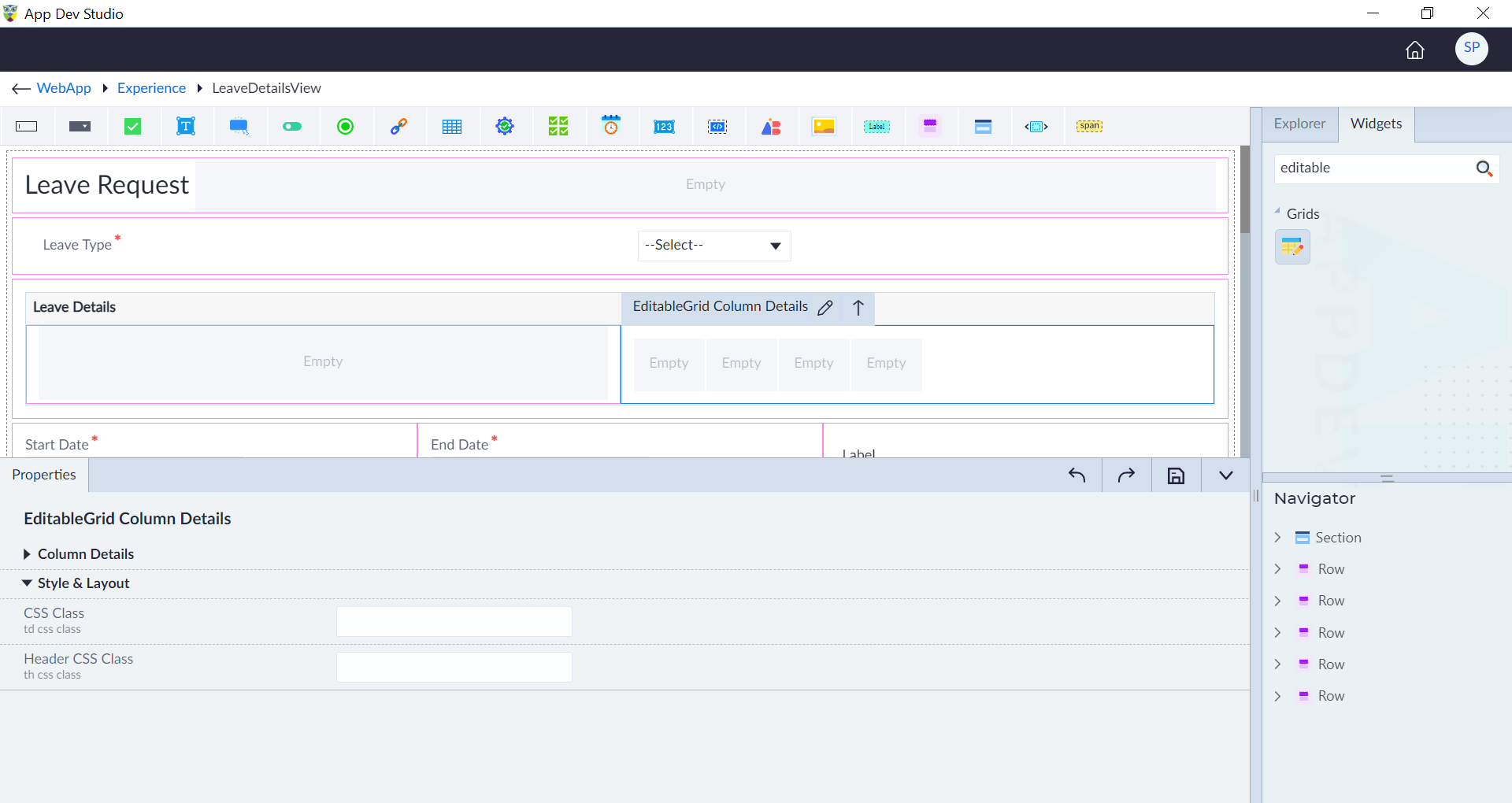
Following are the properties to be configured for the editable grid widget:
| Property | Description | Comments |
|---|---|---|
| Basic Configuration | ||
| Serial Number | Select "Yes" to include a default column with an auto-incrementing index value, or "No" to configure without it. | - |
| Responsive Layout | Select stack or scroll. | Stack: converts columns to stacked format on smaller screens. Scroll: enables horizontal and vertical scrolling. |
| Pageable | Select "Yes" to enable pagination, or "No" to configure without pagination. | - |
| Page Size | Enter the page size. | Visible only when Pageable is set to Yes. Default is 10. |
| Rows Per Page Options | Provide the options separated by commas. | Visible only when Pageable is set to Yes. Default is 10,25,50. |
| Edit Mode | Select Row or Cell. | - |
| Enable Row Selection | Select Yes to enable or No to disable. | Row selection allows selecting one or multiple rows for actions like deleting or processing data. |
| Selection Type | Select Current Page or Complete Grid. | Visible only when Enable Row Selection is set to Yes. |
| Table Layout | Select auto or fixed. | Auto: column widths adjust automatically. Fixed: each column takes a fixed width. |
| Validation Group* | Select the required validation group created. | - |
| Bindings | ||
| Data Source* | Select the data source from the drop-down. | A data source is a complex array. |
| Current Item Alias* | Provide the alias name for the current item. | Represents the data object for the current row being rendered. |
| Current Index Alias Name | Provide the alias name for the index of the current item. | Represents the index of the current row (e.g., 0 for the first row). |
| Unique Property Name | Select a value from the options (attributes of the data source's entity). | Visible when Enable Row Selection is Yes. E.g., Id, UserId. |
| Visibility | Provide the expression using the expression builder. | - |
| Selected Rows | Select the same data type of binding as that of data source. | Visible when Enable Row Selection is Yes. |
| Edit Init | Select an event binding. | Callback to invoke when a cell switches to edit mode. |
| Edit Complete | Select an event binding. | Callback to invoke when cell edit is completed. |
| Edit Cancel | Select an event binding. | Callback to invoke when cell edit is cancelled with escape key. |
| CSS Class | Provide the CSS class binding using an expression builder. | - |
| First | Select an integer value binding. | Determines the index of the first row to be displayed. |
| Style & Layout | ||
| Height | Provide the height. | - |
| Width | Provide the width. | - |
| Unit Type | Specify the type of unit. | Px, rem or %. |
| Paginator Alignment | Select left, right or centre. | Controls the alignment of the paginator. |
| CSS Class | Provide the CSS class name for styling. | Applied at the <table> tag level. |
| Row CSS Class | Provide the CSS class using expression builder. | Used to assign CSS classes to table rows (<tr>). |
| Style | Provide the CSS rule sets. | Applied at the <table> tag level. |
| Additional Configuration | ||
| Id* | Provide the id. | An id is created by default. User can change the unique id as required. |
| Comment | Select from Yes or No options. | Default is No. |
| Separator Symbol | Provide a symbol or character. Default "--" is used. | When multiple widgets are configured for a column, the cell's view mode will display the values separated by this symbol. |
Note: An asterisk (*) denotes that the property is mandatory for configuring the Editable Grid widget.
The "Configuration saved successfully" message displays upon successfully configuring the widget.
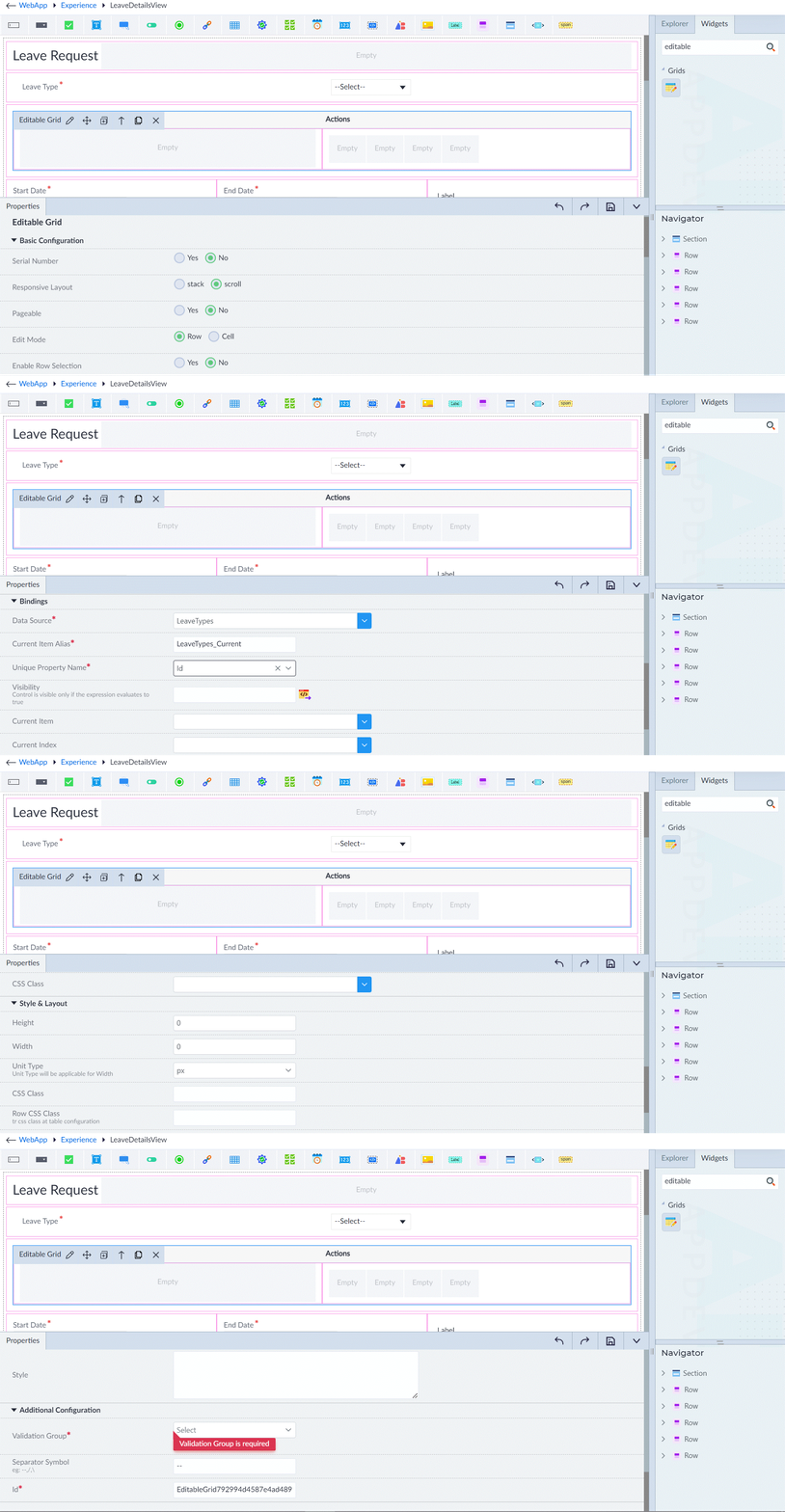
Column Details
A column represents a vertical section of data, where each cell in the column corresponds to a specific property or field from the data source.
Supported widgets can be dragged and dropped into the column template, allowing flexible and customizable cell configurations.
New columns can be added to the data grid by clicking the "+" button in the action bar.
To rearrange columns, use the left and right arrow buttons in the respective column's action bar to adjust their position.
Following are the properties to be configured for a column:
| Property | Description | Comments |
|---|---|---|
| Column Details | ||
| Column Header | Provide the name of the column header. | - |
| Width | Provide the width of the column. | A default width of 150px will be assigned automatically. |
| Unit Type | Select the type of the unit. | Px, rem, %. |
| Is Frozen Column | Select Yes or No. | Used to fix specific columns while allowing the rest of the table to scroll horizontally. |
| Is Sortable | Select Yes or No. | When "Yes" is selected, the grid will be sorted based on the value of the widget in the column. Note: Sorting is not supported for columns containing multiple widgets. |
| Is Filterable | Select Yes or No. | When "Yes" is selected, the grid will be filtered based on the value of the widget in the column. Note: Filtering is not supported for columns containing multiple widgets. |
| Visible Expression | Provide the expression using the expression builder. | The column is visible only if the evaluated expression is true. |
| Style & Layout | ||
| CSS Class | Provide the value using an expression builder. | Applied at every cell of the Data Grid (td css class). |
| TD Style | Provide the CSS ruleset for style tag. | Applied at every cell of the Data Grid. |
| Header CSS Class | Provide the value using an expression builder. | Applied at header of the Editable grid. |
| Header Style | Provide the CSS ruleset for style tag. | Applied at header of the Data Grid. |
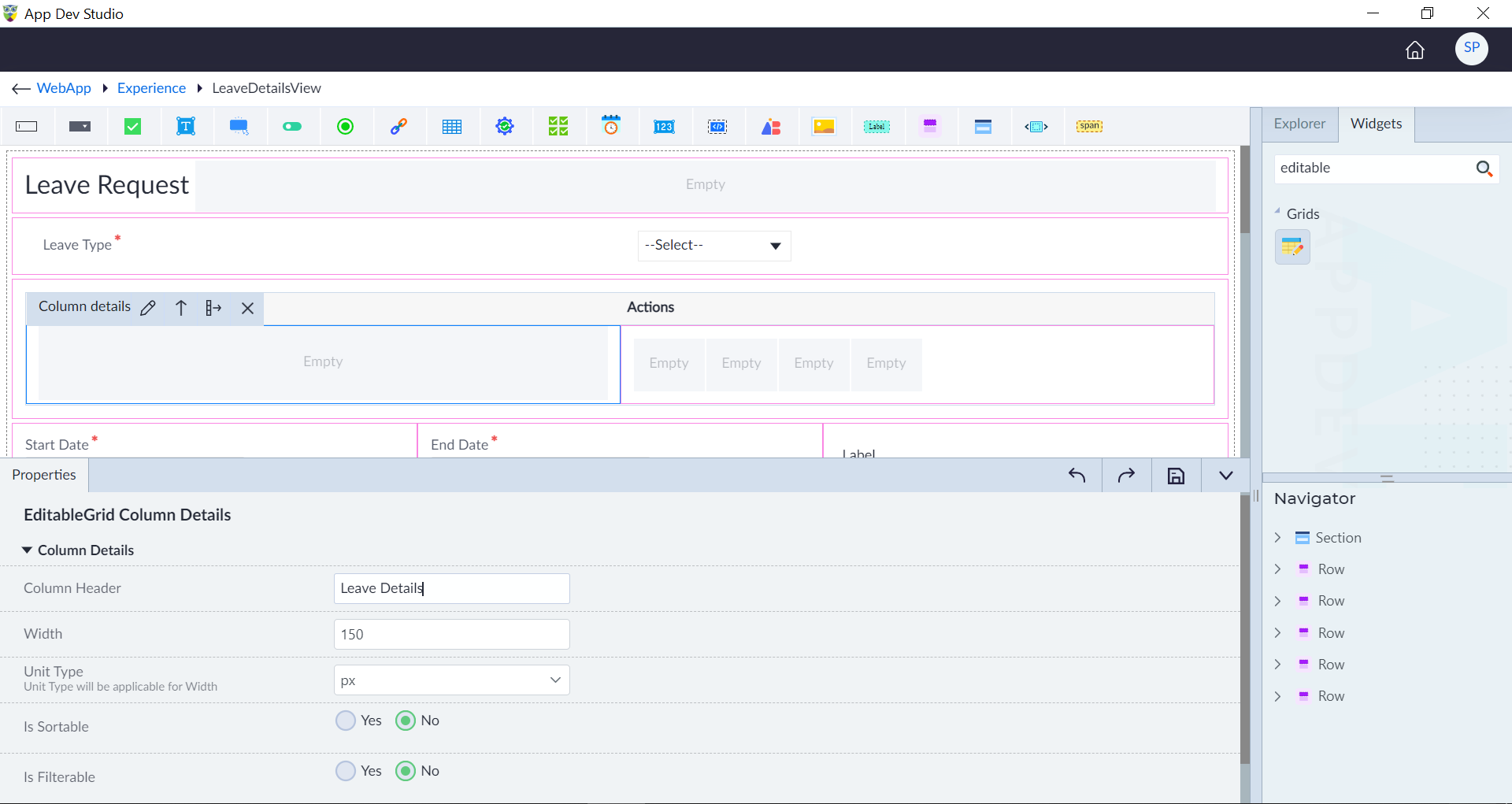
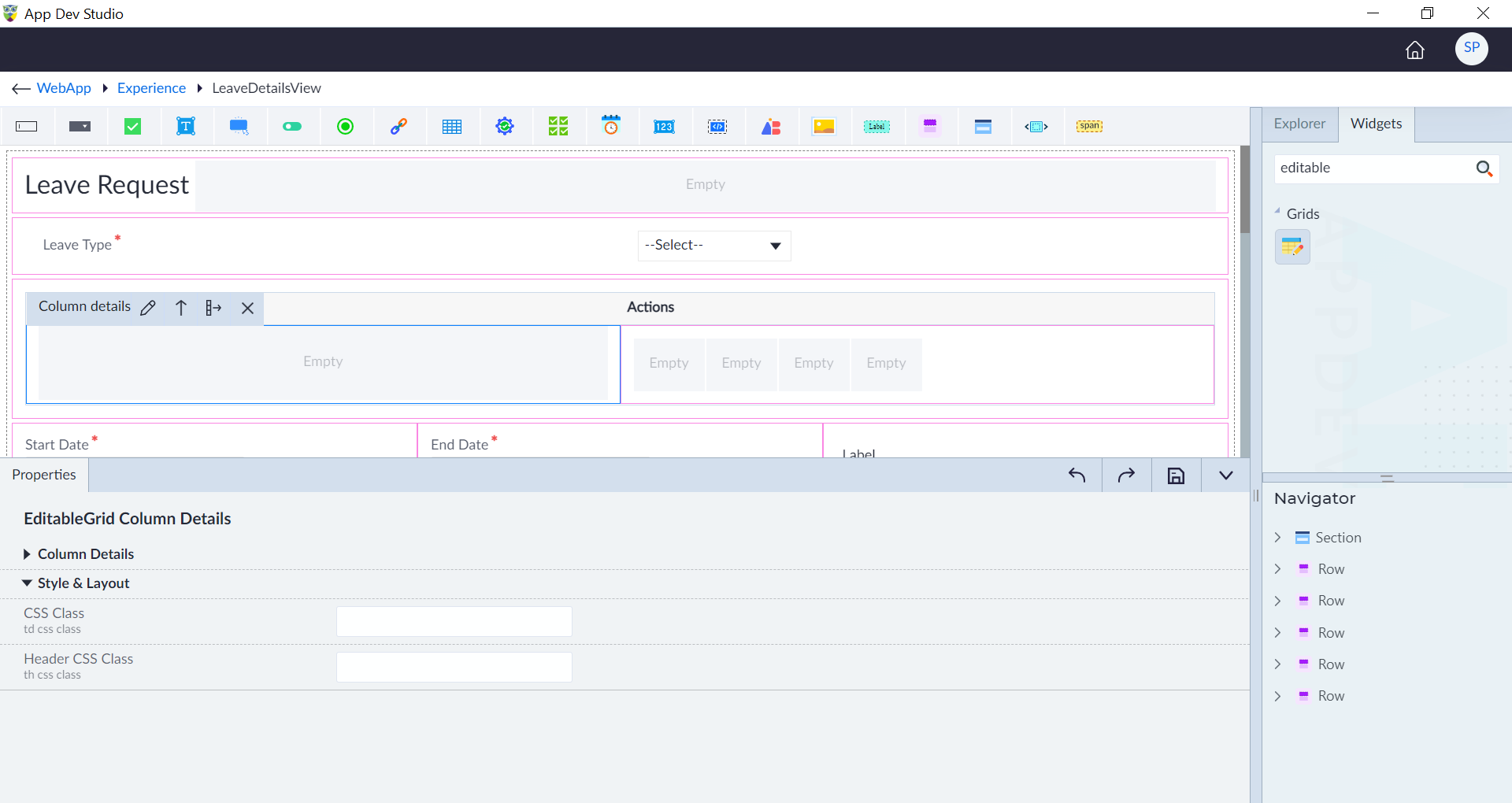
EditableGrid Column Details (Action Column)
| Property | Description | Comments |
|---|---|---|
| Column Details | ||
| Column Header | Provide the name of the column header. | - |
| Width | Provide the width of the column. | - |
| Unit Type | Select the type of the unit. | - |
| Style & Layout | ||
| CSS Class | Provide the td CSS class name for styling. | - |
| Header CSS Class | Provide the th CSS class name for styling. | - |
The "Configuration saved successfully" message displays upon successfully configuring the widget.