Google Places Autocomplete
The Google Places AutoComplete widget is used to provide location-based suggestions as the user types into an input field, making address entry faster and more accurate. It integrates with Google Places API to fetch and display location predictions, enhancing the user experience in forms and applications requiring address input.
Key Features:
- Real-Time Location Suggestions: Displays location predictions based on user input.
- Autocomplete Functionality: Reduces typing effort by suggesting places dynamically.
- Location Data Retrieval: Provides details such as latitude, longitude, place ID, and formatted address.
- Customizable Search Scope: Restrict suggestions to specific regions, cities, or types (e.g., addresses, businesses).
Steps to Configure Google Places AutoComplete Widget
Step 1: Obtain Google API Key
- Go to Google Cloud Console.
- Create a new project or select an existing one.
- Navigate to APIs and Services > Library.
- Search for and enable the Places API and Maps JavaScript API.
- Go to APIs and Services > Credentials, click Create Credentials > API Key.
- Copy the API Key for later use.
Step 2: Add the Google Places AutoComplete Widget
- Open OwlGen.
- Navigate to the UI Designer.
- Drag and drop the Google Places AutoComplete widget onto your form or page.
Step 3: Configure Widget Properties
- Bind Google API Key: Locate the GOOGLE_API_KEY in the settings and paste the API Key obtained earlier.
- Set filter type: Choose from:
- geocode: Returns geographical results (cities, landmarks, coordinates).
- address: Provides complete addresses.
- establishment: Suggests POIs like businesses, schools, hospitals.
- Configure Location Biasing (Optional): Set country code or bounds to restrict suggestions.
- Enable Address Components (Optional): Extract structured address parts for autofill.
Step 4: Handle Selection Events
- Bind an event handler to capture the selected location.
- Use output variables like formatted address, latitude, and longitude in your logic.
Sample Response:
{
  "place_id": "ChIJN1t_tDeuEmsRUsoyG83frY4",
  "description": "Empire State Building, New York, NY, USA",
  "types": ["establishment", "point_of_interest", "premise"],
  "structured_formatting": {
    "main_text": "Empire State Building",
    "secondary_text": "New York, NY, USA"
  },
  "geometry": {
    "location": {
      "lat": 40.748817,
      "lng": -73.985428
    }
  }
}
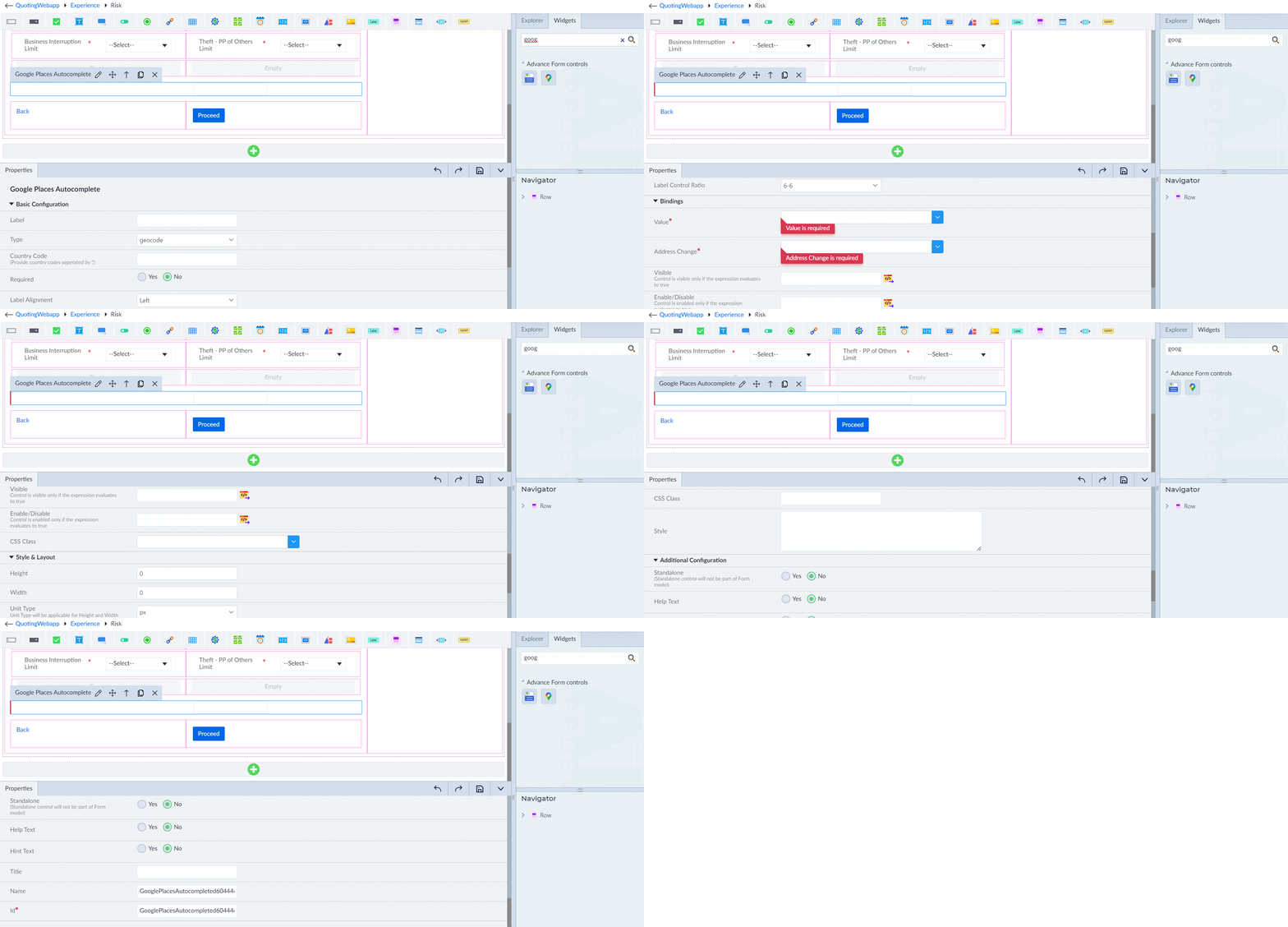
Following are the properties to be configured for this widget:
| Property | Description | Comments |
|---|---|---|
| Basic Configuration | ||
| Label | Provide the label for the widget. | - |
| Floating Label | Yes → The label floats above the input field when the user starts typing. No → The label displays as per the Label Alignment. Default Label alignment is Left. | This setting primarily affects UI but does not change the core functionality. |
| Type | Select the type of places to be suggested: Geocode (e.g., "New York, NY, USA"), Address (e.g., "123 Main St, Los Angeles, CA, USA"), Establishment (e.g., "Starbucks, New York"). | - |
| Country Code | Provide the country code(s) to filter results. E.g., us. | Multiple codes: ["US", "CA", "GB"]. |
| Required | Select "Yes" if selecting a place is mandatory. | - |
| Validation Message | Provide the validation message to display when selection is required. | Visible only when Required is set to Yes. |
| Label Alignment | Specify how the label should be aligned. | Options: Left, Right, Top. |
| Label Control Ratio | Select the column ratio for the label. | - |
| Bindings | ||
| Value* | Specify the model binding from the drop-down. | - |
| Address Change* | Triggered when a user selects an address from the autocomplete dropdown. | - |
| Visible | Provide the expression using the expression builder. | - |
| Enable/Disable | Provide the expression using the expression builder. | - |
| CSS Class | Specify the CSS class name for custom styling. | - |
Note: Refer to the common groups configurations document for: Additional Event Bindings, Style and Layout, Style Bindings, ARIA Attributes Bindings, Additional Configuration.