Using the Drag and Drop Container Widget
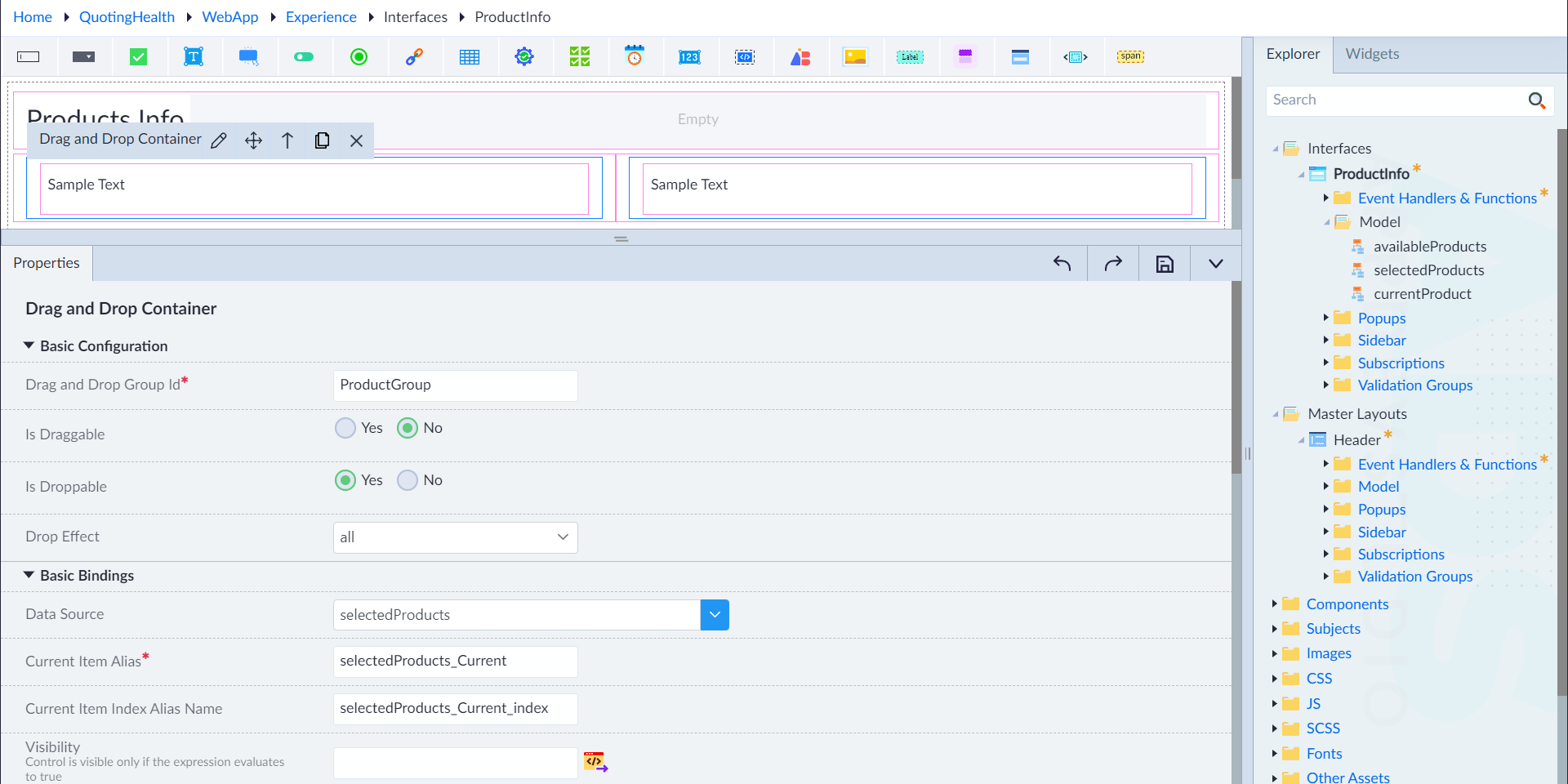
This configuration process involves setting up the drag-and-drop functionality within the ProductInfo interface of an application. It consists of configuring two containers: one as the source from which products can be dragged and another as the target where products can be dropped. Below are detailed descriptions of the configurations made for both the source and target containers.
Configure Source Container
- Navigate to the ProductInfo interface in your application.
- Locate the container for ProductsInfo.
- Add Drag and Drop Container widget to the container and configure the following properties:
- Group ID: Set Group ID to "ProductGroup".
- Is Draggable: Enable the "Is Draggable" option to allow items to be dragged.
- Is Droppable: Disable the "Is Droppable" option since products are not dropped in this container.
- Data Source: Define the data source as "availableProducts".
- Current Item Alias: Choose
selectedProducts_Currentfrom the list. - Current Item Index Alias Name: Input
selectedProducts_Current_index - Drop: Set to
dropProductfrom the drop-down menu.
- Click Save to finish configuring the Drag container.
Configure Target Container
- Navigate to the ProductInfo interface in your application.
- Locate the container for ProductsInfo.
- Add Drag and Drop Container widget to the container and configure the following properties:
- Group ID: Set Group ID to "ProductGroup".
- Is Draggable: Disable the "Is Draggable" option to not allow items to be dragged.
- Is Droppable: Enable the "Is Droppable" option to allow items to be dropped.
- Data Source: Define the data source as "selectedProducts".
- Current Item Alias: Choose
selectedProducts_Currentfrom the list. - Current Item Index Alias Name: Input
selectedProducts_Current_index - Drop: Set to
dropProductfrom the drop-down menu.
- Click Save to finish configuring the Drop container.