Use Third-party Library Components
Integrating third-party libraries into web applications is essential in contemporary software development, enabling the integration of specialized features and improving overall performance. The following sections illustrates a methodical process for integrating the ngx-slider library, an external Angular component, within an established application framework.
Edit Module and Add Package
Navigate to Module Configuration
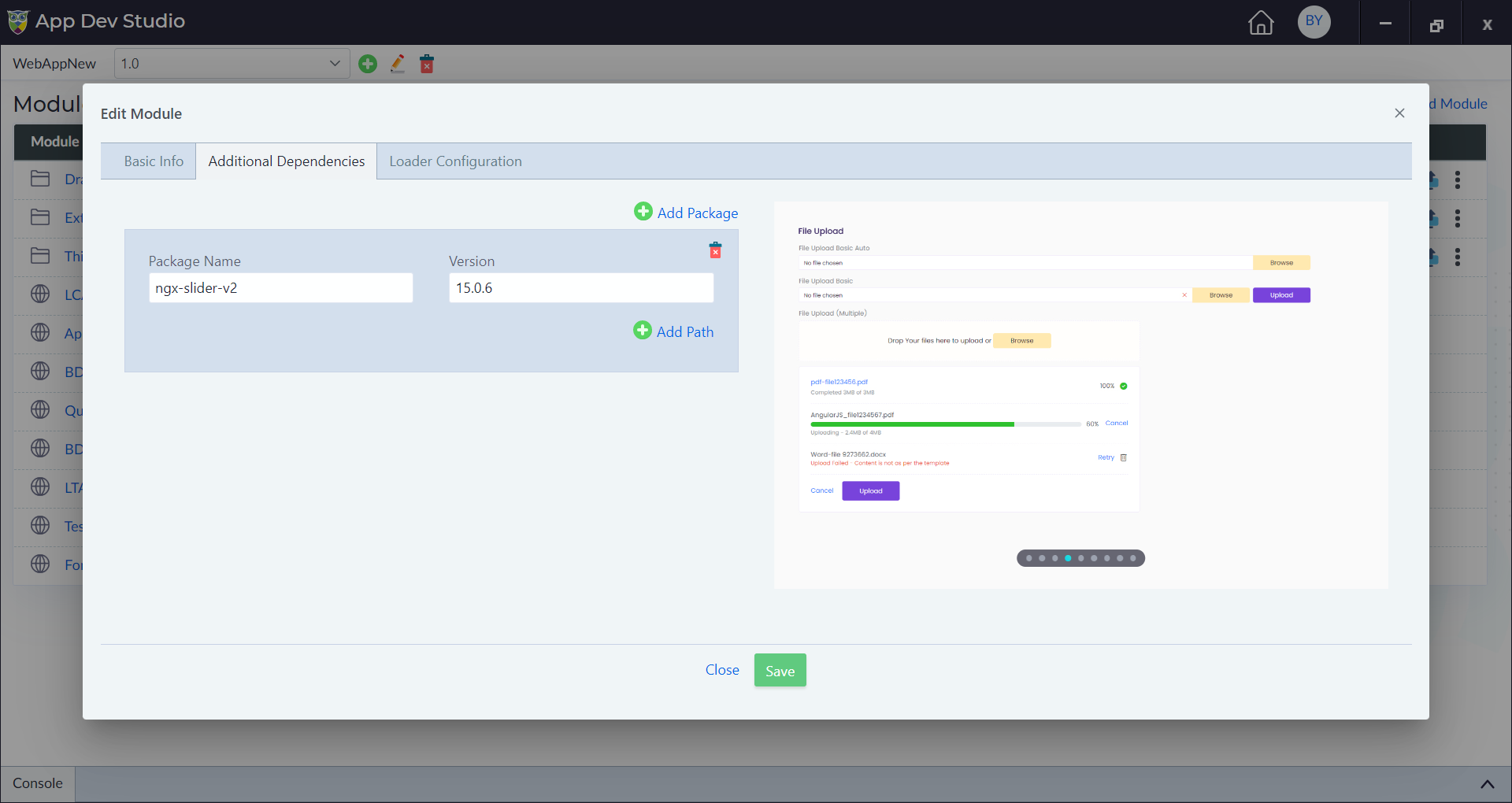
- Open the module you want to configure and switch to the "Additional Dependencies" tab.
- Click on "Add Package" and enter the package name. In our current context, it's "ngx-slider-v2".
- Specify the version and save the changes.
Configure Master Layout
Navigate to Master Layout
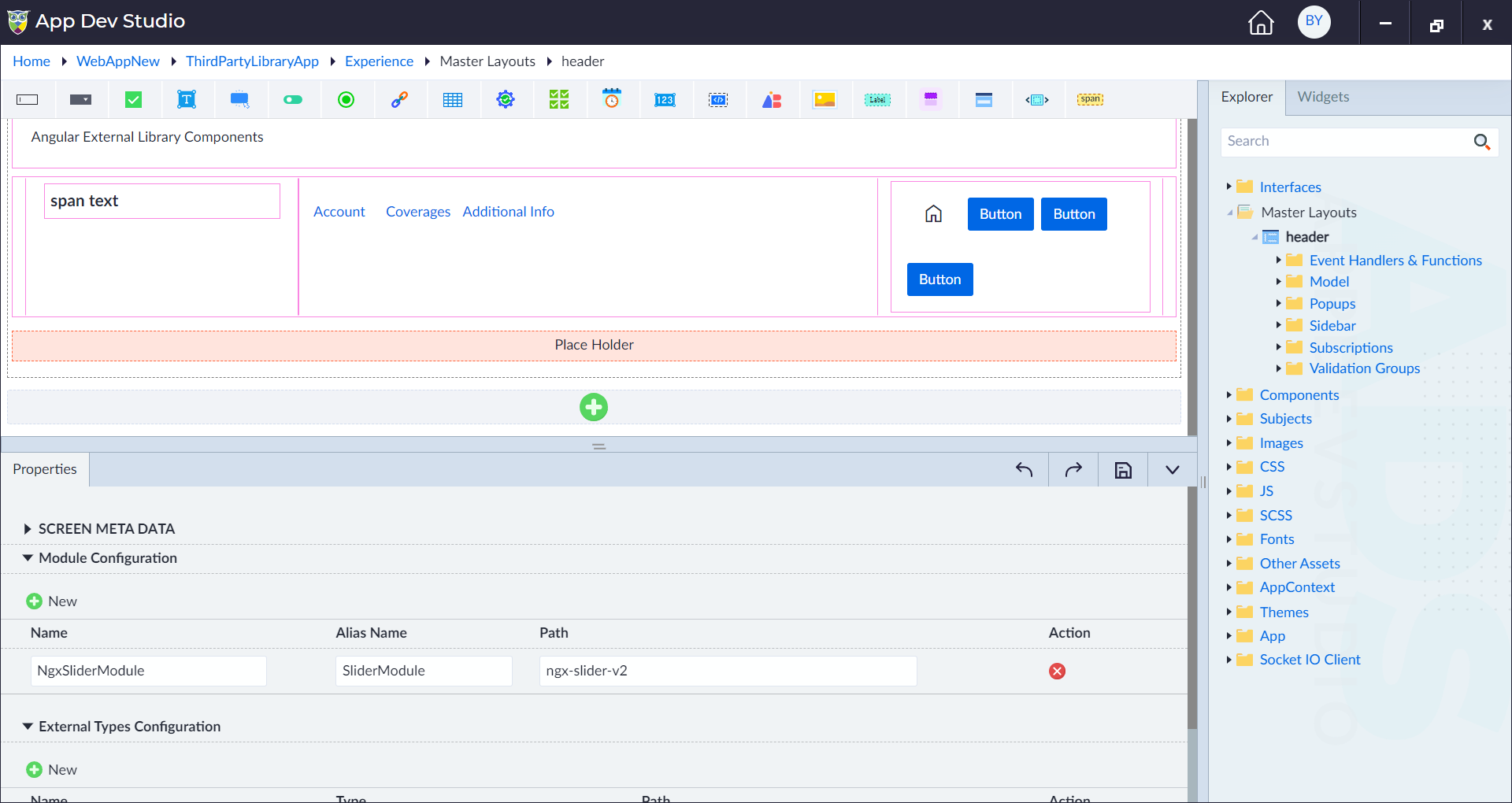
- Locate the Master Layout within the Experience and double-click a master layout to open it.
- In the properties panel, under Module Configuration, click "New" to add a new module.
- Enter the third-party module name under "Name" and the package name under "Path" (imported during Edit Module step).
Utilize in Interface
Navigate to Interface
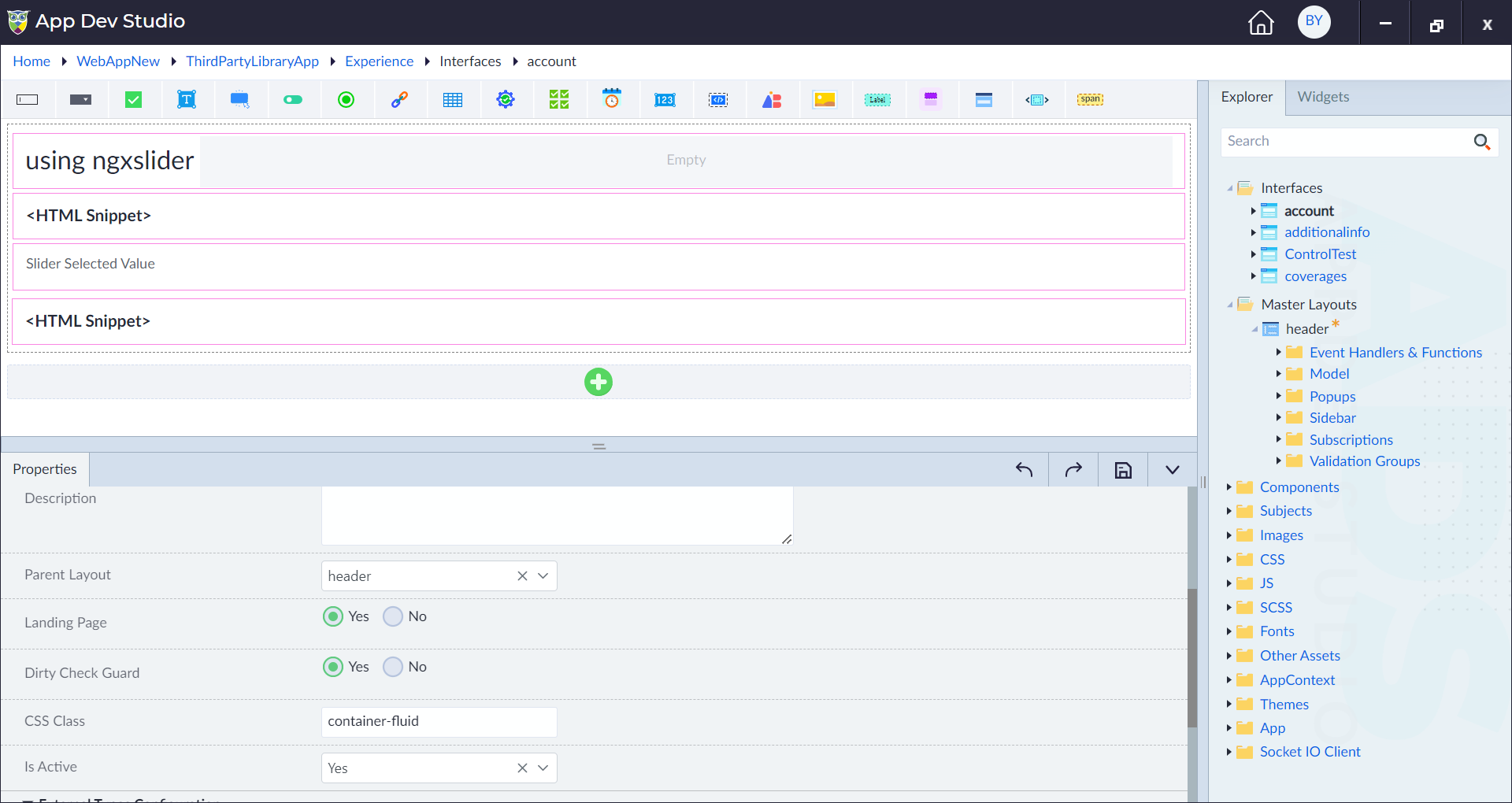
- Open the Interface where you want to utilize the ngx-slider from the Explorer Menu.
- Under Parent Layout in the properties pane, select the Master Layout configured in the previous step.
Configure External Types
Configure External Types
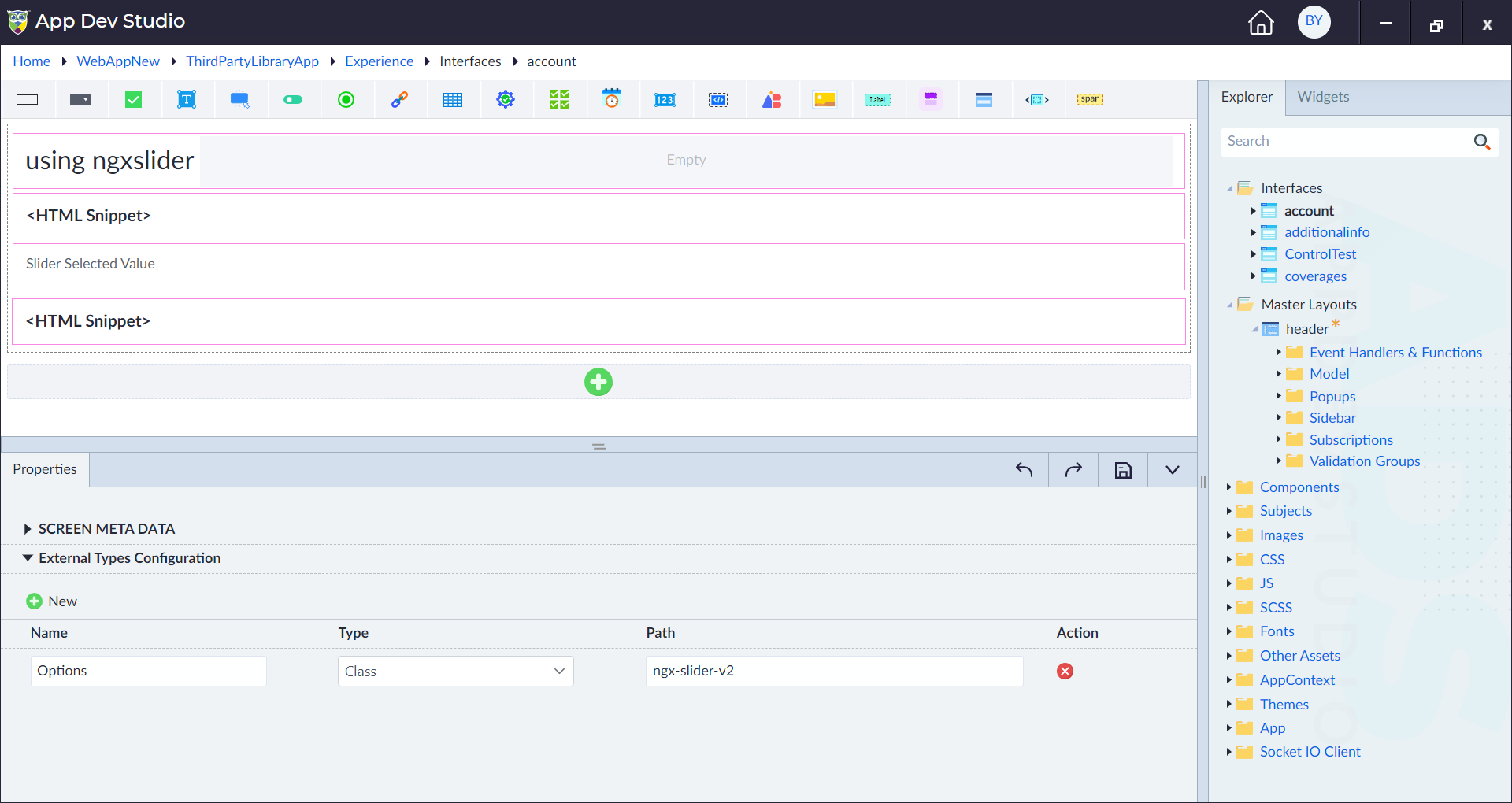
- Navigate to Experience > Interfaces and open the Interface properties pane.
- Under External Types Configuration, click "New" to create a new type (class or function) referenced via the third-party package.
- Provide a name, select the type (class or function), and specify the package name under "Path". Save the changes.
Add Model Property
Create Model Property
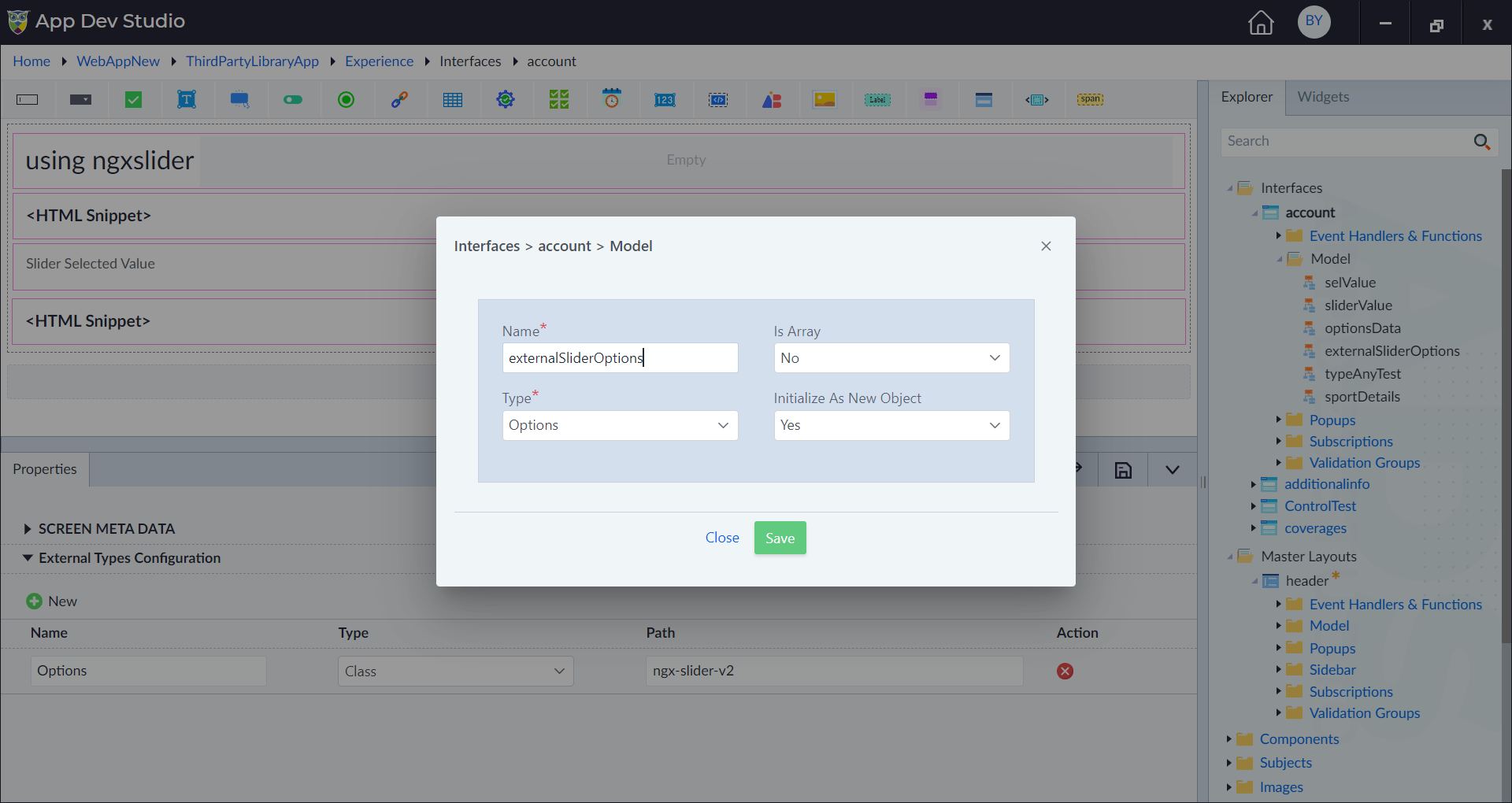
- Navigate to the Model folder in the explorer menu and create a new model property.
- Enter a name for the model property and select the external type created in the previous step under the Type dropdown.
- Save the model property.
Use ngx-slider in the Interface
Add HTML Snippet Widget
- Drag and Drop the HTML Snippet widget on the designer canvas of your interface.
- Click on the edit icon to configure the widget.
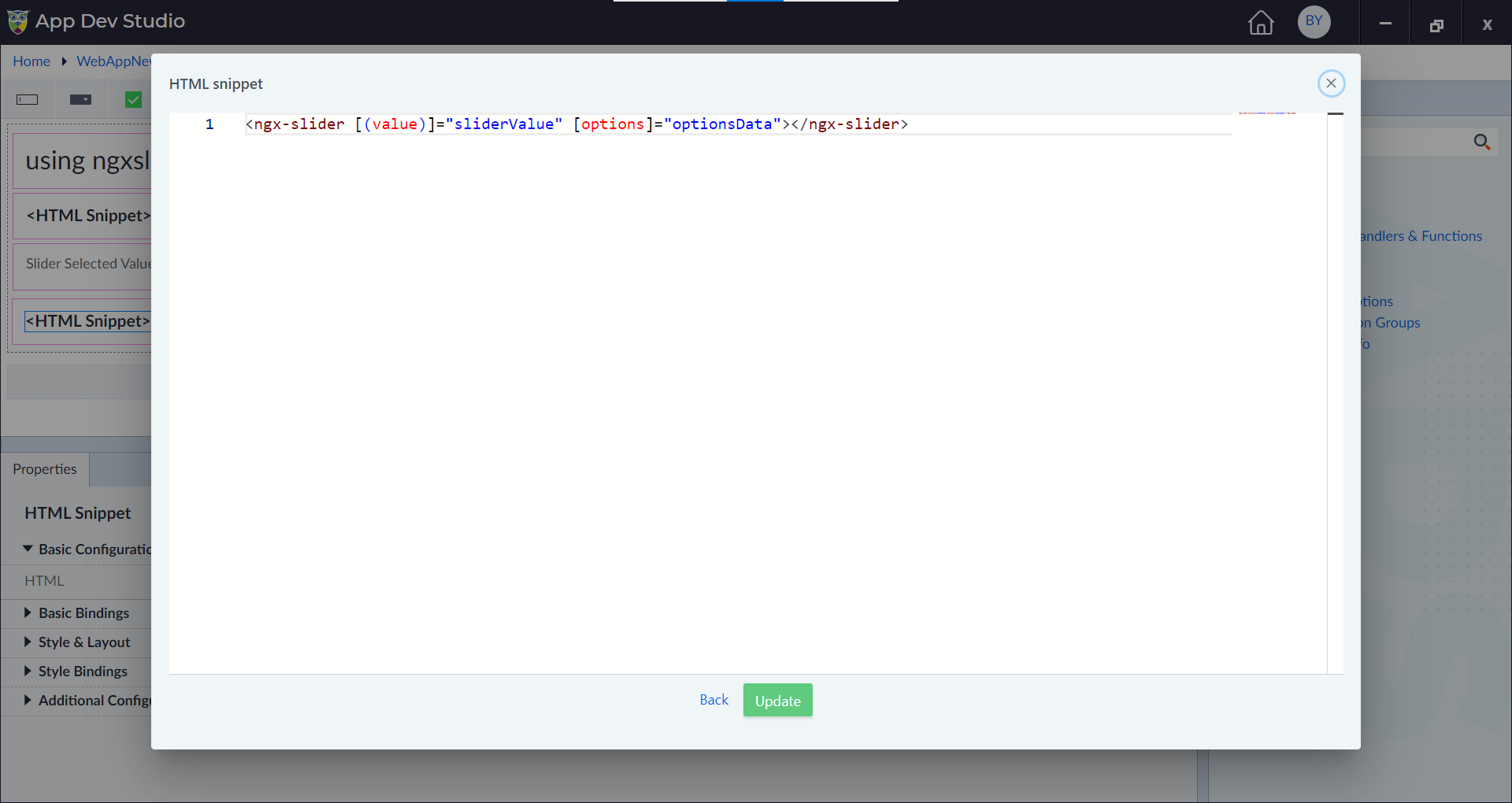
- In the properties pane, under Basic Configuration, edit the HTML binding and add slider properties such as
SelValueandSliderOptions(model properties created previously for ngx-slider).