Client Flows
Client flows are used to implement reusable client-side logic. Like event logic, client flows are eventually converted to JavaScript when the deployable application is generated during the build process. Client-flows run in the browser. Client flows can be invoked from events/functions or other client flows.
Create Client Flows
Follow the below steps to create a new client flow:
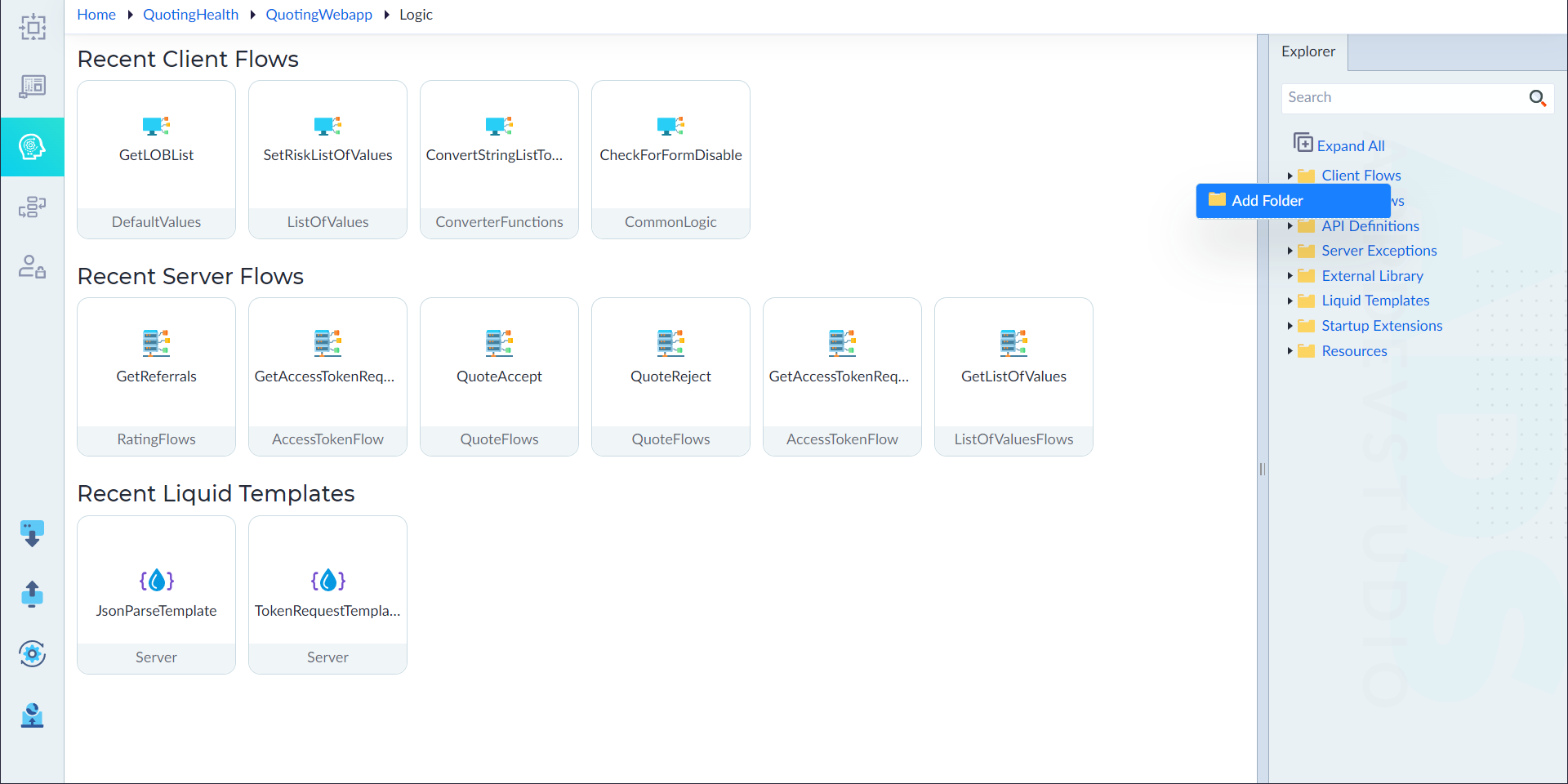
- From the explorer menu, right-click Client Flows and select Add Folder.
- Provide a suitable name for the folder. These folders can be used to segregate and categorize the related client flows together.
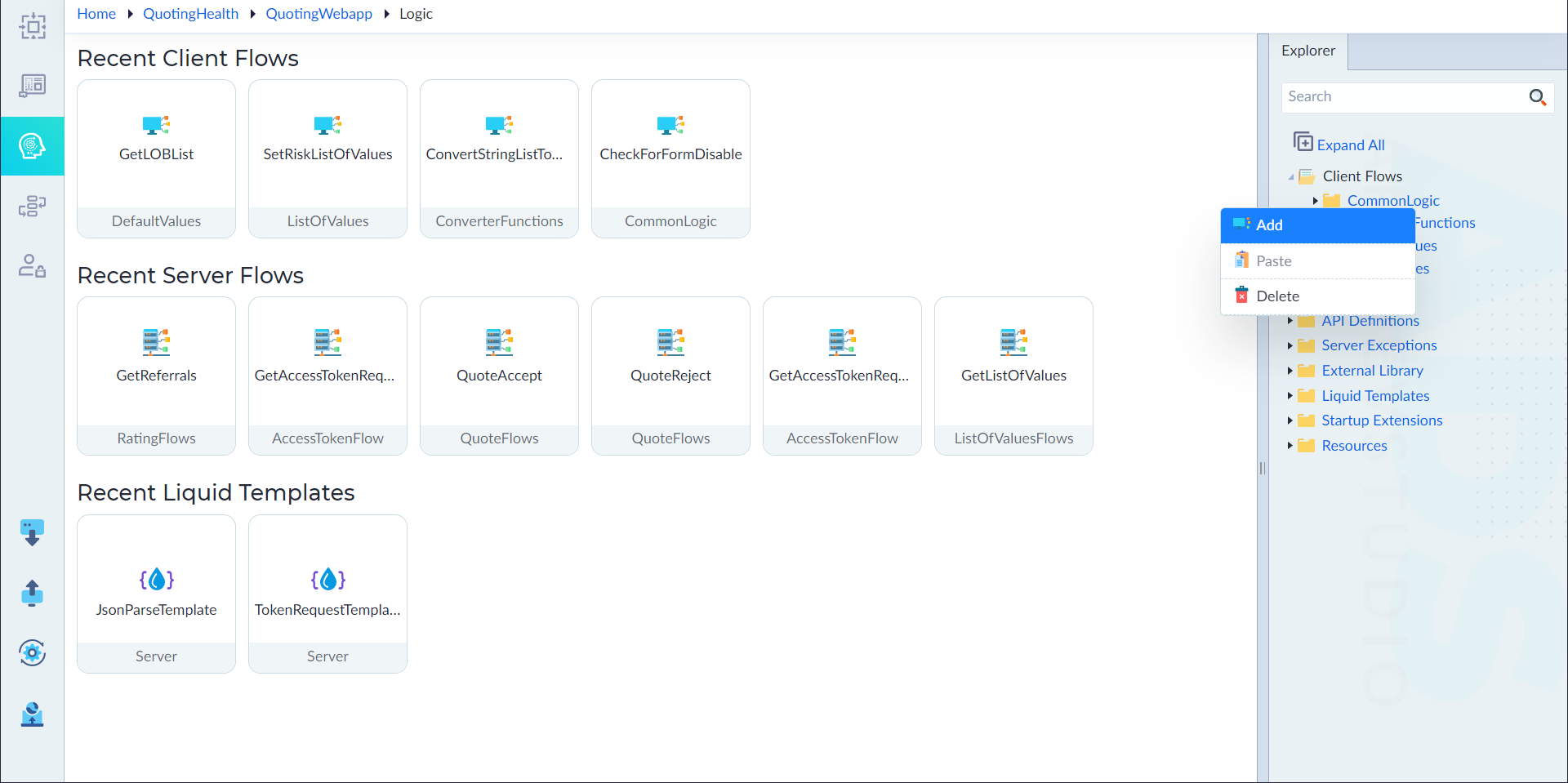
- Right-click the created folder and select Add new Client Flow.
- In the properties panel, configure the properties as required and then click save.
| Property | Description | Comments |
|---|---|---|
| Name* | Name of a client flow. | Name must start with a character followed by alphanumeric or '_'. No spaces are allowed. Except underscore (_), no other special characters are allowed. Name cannot start with a number. |
| Group | Name of the folder is displayed here. | This property cannot be edited. |
| Async Operation* | Select Yes or No. Specify whether the function should execute asynchronously (Yes) or synchronously (No) when user calls function in event or function. | By default, it is set to No. Asynchronous functions are commonly used to make API calls. These approaches ensure that API requests are handled efficiently without blocking the UI. This needs to set to Yes, if there are any API calls or any async calls to other client flows |
| Description | Client Flow Content. | - |
| Is Active | Client Flow is active for accessing or not. Either Yes or No. | By default, it is set to Yes. |
Note: An asterisk (*) denotes that the property is mandatory for creating a client flow.
The "ClientFlow added successfully" message displays upon successful creation.
- The client flow designer canvas shows the Start and Stop constructs by default. From the ribbon, add the required constructs and configure them as required inside the flow to create a logic. For more information on constructs, refer to Configure Constructs.
- Click save to save a client flow.
The "ClientFlow updated successfully" message displays upon successful update.
Structure of a Client Flow
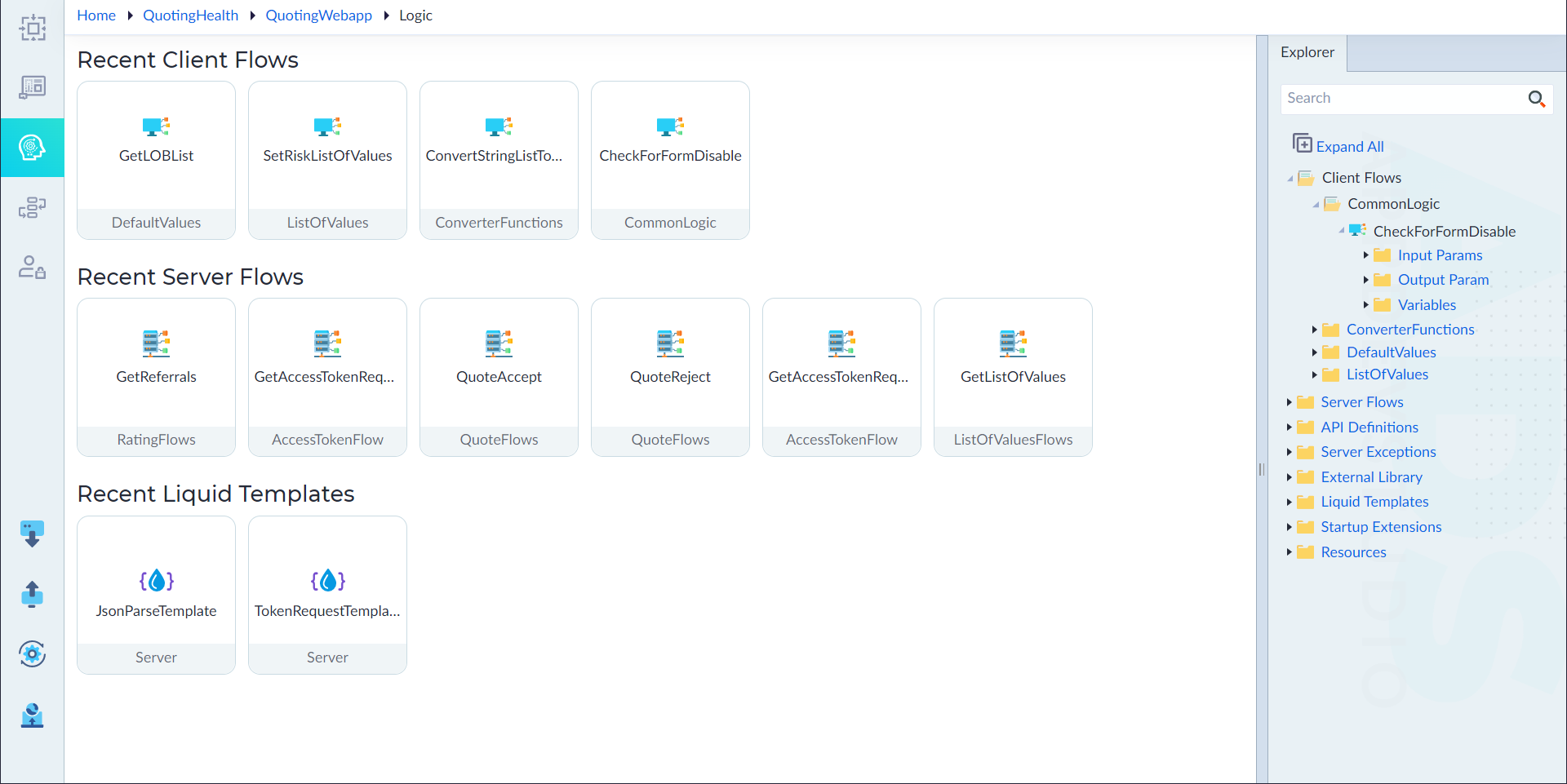
The created client flow contains the following:
- Input Params to add input parameters for the flow
- Output Param
- Variables
Add Input Parameters, Output Parameter and Variables
Users can add the parameters and variables to a client flow as applicable. To add, follow the below steps:
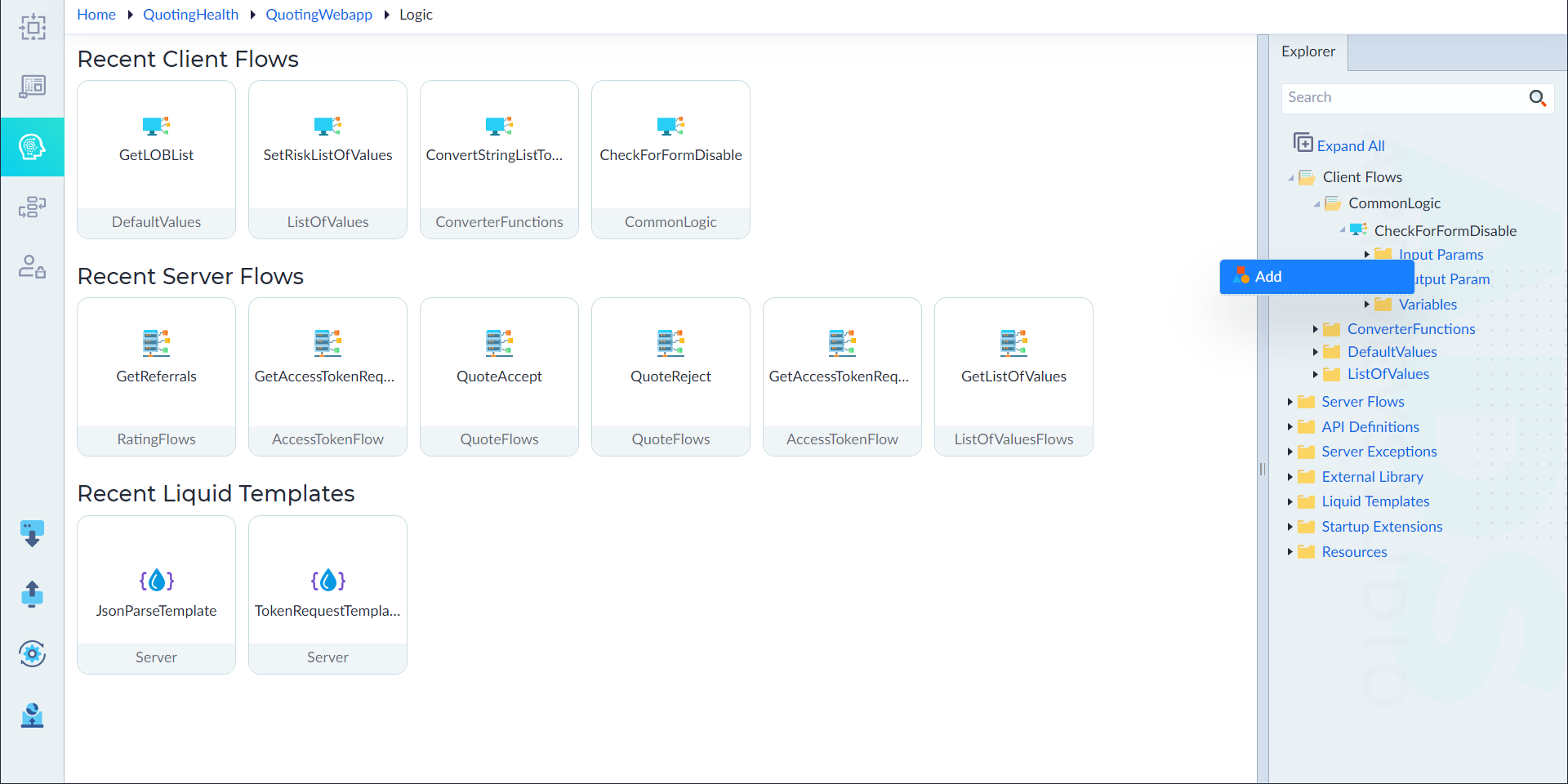
- Right-click the Input Params (or) Output Param (or) Variables and select Add. A pop-up window display.
- Configure the below properties as required and then click Save.
| Property | Description | Comments |
|---|---|---|
| Parameter Name* | Name of a parameter. | Name must start with a character followed by alphanumeric or '_'. No spaces are allowed. Except underscore (_), no other special characters are allowed. Name cannot start with a number. |
| Is Array | Parameter array type. | By default, it is set to No. If it is array set to Yes or else No. |
| Data Type* | Data type of the parameter. | - |
Note: An asterisk (*) denotes that the property is mandatory for creating a parameter or variable.
The success message displays upon successfully adding a parameter or variable.
Constructs
The following are the constructs available in a client flow:
| If | Assignment | Foreach | Break |
| Continue | While | Return | Initialize |
| Switch | Call REST API | Confirm | Toast |
| Call ClientFlow | TS Snippet | Recurring Timer | Cancel Timer |
| Logout | Download File | Call JS Function | Run Liquid Transformation |
| Create Anonymous Object | Json Parse | Json Search | Call Aggregate Function |
| WhenAll |