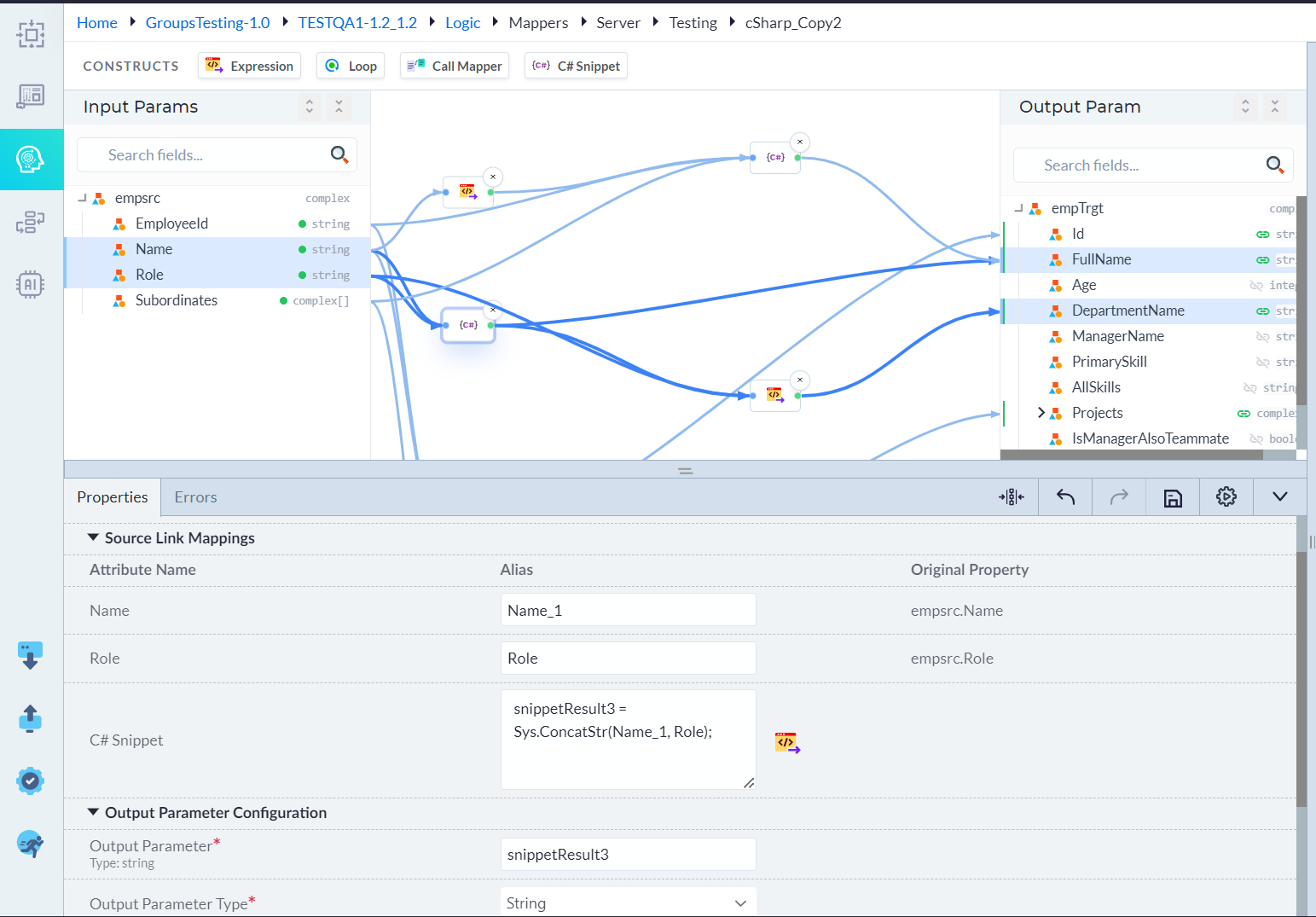
Mappers
Overview
Mappers are components that transform data from one structure into another.
A mapper typically accepts data from a source (such as an API response, database record, or form input) and converts it into the format required by another application layer.
Key Features
- Data Transformation – Converts data from one structure or format to another.
- Field Mapping – Maps source fields to target fields, even when field names differ.
- Value Conversion – Converts values such as dates, enums, IDs, currency, and status codes.
- Data Enrichment – Creates derived values (for example, FullName = FirstName + LastName).
- Validation Support – Validates required source values before mapping.
- Reusable Logic – Centralizes mapping logic for reuse across multiple applications.
- Maintainability – Simplifies updates when source or target models change.
- Error Handling – Handles missing, invalid, or unexpected values gracefully.
Prerequisites
Before creating a mapper, ensure that:
- The project is created.
- Source and target schemas are available.
- Required permissions are assigned.
Create a Mapper Folder
Folders help organize related mappers, making them easier to manage and maintain.
Procedure
- Open the Logic tab from the left navigation pane.
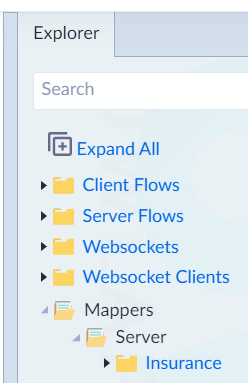
- In the Explorer panel, expand the Mappers node.
- Right-click the Server folder, and then select Add Folder from the context menu.
- Enter a meaningful folder name (for example, Folder Name: Insurance).
- Click Save to create the folder.
Note: Organizing mappers into folders improves project structure and simplifies navigation, especially in large applications.
Create the Mappers
Procedure
- Right-click the required folder under the Mappers tab. The available options are Add, Paste, and Delete.
Example: If the folder name is Insurance, the Paste option is disabled by default and is enabled only after a mapper has been copied. Click Add to create a new mapper. - Click Add to create a new mapper.
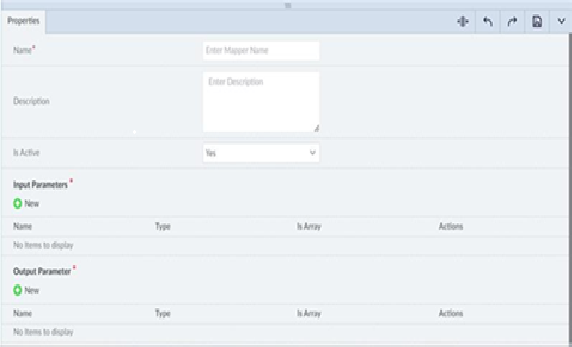
- The Properties tab is displayed with the required input fields and the following action buttons:
- Auto Align
- Undo
- Redo
- Save
- In the Properties section, enter the required details as described below
| Property | Description | Validation |
|---|---|---|
| Name* | Name of the mapper. | Only alphanumeric characters and _ are allowed starting with a character. No spaces are allowed. |
| Description | Description of the mapper. | Optional. |
| Is Active | Indicates whether the mapper is active. | Default: Yes |
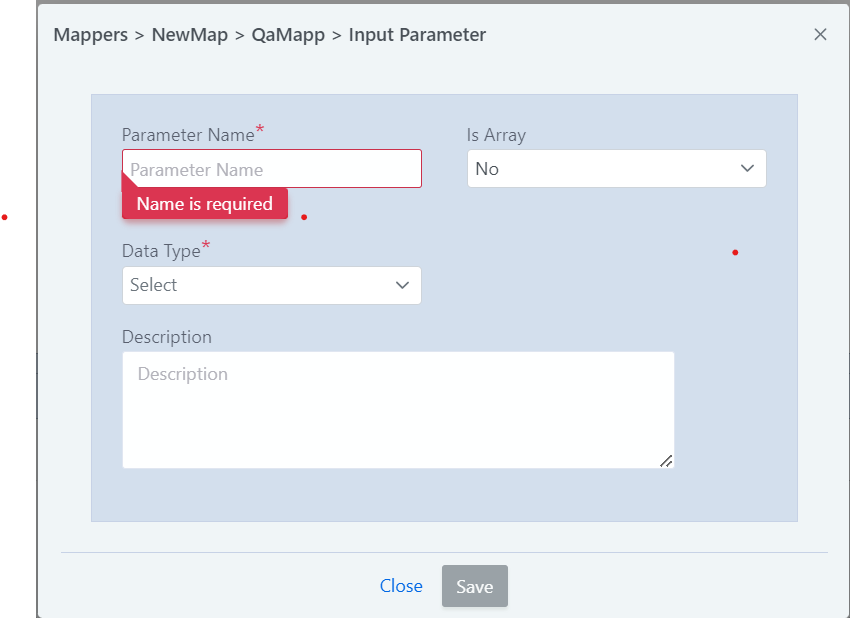
| Input Parameters* | Input parameters accepted by the mapper. | One or more parameters can be added. |
| Output Parameter* | Output returned by the mapper. | Only one output parameter is allowed. |
- Enter the mandatory information in the Properties tab and click Save to create the mapper.
Result
After clicking Save, the system displays: Mapper added successfully.
Designing Mapper Logic
After a mapper is created, the Mapper Designer is used to define the mapping logic between the Source Schema and the Target Schema.
By default, the design area above the Properties tab is empty. Once the mapper is created, the Source Schema and Target Schema are displayed under the Constructs tab.
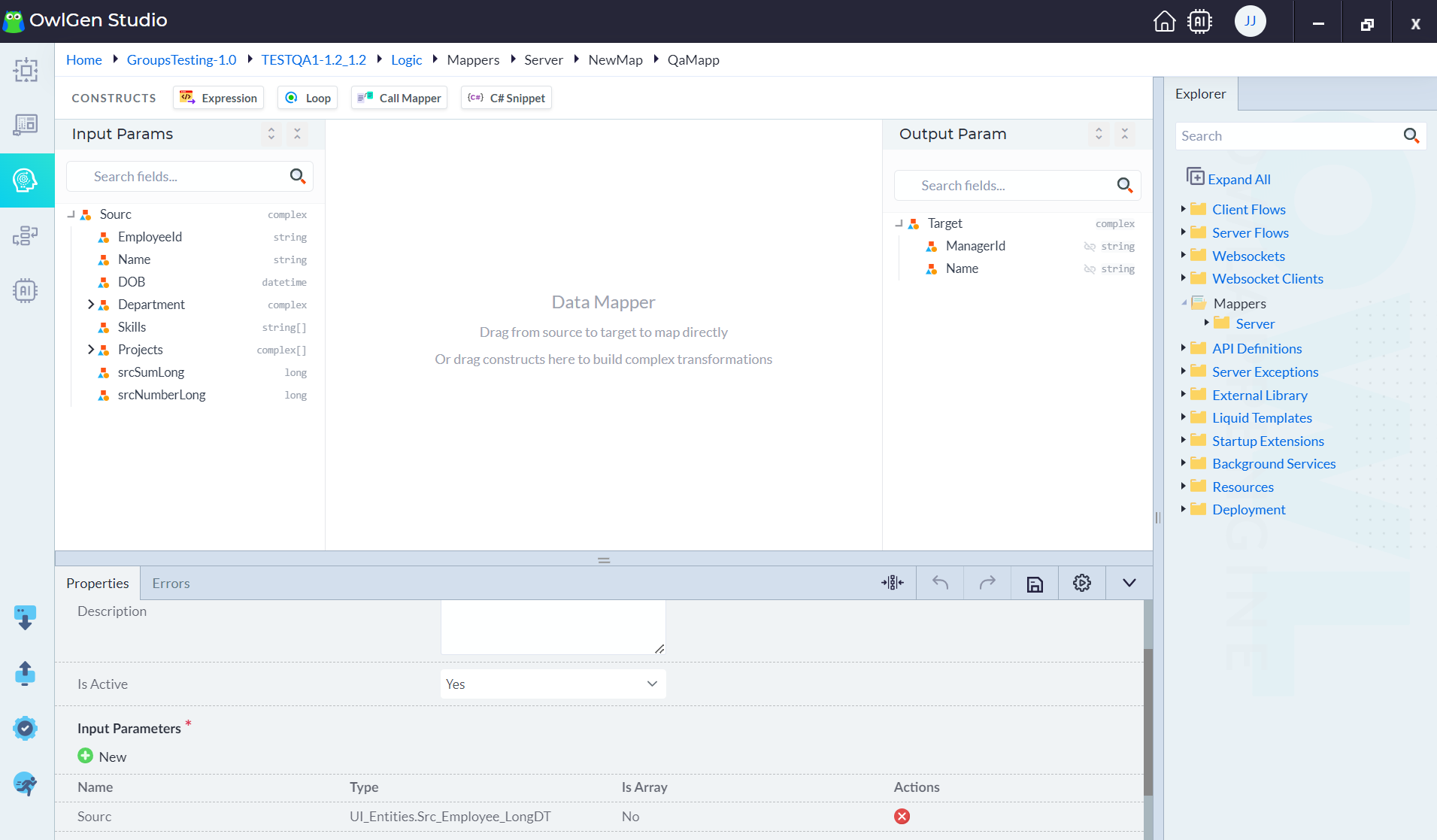
Note: The Input Parameters defined for the mapper are displayed under the Source Schema, while the Output Parameter is displayed under the Target Schema.
The required construct can be dragged and dropped into the design area to define the mapping logic between the source and target schemas.
The Constructs tab provides the following options for designing the mapper logic:
| Construct | Description |
|---|---|
| Expression | Creates expressions to transform data between the source and target schemas. |
| Loop | Iterates through repeating elements or collections. |
| Call Mapper | Invokes another mapper from within the current mapper. |
| C# Snippet | Allows custom C# code to implement complex transformation logic. |

Expression Construct:
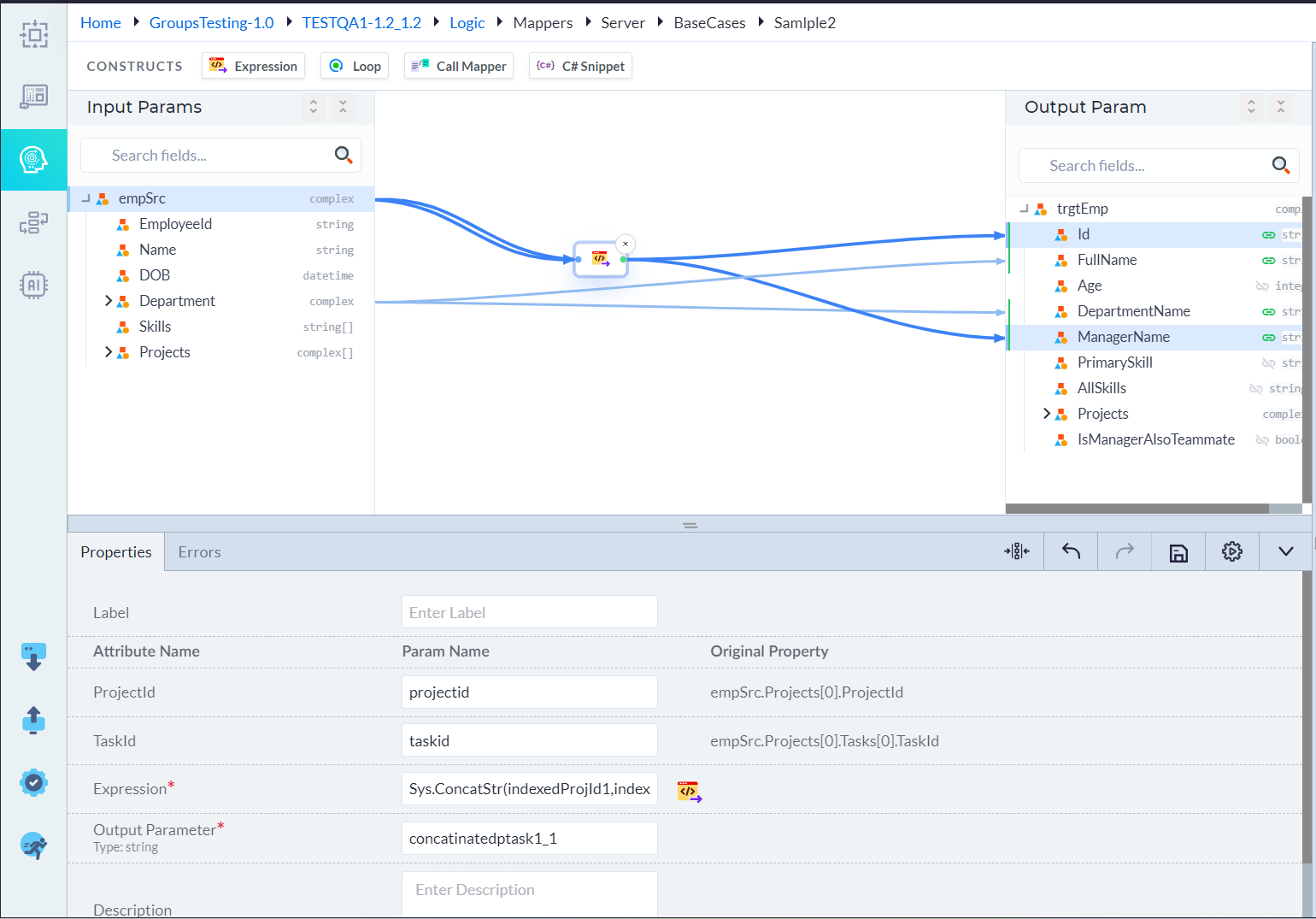
The Expression construct is used to define transformation logic between the Source Schema and the Target Schema.
Procedure
- Drag and drop the Expression construct in the design area.
- The Expression Properties panel is displayed.
- Map the required fields from the Source Schema to the Expression construct in the design area.
- The mapped input parameters are displayed in the Expression Properties panel.
- In the Properties tab, click the Expression icon next to the Expression field.
- The Expression Logic window opens and displays the default system functions.
- Create the required expression using the available functions and mapped input parameters. You can also define custom expressions based on your business requirements.
- Click Proceed to validate and save the expression.
- Connect the output of the Expression construct to the required field in the Target Schema so that the processed data is mapped to the target**.**
Result:
- If the expression is valid, the system saves the expression and updates the Expression construct.
- If the expression is invalid, the system displays an appropriate validation error message. Correct the logic and click Proceed again to save it.
Expression Properties:
| Property | Description |
|---|---|
| Label | Specifies a custom label for the Expression mapper. |
| Attribute Name | Represents the source attribute used as an input parameter in the expression. |
| Param Name | Defines the parameter name that is referenced within the expression. |
| Original Property | Displays the original source property associated with the selected parameter. |
| Expression | Defines the logic or function used to transform or combine input parameters to produce the desired output. |
| Output Parameter | Specifies the name of the parameter that stores the result of the expression. |
| Type | Indicates the data type of the output parameter generated by the expression. |
| Description | Provides additional information or notes about the expression, if required. |
Loop Construct:
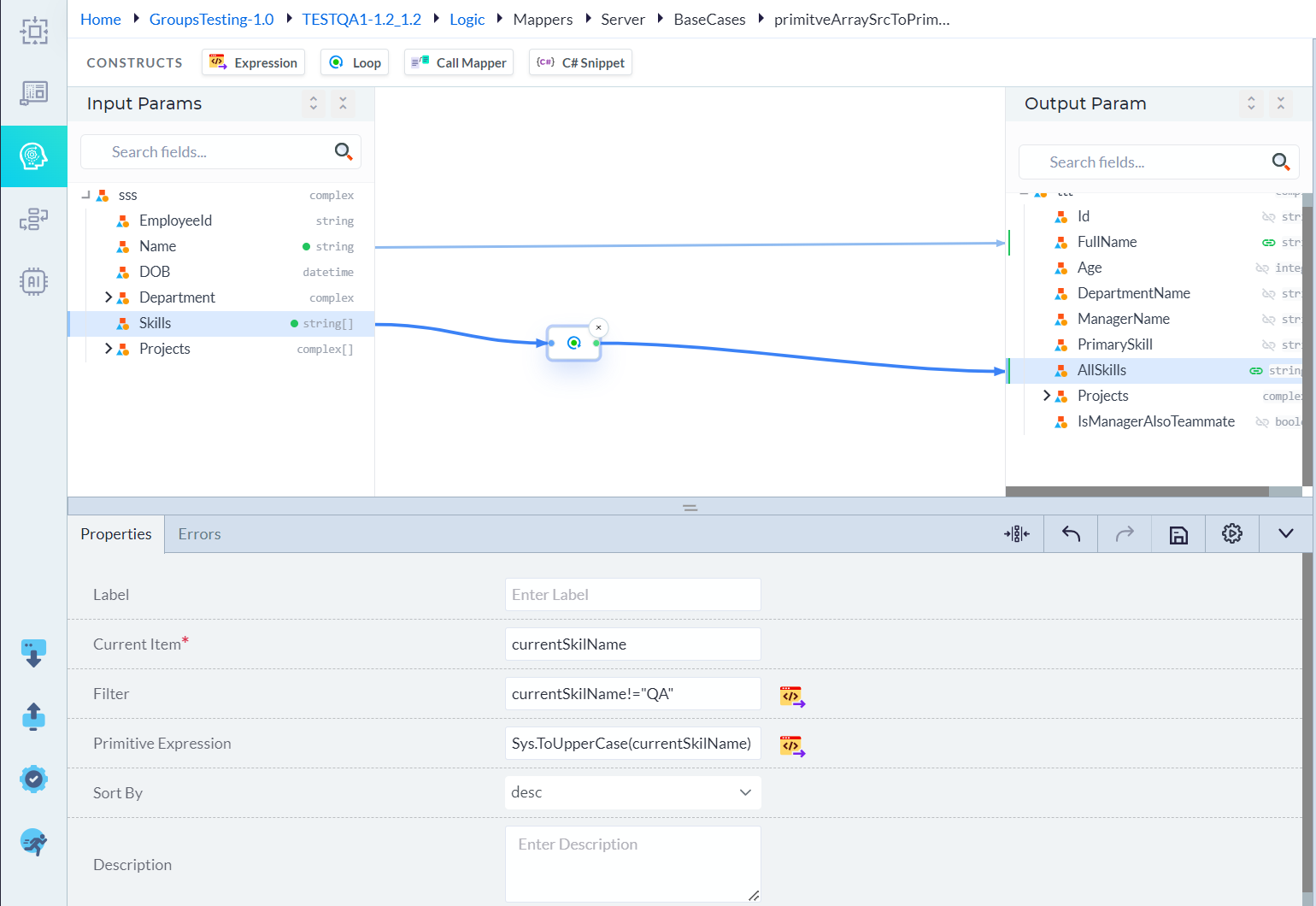
The Loop construct is used to iterate through array or collection data in the Source Schema.
Procedure
- Double-click the Loop construct in the design area.
- The Loop Properties panel is displayed.
- Map the required collection from the Source Schema to the Loop construct.
Note: The Loop construct accepts only one array input parameter. Non-array input parameters cannot be mapped, and multiple array input parameters are not supported.
- In the Properties tab, click the Expression icon next to the Filter field.
- The Loop Logic window opens and displays the default system functions.
- Create the required filter expression using the available functions and the mapped input parameters. You can also define custom expressions based on your business requirements.
- Click Proceed to validate and save the expression.
- Connect the output of the Loop Construct to the required field in the Target Schema so that the processed data is mapped to the target.
Result:
- If the Loop expression is valid, the system saves the expression and updates the Loop construct.
- The processed collection is mapped to the Target Schema and is available during mapper execution.
Loop Properties:
| Property | Description |
|---|---|
| Label | Specifies a custom label for the Loop construct. |
| Current Item | Defines the variable name that represents the current element being processed during each iteration of the loop. |
| Filter | Specifies a condition to filter the collection. Only items that satisfy the condition are processed by the loop. |
| Primitive Expression | Defines an expression or function that is applied to each item in the collection, allowing transformation of primitive values before mapping. |
| Sort By | Specifies the sorting order in which the collection is processed, such as ascending (asc) or descending (desc). |
| Description | Provides additional information or notes about the Loop configuration. |
Call Mapper Construct
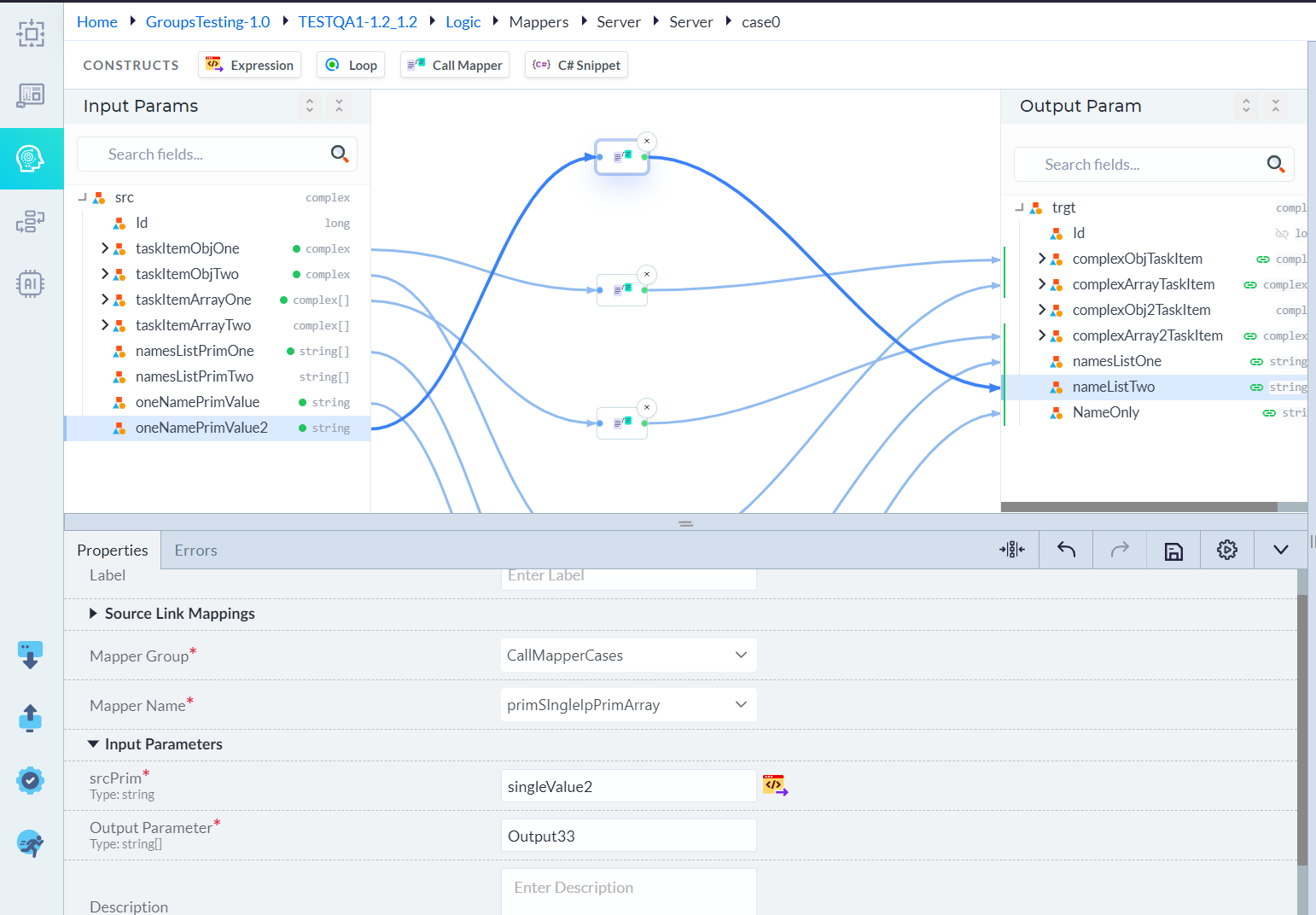
The Call Mapper construct is used to invoke an existing mapper from within another mapper. This enables the reuse of existing mapping logic and eliminates the need to create duplicate mappings.
Procedure
- Map the required input parameter(s) from the Source Schema to the Call Mapper construct.
- Double-click the Call Mapper construct in the design area. The Call Mapper Properties panel is displayed.
- In the Source Link Mapping section of the Call Mapper Properties panel, verify the Mapper Group and Mapper Name fields.
- The Mapper Group field displays the list of all available mapper groups names.
- After selecting a Mapper Group, the Mapper Name field displays the list of mappers available within the selected group.
- In the Input Parameters section, click the Expression icon.
- The Call Mapper Logic window opens and displays the default system functions.
Note: Only String type expressions are supported for input parameters.
- Create the required expression using the available functions and the mapped input parameters. You can also define custom expressions based on your business requirements.
- Click Proceed to validate and save the expression.
- Connect the output of the Call Mapper Construct to the required field in the Target Schema so that the processed data is mapped to the target.
Result
- If the expression is valid, the system saves the input parameter mapping.
- During execution, the selected mapper is called using the configured input values.
Call Mapper Properties:
| Property | Description |
|---|---|
| Label | Specifies a custom label for the Call Mapper construct. |
| Mapper Group | Specifies the mapper group that contains the mapper to be invoked. |
| Mapper Name | Specifies the name of the mapper to be called during execution. |
| Input Parameters | Defines the input parameters that are passed to the selected mapper. |
| Source Parameter | Specifies the source field or value that is mapped to the corresponding input parameter of the called mapper. |
| Output Parameter | Specifies the parameter that receives the output returned by the called mapper. |
| Description | Provides additional information or notes about the Call Mapper configuration |
C# Snippet Construct
The C# Snippet construct is used to write custom C# code when the required transformation cannot be implemented using the standard mapping constructs, such as Expression, Loop, or Call Mapper. It provides the flexibility to implement complex business logic and custom data transformations.
Procedure
- Map the required input parameter(s) from the Source Schema to the C# Snippet construct.
- Double-click the C# Snippet construct in the design area. Following Properties panel is displayed.
- In the Source Link Mapping section, click the Expression icon for the C# Snippet field.
- The C# Snippet window opens and provides the editor for writing custom C# code.
- Enter the required C# code using the mapped input parameters to implement the desired transformation logic.
- Click Proceed to validate and save the C# code.
- Connect the output of the C# Snippet construct to the required field in the Target Schema so that the processed data is mapped to the target
Result
- If the C# code is valid, the system saves the snippet and updates the C# Snippet construct.
- During mapper execution, the custom C# logic is executed, and the processed output is mapped to the corresponding field in the Target Schema.
C# Snippet Properties:
| Property | Description |
|---|---|
| Label | Specifies a custom label for the C# Snippet construct. |
| Source Link Mappings | Defines the source attributes that are passed as inputs to the C# snippet. |
| Attribute Name | Specifies the source attribute that is mapped to the C# snippet. |
| Alias | Defines the variable name (alias) used to reference the mapped attribute within the C# code. |
| Original Property | Displays the original source property associated with the selected attribute. |
| C# Snippet | Contains the custom C# code that is executed during mapping. The snippet can use the mapped aliases as input variables to perform custom logic and generate a result. |
| Output Parameter Configuration | Defines how the result produced by the C# snippet is exposed as an output parameter. |
| Output Parameter | Specifies the name of the parameter that stores the result returned by the C# snippet. |
| Output Parameter Type | Specifies the data type of the output parameter, such as String, Integer, or Boolean. |
| Description | Provides additional information or notes about the C# snippet configuration. |