Import and Export Service Entities
Service entities can be imported/exported via a predefined Excel (.xlsx) template. These features facilitate seamless entity migration across different applications, enabling easy entity configuration, modification, and backup.
Export
The Export feature allows users to download existing database entities into an Excel (.xlsx) file. This file serves as a backup, can be modified, and can be re-imported after changes.
Steps to Export Service Entities:
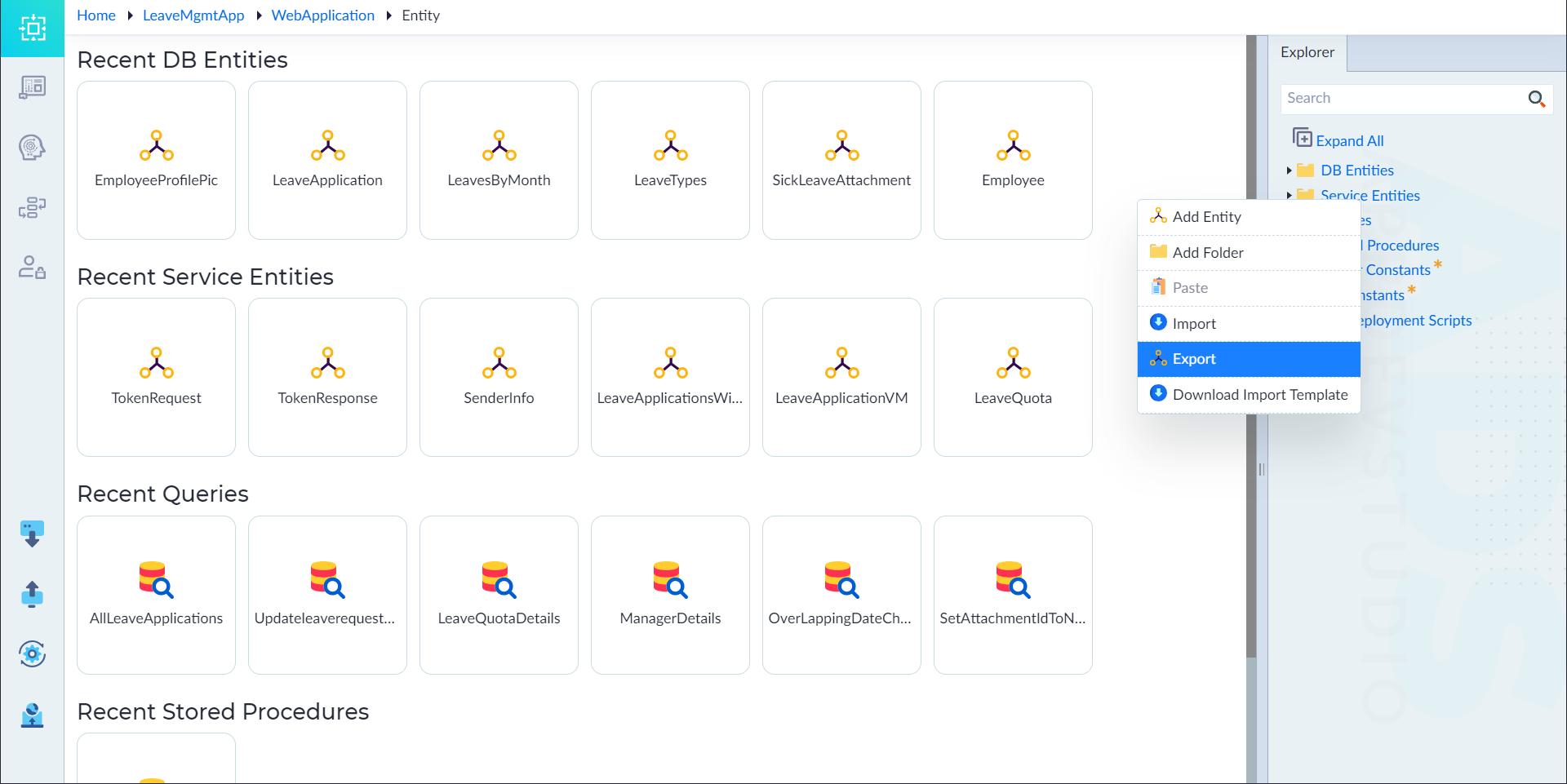
- Right-click on "Service Entities" in the Entity Explorer.
- Select "Export" from the context menu.
- A file explorer window appears, allowing users to choose the save location.
- Enter a file name and click Save.
- The entities file is generated and saved in .xlsx format.
- A confirmation message "Exported Successfully" appears.
Note:
- The exported file includes all relevant attributes and configurations of the service entities.
- Ensure the exported file is stored securely for future imports.
Import
The Import feature allows users to upload multiple database entities from a predefined Excel template.
Steps to Import DB Entities:
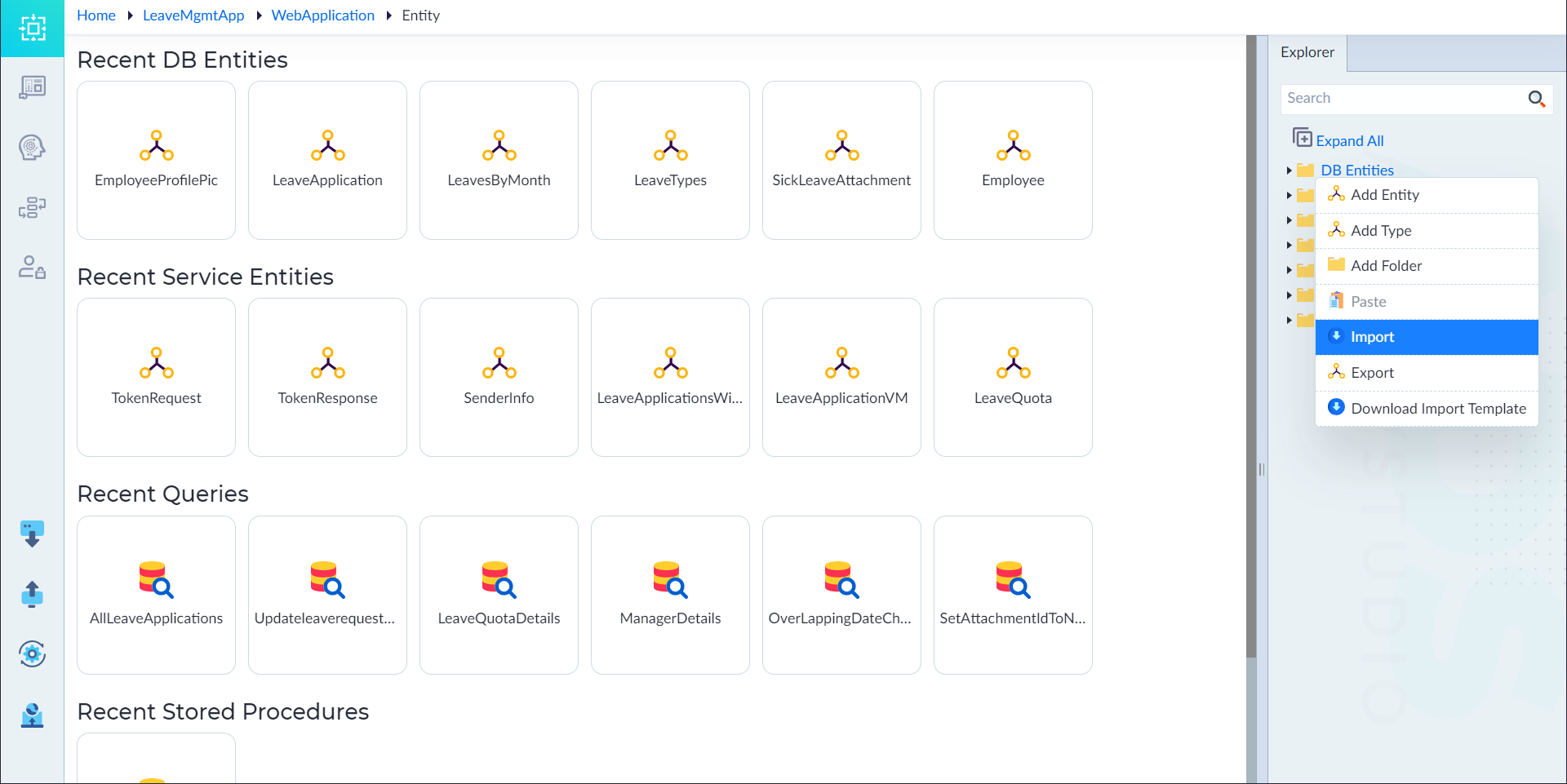
- Right-click on "Service Entities" in the Entity Explorer.
- Select "Import" from the context menu.
- A file explorer window appears. Browse and select the .xlsx file containing the entity data.
- The system performs validation checks on the file:
- Ensures mandatory fields are filled.
- Checks for duplicate entity names.
- Verifies correct data types.
- If the validation passes, the entities are imported successfully.
- A confirmation message "Entities Imported Successfully" appears.
Note:
- Ensure that the file format matches the required structure.
- Conflicts, if any, should be resolved during the validation step.
This guide ensures a seamless import/export process for service entities, making it easier to transfer configurations between applications.
Service Entities Excel Sheet
This document provides an overview of the structure and contents of the Service Entities Excel file, which consists of two sheets: Service Entities and Attributes.
1. Service Entities Sheet
This sheet contains a list of service entities along with key metadata fields:
Columns:
| Column Name | Description |
|---|---|
| Name | The name of the service entity. |
| IsMultipartFormdata | Boolean indicating if the entity supports multipart form data. |
| Description | Optional description of the entity. |
| Namespace | Defines the folder name under which the entity falls. |
2. Attributes Sheet
This sheet defines attributes for each service entity.
Columns:
| Column Name | Description |
|---|---|
| EntityName | The service entity this attribute belongs to. |
| Name | The attribute's name. |
| Datatype | Data type (e.g., String, Complex). |
| IsArray | Boolean indicating if this attribute is an array. |
| ReferenceEntity | If the attribute references another entity. |
| KeyTypeForMap | Key type for mapping structures. |
| ValueTypeForMap | Value type for mapping structures. |
| ValueIsArrayForMap | Boolean indicating if the value is an array in mapping. |
| IsMandatory | Whether the attribute is required. |
| IdentitySeedValue | The starting value for identity columns. |
| DecimalPrecision | Precision for numeric values. |
| DecimalScale | Scale for numeric values. |
| DateOption | Special date-related options. |
| DefaultValue | The attribute's default value. |
| ExampleOption | Example value options. |
| Example Description | Descriptive example. |
Download Import Template
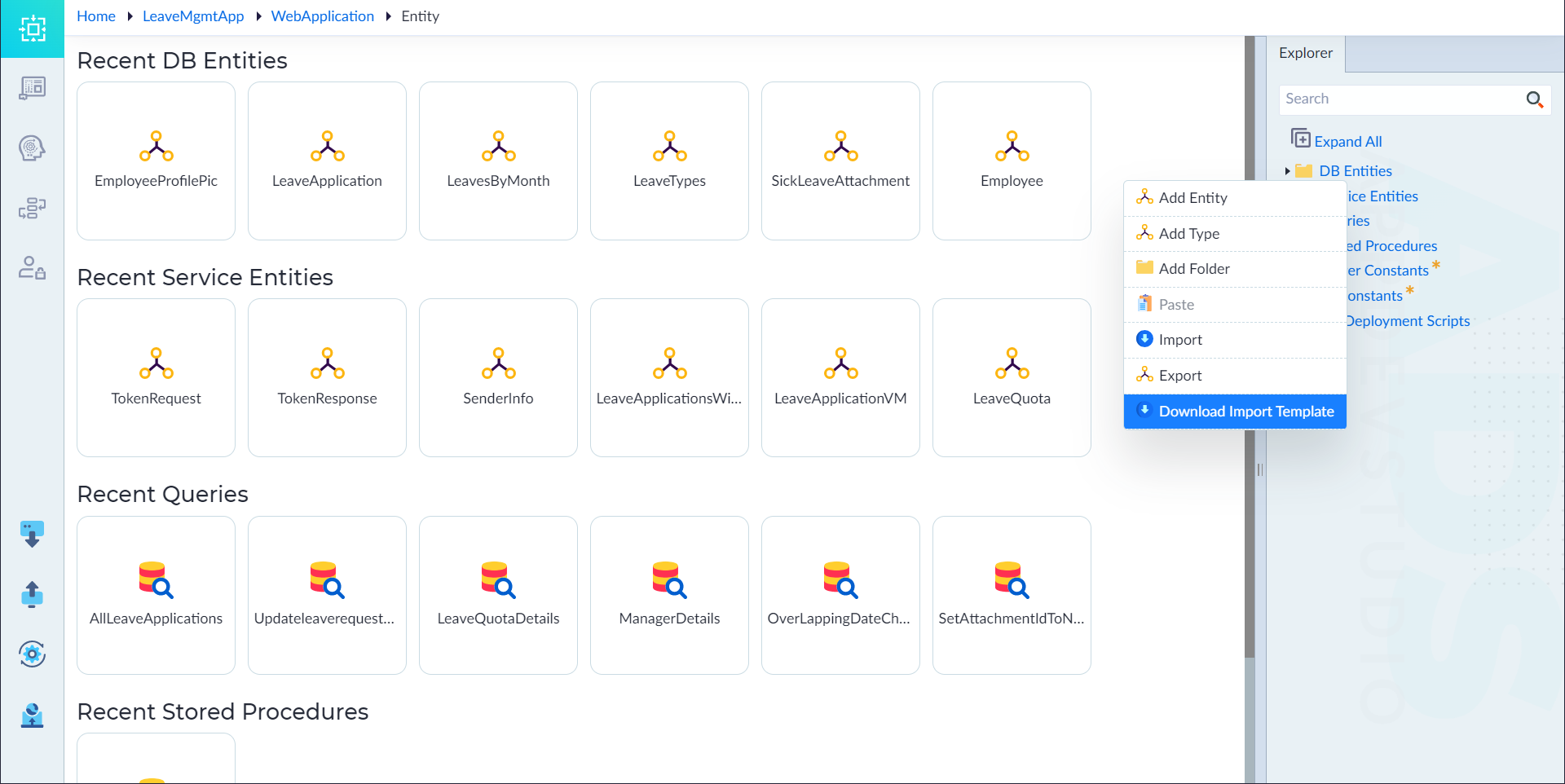
The Service Entities Import Template is an Excel file that allows users to define service entities and their attributes before importing them.
The template consists of two sheets: Service Entities and Attributes.
1. Service Entities Sheet
This sheet is used to define service entities and their metadata.
Columns:
| Column Name | Description |
|---|---|
| Name | The name of the service entity. |
| IsMultipartFormdata | Boolean indicating if the entity supports multipart form data. |
| Description | Optional description of the entity. |
| Namespace | Defines the folder name under which the entity falls. |
Note:
- Users must provide unique Name values for each entity.
- The IsMultipartFormdata column accepts True or False values.
- Ensure the Namespace is correctly assigned to avoid conflicts.
2. Attributes Sheet
This sheet defines attributes for each service entity being imported.
Columns:
| Column Name | Description |
|---|---|
| EntityName | The service entity this attribute belongs to. |
| Name | The attribute's name. |
| Datatype | Data type (e.g., String, Complex). |
| IsArray | Boolean indicating if this attribute is an array. |
| ReferenceEntity | If the attribute references another entity. |
| KeyTypeForMap | Key type for mapping structures. |
| ValueTypeForMap | Value type for mapping structures. |
| ValueIsArrayForMap | Boolean indicating if the value is an array in mapping. |
| IsMandatory | Whether the attribute is required. |
| IdentitySeedValue | The starting value for identity columns. |
| DecimalPrecision | Precision for numeric values. |
| DecimalScale | Scale for numeric values. |
| DateOption | Special date-related options. |
| DefaultValue | The attribute's default value. |
| ExampleOption | Example value options. |
| Example | Example values for reference. |
| Description | Optional description of the attribute. |
Note:
- EntityName must match a valid service entity defined in the Service Entities sheet.
- Boolean fields (e.g., IsArray, IsMandatory) accept True or False values.
- Ensure Datatype and ReferenceEntity are correctly assigned.
This document serves as a reference for correctly using the Service Entities Import Template to streamline the import process.
Note:
- The Service Entities sheet defines the entities, while the Attributes sheet specifies their properties.
- Ensure proper formatting when editing or importing data to avoid errors.
This documentation serves as a reference for understanding and managing service entities in the provided Excel file.
Troubleshooting
- If the import fails, check the file format and ensure all mandatory fields are included.
- Verify that exported entities are compatible with the target application's schema.
- Check system logs for detailed error messages if issues arise during import.
General Guidelines for Importing
- Fill in the template with the required data before importing.
- Ensure that all mandatory fields are completed.
- Validate data types and field values to avoid import errors.
- Save the template as an Excel file (.xlsx) before uploading.
This document serves as a reference for correctly using the Service Entities Import Template to streamline the import process.