Stored Procedures
Stored procedures allow developers to execute precompiled SQL statements directly within server flows. They enable efficient data retrieval, manipulation, and transaction management while improving performance and security.
Benefits of Using Stored Procedures
- Performance Optimization – Precompiled execution reduces query processing time.
- Security – Prevents SQL injection through parameterized execution.
- Reusability – Stored procedures can be executed across multiple workflows and server flows.
- Transaction Handling – Ensures data consistency and rollback capabilities.
Adding a Stored Procedure
To create a Stored Procedure, follow these steps:
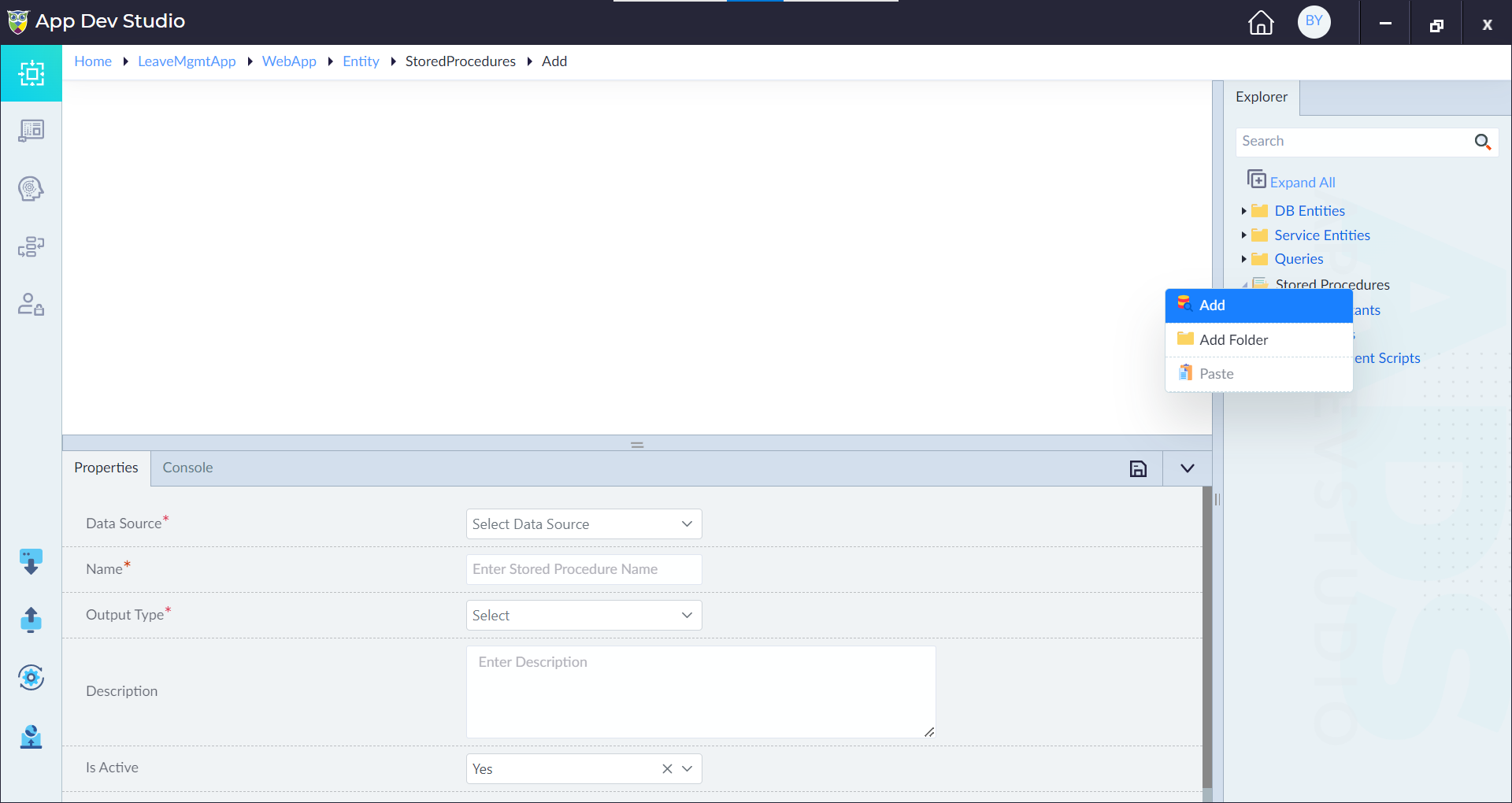
- Open the Explorer menu.
- Right-click on Stored Procedures and select Add.
- In the Properties Panel, configure the required fields.
- Click Save to finalize the addition.
Upon successful creation, a confirmation message, "Stored Procedure added successfully", will be displayed.
Stored Procedure Properties
Each Stored Procedure includes configurable properties:
| Property | Description | Comments |
|---|---|---|
| Data Source* | Defines the database (default or external) from which the procedure retrieves or modifies data. | Selected from database settings. |
| Name* | Specifies the stored procedure's name. | For External Database: Use the name of the stored procedure in the external database. Supported: Starts with a letter, includes letters, numbers, and underscores (_), and must have at least two characters. Not Supported: Cannot start with a number or underscore, contain spaces, or include special characters (e.g., @, $, #, !, -). |
| Stored Procedure | Provides an editor to write the SQL script. | Displays only for default data source. |
| Output Type* | Determines the format of returned data. | Options: Multi Table, Multi Row, Single Row, Single Value, JSON Object, JSON Array, None. |
| Data Type* | Defines the data type when 'Single Value' is selected in Output Type. | Hidden unless 'Single Value' is chosen. |
| Description | A brief explanation of the stored procedure's function. | Useful for documentation. |
| Is Active | Indicates whether the stored procedure is enabled. | Default: Yes. |
Note: Properties marked with an asterisk (*) are mandatory.
Stored Procedure Editor
Step 1: Building a Stored Procedure
To create a stored procedure, open the Stored Procedure Editor tool by clicking Open Editor in a stored procedure.
Using Input Parameters in Stored Procedures
Once input parameters are added, they can be referenced in SQL scripts inside the Stored Procedure Editor. Below are different examples of how to use them.
Example 1: Retrieving Employee Details by Employee ID
Steps to Add Input Parameter in Studio:
- Right-click on Input Params → Click Add
- Parameter Name: EmployeeID
- Data Type: Integer
- Click Save
Stored Procedure in Editor:
SELECT * FROM Employees WHERE EmployeeID = @EmployeeID;
Example 2: Getting Orders Between Two Dates
Steps to Add Input Parameters in Studio:
- Right-click on Input Params → Click Add
- Parameter 1: StartDate (Data Type: DateTime)
- Parameter 2: EndDate (Data Type: DateTime)
- Click Save
Stored Procedure in Editor:
SELECT * FROM Orders WHERE OrderDate BETWEEN @StartDate AND @EndDate;
Example 3: Handling Optional Parameters
Steps to Add Input Parameter in Studio:
- Right-click on Input Params → Click Add
- Parameter Name: Country
- Data Type: String
- Length: 50 (for NVARCHAR)
- Default Value: 'USA'
- Click Save
Stored Procedure in Editor:
SELECT * FROM Customers WHERE Country = @Country;
Example 4: Using Input Parameters in Dynamic SQL
Steps to Add Input Parameter in Studio:
- Right-click on Input Params → Click Add
- Parameter Name: Category
- Data Type: String
- Click Save
Stored Procedure in Editor:
DECLARE @SQLQuery NVARCHAR(MAX);
SET @SQLQuery = 'SELECT * FROM Products WHERE Category = ''' + @Category + '''';
EXEC sp_executesql @SQLQuery;
Example 5: Using UDT as Input Parameter
Steps to Add UDT in Studio:
- Right-click on Input Params → Click Add
- Parameter Name: EmployeeData
- Data Type: UserDefinedTypes
- Select UDT Type: EmployeeTableType
- Click Save
Stored Procedure in Editor Using UDT:
INSERT INTO Employees (EmployeeID, Name, Department, Salary)
SELECT EmployeeID, Name, Department, Salary FROM @EmployeeData;
Step 2: Validating and Saving the Stored Procedure
- After adding input parameters and writing the SQL script, click Validate to check for syntax errors.
- If validation succeeds: a message "Validation Successful" appears.
- If validation fails: error details will be displayed.
- Once validated, click Proceed to save and implement the stored procedure.
Output Type Properties
1. Multi Table
A Multi Table stored procedure allows you to return data from multiple tables. It is ideal for combining related data, such as employee details with department information or orders with customer data.
Key Features
- Allows adding multiple tables in a single procedure.
- Supports JOIN operations to combine data across related entities.
- Enables combining data across multiple entities using JOIN conditions.
- Simplifies handling of complex relationships between entities.
- Reduces query redundancy by centralizing logic in a stored procedure.
Configuration Steps
- Selecting Multi Table Output Type — Choose "Multi Table" as the output type. This allows you to combine data from multiple tables in a single stored procedure.
- Adding Tables — Click the Add Table button we can return data from multiple tables.
- Configure Each Table:
- Command Type Dropdown: Choose the appropriate command type — Multi Row, Single Row, Single Value, JSON Object, JSON Array.
- Response Name Textbox: Enter a unique response name to identify the output of each table.
- Entity Name Dropdown: Choose multiple entities (displayed for Multi Row and Single Row command types).
- Columns Dropdown: Select multiple columns from the chosen entities.
- Data Type Dropdown: Displayed for Single Value command type.
Use Cases
- Fetching records from multiple tables in a single query.
- Retrieving related data from different entities in one procedure.
- Displaying combined results from various tables for reporting.
- Using JOIN operations to link multiple datasets efficiently.
2. Multi Row
A Multi Row type retrieves multiple records from the database using a SELECT statement. This procedure type is ideal for fetching lists of data, such as user records, orders, or transactions.
Key Features
- Executes a stored procedure to retrieve multiple rows from the database.
- Supports JOIN and SELECT operations across multiple entities.
- Allows fetching data from related entities in a single procedure.
- Pagination is enabled by default for optimized performance.
Configuration Steps
- Set Output Type to Multi Row.
- Click the Add Columns button to include one or more entities. A form appears with the following options:
- Return Type Dropdown: Choose the entity from the available database entities.
- Columns: Select multiple columns from the chosen entities.
- Multiple entities can be added to perform JOIN operations.
Use Cases
- Fetching a list of users, orders, or products.
- Retrieving transaction history from a database.
- Combining data from multiple entities using JOIN operations.
3. Single Row
The Single Row type is used to retrieve a single record from the database. It is commonly used when querying data where only one result is expected, such as fetching details of a specific user, order, or record.
Functionality
- Executes a stored procedure that returns only one record.
- If multiple records match the query conditions, only the first one will be retrieved.
How to Configure a Single Row
- Choose Single Row in the Output Type dropdown.
- Click the Add Columns button to include one or more entities. A form appears with the following options:
- Return Type Dropdown: Choose the entity from the available database entities.
- Columns: Select multiple columns from the chosen entities.
- Multiple entities can be added for JOIN and SELECT operations. This allows fetching data from related entities in a single query.
Use Cases
- Fetching user details based on UserID.
- Retrieving a single order using OrderID.
- Getting configuration settings from the database.
4. Single Value
A Single Value query retrieves a single data value from the database. This output type is commonly used for calculations, aggregations, and fetching a specific field value from a dataset.
Data Type dropdown will be displayed for the Single Value output type.
Key Features
- Executes a SELECT query that returns only one value from the database.
- Supports JOIN and SELECT operations across multiple entities.
- Used for aggregate functions such as COUNT(), MAX(), SUM(), AVG(), etc.
- Allows return data type selection based on the result.
Return Data Type Selection
Data Type dropdown is displayed for the Single Value output type. Available options: Integer, String, Boolean, DateTime, Long, Double, Binary.
Use Cases
- Retrieving total number of users using COUNT(*).
- Fetching the highest order value using MAX(order_total).
- Calculating average sales revenue using AVG(sales_amount).
- Getting the latest login timestamp from a user table.