Workflow Exceptions
Follow the below steps to create a new workflow exception:
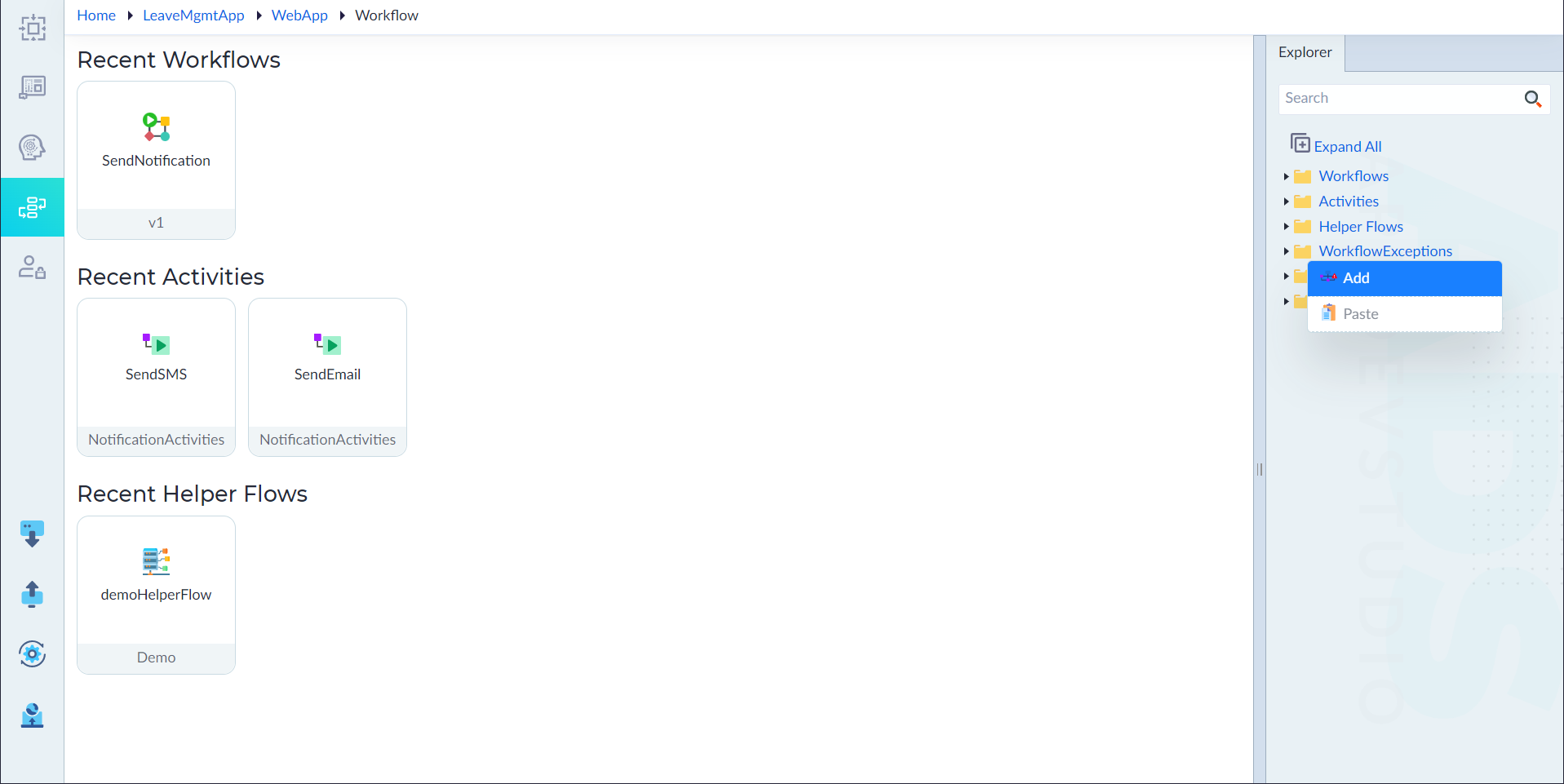
- From the explorer menu, right-click Workflow Exceptions and select Add.
- In the properties panel, configure the properties as required and then click save.
| Property | Description | Comments |
|---|---|---|
| Name* | Provide the name of an exception. | Name must start with a character followed by alphanumeric or ''. No spaces are allowed. Except underscore (), no other special characters are allowed. Name cannot start with a number. |
| ErrorCode* | Provide the status code. | - |
| Message Template* | Provide the message that corresponds to the exception. | - |
| Description | Provide the summary. | - |
| Is Active | Specify whether the exception is active for accessing or not. Either Yes or No. | By default, it is set to Yes. |
Note: An asterisk (*) denotes that the property is mandatory for creating a workflow exception.
The "Workflow Exception added successfully" message displays upon successful creation. Handler folder is created by default within the exception.
Add Exception Handlers
Users can add the exception handlers to an exception as applicable. To add, follow the below steps:
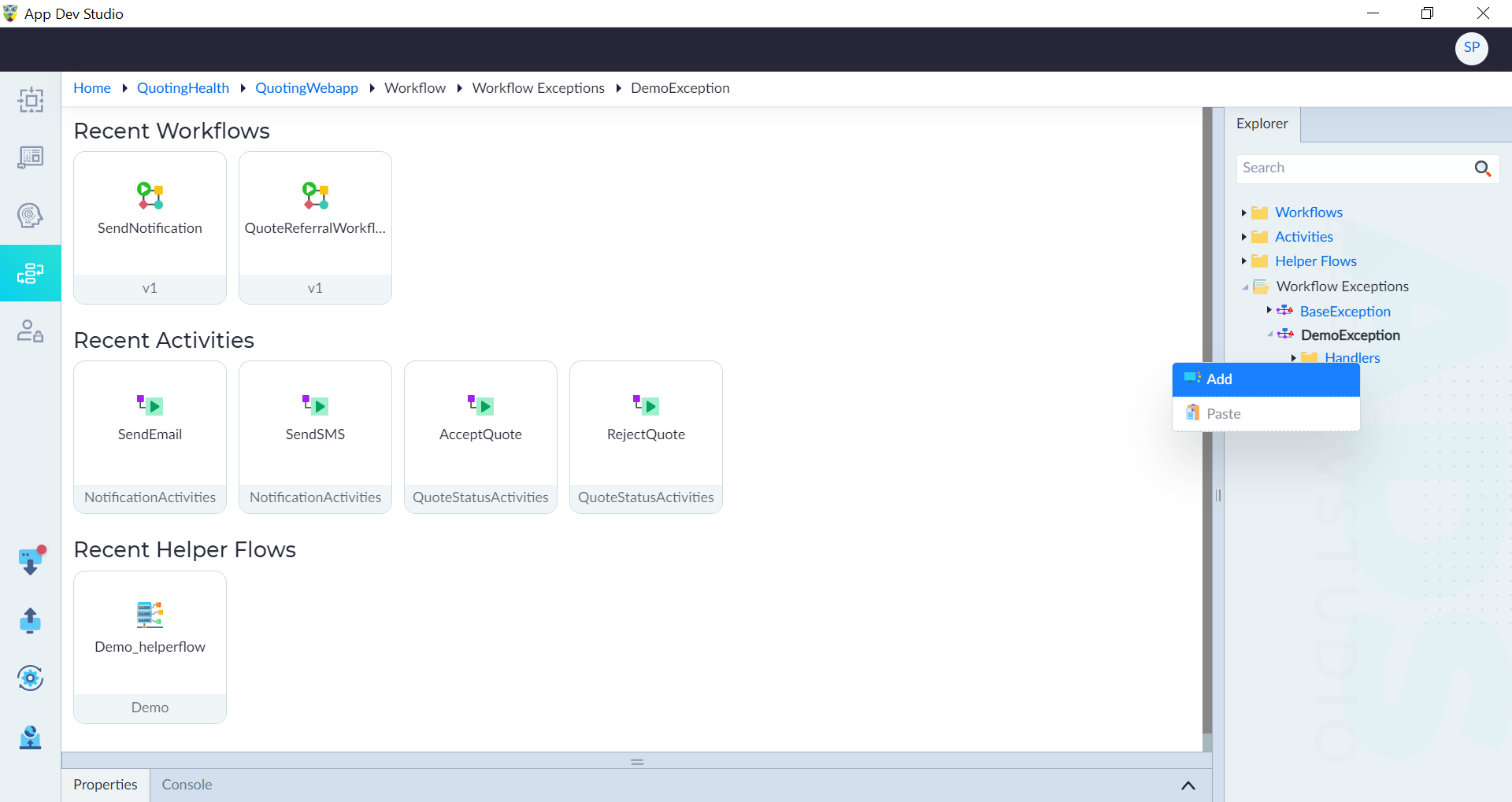
- Right-click Handlers and select Add.
- In the properties panel, configure the below properties as required and the click Save.
| Property | Description | Comments |
|---|---|---|
| Name* | Provide the name of the exception. | Name must start with a character followed by alphanumeric or ''. No spaces are allowed. Except underscore (), no other special characters are allowed. Name cannot start with a number. |
| Description | Provide the summary. | - |
| Is Active | Specify whether the handler is active for accessing or not. Either Yes or No. | By default, it is set to Yes. |
Note: An asterisk (*) denotes that the property is mandatory for adding a handler.
The "Handler added successfully" message displays upon successful creation.
- The handler designer canvas shows the Start and Stop constructs by default. From the ribbon, add the required constructs and configure them as required inside the flow to create an exception handler.
- Click save to save a handler.
The "Handler updated successfully" message displays upon successful update.
Structure of a Handler
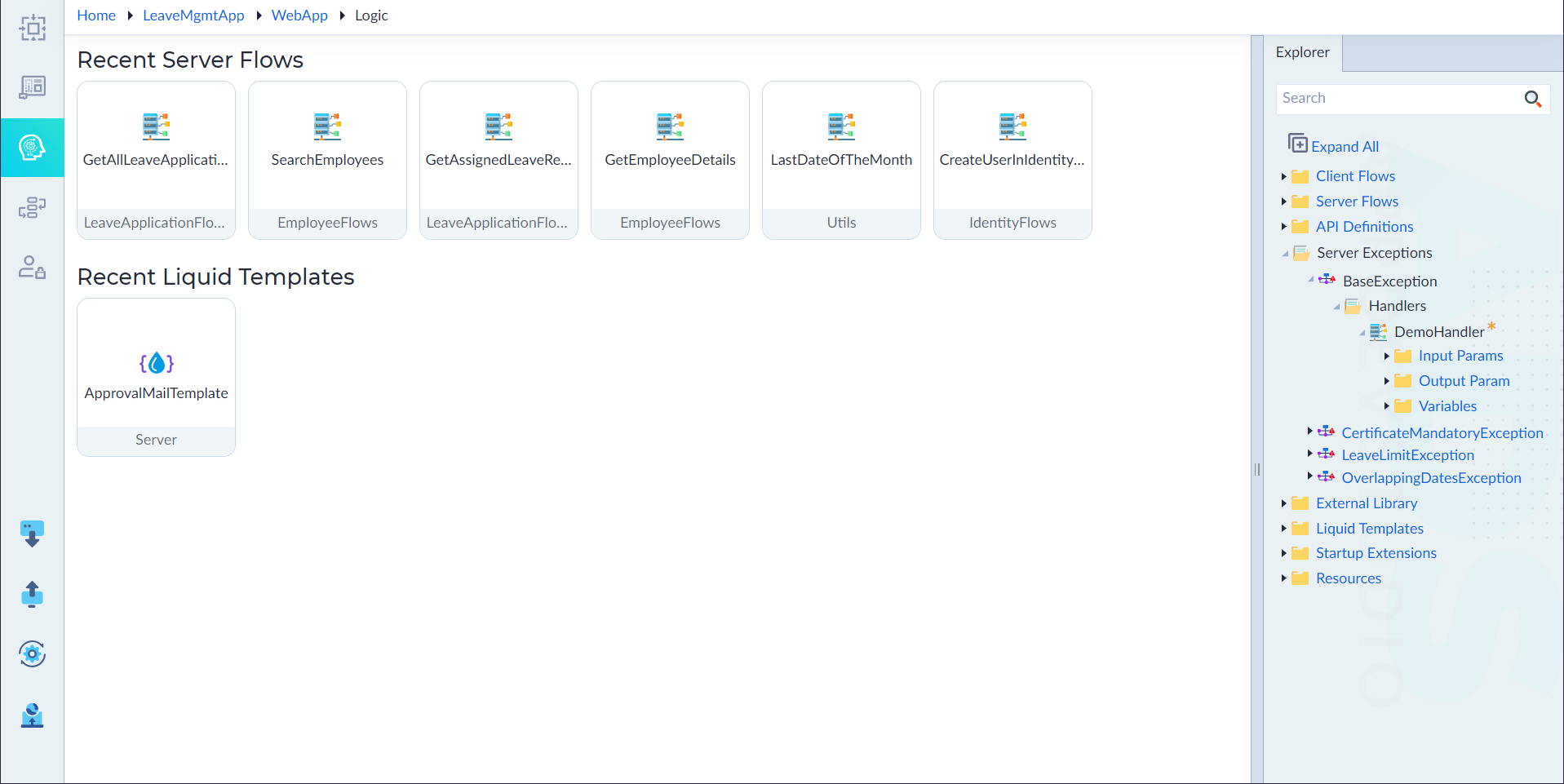
The created handler contains the following:
- Input Params to add input parameters for the flow
- Output Param
- Variables
Add Input Parameters, Output Parameter and Variables
Users can add the parameters and variables to a handler as applicable. To add, follow the below steps:
- Right-click the Input Params (or) Output Param (or) Variables and select Add. A pop-up window displays.
- Configure the below properties as required and the click Save.
| Property | Description | Comments |
|---|---|---|
| Parameter Name* | Provide the name of a parameter. | Name must start with a character followed by alphanumeric or ''. No spaces are allowed. Except underscore (), no other special characters are allowed. Name cannot start with a number. |
| Is Array | Specify whether the parameter is an array or not. | By default, it is set to No. |
| Data Type* | Select the data type of the parameter from the drop-down. | - |
Note: An asterisk (*) denotes that the property is mandatory for creating a parameter or variable.
The success message displays upon successfully adding a parameter or variable.
Constructs
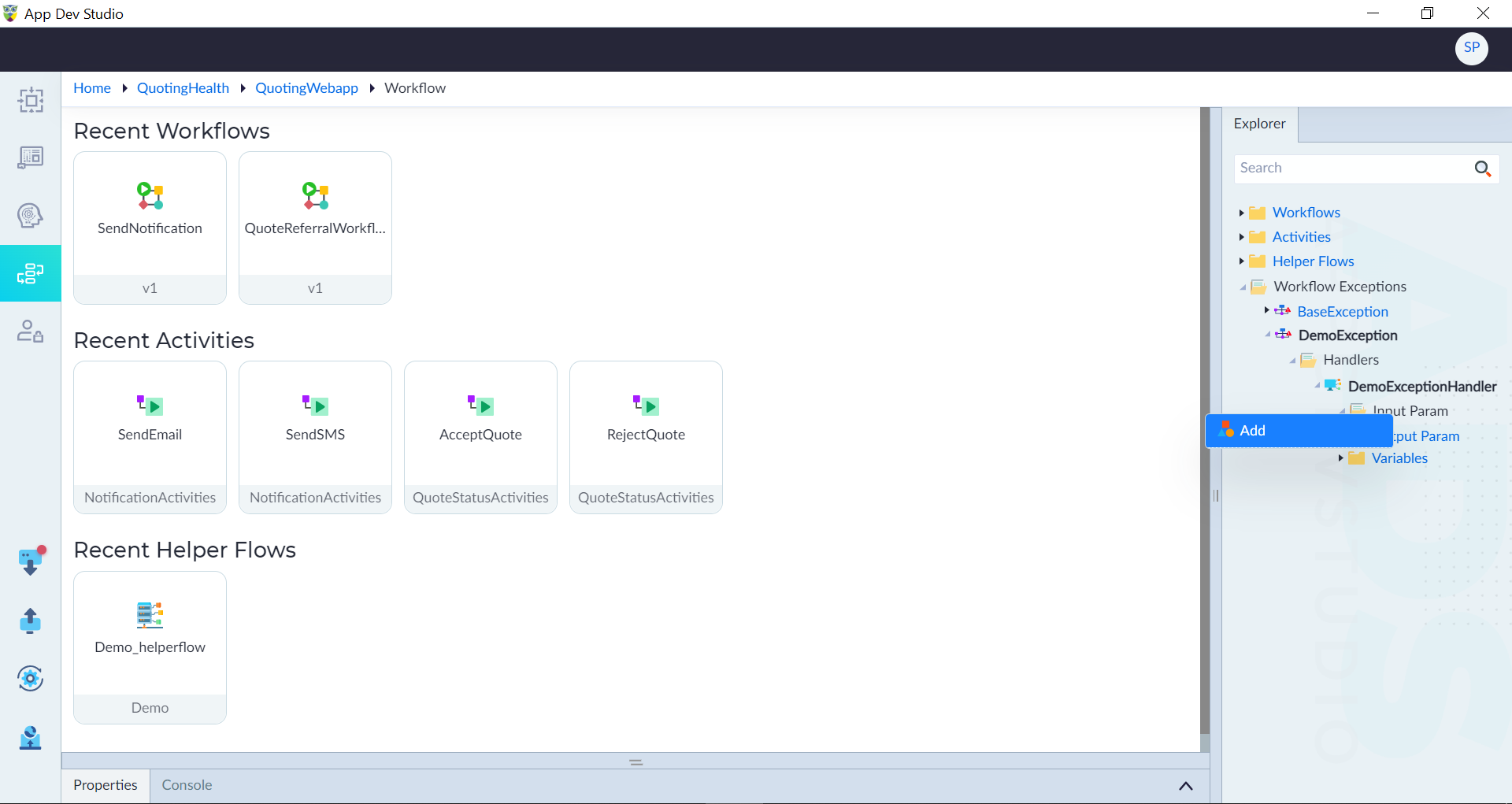
The following are the constructs available in an exception handler:
| If | Assignment | Foreach | Break |
| Continue | While | Return | Initialize |
| Switch | Call REST API | Run Query | Run Query Async |
| Query Output Mapping | Begin Transaction | Complete Transaction | Call ServerFlow |
| Raise Event | C# Snippet | Log | Throw Exception |
| Call Workflow | Get Workflow Status | Terminate Workflow | Get Workflow Result |
| Create Anonymous Object | Json Parse | Json Search | Call Aggregate Function |