Create Helper Flows
Follow the below steps to create a helper flow:
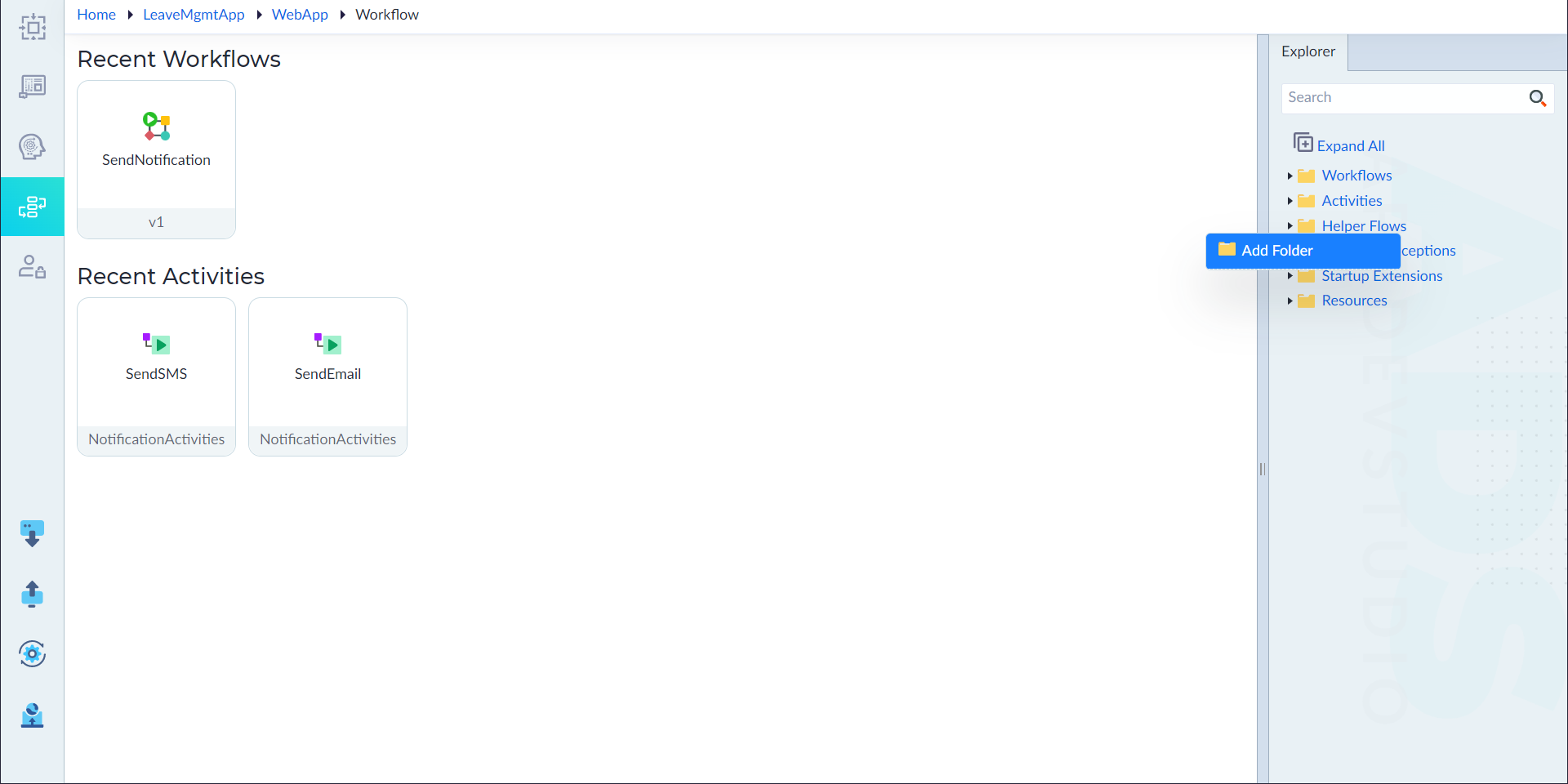
- From the explorer menu, right-click Helper Flows and select Add Folder.
- Provide a suitable name for the folder. These folders can be used to segregate and categorize the related helper flows together.
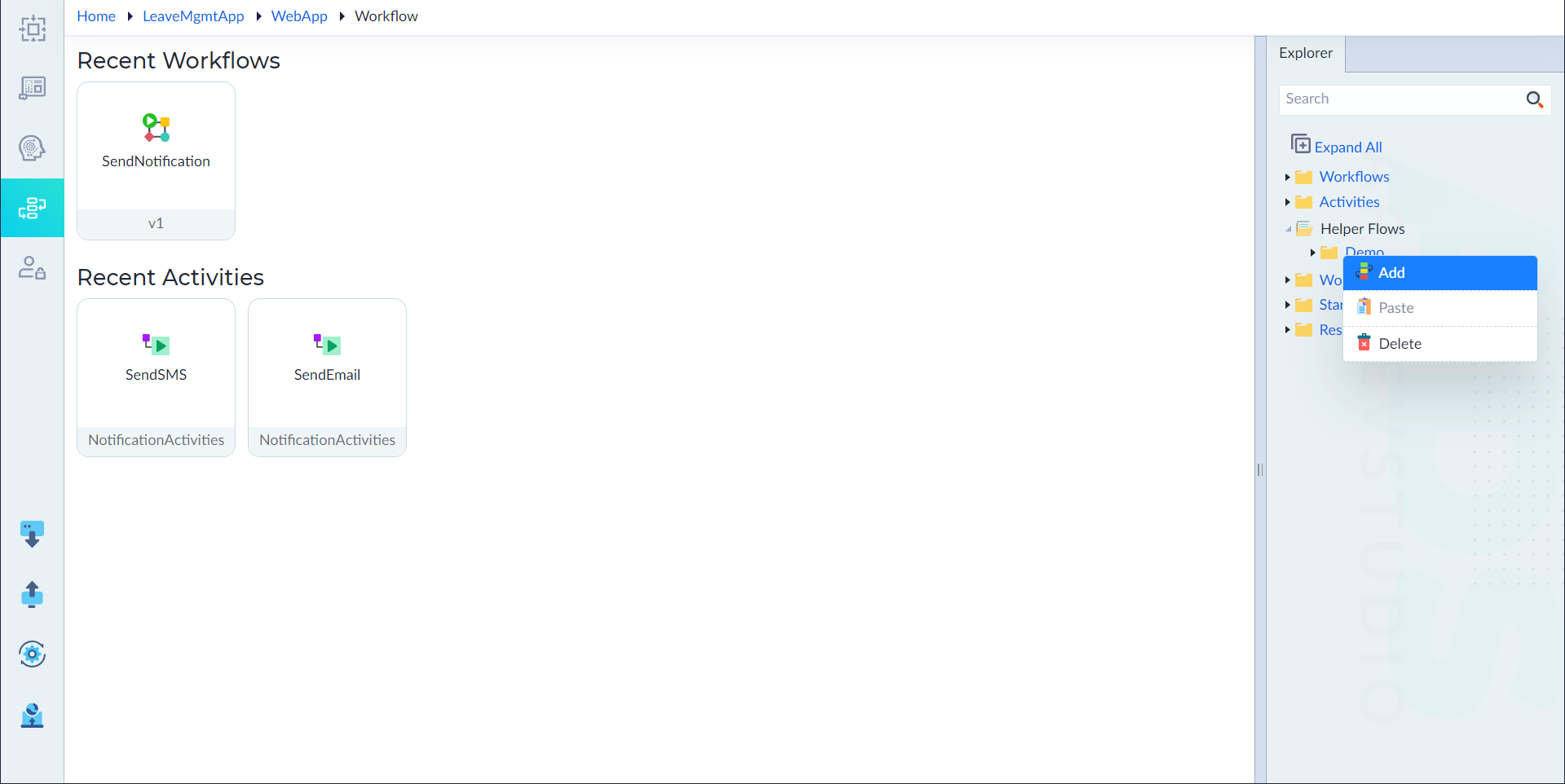
- Right-click the created folder and select Add.
- In the properties panel, configure the properties as required and then click save.
| Property | Description | Comments |
|---|---|---|
| Name* | Provide the name of a helper flow. | Name must start with a character followed by alphanumeric or '_'. No spaces are allowed. Except underscore (_), no other special characters are allowed. Name cannot start with a number. |
| Group | Name of the folder is displayed here. | This property cannot be edited. |
| Async Operation* | Specify whether the flow is an async operation. Either Yes or No. | By default, it is set to No. |
| Description | Provide the summary. | - |
| Is Active | Specify whether the helper flow is active for accessing. Either Yes or No. | By default, it is set to Yes. |
Note: An asterisk (*) denotes that the property is mandatory for creating a helper flow.
The "Helper Flow added successfully" message displays upon successful creation.
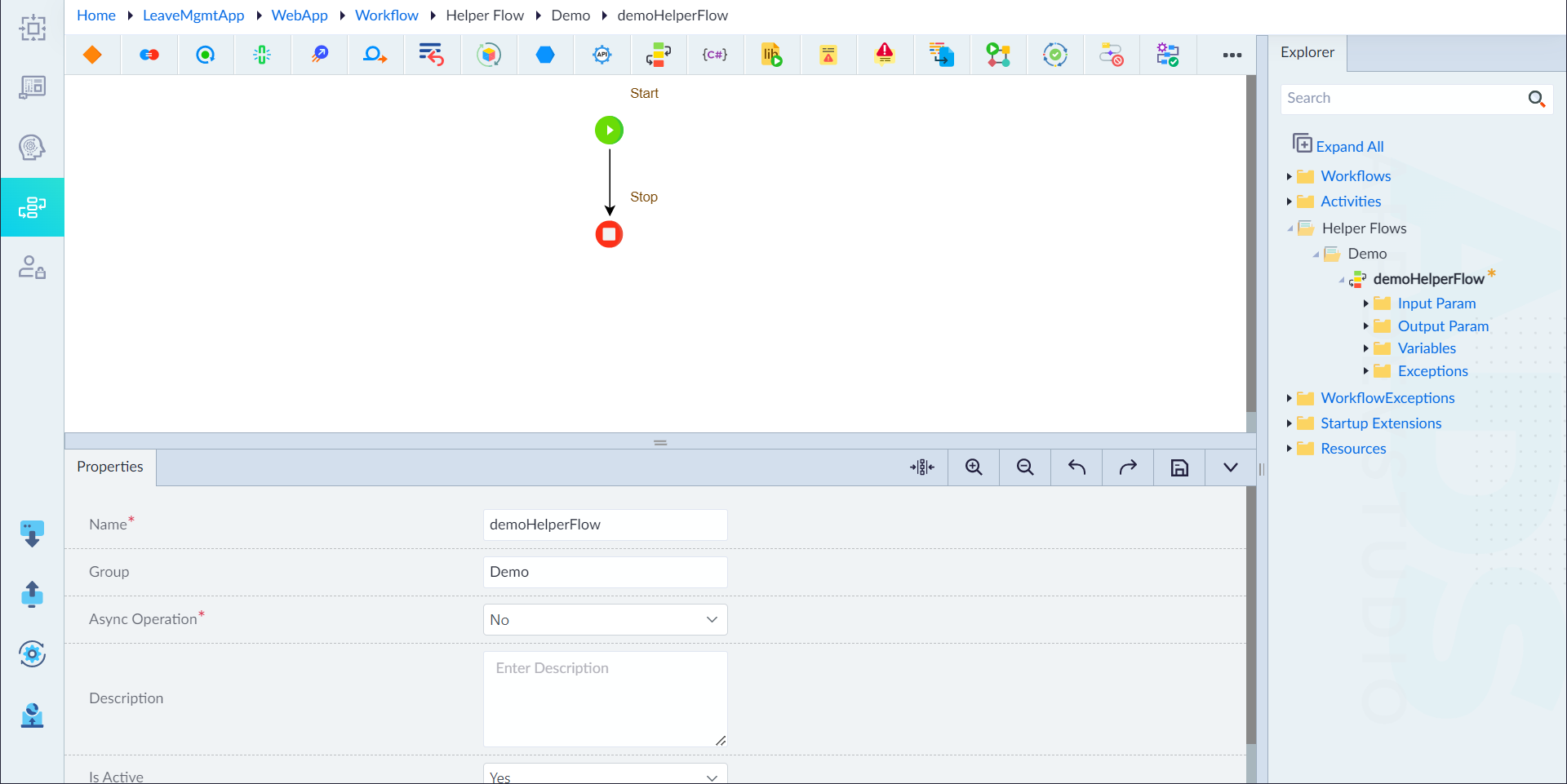
- The helper flow designer canvas shows the Start and Stop constructs by default. From the ribbon, add the required constructs and configure them as required inside the flow to create a logic. For more information on constructs, refer to Configure Constructs.
- Click save icon to save a helper flow.
The "Helper Flow updated successfully" message displays upon successful update.
Structure of a Helper Flow
The created helper flow contains the following:
- Input Params
- Output Param
- Variables
- Exceptions. A base exception is created by default when a helper flow is created.
Add Input Parameters, Output Parameter and Variables
Users can add the parameters and variables to a helper flow as applicable. To add, follow the below steps:
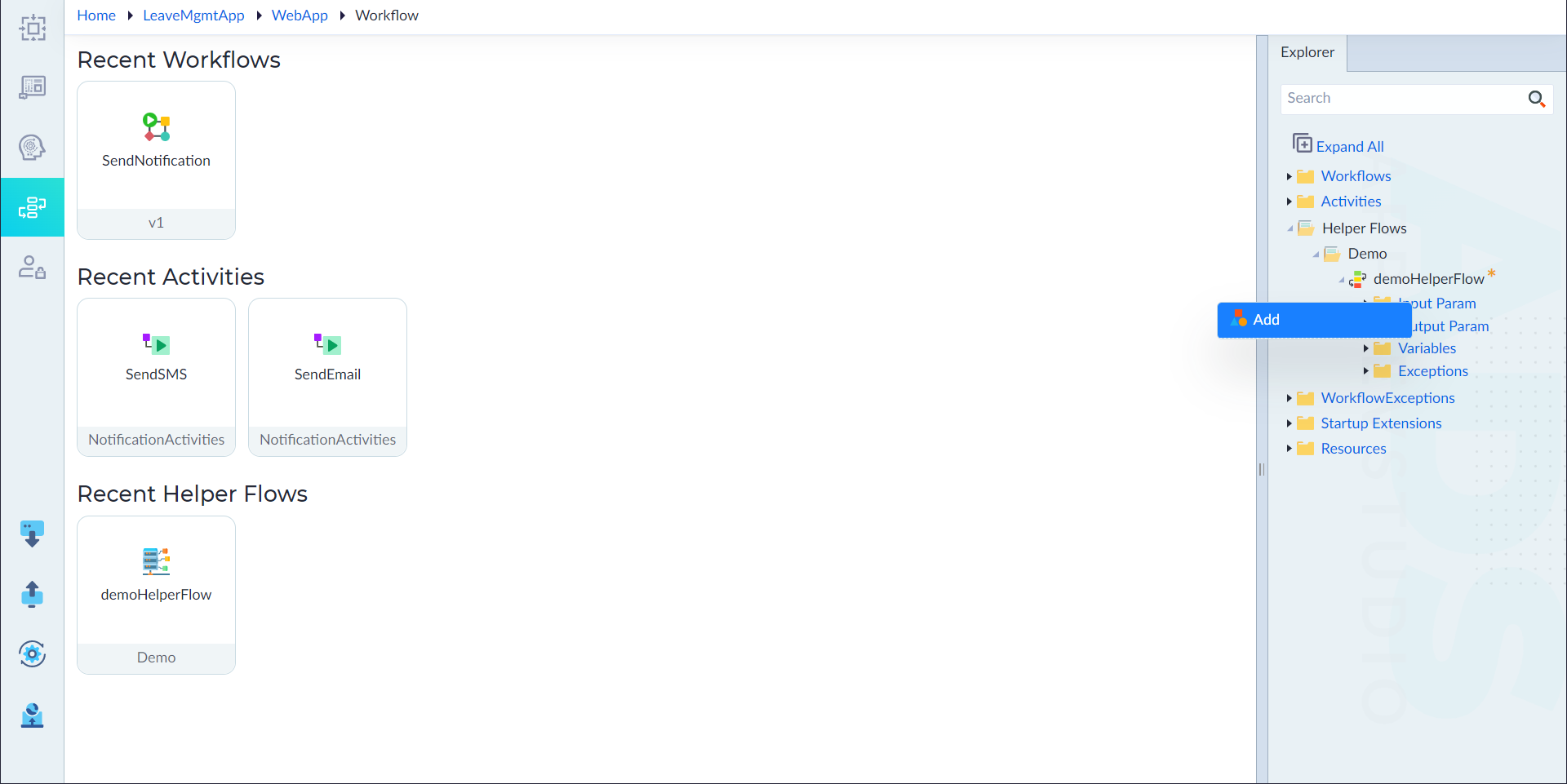
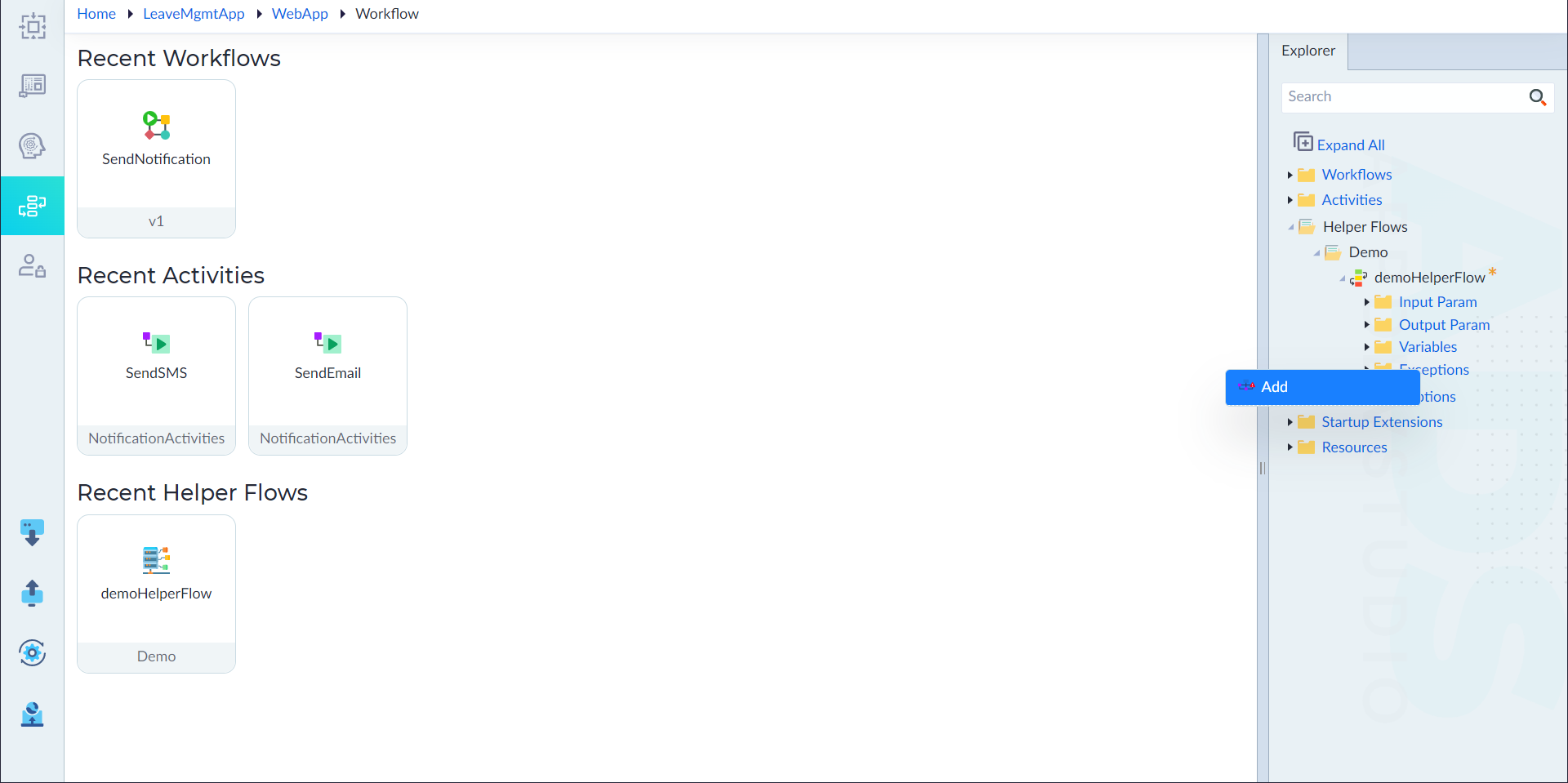
- Right-click the Input Params (or) Output Param (or) Variables and select Add. A pop-up window displays.
- Configure the below properties as required and the click Save.
| Property | Description | Comments |
|---|---|---|
| Parameter Name* | Provide the name of a parameter. | Name must start with a character followed by alphanumeric or '_'. No spaces are allowed. Except underscore (_), no other special characters are allowed. Name cannot start with a number. |
| Is Array | Specify whether the parameter is an array or not. | By default, it is set to No. |
| Data Type* | Select the data type of the parameter from the drop-down. | - |
Note: An asterisk (*) denotes that the property is mandatory for creating a parameter or variable.
The success message displays upon successfully adding a parameter or variable.
Add Exceptions
Users can add the exceptions to a helper flow as applicable. To add, follow the below steps:
- Right-click Exceptions and select Add. A pop-up window displays.
- Configure the below properties as required and the click Save.
| Property | Description | Comments |
|---|---|---|
| Name* | Provide the name of the exception. | Name must start with a character followed by alphanumeric or '_'. No spaces are allowed. Except underscore (_), no other special characters are allowed. Name cannot start with a number. |
| Exception* | Select the exception from the drop-down. | The exceptions created in the Workflow Exceptions folder are available in the drop-down. |
Note: An asterisk (*) denotes that the property is mandatory for adding an exception.
Constructs
The following are the constructs available in a helper flow:
| Constructs in Helper Flows | |||
|---|---|---|---|
| If | Assignment | Foreach | Break |
| Continue | While | Return | Initialize |
| Switch | Call REST API | Call Helper Flow | Run Query |
| Run Query Async | Query Output Mapping | Begin Transaction | Complete Transaction |
| C# Snippet | Log | Raise Exception | Prepare File Content |
| Call Workflow | Get Workflow Status | Terminate Workflow | Get Workflow Result |
| Raise Event | WhenAll | WhenAny | Create Anonymous Object |
| Json Parse | Json Search | Convert Json to Xml | Convert Xml to Json |
| Call Aggregate Function |