Resources (Workflow)
Resources
The Resources feature in Logic provides a centralized system for managing assets such as config files, and other resources used in Serverflows/workflows. This functionality allows users to upload, store, and organize resources directly within their Serverflows and workflows.
Use Cases
- A server flow can fetch API credentials from a stored config.json file instead of embedding them directly in the logic.
- A server flow can fetch an HTML email template from Resources, replace placeholders with user data, and send the email.
Adding a Resource
Steps to Add a Resource
- Navigate to Logic:
- Click on the Logic icon in the left navigation menu.
- Open Resources Panel:
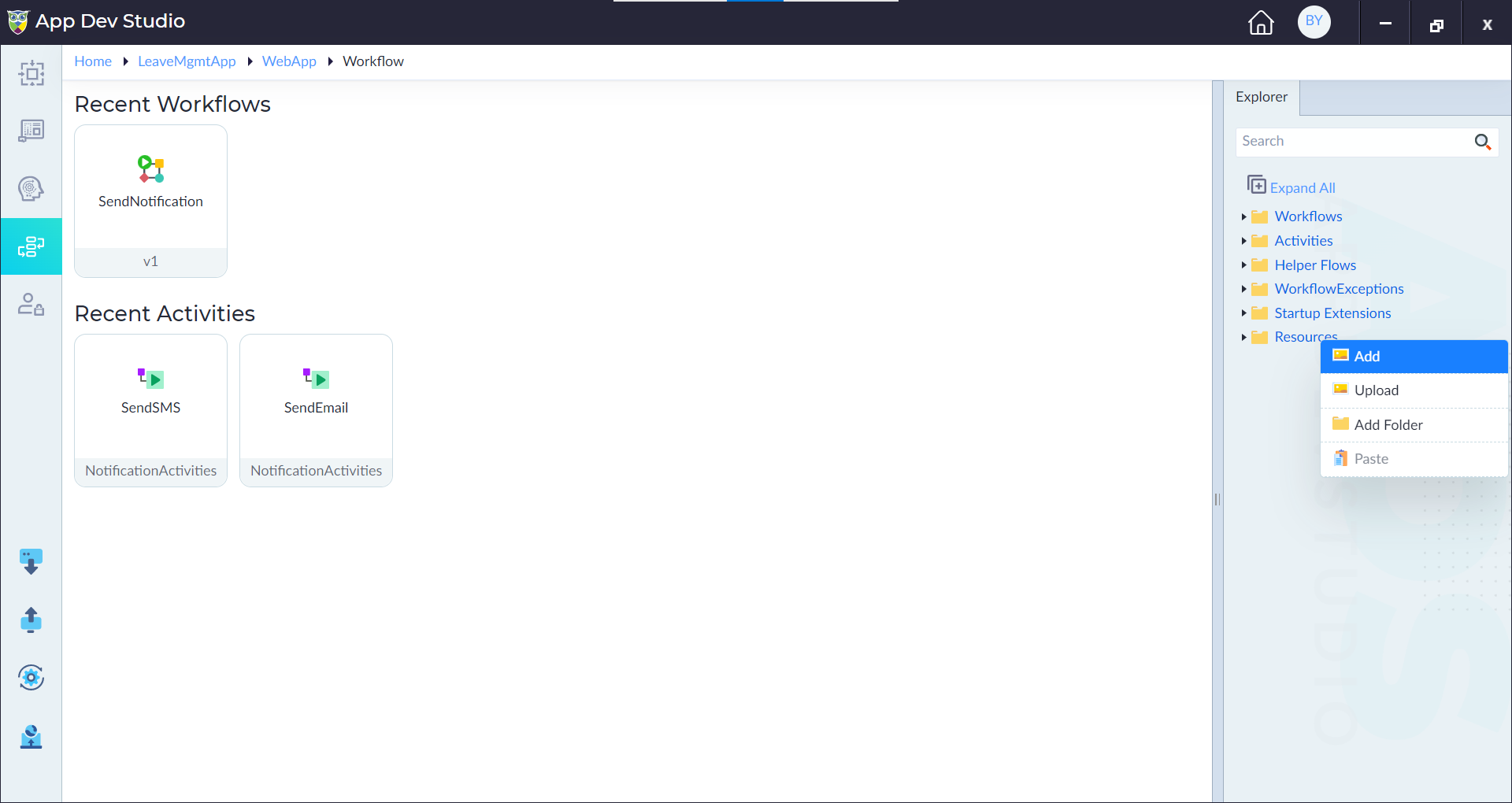
- In the Explorer Panel, right-click Resources, then click Add.
- Enter Resource Details:
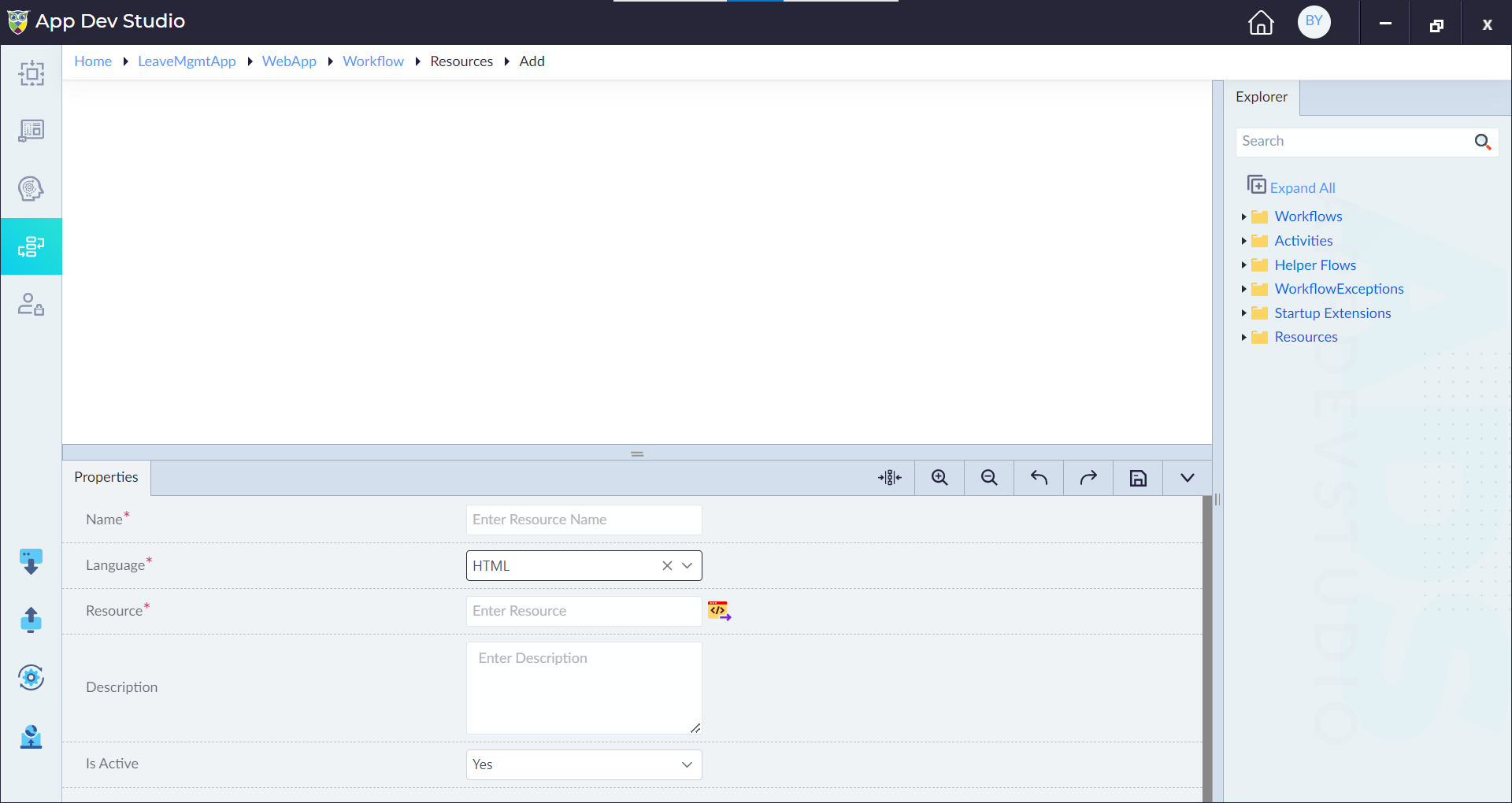
- Name* → Provide a unique name for the resource.
- Language* → Select the programming language associated with the resource.
- Resource* → This option appears after selecting a language. Upload the corresponding resource file.
- Description (Optional) → Add a brief description of the resource.
- Is Active → Toggle this setting to enable or disable the resource.
- Save the Resource:
- Click Save to complete the resource addition.
Note: Fields marked with an asterisk (*) are mandatory.
Uploading a Resource File
Steps to Upload a Resource File
- Navigate to Logic:
- Click on the Logic icon in the left navigation menu.
- Open Resources Panel:
- Right-click Resources, then click Upload.
- Select a File:
- Click Browse and choose the resource file from your local system.
- Provide Additional Information:
- File* → Select the file to upload.
- Description (Optional) → Add a brief description of the uploaded resource.
- Is Active → Toggle the status (Enable/Disable) for the resource.
- Upload the File:
- Click Upload to store the resource in the system.
Note: Fields marked with an asterisk (*) are mandatory.