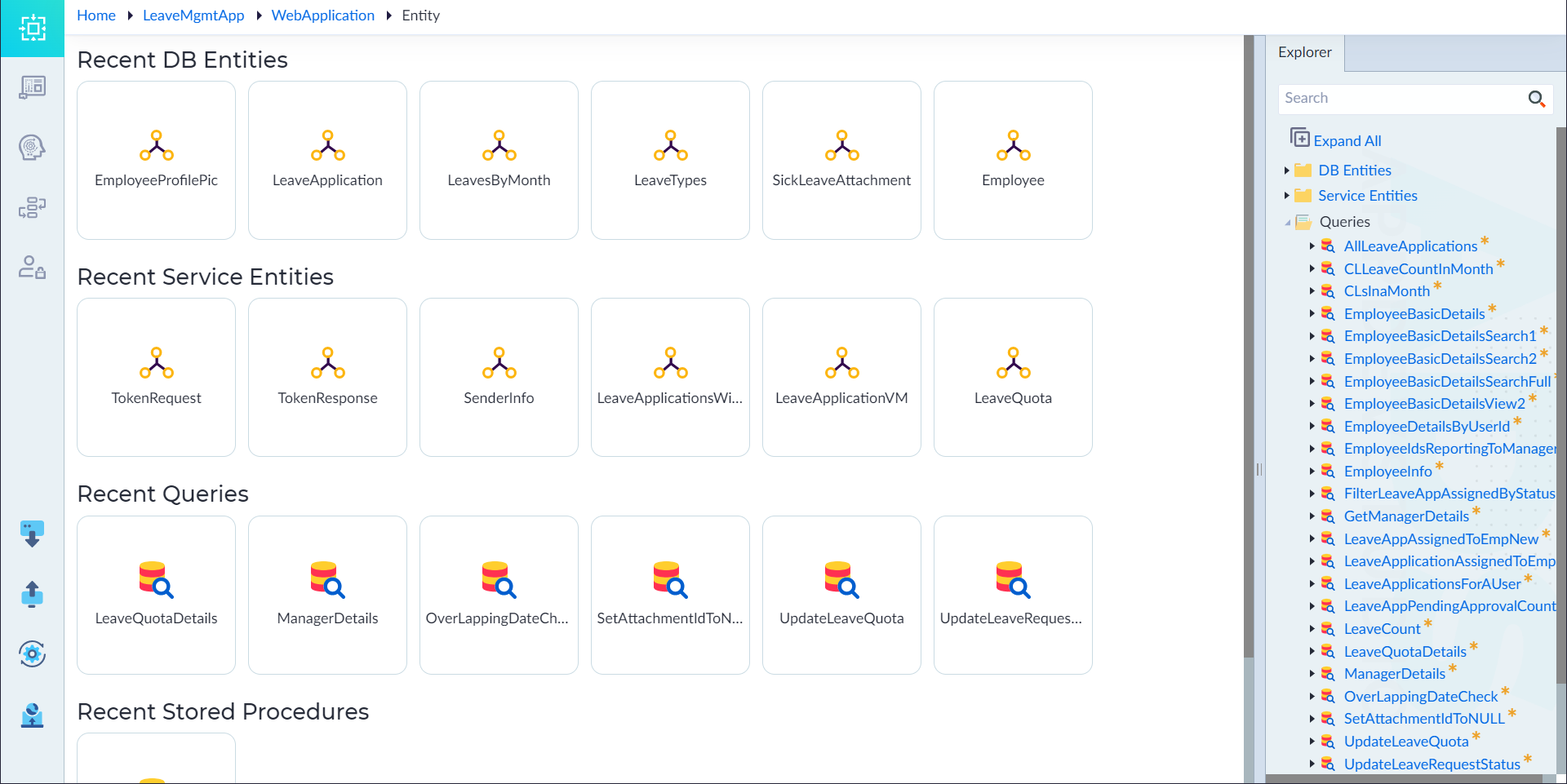
Manage Queries
User can edit the queries based on the requirement to perform the necessary operations. Follow the below sections to manage queries in OwlGen.
Edit a Query
Follow the below steps to edit a Query
- From the explorer menu, double-click the query that needs to be edited from the Queries folder.
- In the properties panel, edit the configured properties as required. For more information on properties, refer to Create Queries.
- Open the query builder and edit the query based on the requirement, click Generate Query and click Save And Close. The "Query saved" message displays upon saving the query.
- Click save. The "Query Updated Successfully" message appears upon successfully updating the query.
The "Query Updated Successfully" message appears upon successfully updating the query.
Segregate Queries
For better management and accessibility, users can create a collection of queries in a specific folder and can be segregated using the cut, copy and paste operations. Follow the below steps to segregate queries.
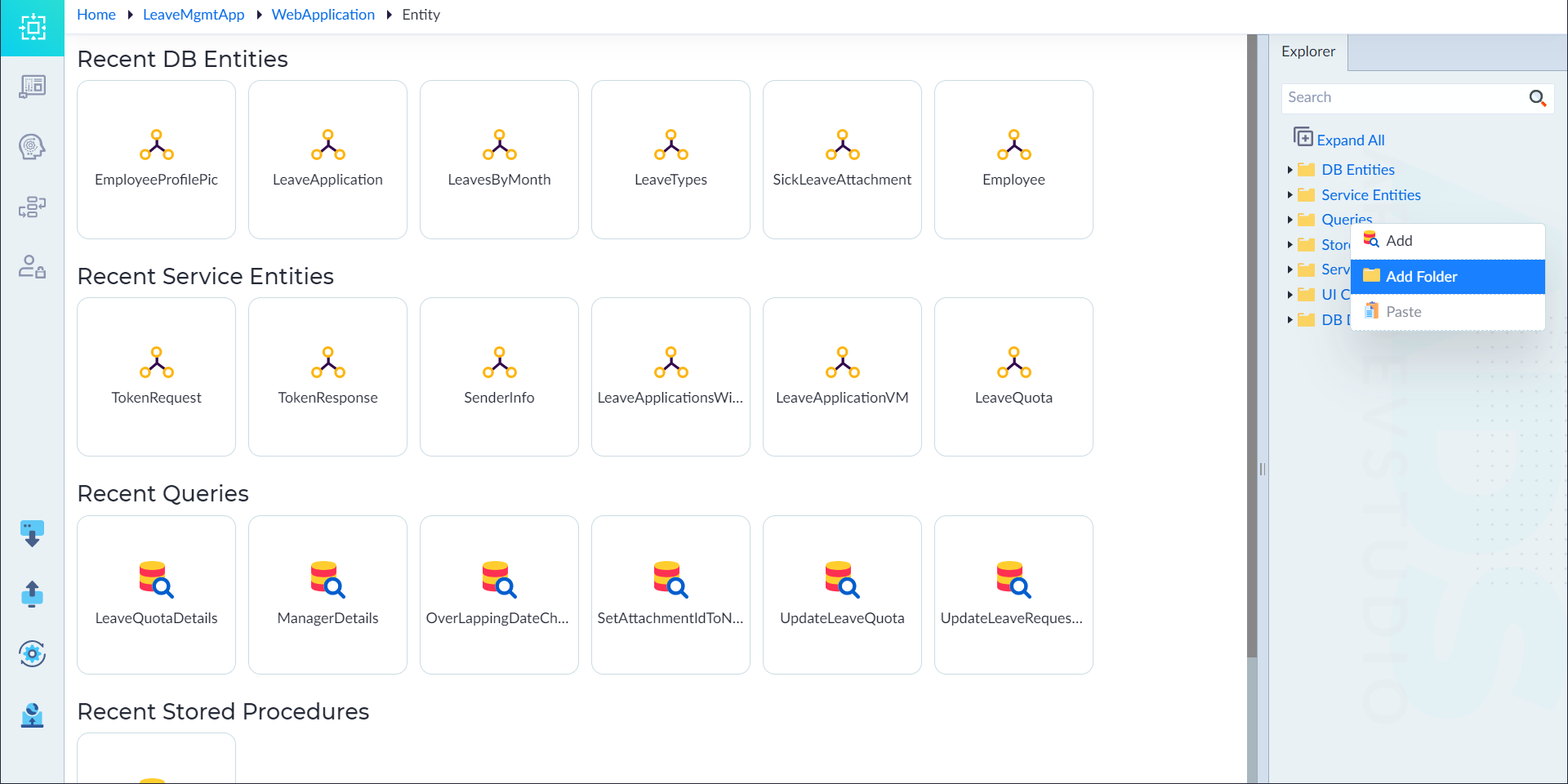
- From the explorer menu, right-click Queries and select Add Folder.
- Provide a name for the folder as required.
- Right-click the query and select the Cut (or) Copy options according to the requirement.
- Right-click the folder and select Paste to segregate entities inside the created folder.
Delete A Query
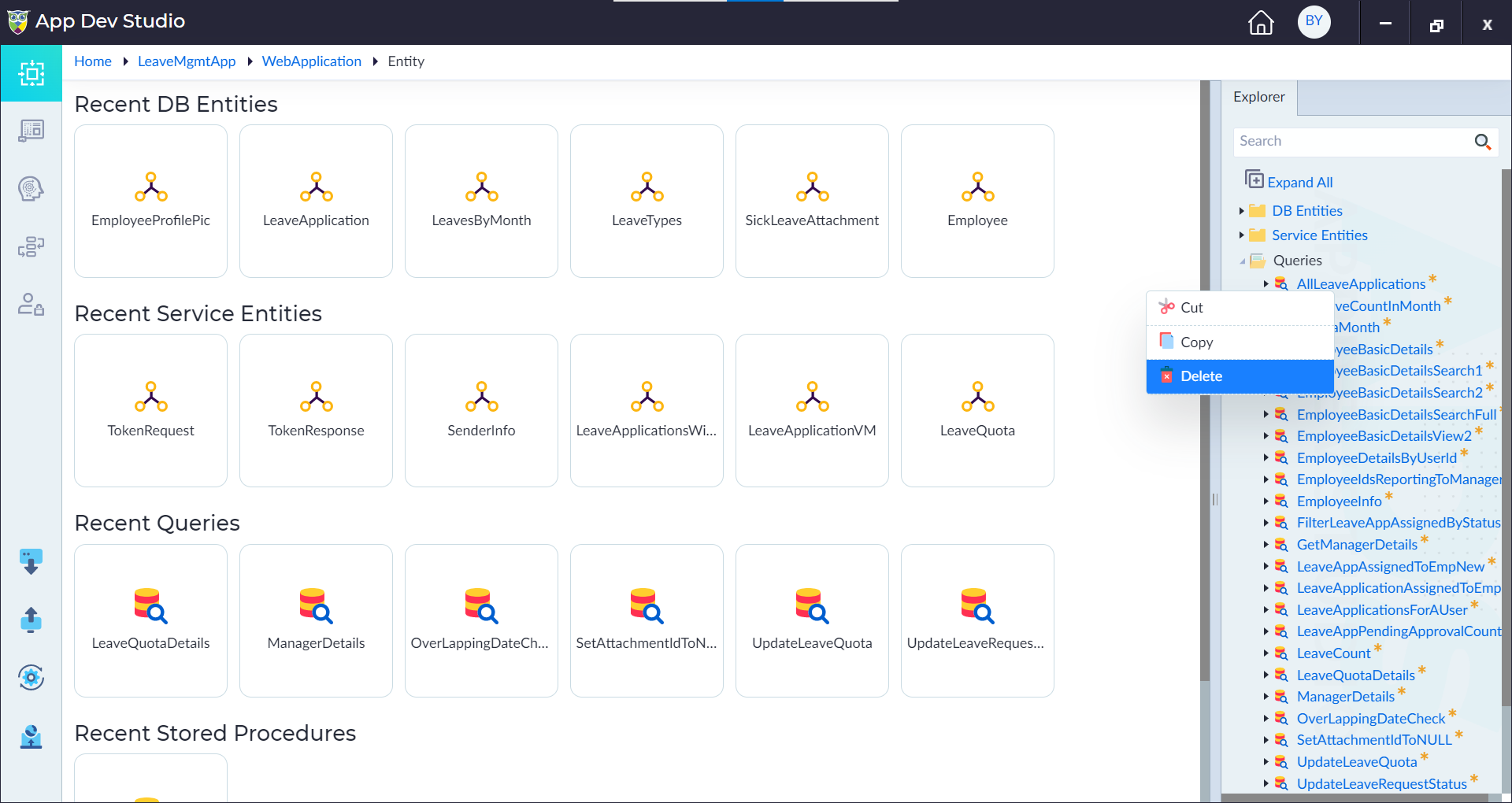
- From the explorer menu, right-click the query and select Delete. The Delete pop-up window displays.
- Click Confirm to delete the query. The "Query deleted successfully" message appears upon successful deletion.
The "Query deleted successfully" message appears upon successful deletion.
Apply Version
Follow the below steps to revert/update to specific version using the version history of a query.
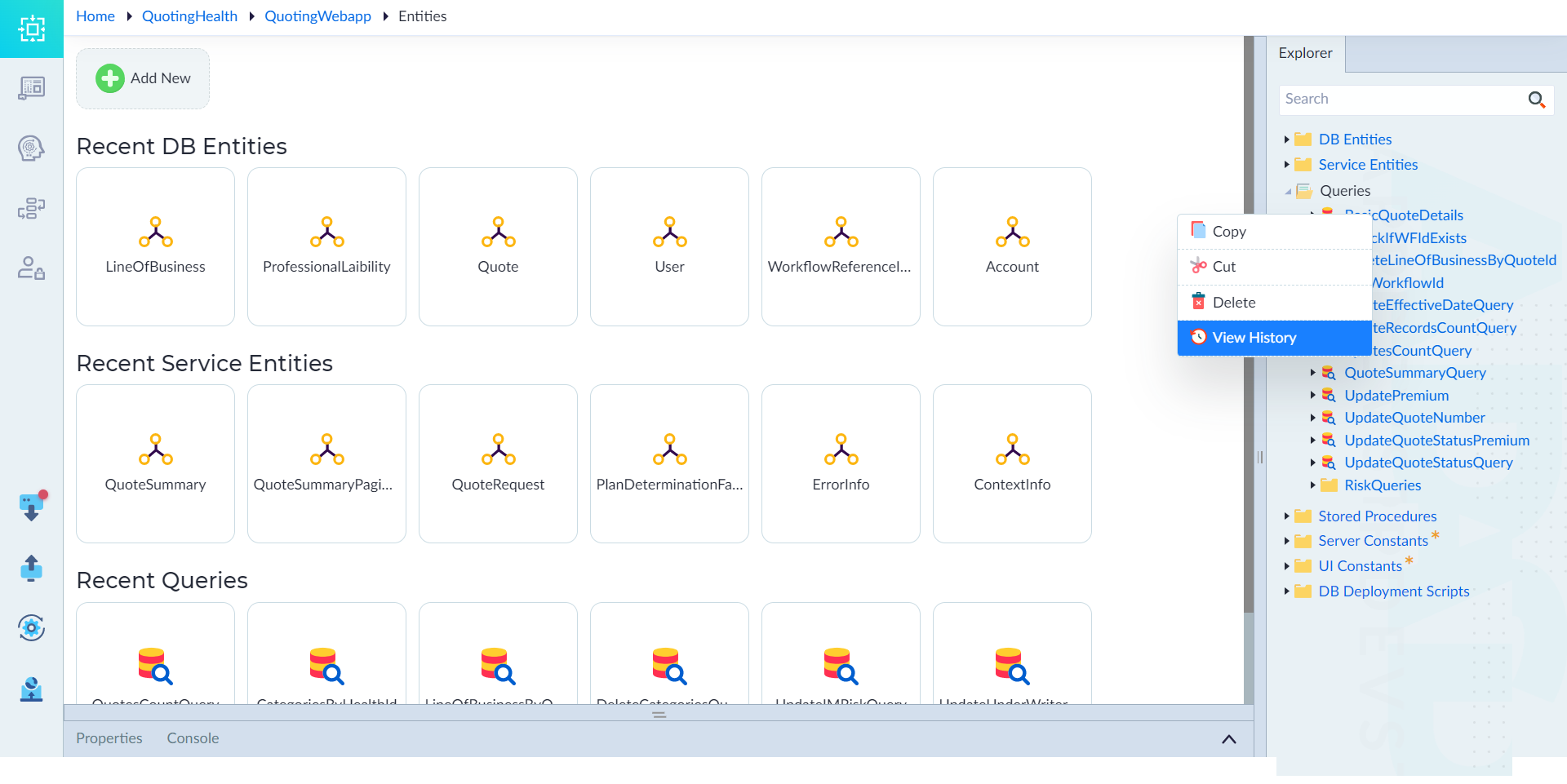
- From the explorer menu, right-click the query and select Version History. The History pop-up window displays that provides the history of a particular query.
- In the History pop-up window, click Apply This Change under Actions to use a specific previous version of that query.