Export and Import DB Entities
DB entities can be imported/exported via a predefined Excel (.xlsx) template. These features facilitate seamless entity migration across different applications, enabling easy entity configuration, modification, and backup.
Exporting DB Entities
The Export feature allows users to download existing DB entities into an Excel (.xlsx) file. This file serves as a backup, can be modified, and can be re-imported after changes.
Steps to Export DB Entities
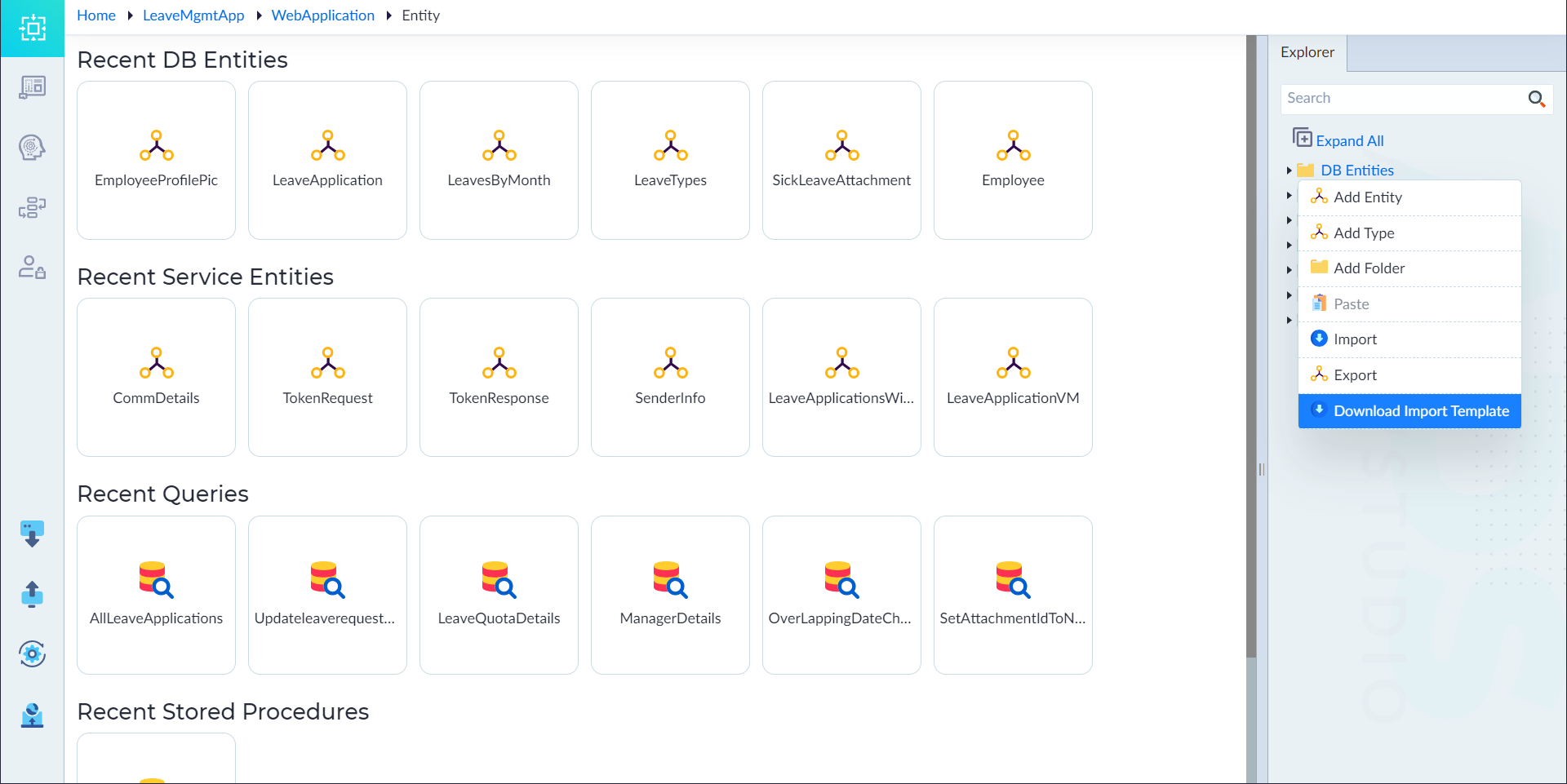
- Right-click on "DB Entities" in the Entity Explorer.
- Select "Export" from the context menu.
- A file explorer window appears, allowing users to choose the save location.
- Enter a file name and click Save.
- The entities file is generated and saved in XLSX format.
- A confirmation message "Exported Successfully" appears.
Importing DB Entities
The Import feature allows users to upload multiple DB entities from a predefined Excel template.
Steps to Import DB Entities
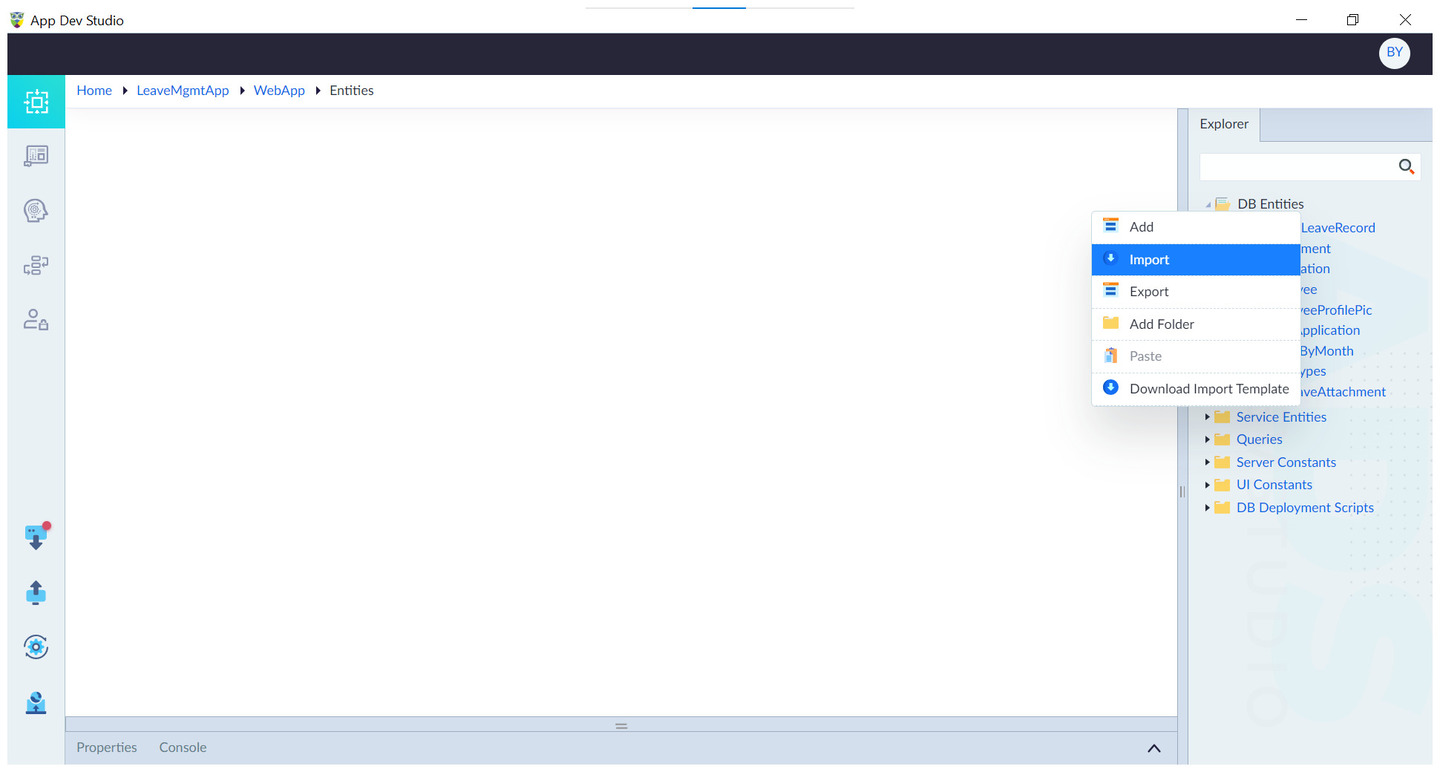
- Right-click on "DB Entities" in the Entity Explorer.
- Select "Import" from the context menu.
- A file explorer window appears. Browse and select the XLSX file containing the entity data.
- The system performs validation checks on the file:
- Ensures mandatory fields are filled.
- Checks for duplicate entity names.
- Verifies correct data types.
- If the validation passes, the entities are imported successfully.
- A confirmation message "Entities Imported Successfully" appears.
Import Excel Sheet Structure
The Import Excel sheet consists of multiple sheets, primarily:
1. DB Entities Sheet
This sheet defines the DB entities that will be imported.
| Column Name | Description |
|---|---|
| Name | The entity's name (e.g., Employee, Product). |
| PluralName | Plural form of the entity name. |
| Suffix | An optional suffix for the entity. |
| Namespace | The namespace under which the entity is defined. |
2. Attributes Sheet
This sheet defines attributes (columns) for each entity.
| Column Name | Description |
|---|---|
| EntityName | The name of the entity to which the attribute belongs. |
| Name | Attribute name (e.g., FirstName, Email). |
| Datatype | Data type (e.g., int, string, decimal). |
| Length | Maximum allowed length for string attributes. |
| Relationship | Defines relationships with other entities. |
| ReferenceEntity | The related entity for foreign key relationships. |
| ReferenceAttribute | The attribute in the referenced entity. |
| IsPrimaryKey | Indicates if this attribute is the primary key (TRUE/FALSE). |
| IsUnique | Specifies if the attribute has a unique constraint. |
| IsMandatory | Marks if the attribute is required (TRUE/FALSE). |
| IsIdentifier | Identifies whether this field is a business identifier. |
| AutoIncrement | Defines whether the value auto-increments. |
| IdentitySeedValue | Starting value for identity columns. |
| DecimalPrecision | Precision for decimal attributes. |
| DecimalScale | Scale for decimal attributes. |
| CascadeDelete | Specifies if deleting this entity cascades to related records. |
| DateOption | Defines date-related options (if applicable). |
| DefaultValue | The default value for this attribute. |
| ExampleOption | An example for data entry. |
| Example | Example values for reference. |
| Description | Attribute description. |
| EncryptionKey | Indicates if the attribute is encrypted. |
Download Import Template
The DB Entities Import Template is an Excel file that allows users to define DB entities and their attributes before importing them.
Steps to Download the Import Template
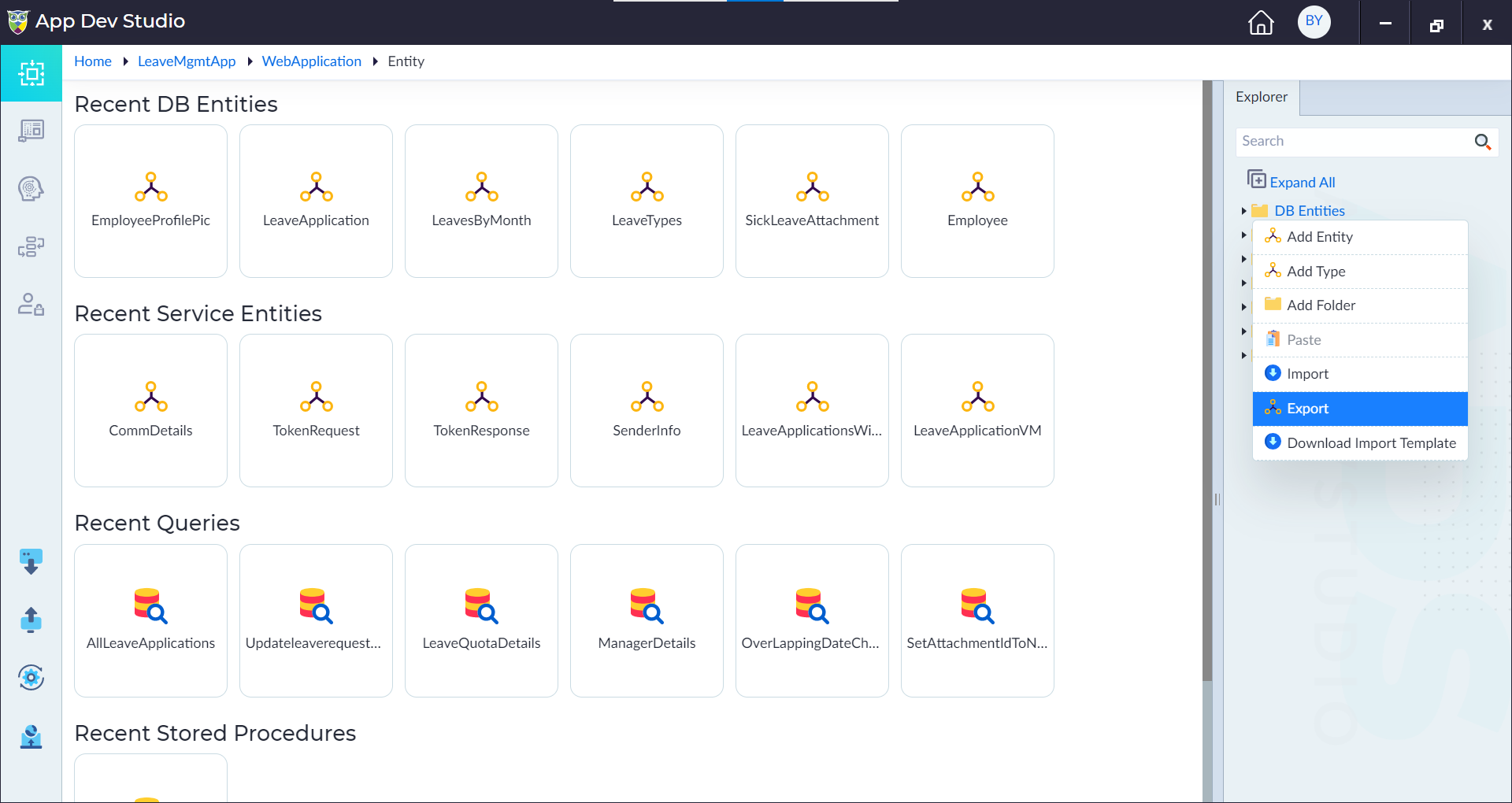
- Right-click on "DB Entities" in the Entity Explorer.
- Select "Download Import Template" from the context menu.
- A file explorer window will appear, prompting you to save the template.
- Provide a file name and ensure the format is .XLSX (Excel format).
- Click Save to store the template on your local system.
Once downloaded, you can manually enter entity details in the provided Excel workbook before importing it back into the system.
Understanding the Template Structure
The Excel template consists of multiple sheets, but the most critical ones are:
- DB Entities Sheet – Defines the DB entities (tables).
- Attributes Sheet – Defines attributes (columns) for each entity.
Each sheet has predefined columns, ensuring the correct format for import.
DB Entities Sheet
This sheet contains metadata for defining DB entities (tables).
| Column Name | Description |
|---|---|
| Name | The name of the entity (table). |
| PluralName | Plural form of the entity name. |
| Suffix | Any suffix for naming conventions. |
| Description | A brief explanation of the entity's purpose. |
| Namespace | The namespace where the entity belongs. |
Attributes Sheet
This sheet contains attribute-level (column-level) details for each entity.
| Column Name | Description |
|---|---|
| EntityName | The name of the entity (must match an entity in the "DB Entities" sheet). |
| Name | The name of the attribute (column). |
| Datatype | The data type (String, Integer, DateTime, etc.). |
| Length | Maximum character length (if applicable). |
| Relationship | Defines relationships with other entities (e.g., Foreign Key). |
| ReferenceEntity | The related entity for foreign key relationships. |
| ReferenceAttribute | The related attribute in the referenced entity. |
| IsPrimaryKey | Marks this attribute as a primary key (TRUE/FALSE). |
| IsUnique | Specifies if the attribute must have unique values (TRUE/FALSE). |
| IsMandatory | Specifies if the attribute is required (TRUE/FALSE). |
| IsIdentifier | Marks the attribute as an identifier for uniqueness. |
| AutoIncrement | Defines if the value auto-increments (for primary keys). |
| IdentitySeedValue | The starting value for an auto-incremented field. |
| DecimalPrecision | Total number of digits for decimal values. |
| DecimalScale | Number of decimal places for decimals. |
| CascadeDelete | Enables cascade delete (TRUE/FALSE). |
| DateOption | Specifies date format options (if applicable). |
| DefaultValue | The default value assigned to the attribute. |
| ExampleOption | Provides an example format. |
| Example | Sample data for this attribute. |
| Description | A short description of the attribute. |
| EncryptionKey | Specifies if encryption is applied to the attribute. |
Steps to Manually Edit the Template Before Importing
- Open the downloaded Excel file (DBEntities.xlsx).
- Navigate to the DB Entities sheet and enter the required entity details.
- Go to the Attributes sheet and enter attributes for each entity.
- Ensure:
- The EntityName in the Attributes sheet matches an entity in the DB Entities sheet.
- Data types and relationships are correctly assigned.
- Save the file once all required entities and attributes are added.