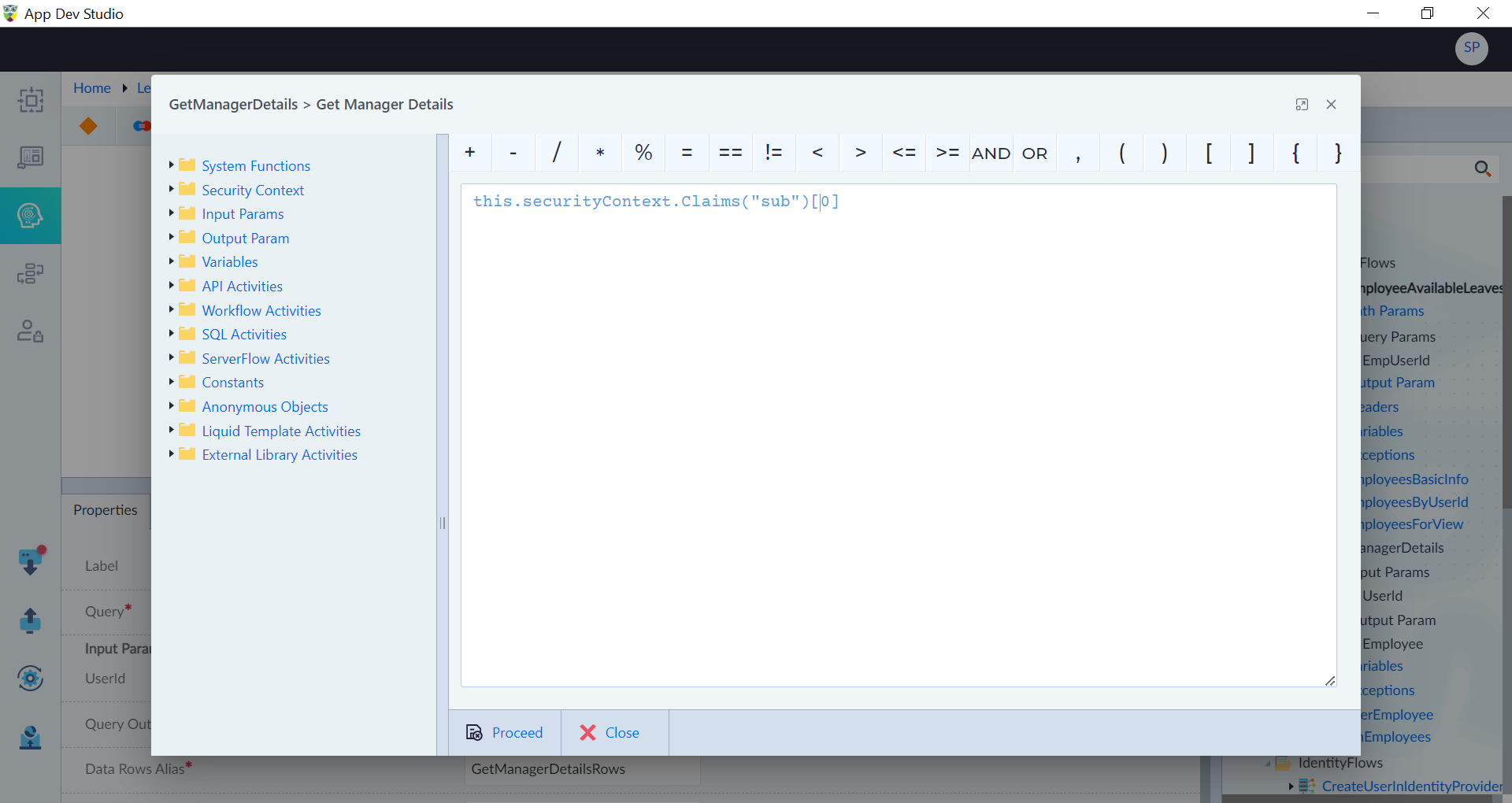
Create Expression
Follow these steps to create an expression using expression builder:
- Open the expression builder tool in a logic flow.
- Choose the appropriate current flow items from the left panel. Current flow (logic flow) items include system functions, variables, activities, constants, and more. The items are contextual to a particular logic flow.
- Use operators such as
+,-,/,*,%,=,>,<,>=,<=,!=,{,},[,]to combine the selected parameters. - Click Proceed once the expression is completed. User cannot proceed further without resolving any errors occurred in the expression.
Following are the example sections to use the items in an expression of a logic flow.
Use a System Function
Overview
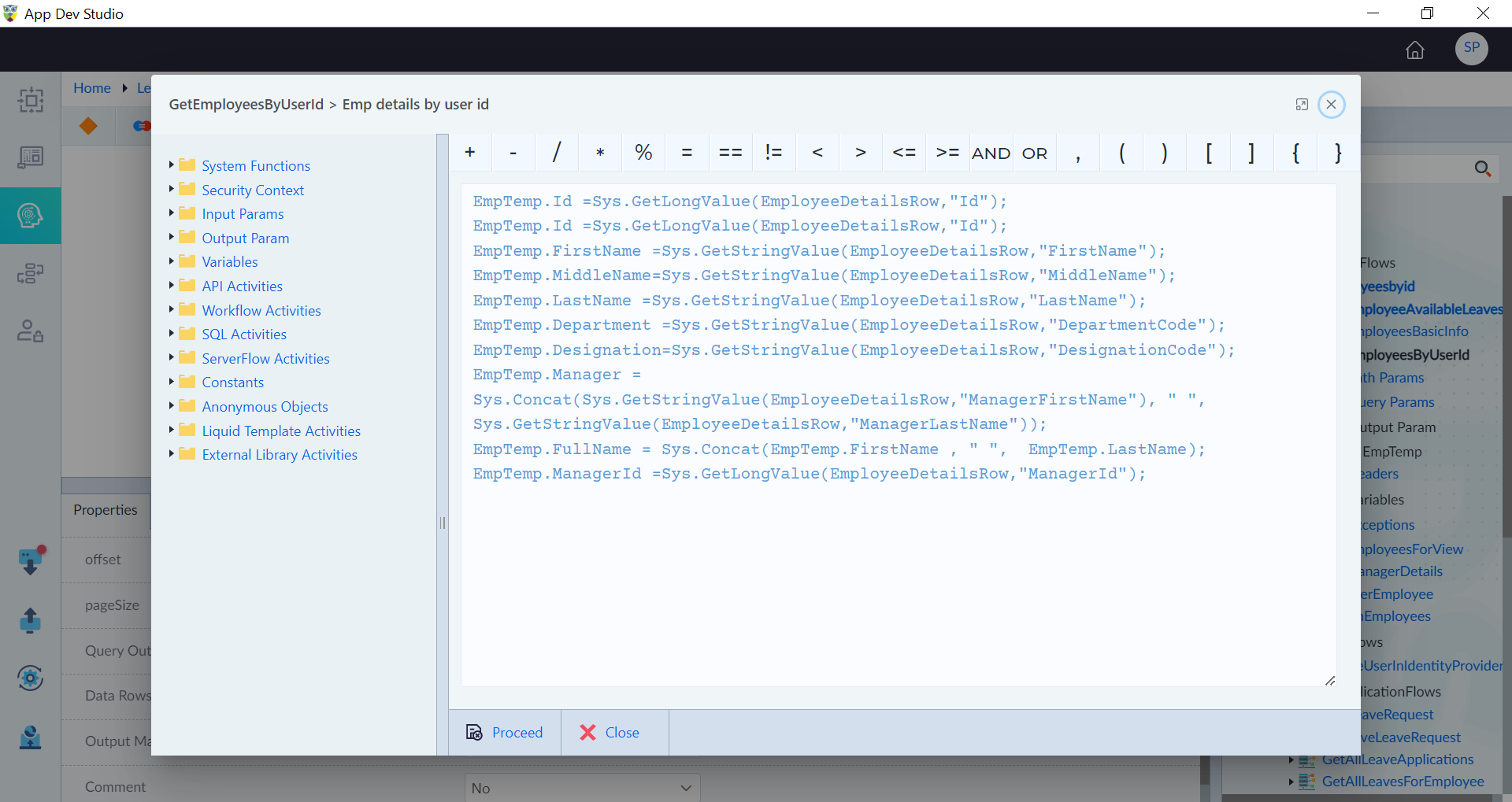
In the context of LeaveManagement application, there's a server flow called "GetEmployeesByUserId" which is designed to fetch employee data based on a provided User ID. When a user run this flow, it returns information about employees. The Query Parameter and Output Parameter are created as required. Run Query construct is used in the logic flow and configured as required. Here Data Row Alias name is given as EmployeeDetailsRow. It is the variable to store the output generated by EmployeeDetailsByUserId query.
In this example, lets build an expression for output mapping using system functions. This mapping process is essential for efficiently working with the data retrieved by the "GetEmployeesByUserId" server flow, making it accessible for further use in your LeaveManagement application.
Steps
Follow the below steps to create an expression for output mapping field using system functions:
- Click builder icon beside the Output Mapping field.
- In the Expression Builder pop-up window, double-click on the Id attribute in the output parameter and assign a value using the
Sys.GetLongValuefunction. The function needs datarow and key as inputs. The expression is as follows:EmpTemp.Id = Sys.GetLongValue(EmployeeDetailsRow, "Id");Here datarow is the alias name given and key is the attribute in that row. The system functions can be used as required. - Complete the expression to map the complete output as required.
Use a Server Constant
Overview
In the context of Quoting Health application, there's a server flow called "QuoteAccept" which is designed to accept the quote. When a user run this flow, it accepts the quote. The Path Parameter is created as required. This logic flow depends on an other server flow. Call Server Flow construct is used in this example. Also constant with string datatype is created.
In this example, lets build an expression for providing the quote status using constants.
Steps
Follow the below steps to create an expression for the status field using constants:
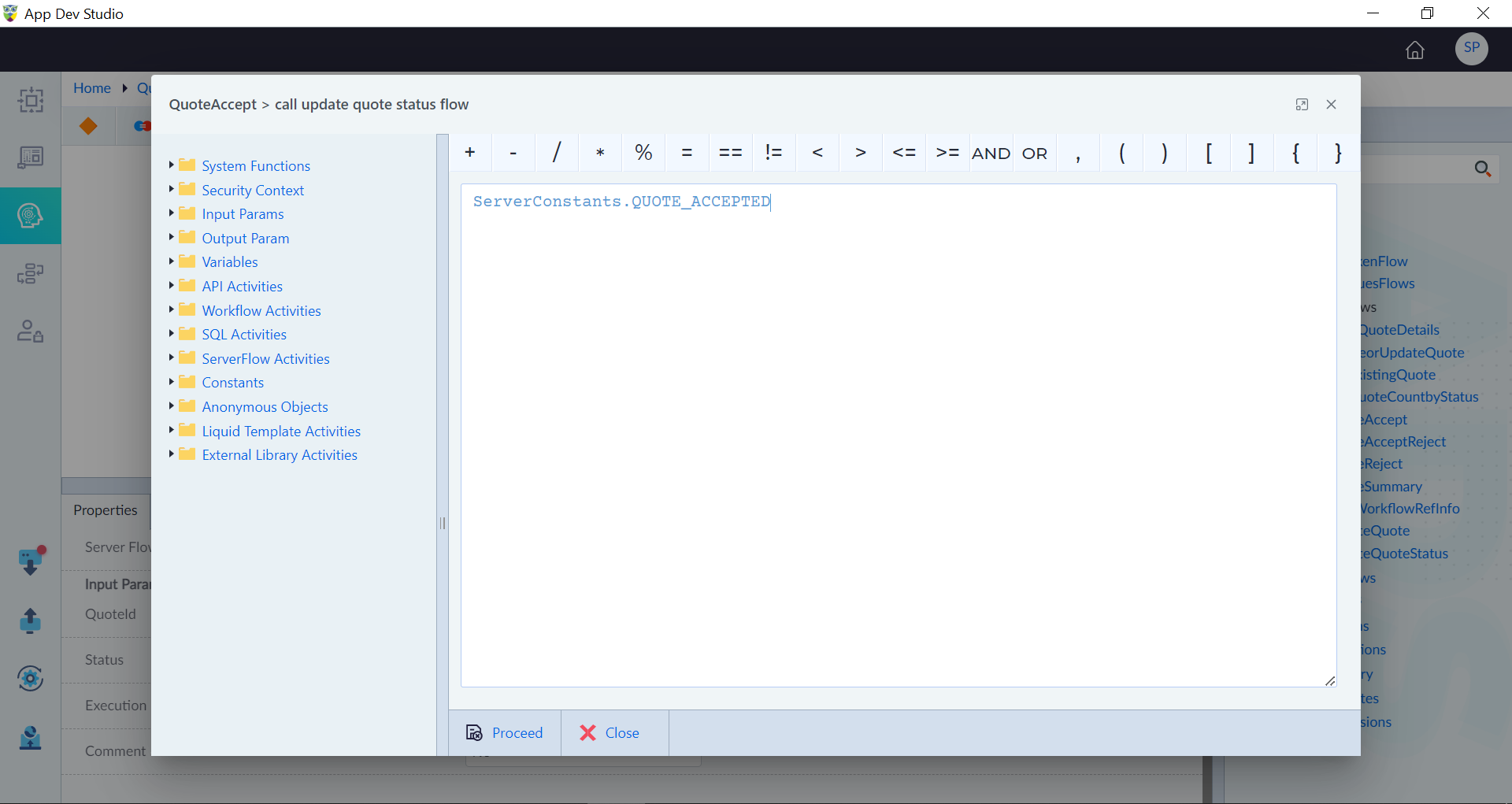
- Click builder icon beside the Status field.
- In the Expression Builder pop-up window, double-click the constant required to provide the status. The expression is as follows:
ServerConstants.QUOTE_ACCEPTED