Getting Started
Setup Server & Login
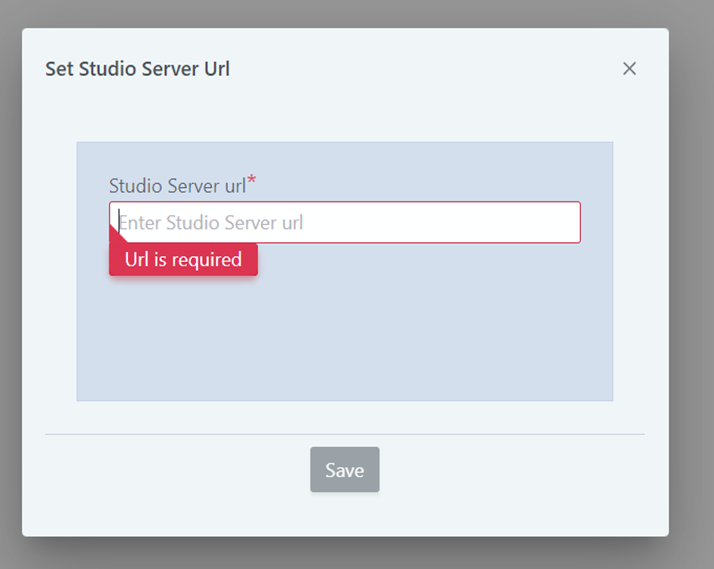
When opening OwlGen for the first time, a setup window appears. Enter the Studio Server URL and click Save to continue.
Steps to Login
- Enter your credentials.
- Click Login.
IMPORTANT User profiles are created by the OwlGen Administrator to grant access. Contact the administrator to obtain credentials. Once logged in, the OwlGen Home Page is displayed.
Homepage Overview
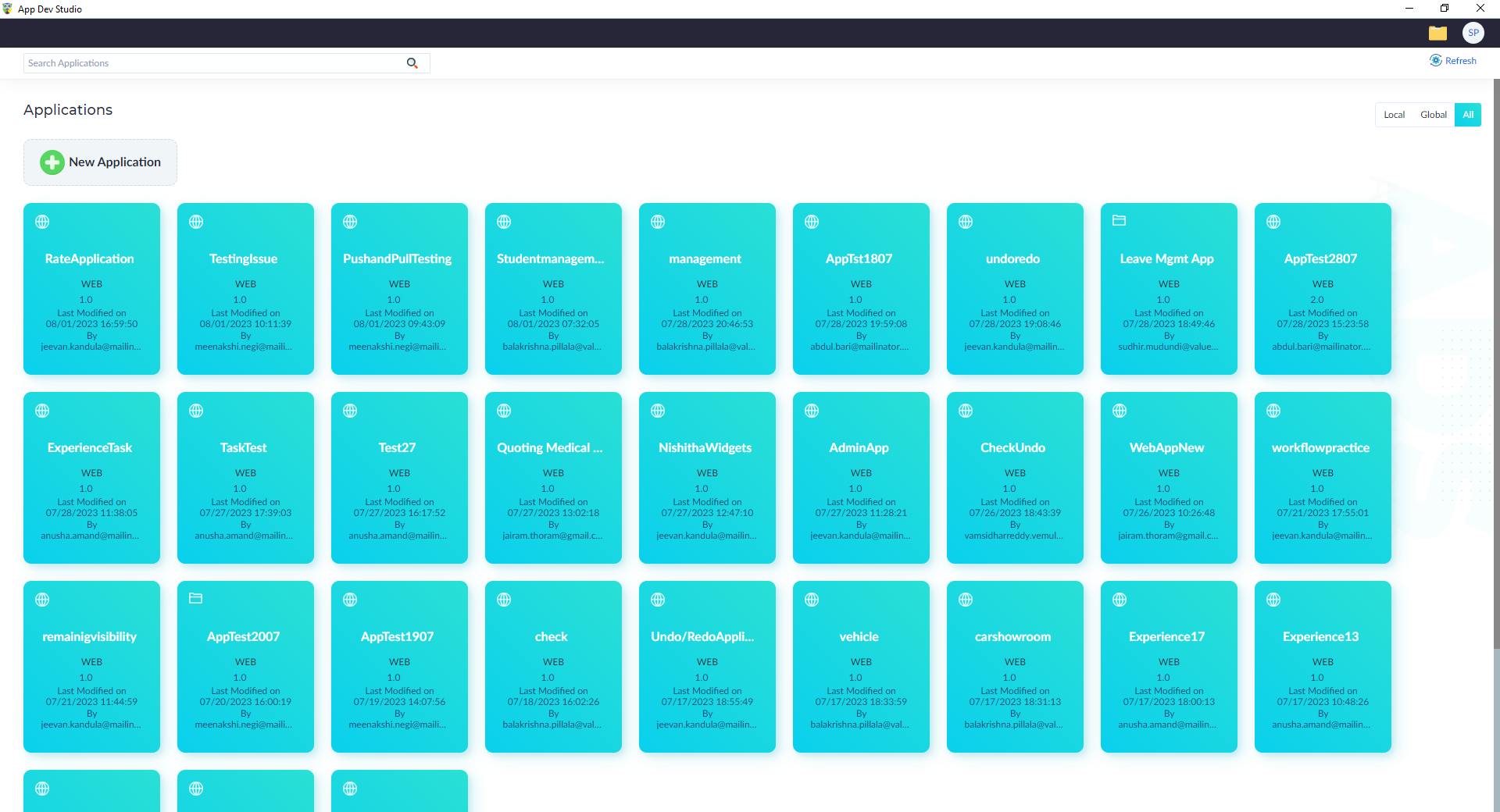
The home screen displays all applications accessible to the user. Applications are categorized into:
- Local Applications — Created or cloned applications stored locally.
- Global Applications — Applications available in the central repository.
By default, the home screen shows local applications. Users can switch to the Global tab to search for applications in the central repository and clone them. Users with the StudioAdministrator role can create new applications directly from the home screen.
Header
| Option | Functionality |
|---|---|
| Change Workspace | Allows users to change the working folder (default: C:\Users\<username>). |
| User Profile | Displays user information (username, email) and provides a Logout option. |
| Search Bar | Enables searching for applications by name or display name. |
| Refresh | Refreshes applications based on logged-in user permissions. |
Applications
Users can view applications in the Applications section with the following options:
| Option | Functionality | Comments |
|---|---|---|
| Local | Displays applications created or cloned from the server. | - |
| Global | Displays applications available in the source control server. | - |
| All | Shows both local and source control applications. | - |
| New Application | Creates a new application. | Available for StudioAdministrator users only. |
| Load More | Loads additional applications. | - |