Application Deployment
The below sections provides information to create infrastructure and deploy an Application created with OwlGen using Azure DevOps CICD. Deploying an application involves two steps:
- Environment Setup (includes identity server and workflow dashboard)
- Application deployment
Follow the below sections to setup the environment.
Import Release Pipeline (Platform Core)
Follow the below steps to import release pipeline from release folder:
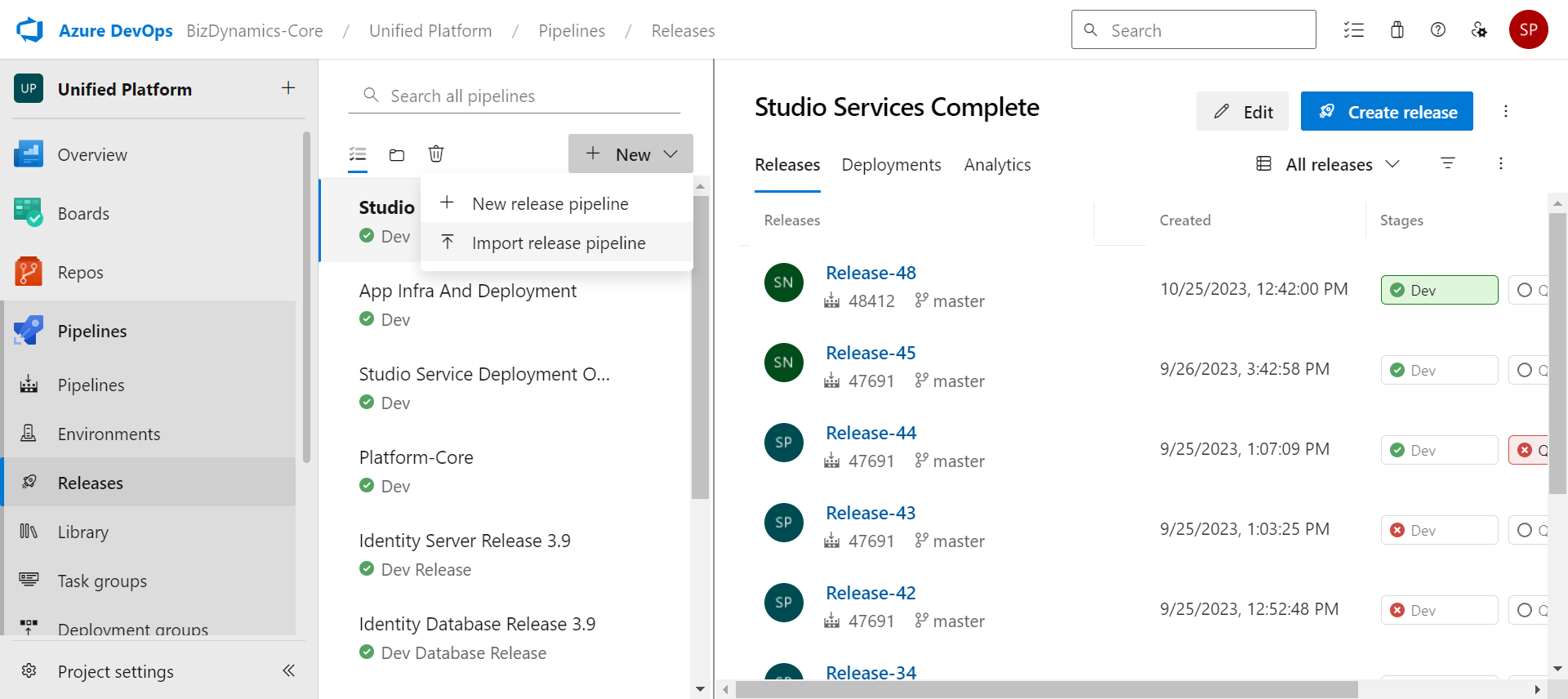
- In the Azure portal, navigate to Pipelines > Releases, click New, and then select Import Release Pipeline.
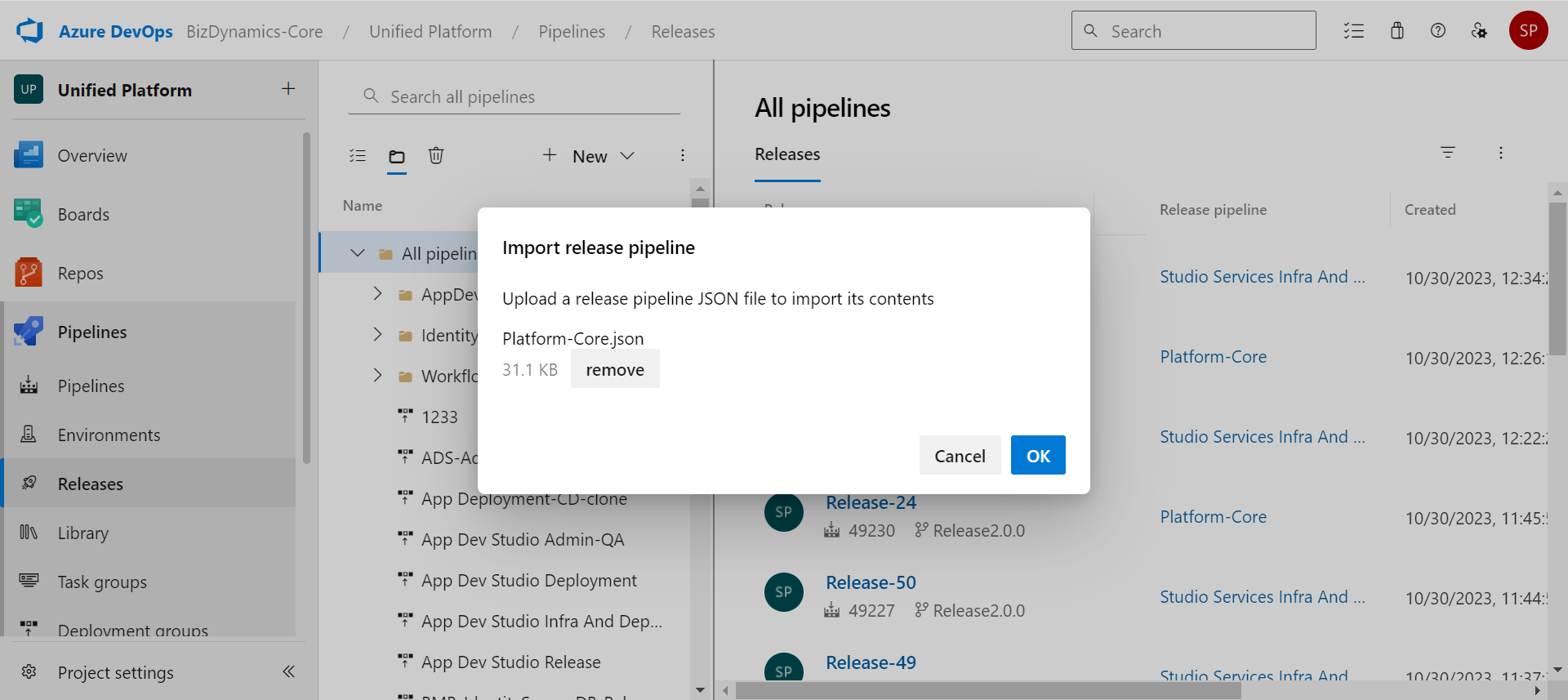
- Click Browse, and then select the Platform-Core.json from release folder.
- Click OK to import.
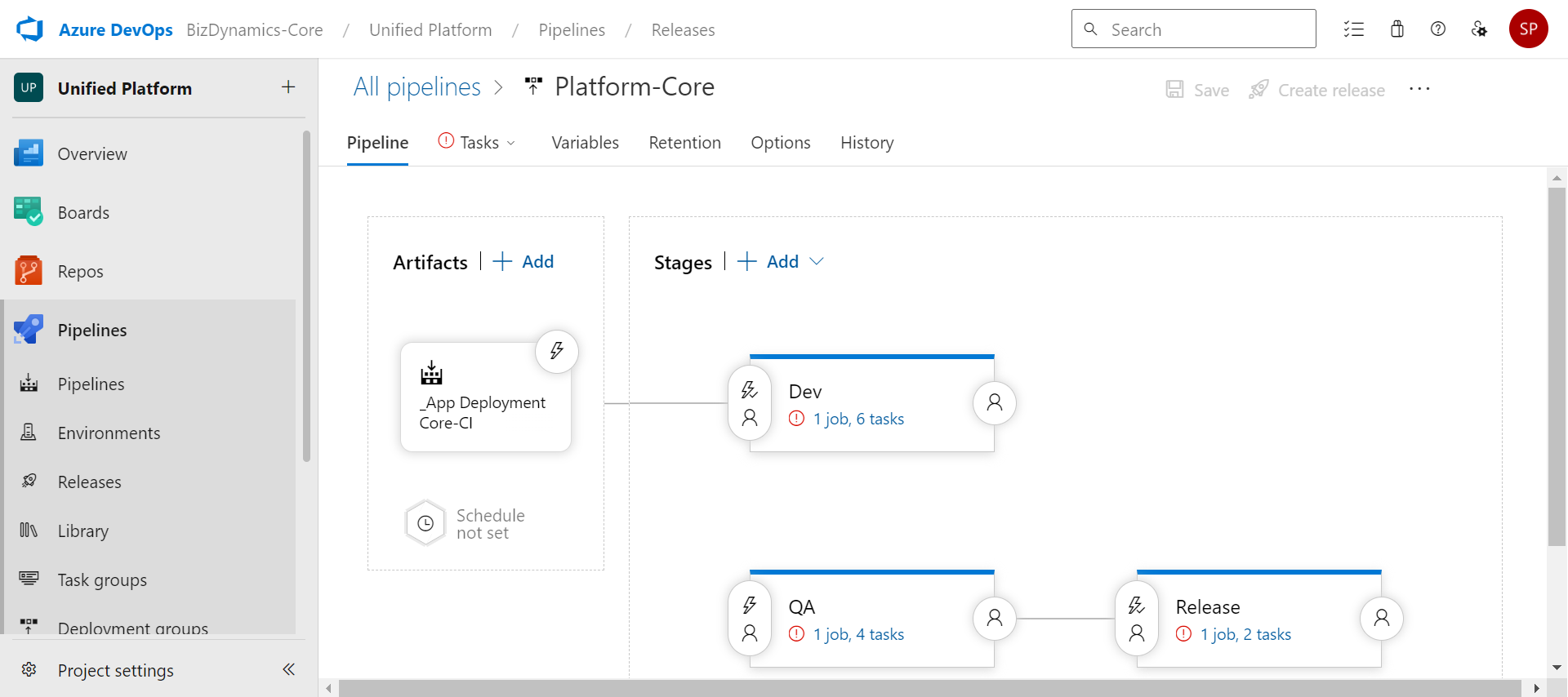
The Pipeline screen with Artifacts and Stages displays.
Edit Tasks (Platform Core)
Follow the below steps to edit tasks:
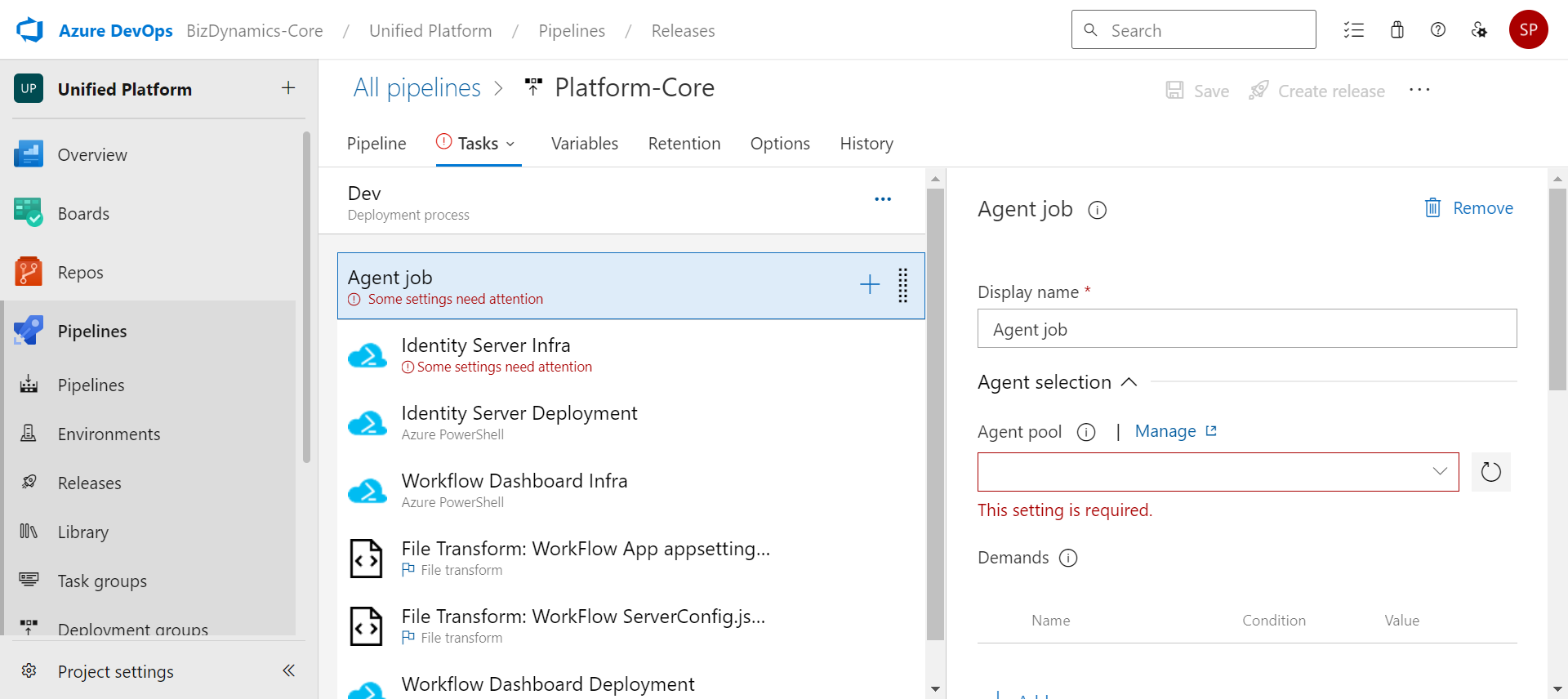
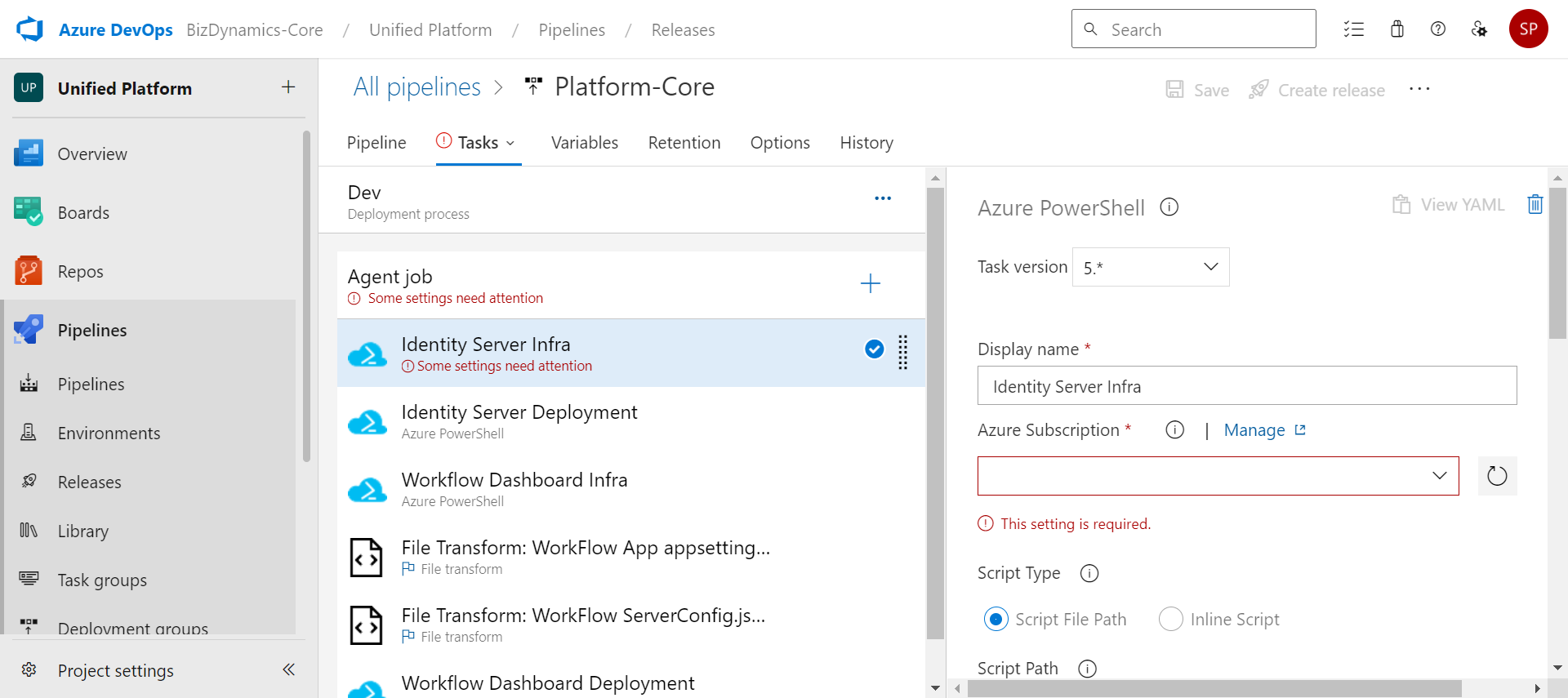
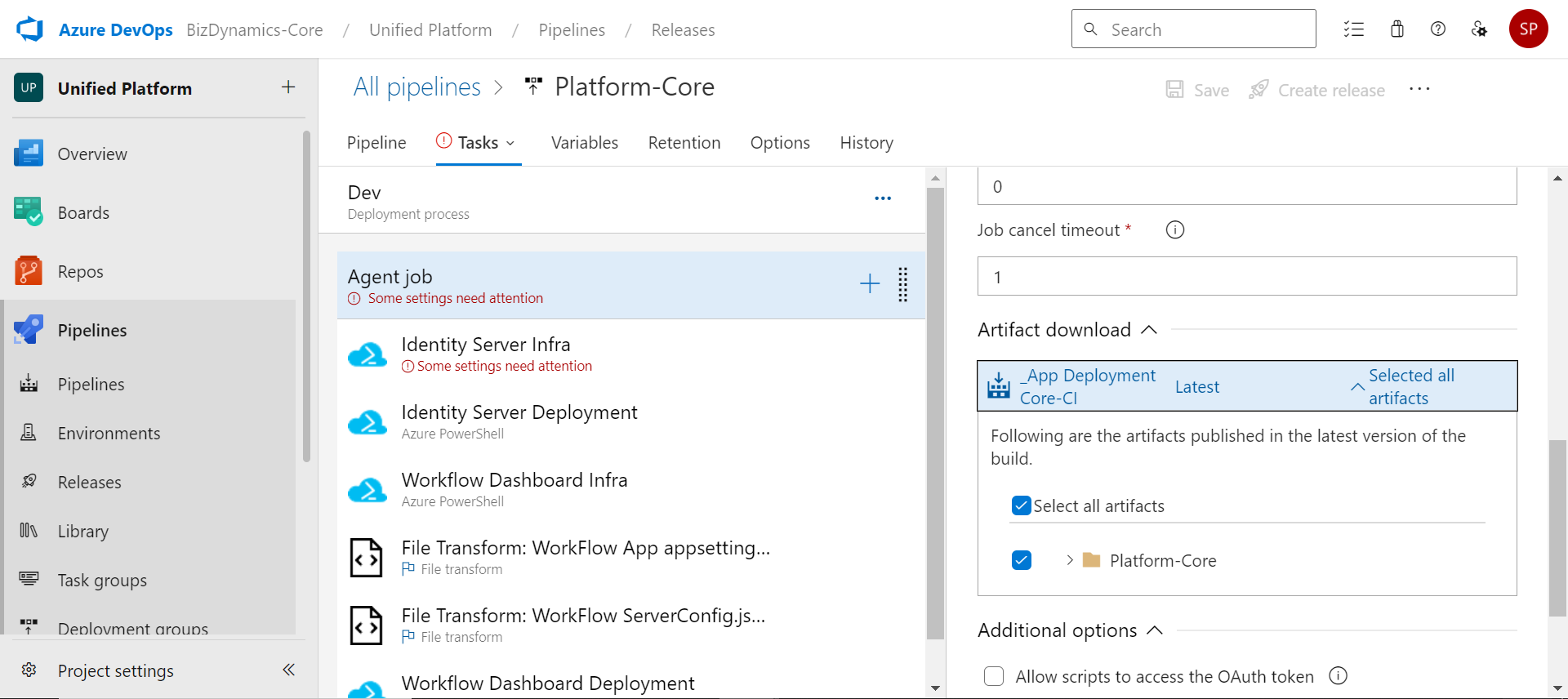
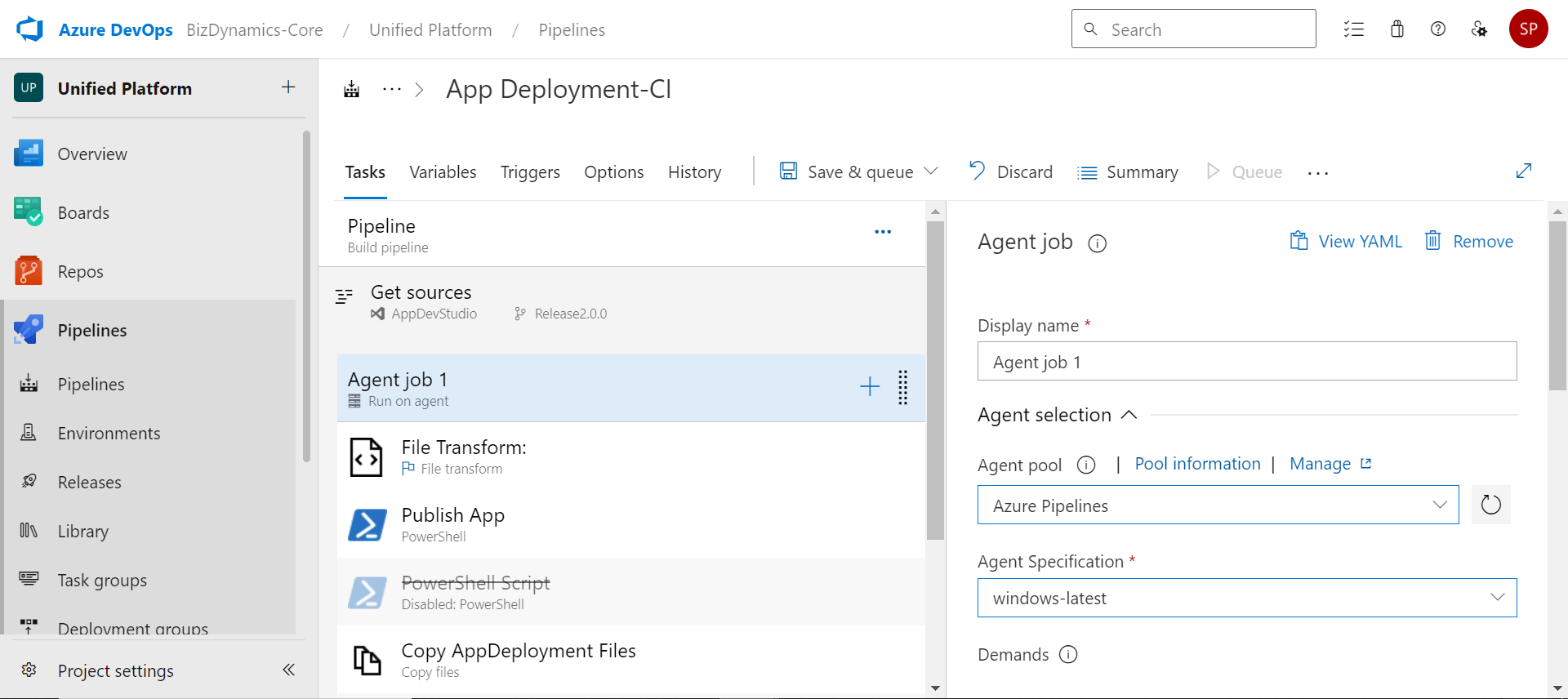
- Navigate to Tasks, select Agent Job and then select Agent Pool in Agent selection as required.
- Select Select all artifacts in Artifact download.
- Select Azure Subscription for each task.
- Modify the Azure PowerShell version options and Advanced options regarding PowerShell core, if required.
Add and Link Variable Groups (Platform Core)
Follow the below steps to add and link variable groups:
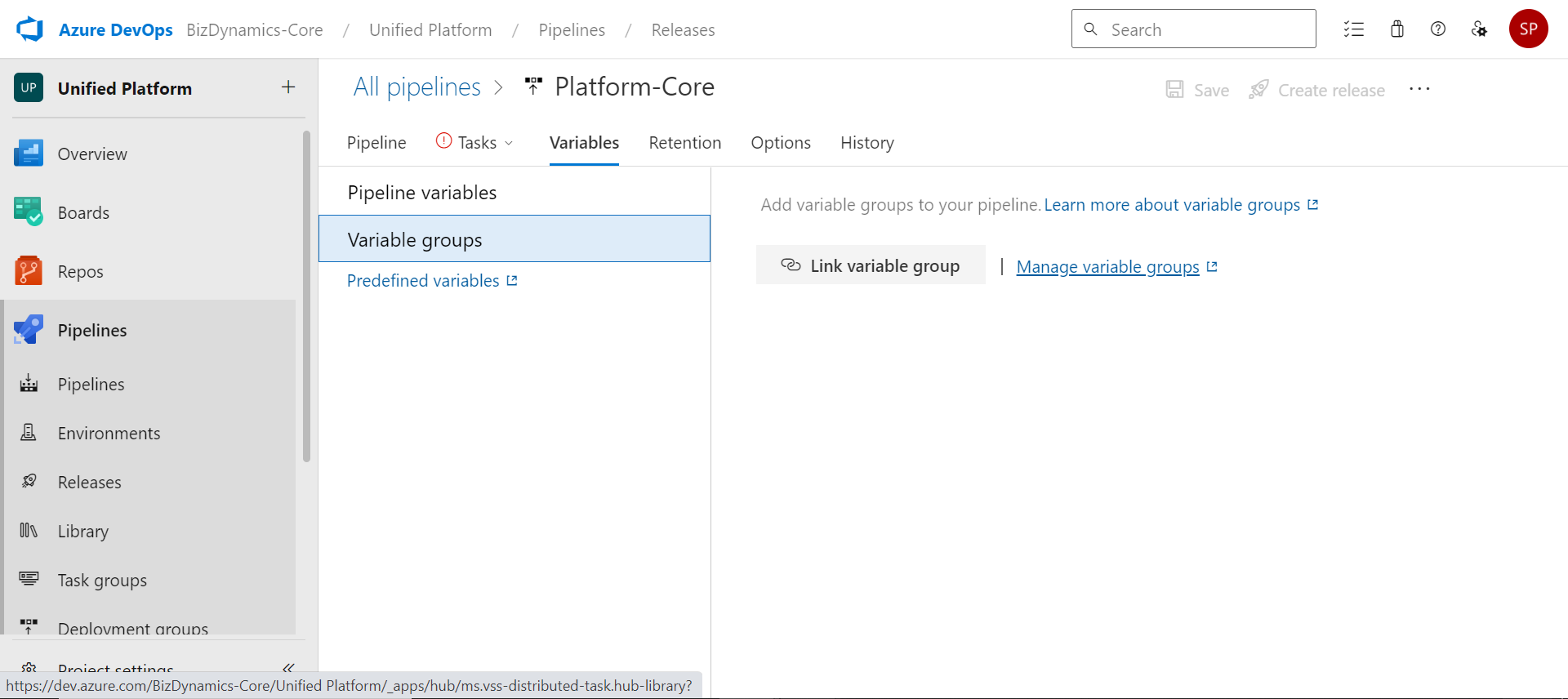
- Navigate to Variables, select Variable Groups and then click Manage Variable Groups.
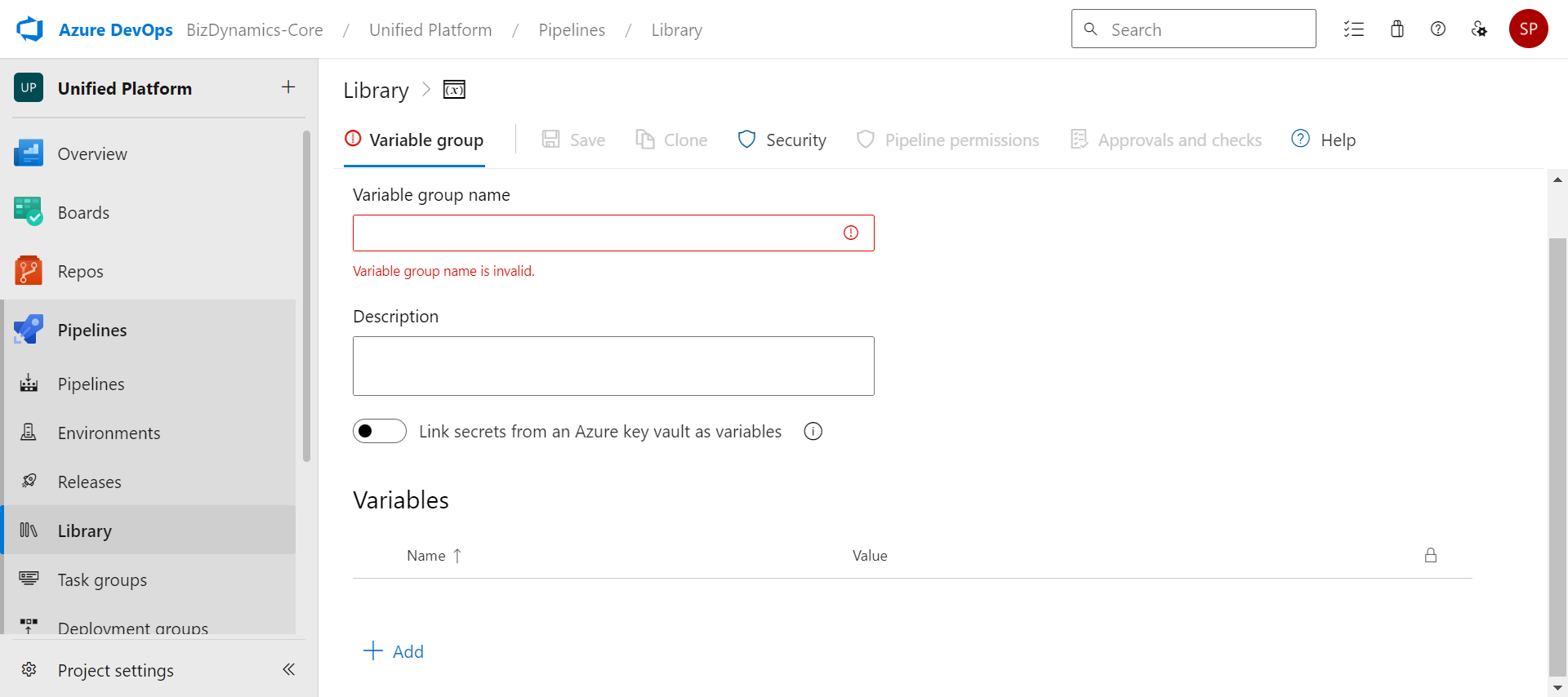
- Click Variable Group to add a new variable group.
- Provide the Variable group name, description and then click Add to add variables given in Platform Core.
- Click Save.
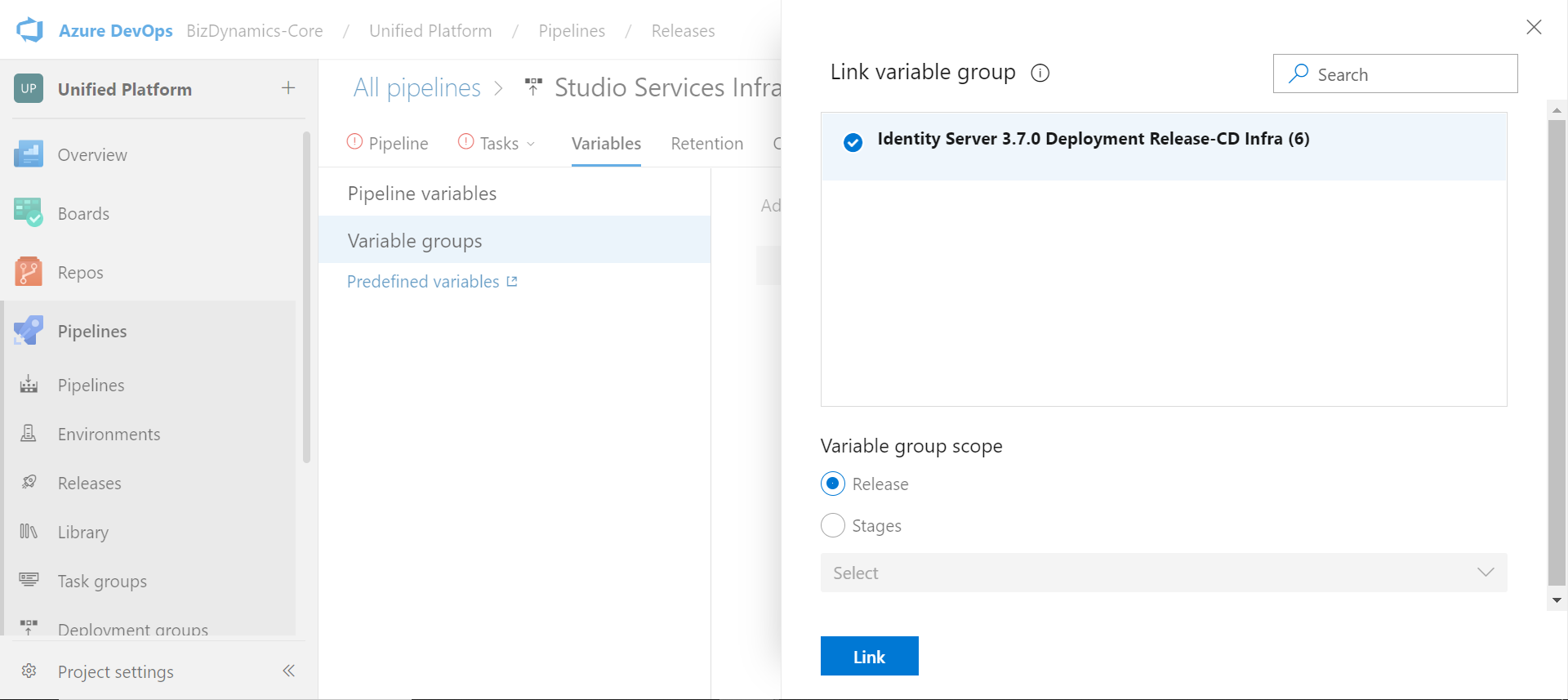
- In the Variables tab, click Link variable group. Select the required variable group, provide the Variable group scope and click Link.
- Click Save to save the pipeline.
Create Release (Platform Core)
Follow the below steps to create a release:
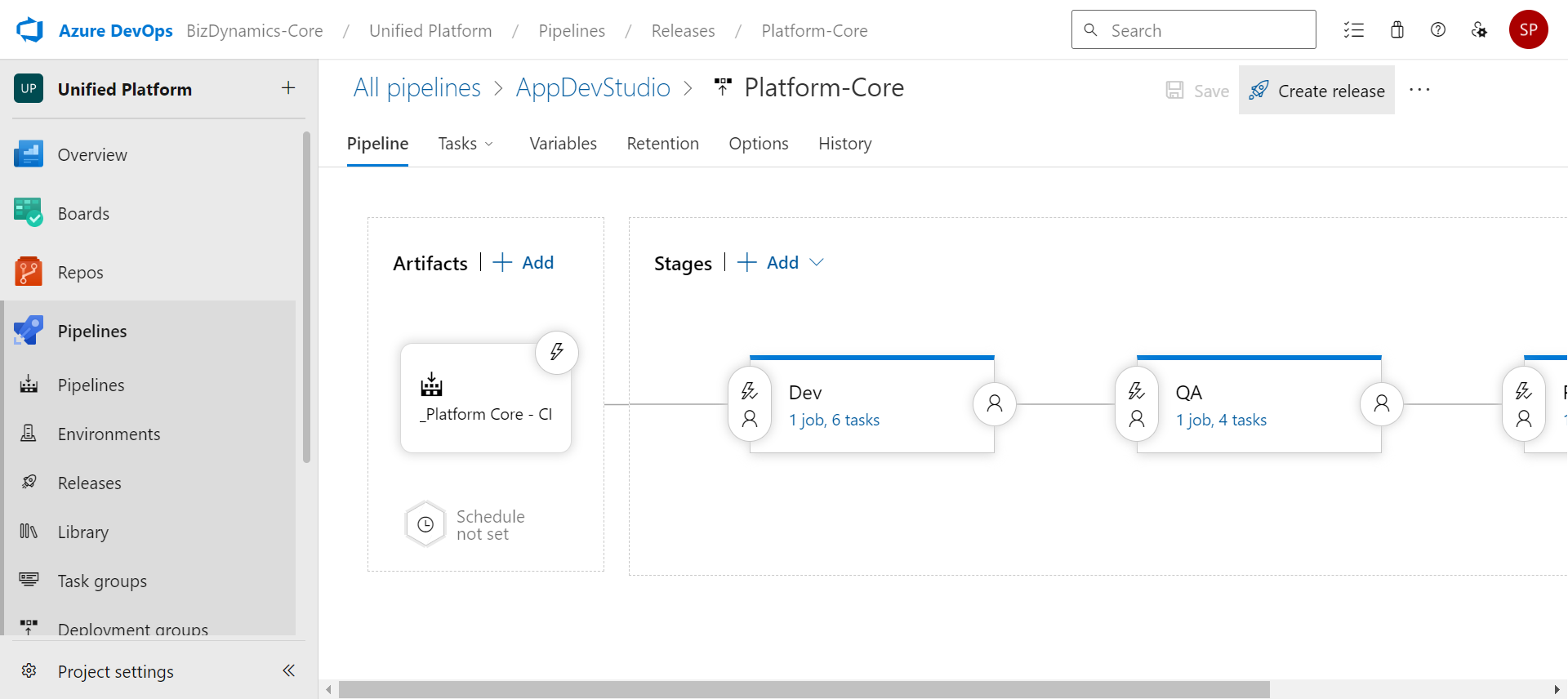
- After linking the required variable groups, click Create release, select the required stage and then click Create. A notification banner will be displayed when the release is created successfully.
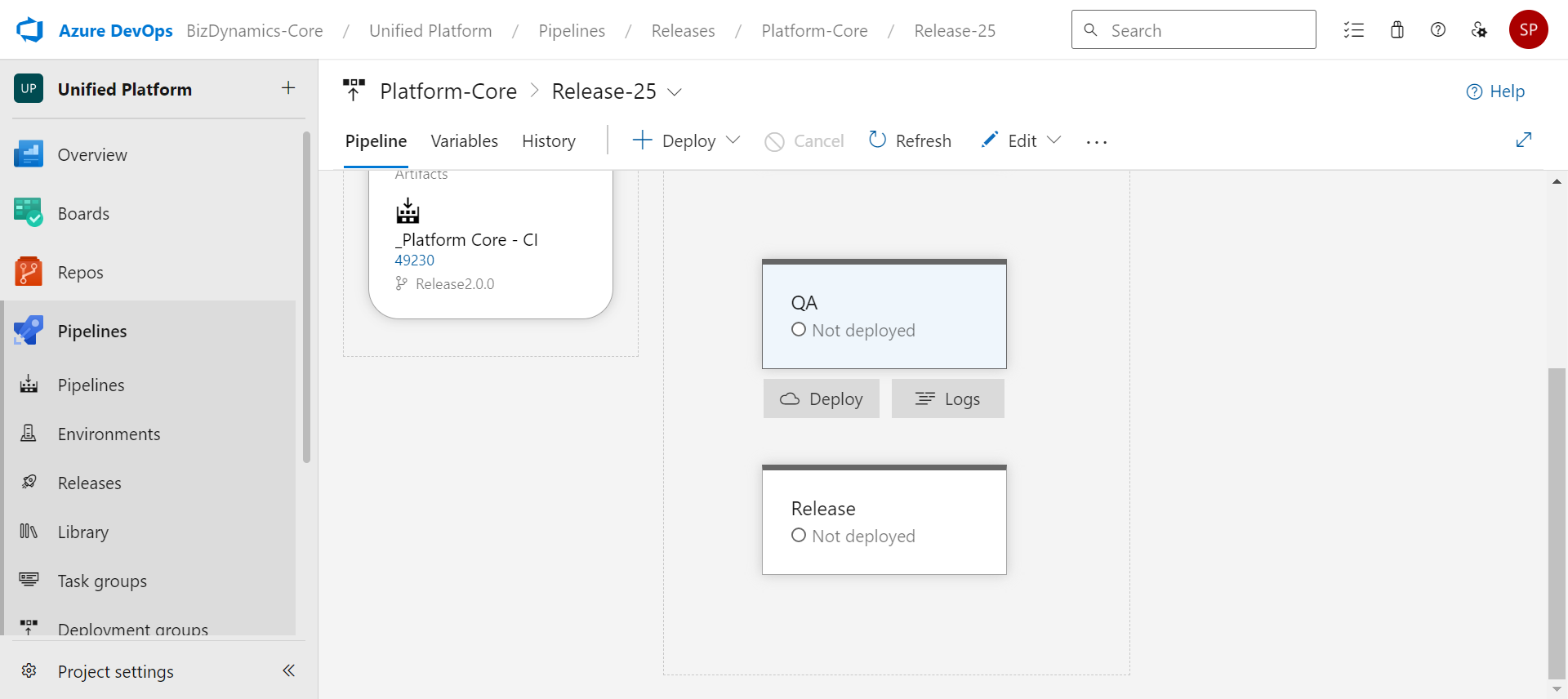
- Hover over the stage and click Deploy.
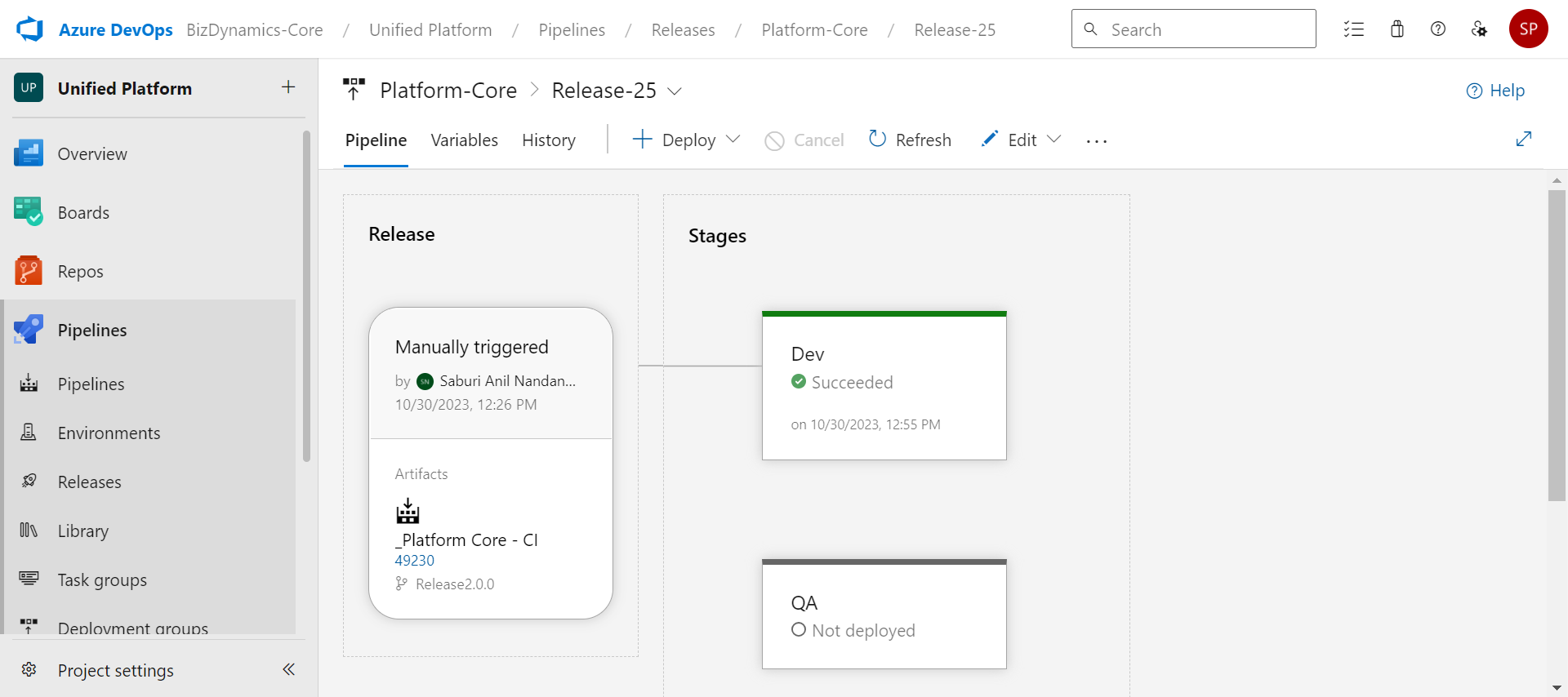
The deployment is initially queued for a moment. Once the deployment is successful, the succeeded message displays.
After the environment setup is completed, follow the below sections to create infrastructure and deploy an application that is created using OwlGen.
Publish Application
Follow the below steps to publish an application:
- To import release pipeline, follow the steps given in Import Release Pipeline (Platform core) section to import App Deployment-CI.json.
- To edit tasks, follow the steps given in Edit Tasks (Platform core) section.
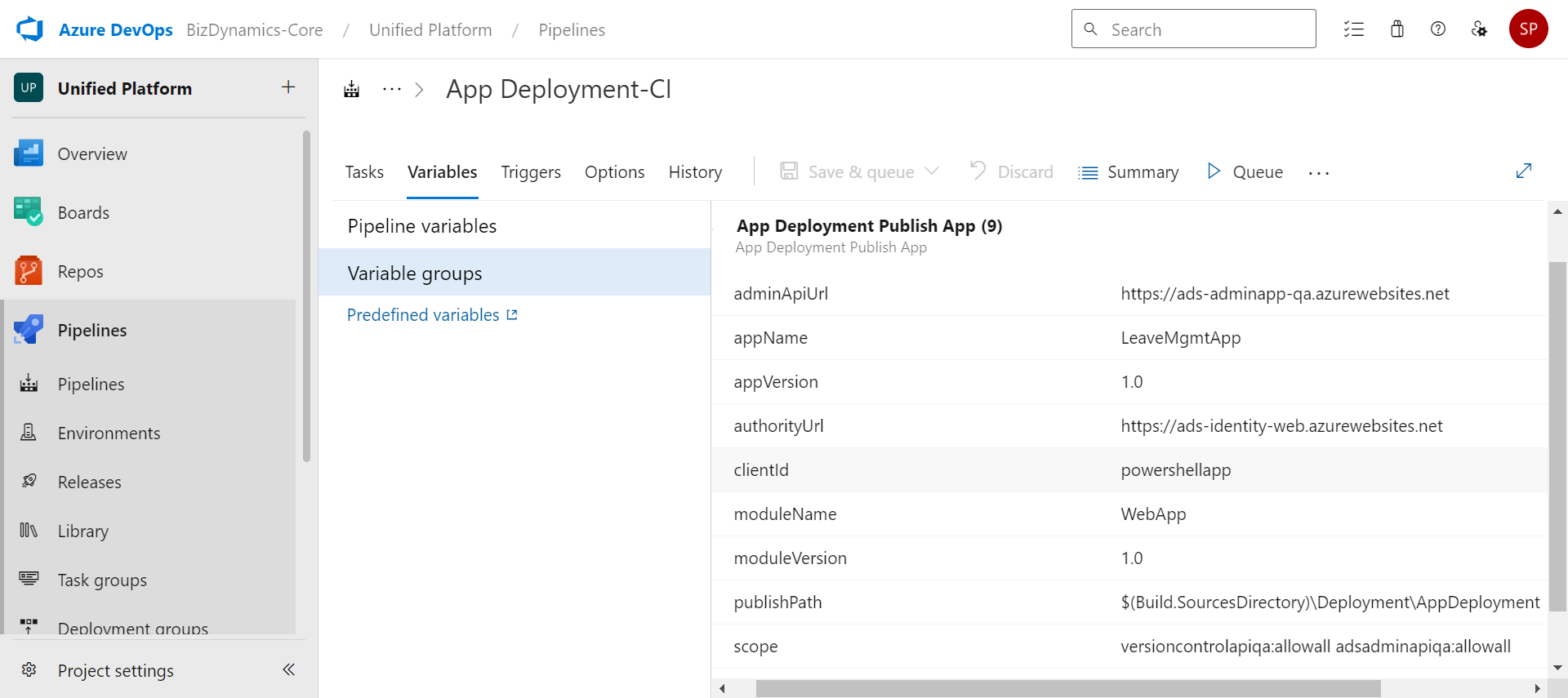
- Add Variables as given below and link them as given in Add and Link Variable Groups (Platform Core) section.
| Property | Description | Comments |
|---|---|---|
| appName | Provide the name of the application in OwlGen. | - |
| appVersion | Provide the version number of the application. | - |
| moduleName | Provide the name of the module in the application. | - |
| moduleVersion | Provide the version number of the module. | - |
| authorityUrl | Provide the identity server authority URL of OwlGen. | - |
| clientId | Provide the client ID of OwlGen. | - |
| scope | Provide the scope of OwlGen. | - |
| adminAPIUrl | Provide the admin app URL of OwlGen. | - |
| publishPath | Provide the path where the files need to be published. | - |
- Follow the steps given in Create Release (Platform Core) section.
The deployment is initially queued for a moment. Once the deployment is successful, the succeeded message displays.
Import Release Pipeline (Application)
To import release pipeline, follow the steps given in Import Release Pipeline (Platform Core) to import App Infra And Deployment.json file.
Edit Tasks (Application)
To edit the tasks in the imported pipeline, follow the steps given in Edit Tasks (Platform Core).
Add and Link Variable Groups (Application)
To add and link variable groups, follow the steps given in Add and Link Variable Groups (Platform Core) and add the variables given in Application.
Create Release (Application)
To release an application in specific stage, follow the steps given in Create Release (Platform Core).
Upgrade Application
Follow the below steps to upgrade OwlGen in existing infrastructure:
- To import release pipeline, follow the steps given in Import Release Pipeline (Application) section.
- To edit tasks, follow the steps given in Edit Tasks (Application) section.
- Add Variables as given in Application and link them as given in Add and Link Variable Groups section.
Note: Important: Make sure that the resource group name, app service plan name matches with the existing infrastructure. If the names does not match, new services will be created in Azure.
- Follow the steps given in Create Release (Application) section to upgrade.