Application Deployment using PowerShell
Follow the below sections to manually deploy an application created using OwlGen. Refer to platform core to setup the environment.
The pre-requisites to deploy an application are as follows. Make sure that the following are already installed in the machine.
- PowerShell 7.0 and above
- AZ PowerShell Module
Getting Started
Follow these steps to get started:
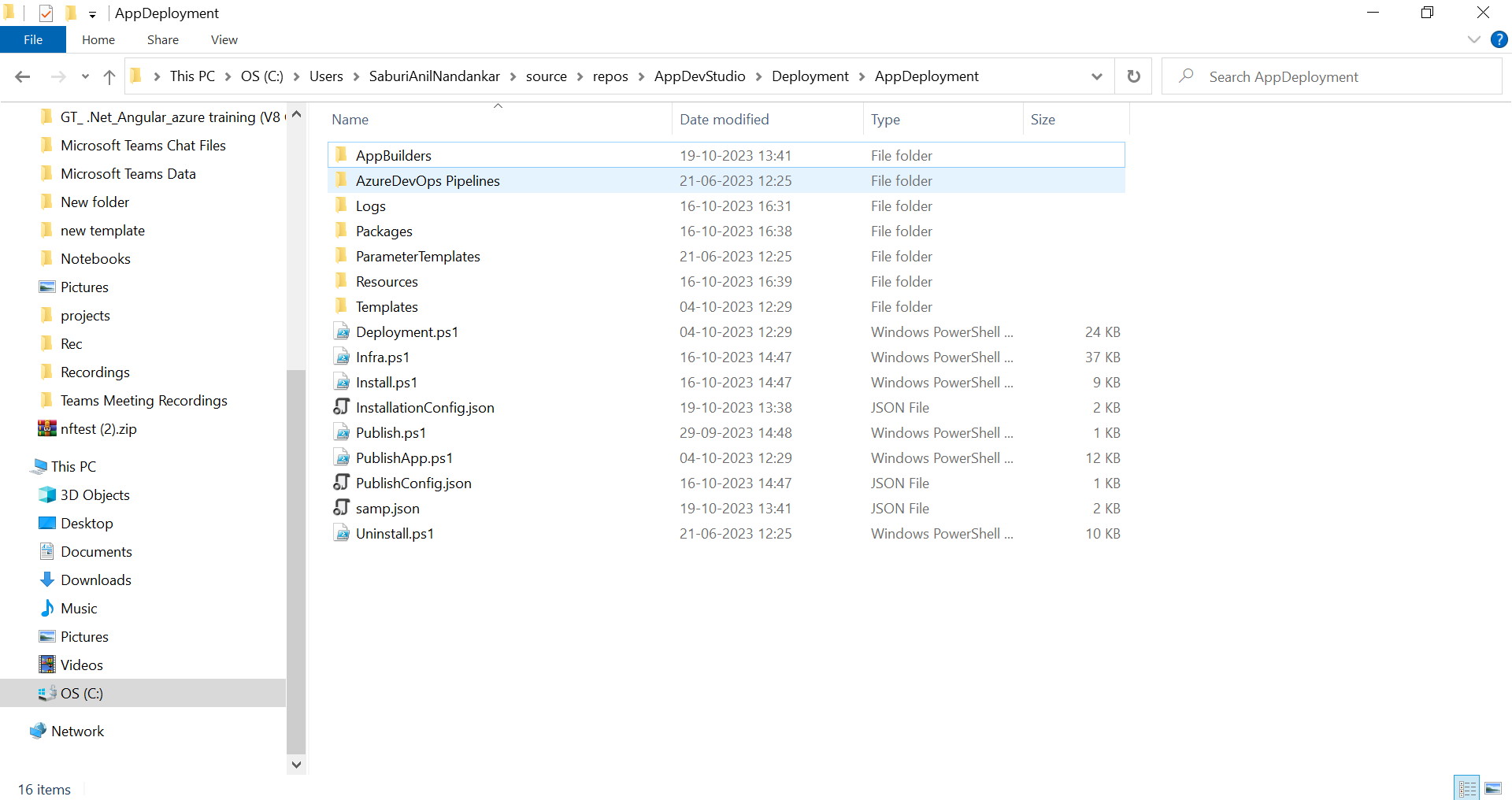
- Download the App Deployment release files from release folder.
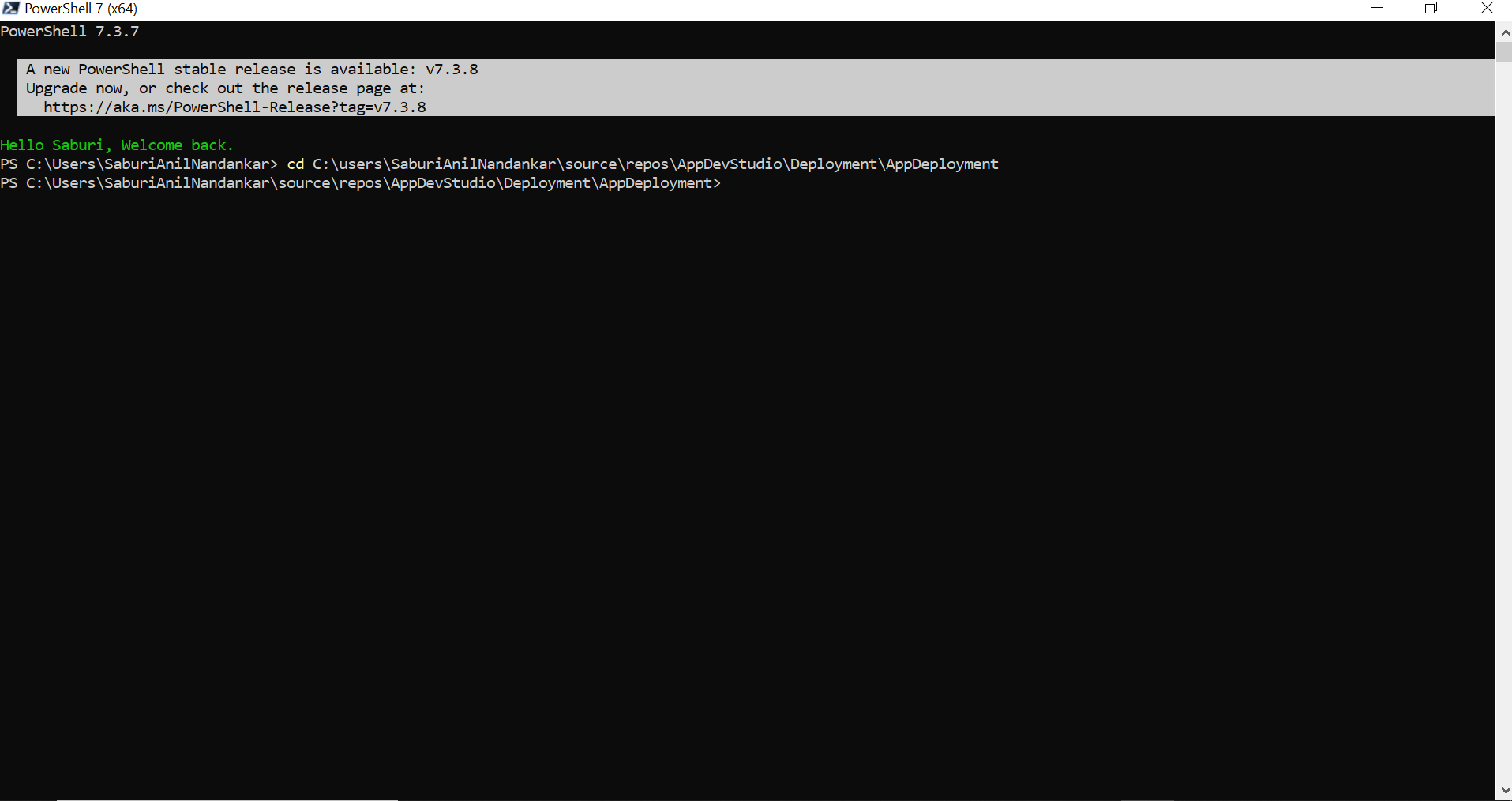
- Run PowerShell as administrator and navigate to App Deployment folder using the following command: cd <App_Deployment_folder_path>
Clone and Publish Application
Follow these steps to clone an application:
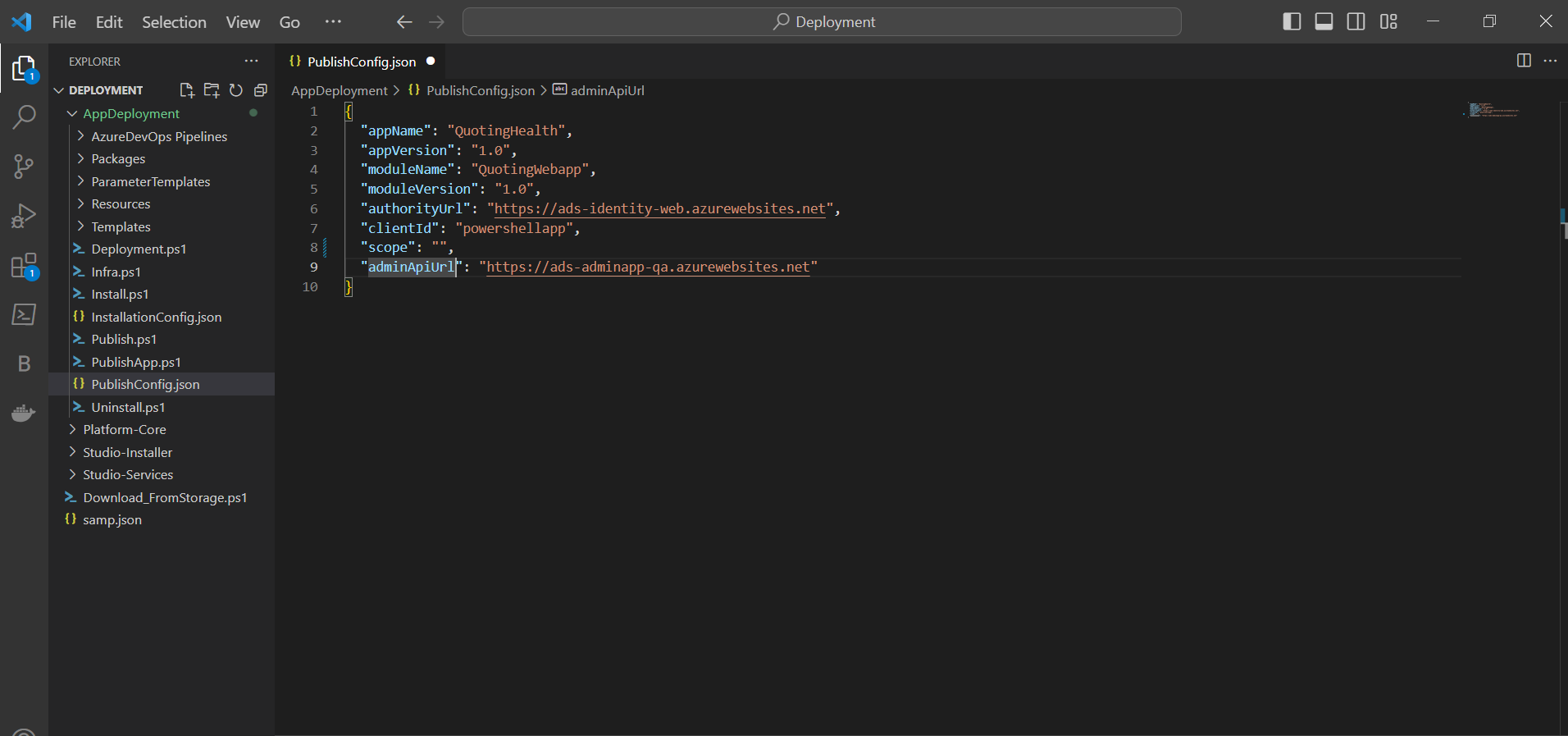
- Open publishConfig.json from App Deployment folder in a text editor and configure the following properties as required.
| Property | Description | Comments |
|---|---|---|
| appName | Provide the name of the application in OwlGen. | - |
| appVersion | Provide the version number of the application. | - |
| moduleName | Provide the name of the module in the application. | - |
| moduleVersion | Provide the version number of the module. | - |
| authorityUrl | Provide the identity server authority URL of OwlGen. | - |
| clientId | Provide the client ID of OwlGen. | - |
| scope | Provide the scope of OwlGen. | - |
| adminAPIUrl | Provide the admin app URL of OwlGen. | - |
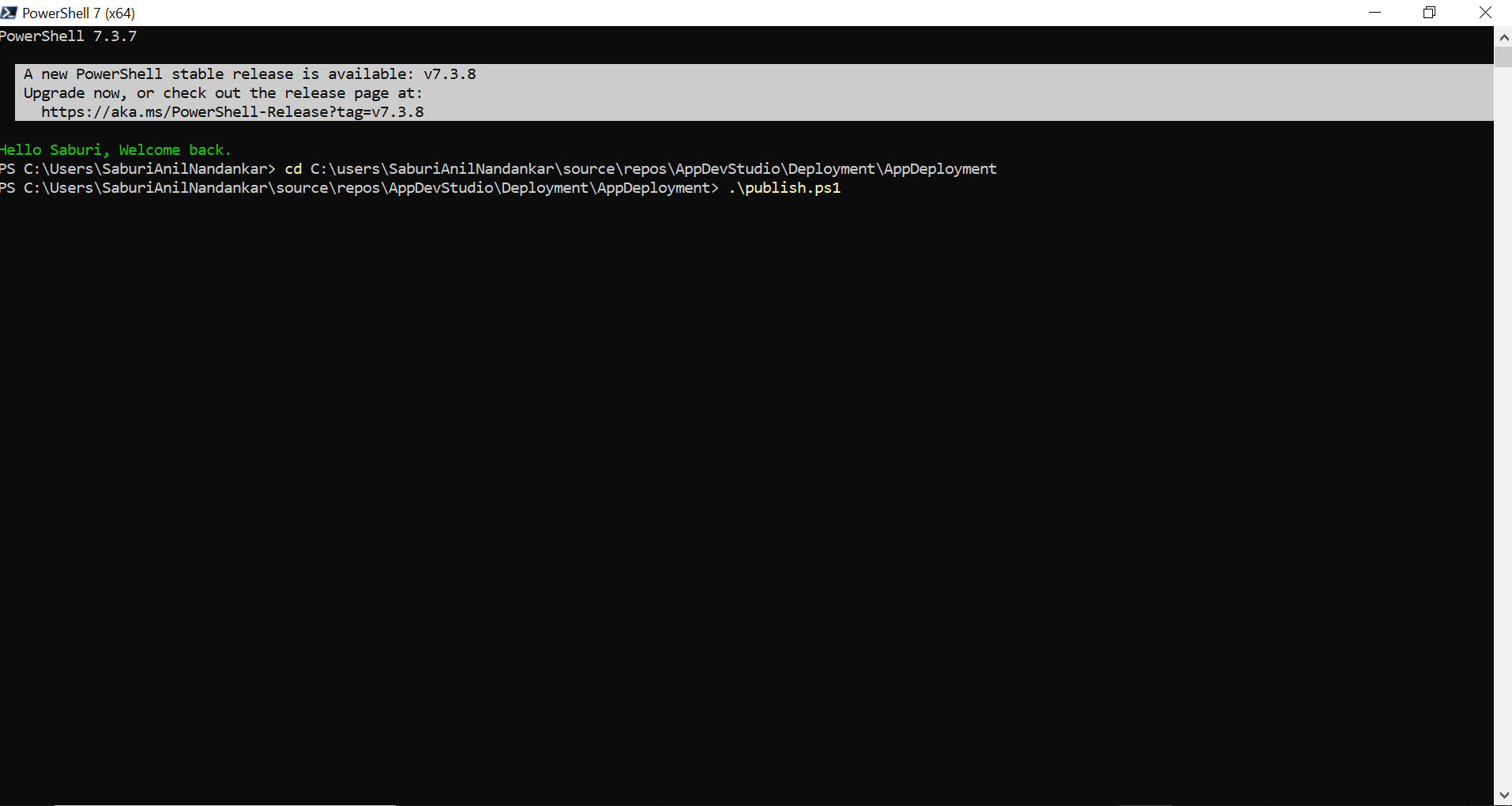
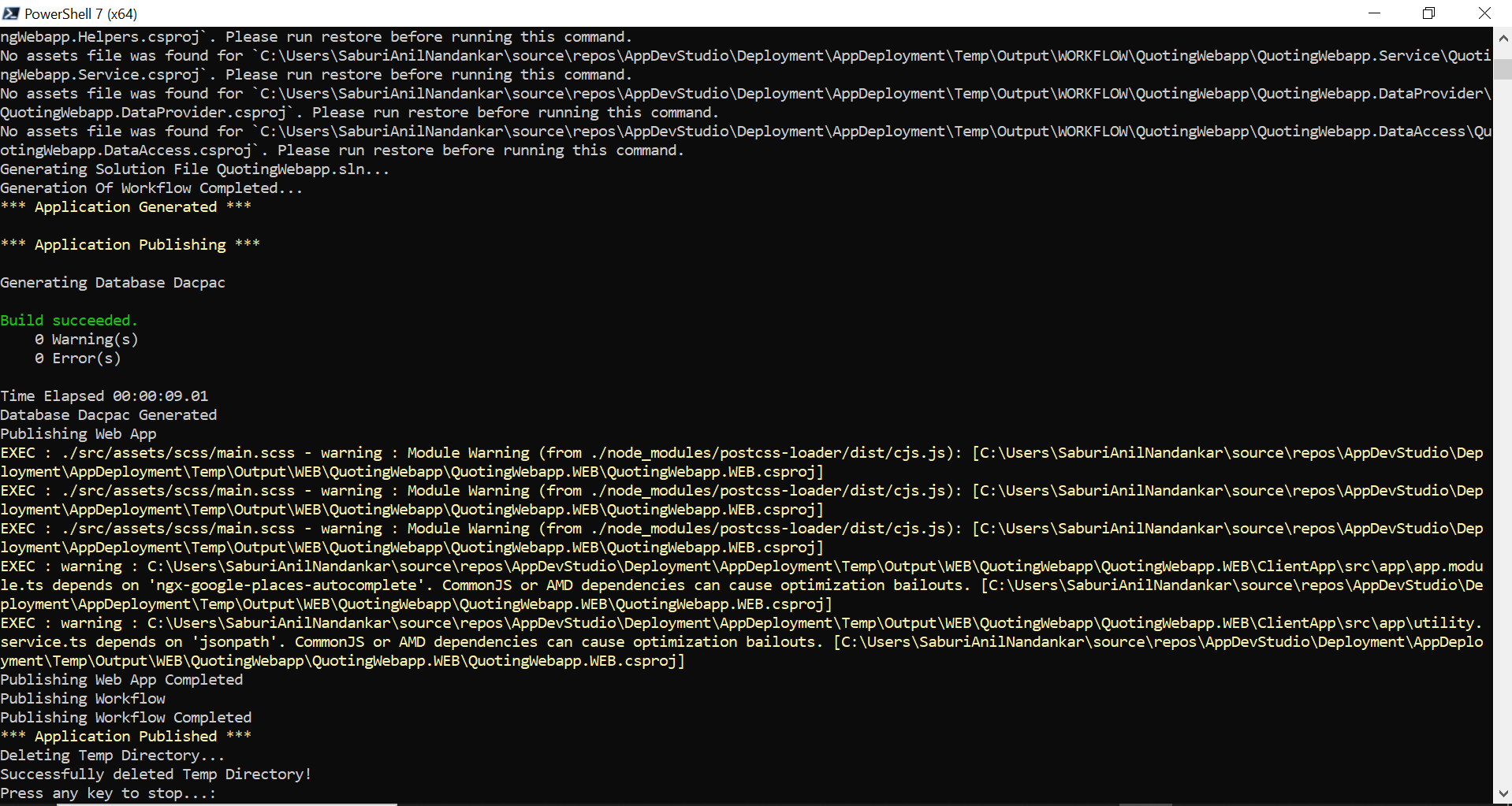
- In PowerShell, execute the following command to clone and publish the application. .\publish.ps1
- After publishing press any key in the keyboard to proceed further.
Edit Configuration
Follow these steps to edit configuration:
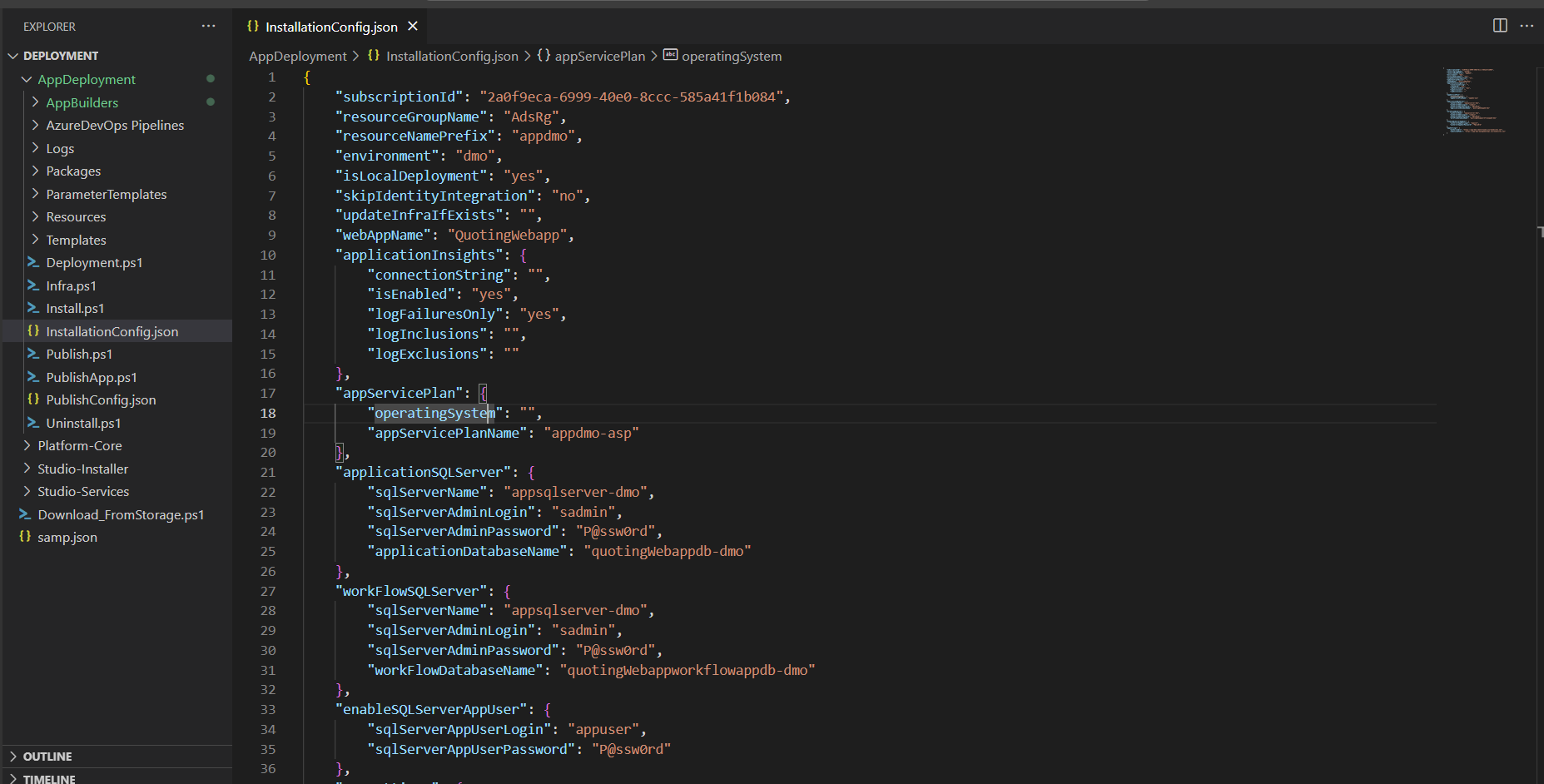
- Open installConfig.json from App Deployment folder in a text editor and configure the following properties as required to create infrastructure and deploy the published files.
| Property | Description | Comments |
|---|---|---|
| subscriptionId | Provide the subscription id of Azure where resources are available. | - |
| resourceGroupName | Provide the name of the resource group. | - |
| resourceNamePrefix | Provide the name of the prefix. | - |
| environment | Provide the environment name. | - |
| isLocalDeployment | Specify whether the deployment is local. Either Yes or No. | - |
| skipIdentityIntegration | Specify whether to skip the identity server integration. Either Yes or No. | - |
| updateInfraIfExists | Specify whether to update infra if already available. | - |
| deploymentMode | Provide the mode of deployment. | - |
| webAppName | Provide the name of the web app. | - |
| Application Insights | ||
| connectionString | Provide the connection string to connect to application insights. | - |
| isEnabled | Specify whether the application insights are enabled. | - |
| logFailuresOnly | Specify whether to log failures only. Either Yes or No. | - |
| logInclusions | Specify whether to log inclusions. | - |
| logExclusions | Specify whether to log exclusions. | - |
| App Service Plan | ||
| operatingSystem | Provide the operating system name. | - |
| appServicePlanExist | Specify whether app service exists. Either Yes or No. | - |
| appServicePlanName | Provide the name of the app service plan. | - |
| Application SQL Server | ||
| sqlServerExist | Specify whether the SQL server exists for application. Either Yes or No. | - |
| sqlServerName | Provide the SQL server name. | - |
| sqlServerAdminLogin | Provide the admin username. | - |
| sqlServerAdminPassword | Provide the admin password. | - |
| applicationDatabaseName | Provide the name of the database. | - |
| Workflow SQL Server | ||
| sqlServerExist | Specify whether the SQL server exists for workflows. Either Yes or No. | - |
| sqlServerName | Provide the SQL server name. | - |
| sqlServerAdminLogin | Provide the admin username. | - |
| sqlServerAdminPassword | Provide the admin password. | - |
| workFlowDatabaseName | Provide the name of the database. | - |
| Enable SQL Server App User | ||
| sqlServerAppUserLogin | Provide the username of SQL server app user. | - |
| sqlServerAppUserPassword | Provide the password. | - |
| App Settings | ||
| authorityUrl | Provide the authority URL. | This property is required only when skipIdentityIntegration is set to No. |
| identityAPIUrl | Provide the identity API URL. | This property is required only when skipIdentityIntegration is set to No. |
| Deployment Only | ||
| App Service | ||
| moduleAppName | Provide the name of the module. | - |
| workFlowAppName | Provide the name of the workflow app. | - |
| Server Config | ||
| scope | Provide the scope. | - |
| clientId | Provide the client id. | - |
Deploy Application
Follow these steps to deploy an application:
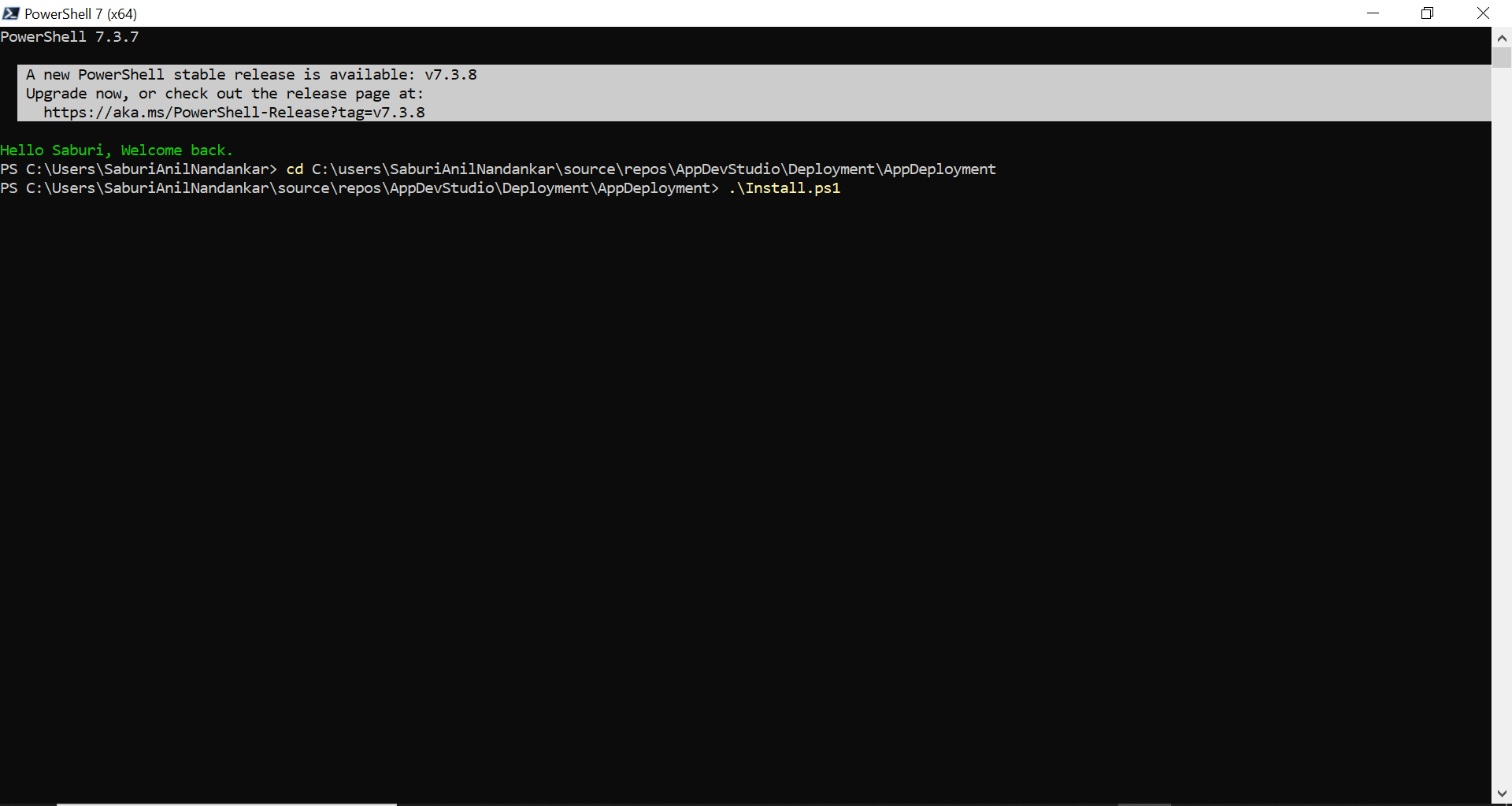
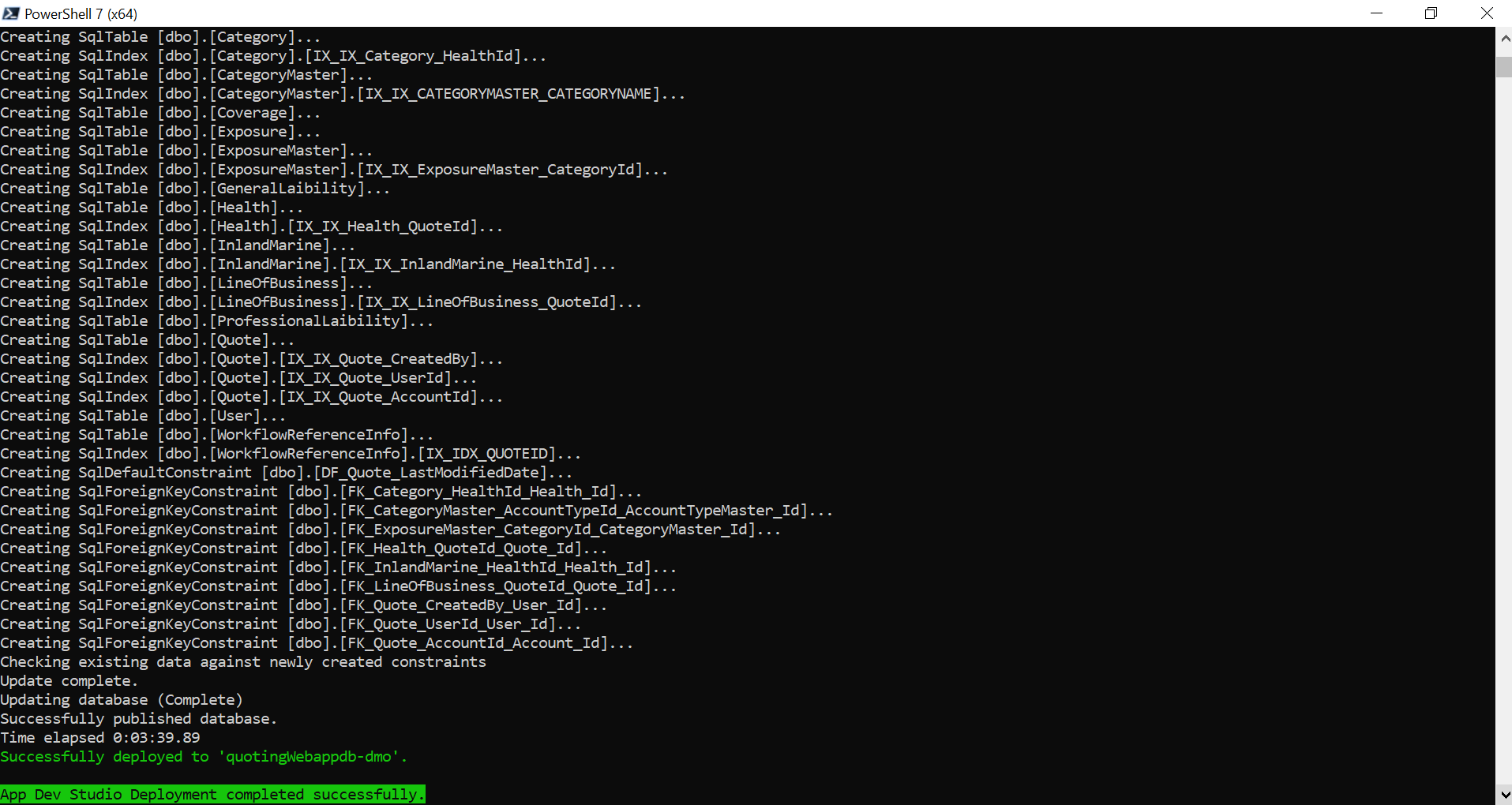
- In PowerShell, execute the following command to deploy the application. .\Install.ps1
- Provide the Azure credentials to continue.
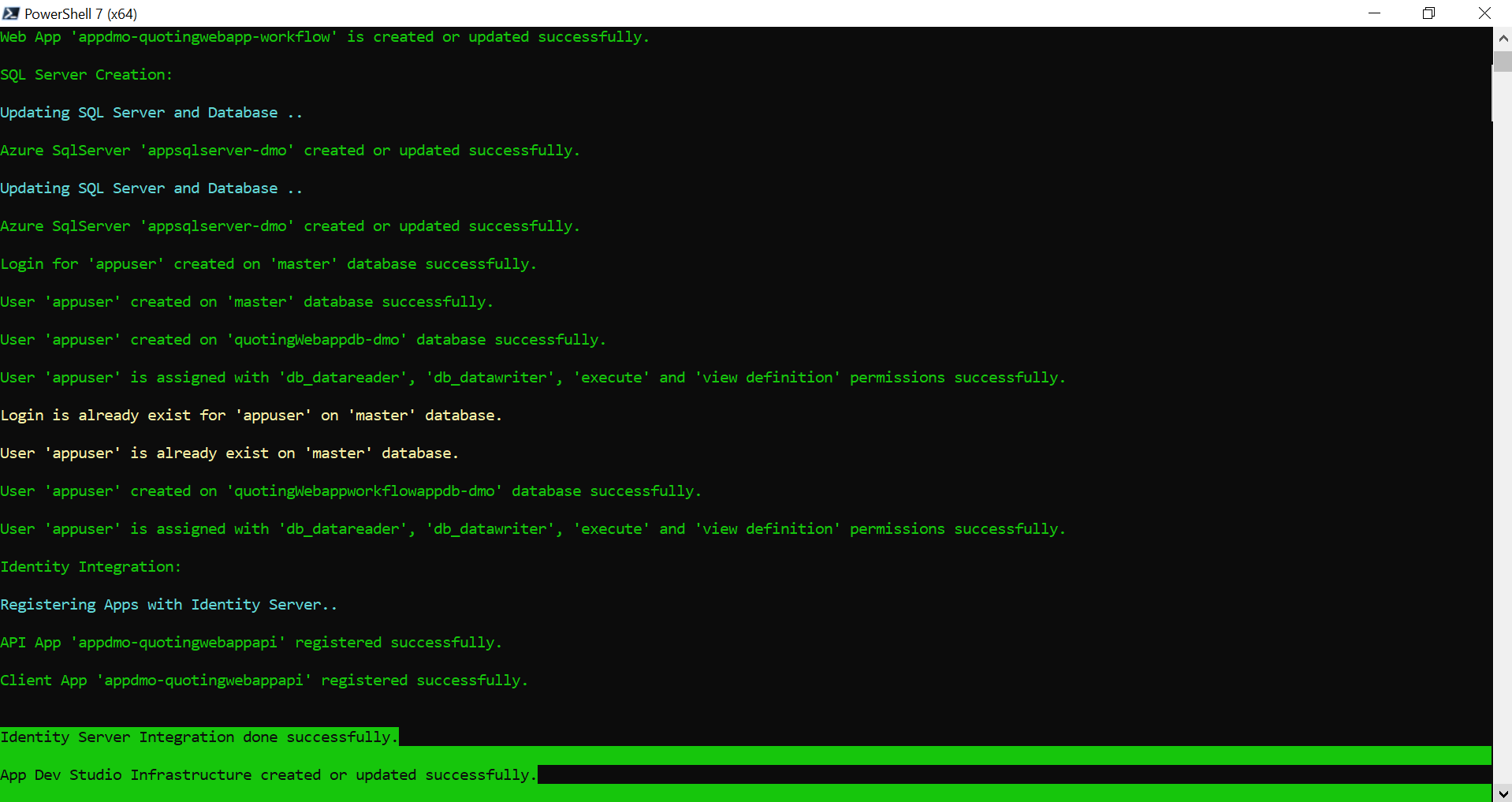
With the provided configuration, the corresponding infrastructure will be created, and the application will be deployed.
Note: If any error occurs, an appropriate error message will be displayed. Users can resolve the error and re-execute the script to deploy.
Upgrade Application
Follow the below steps to upgrade an Application created using OwlGen:
- Clone and publish the application as given in Clone and Publish Application section.
- Edit the configuration as required. Refer to Edit Configuration section.
- Follow the steps given in Deploy Application section to deploy the upgraded application.