Create Policies
Follow the below steps to create a policy:
- From the explorer menu, right-click policies and select Add (or) click Add New in dashboard.
- In the Basic Details window, configure the properties as required and click Save.
| Property | Description | Comments |
|---|---|---|
| Name* | Provide the name for a policy. | Name must start with a character followed by alphanumeric or ''. No spaces are allowed. Except underscore (), no other special characters are allowed. Name cannot start with a number. |
| Active Status | Specify whether the policy is active for accessing or not. Either Yes or No. | By default, it is set to Yes. |
| Description | Provide the summary. | - |
Note: An asterisk (*) denotes that the property is mandatory for creating a policy.
The "Policy added successfully" message displays upon successful creation.
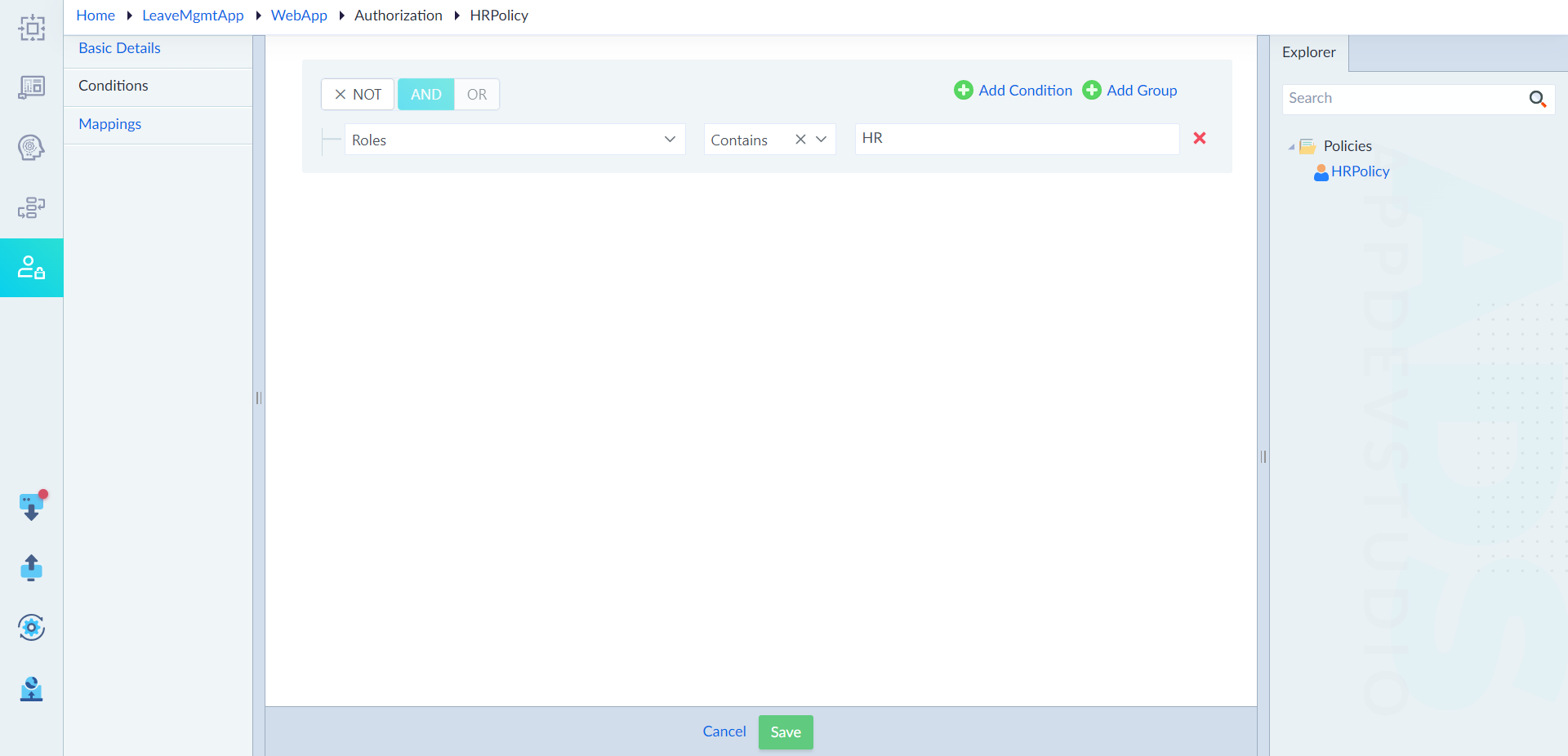
- Click Conditions to add the conditions for a policy. To add a condition, click Add Condition (or) Add Group as applicable. Conditions can be created based on roles, scopes and claims.
- Click Save to save the conditions.
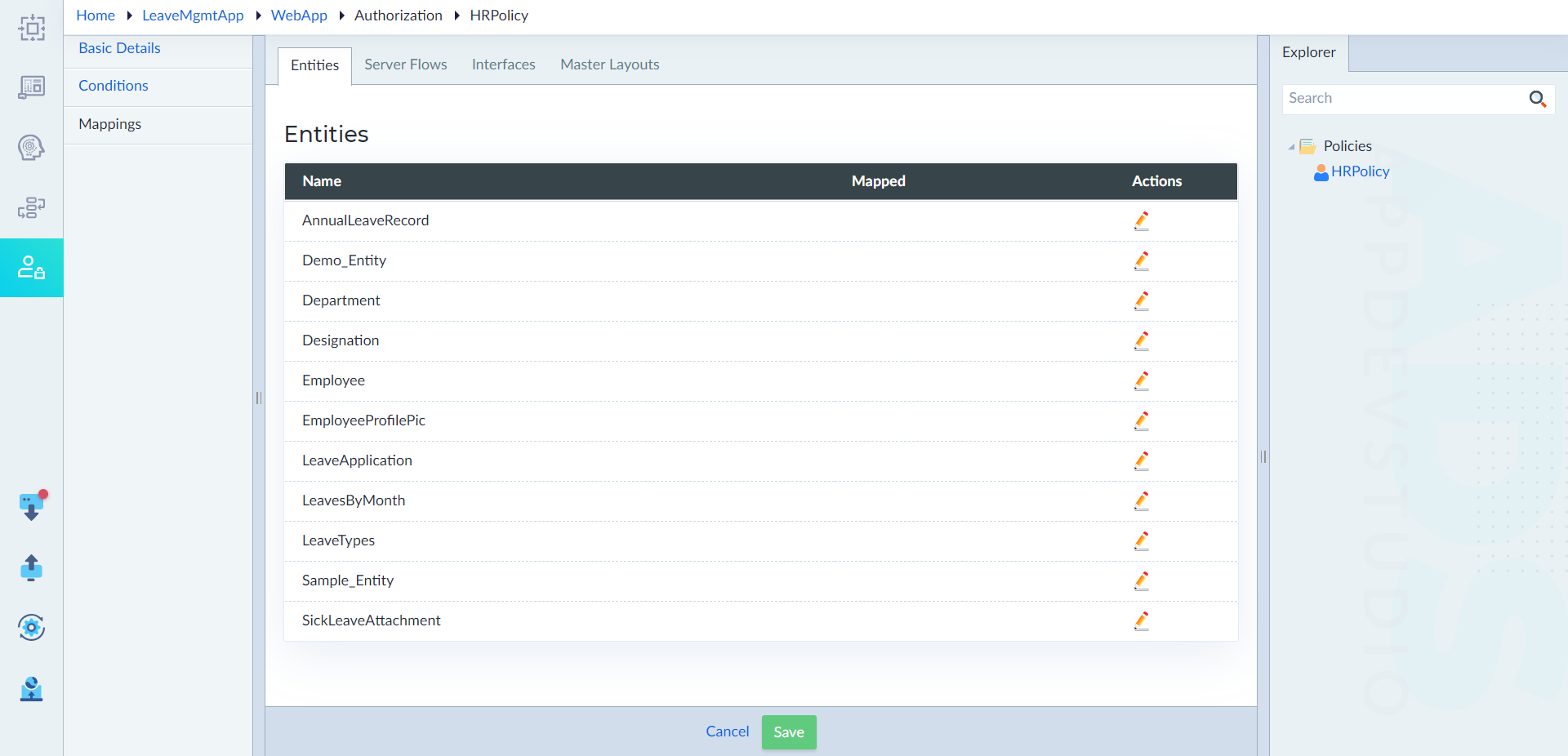
- Add mappings as required to the policy and click Save. Users can map entities, server flows, interfaces and master layouts for the condition. Only the items mapped here will be applicable for the condition created in a policy. For interfaces and master layouts, users can restrict access to specific parts of a layout. Use the Actions and Auth Guard as required.
The "Policy Mappings updated successfully" message displays upon successful update.