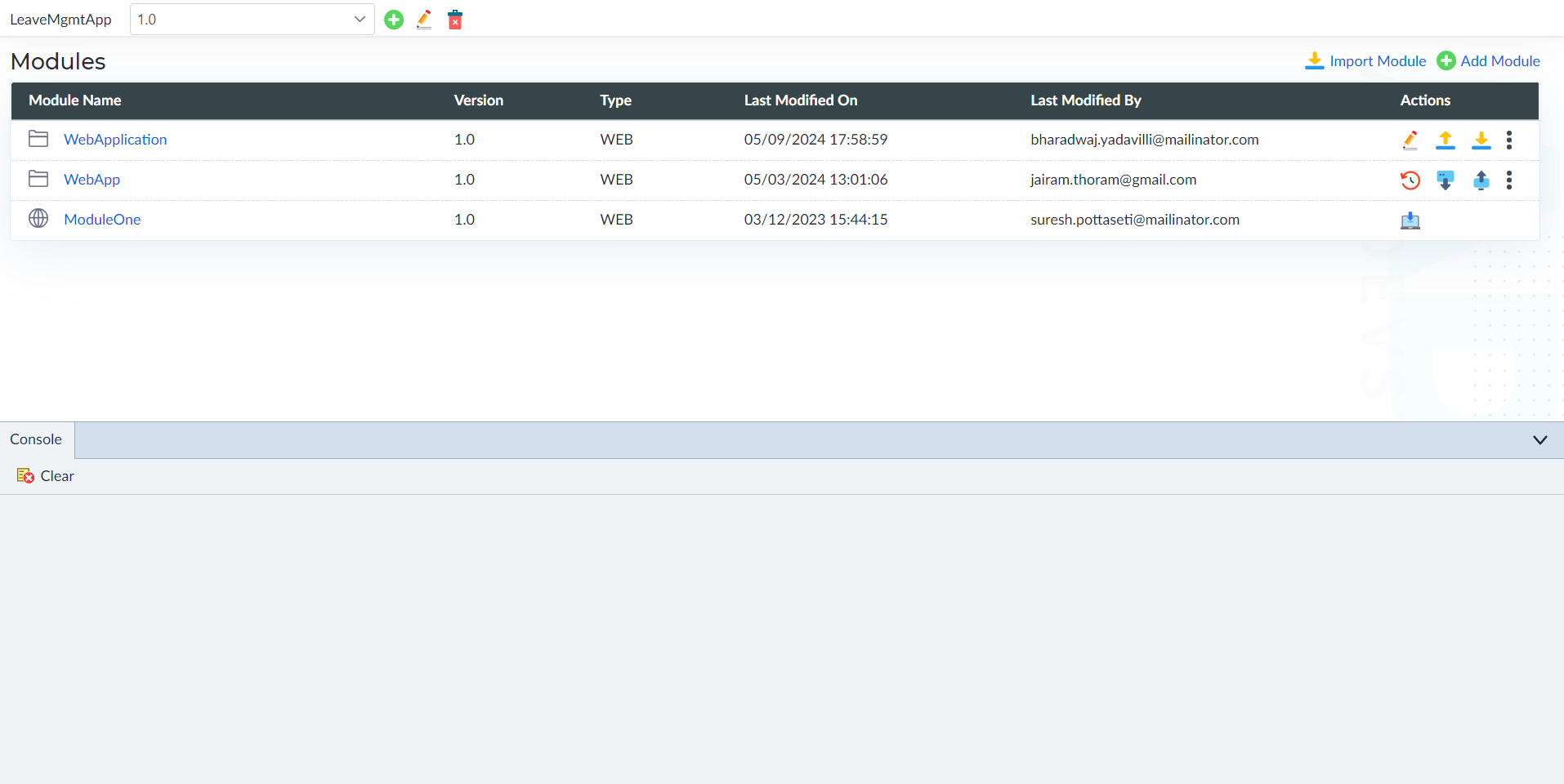
Module
A Module is a self-contained unit that groups related functionalities within an application. Users can create multiple modules to develop and manage scalable applications efficiently.
Create a Module
Only users with Manager, Administrator, or Lead roles can create a module within an application.
Steps to Create a Module
- Access the Add Module option.
- Navigate to the Modules section.
- Click the Add Module button.
- Configure Module properties.
- In the "Add New Module" pop-up window, fill in the required properties:
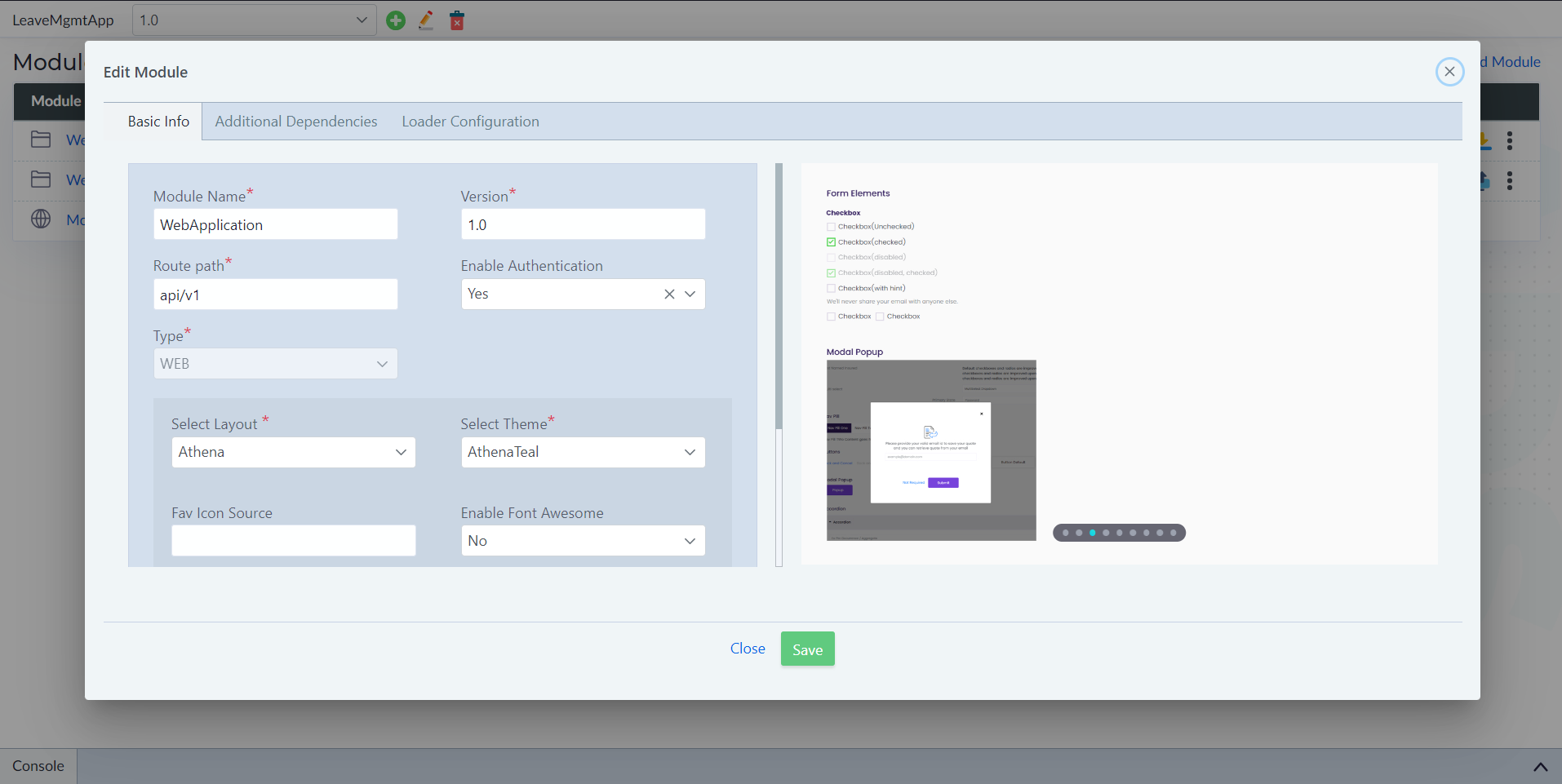
Basic Info
| Property | Description | Comments |
|---|---|---|
| Module Name* | Name of the project, used as the base namespace. | Minimum of 3 characters. Must start with a letter, followed by alphanumeric characters or _. No spaces or special characters (except _). Cannot start with a number. Disabled in edit mode. |
| Version* | Defines the module version. | Defaults to 1.0. Cannot be changed after creation. |
| Type* | Specifies the module type. | Options: API or WEB. API type allows only Entity, Logic, and Workflow modules. WEB type enables UI creation. |
| Route Path* | Defines the API base route prefix with versioning. | Defaults to api/v1. |
| Enable Authentication | Enables authentication for the module. | Options: Yes or No. Default: No. |
| Authentication Type | Specifies the authentication method. | OIDC (OpenID Connect): Built on OAuth 2.0 for identity verification. Cookies: Uses HTTP cookies for session management. |
| Enable Audit | Enables database table audit (history logging). | Options: Yes or No. Default: No. Tracks INSERT, UPDATE, DELETE operations in DB tables. |
WEB Type Properties (Only for WEB Modules)
| Property | Description | Comments |
|---|---|---|
| Select Layout* | Choose a UI layout. | Options: Ares, Athena, Zeus. |
| Select Theme* | Select a theme for the UI. | Available only for WEB modules. |
| Fav Icon Source | Specify the favicon location. | Available only for WEB modules. |
| Enable Font Awesome | Enable Font Awesome icons. | Options: Yes or No. |
| Form Control Width | Defines the width of form elements (input fields, dropdowns, etc.). | Can be set using px, rem, or %. Defaults to a universal setting but can be adjusted per element. |
| Floating Label | Determines if floating labels are enabled for form controls. | Applies to Textbox, Textarea, Numeric Textbox, Dropdownlist, Multiselect, DatePicker, etc. |
Additional Dependencies
| Property | Description | Comments |
|---|---|---|
| Add Package | Allows adding a package to the module's dependencies. | Click Add Package to include a package. |
| Package Name | Specifies the package name. | Minimum 3 characters. Must start with a letter, followed by alphanumeric or _. No spaces or special characters (except _). |
| Version | Defines the package version. | Required for dependency management. |
| Add Path | Allows adding additional dependencies. | Useful for external libraries. |
Loader Configuration
| Property | Description | Comments |
|---|---|---|
| Loader Type | Defines the type of loader for dynamically loading dependencies. | Minimum 3 characters. Must start with a letter, followed by alphanumeric or _. No spaces or special characters (except _). Cannot start with a number. |
Note: Fields marked with an asterisk (*) are mandatory.
- Save and Confirm Module Creation
- Click Save to create the module.
- A confirmation message "Module Added Successfully" appears.
- The new module will be available in the Modules section of the application.
Import Module Application Level
The Import Module feature allows users to upload and integrate external module files into the system. This ensures seamless incorporation of modules while adhering to naming and versioning guidelines.
Steps to Import a Module
- Access the Import Option
- Navigate to the Modules section.
- Click the Import Module button.
- Configure Import Properties
- The Import Module pop-up window appears.
- Fill in the required properties:
| Property | Description | Comments |
|---|---|---|
| Browse* | Select the module file from the file explorer. | Click Browse, choose the file to be imported, and click Open. |
| Module Name* | Provide a name for the module. | Must start with a letter, followed by alphanumeric characters or _. No spaces allowed. Special characters (except _) are not permitted. Cannot start with a number. |
| Version* | Specify the module version. | Required for version tracking. |
Note: Properties marked with an asterisk (*) are mandatory for importing a module.
- Import the Module
- Click Import to proceed.
- The system validates the module details and imports the file.
- Confirmation Message
- Upon successful import, a confirmation message "Module Imported Successfully" is displayed.
Clone Module
The Clone Module option is available in the Modules section if the module exists in source control but has not been cloned locally. This feature allows users to retrieve a module from source control and use it in their local environment.
Cloning a Module
- Access the Clone Option — If a module is available in source control but not cloned locally, the Clone icon will be visible in the Modules section.
- Initiate the Cloning Process — Click the Clone icon to navigate to the Clone Screen.
- Review Module Components — The Clone Screen displays all components of the module along with a Clone button in the footer.
- Clone the Module — Click the Clone button to initiate the cloning process.
- Completion and Confirmation — Once the module is successfully cloned, a confirmation message "Cloned Successfully" is displayed. The system automatically navigates back to the Modules section.
Edit Module
The Edit Module feature allows users to modify the properties of an existing module as per their requirements. This ensures that module configurations remain up to date.
Steps to Edit a Module
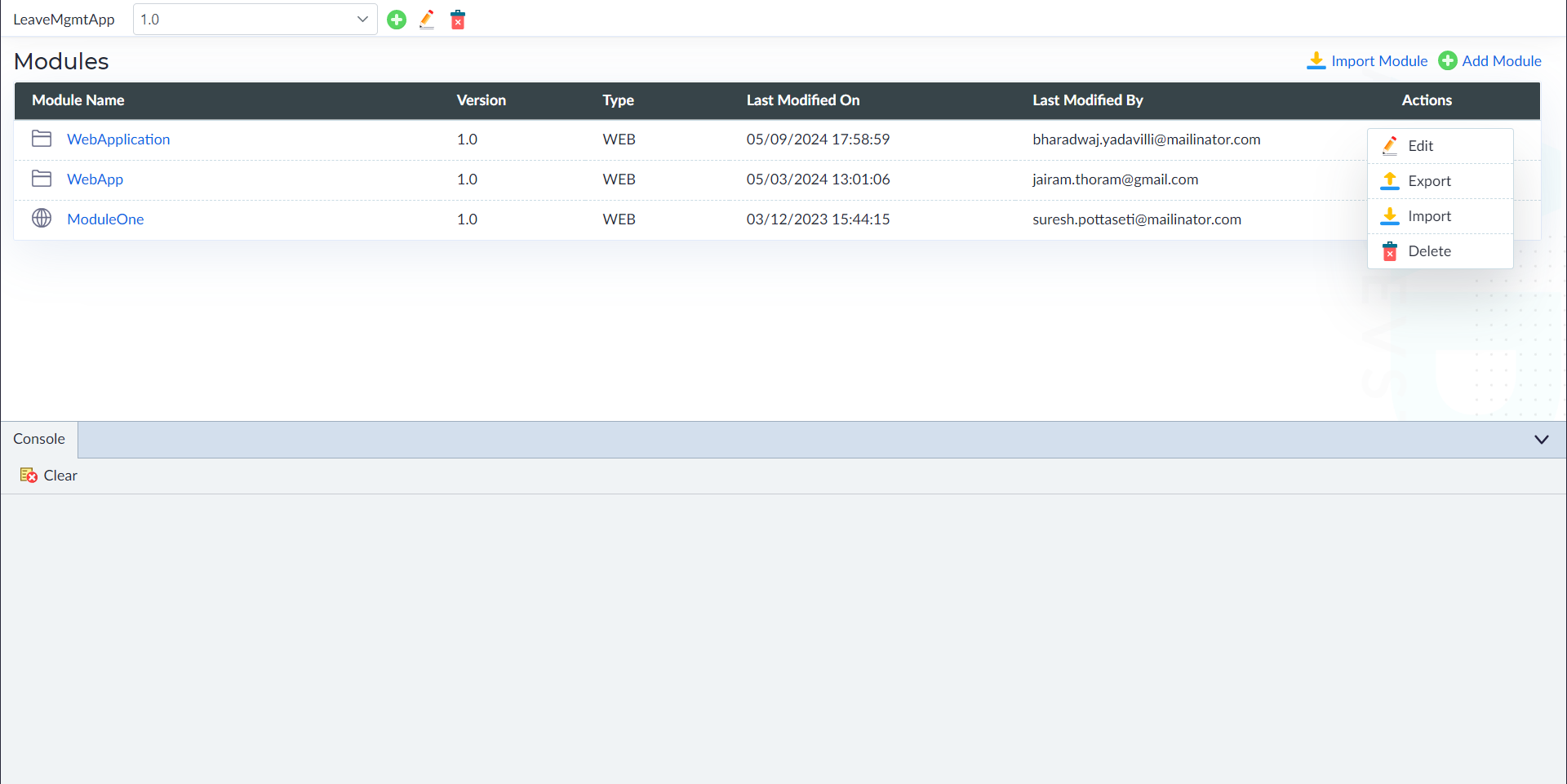
- In the Modules section, click the ellipsis icon under the Actions column for the module you want to edit. Select Edit from the dropdown menu.
- The Edit Module pop-up window appears. Edit the required configured properties as needed. For more details on configurable properties, refer to the Create Module section.
- Click Save to apply the modifications.
- Upon successful update, a confirmation message "Module Updated Successfully" is displayed.
Export Module
The Export Module feature allows users to export a module along with its components for backup, sharing, or deployment purposes. Users can select specific items within the module before exporting.
Steps to Export a Module
- In the Modules section, click the ellipsis icon under the Actions column. Select Export from the dropdown menu.
- A selection screen appears displaying all components of the module. By default, all items are selected. Users can deselect specific items if they do not need to be included.
- Click the Create button to proceed. A File Explorer pop-up window opens for choosing a destination.
- Enter a name for the exported file. Click Save to complete the process.
- Upon successful export, a confirmation message "Module Exported Successfully" is displayed.
Import a Module (Module Level)
The Import Module feature allows users to bring external module files into the system, ensuring seamless integration of previously exported or externally modified modules. This feature provides flexibility in selecting specific components and resolving conflicts when necessary.
Steps to Import a Module
- In the Modules section, click the ellipsis icon under the Actions column. Select Import from the dropdown menu.
- In the Import Module pop-up window, click Browse to select the file. Click Upload to proceed. The Import Window opens, displaying all components available for import.
- Choose the required items to be imported. Use the filter option to locate specific items.
- Resolve Conflicts (If Any):
- Take All Imported: Replaces the current items with those from the imported module.
- Keep All Local: Retains the existing items and excludes conflicting items.
- The Import button becomes active only after resolving all conflicts.
- Click Import to complete the process. Upon success, "Items Imported Successfully" is displayed.
Delete a Module
The Delete Module feature allows users to permanently remove a module from the system. Since this action is irreversible, users must carefully review the module details before proceeding with deletion.
Steps to Delete a Module
- In the Modules section, click the ellipsis icon under the Actions column. Select Delete from the dropdown menu.
- The Delete Module pop-up window appears. Enter the following required details and click Delete.
| Property | Description | Comments |
|---|---|---|
| Module Name* | Provide the exact name of the module to be deleted. | Must match the existing module name. |
| Version* | Specify the version of the module. | Required for tracking purposes. |
- A confirmation message is displayed in the console upon successful deletion. The module is permanently removed and cannot be recovered.
View History
The Commit History section in Studio provides a detailed record of all changes made in the source control system. It allows users to track modifications, review commit details and apply specific changes to their local environment.
Viewing Commit History
The View History section displays all commit in a structured grid, along with the following available actions:
- View Commit Details — Clicking the "View Commit Details" icon opens a detailed view of the selected commit. Users can review all the components included in the commit.
- Apply These Changes — Clicking the "Apply These Changes" icon allows users to review the components committed in a particular push. Users can selectively apply changes to their local environment by choosing the required components and clicking "Apply Changes".
Sync Module
The Sync Module feature ensures that the local module components remain up to date with the latest changes from the source control server. It allows users to compare local and server-side components and synchronize any missing or outdated items.
Steps to Sync a Module
- Navigate to the Modules section. Click the Sync option for the desired module.
- The system navigates to the Sync Screen. It automatically compares local components with the server components. If any components are missing or were not pulled due to a server error, they will be listed.
- Review the displayed components. Click the Sync button to update.
- The system synchronizes the missing components. A confirmation message is displayed upon successful synchronization.
Merge Module
The Merge Module feature allows users to compare and merge two different versions of an application or module. It provides options to resolve conflicts and update the target version with the merged changes.
Steps to Merge a Module
- Navigate to the Modules section. Click the Merge option. A Merge Pop-up window appears, prompting the user to select the Target Application Version and Target Module for Merge.
- After selecting the target application version and module, click Merge. The system navigates to the Merge Screen, where the differences between the selected versions are displayed.
- Select Items for Merge:
- Keep Local – Retains the local version of the item.
- Take Server – Replaces the local item with the server version.
- Compare – Allows users to compare both versions before deciding.
- Take All Incoming – Accepts all incoming changes from the server.
- If conflicts exist, users must resolve them using the available merge options. Once all conflicts are resolved, the Merge button becomes active.
- Click the Merge button to finalize the process. The target version is updated with the newly merged changes. A confirmation message is displayed upon successful merging.