Create Popup
Follow the below steps to create a popup:
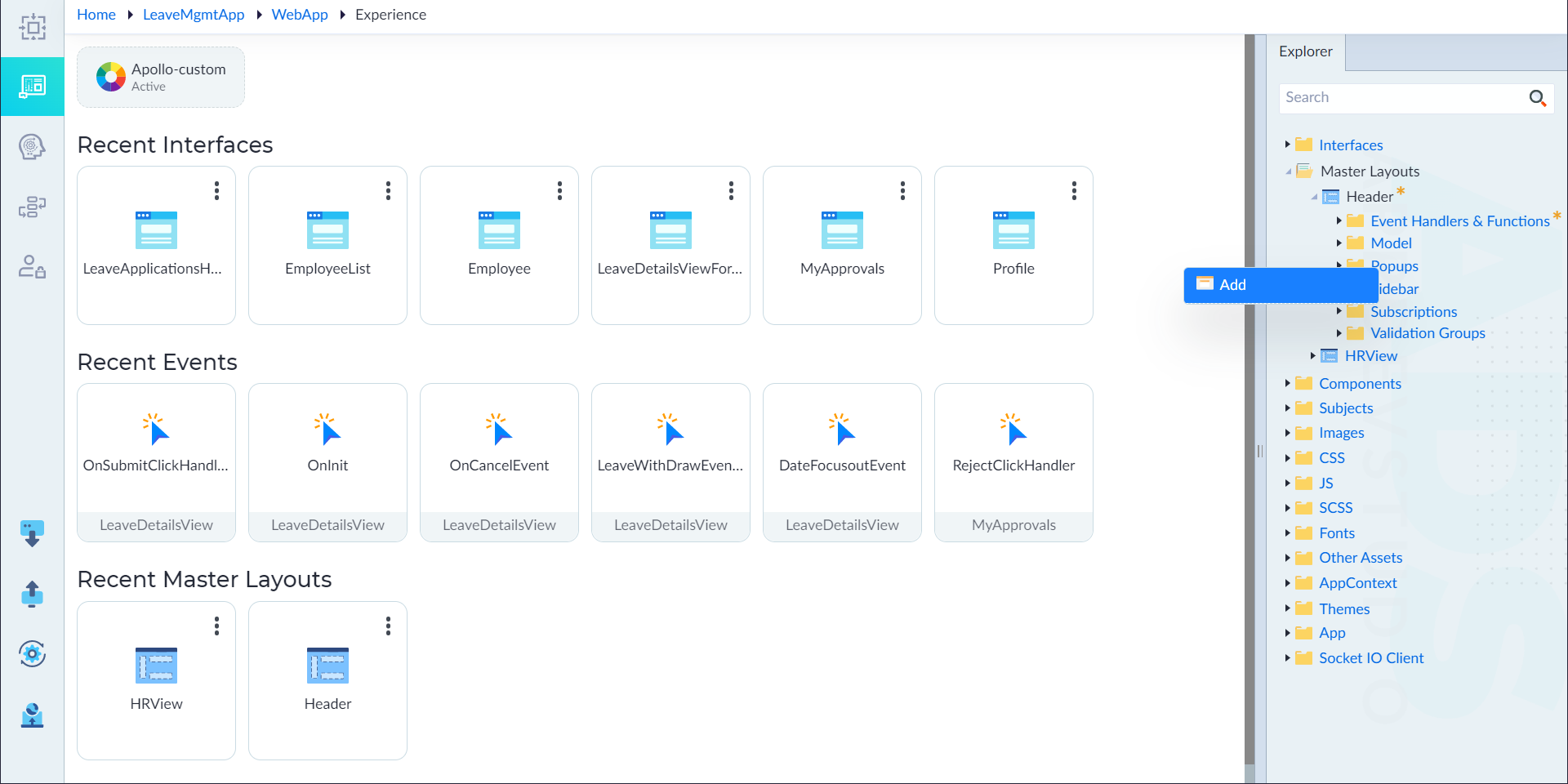
- From the explorer menu, right-click popups in an interface (or) master layout and select Add.
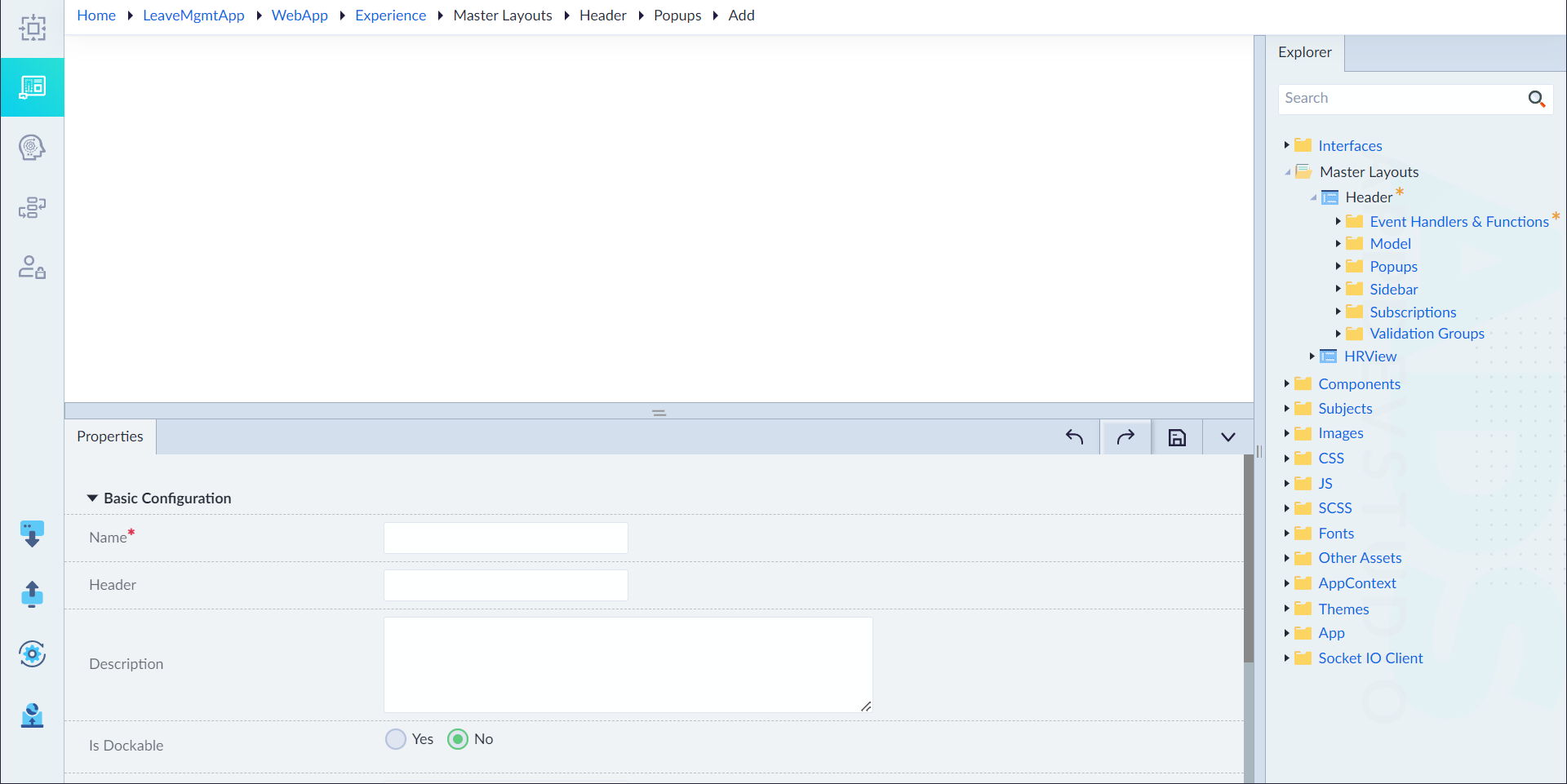
- In the properties panel, configure the properties as required and then click save icon.
| Property | Description | Comments |
|---|---|---|
| Basic Configuration | ||
| Name* | Provide the name of the popup. | Name must start with a character followed by alphanumeric or ''. No spaces are allowed. Except underscore (), no other special characters are allowed. Name cannot start with a number. |
| Description | Provide the summary for the popup. | - |
| Is Dockable | Specify whether the popup is dockable. Either Yes or No | By default, No is selected. |
| Header Image Url | Provide the url source for popup header. | - |
| isActive | Specify whether the interface is active. Either Yes or No. | By default, Yes is selected. |
| Basic Bindings | ||
| Visibility | Provide the expression as required. | This popup will be visible only if the expression validated to true. |
| On Close | Select the event for on close. | - |
| On Open | Select the event for on open. | - |
| Style & Layout | ||
| Height | Provide the height. | - |
| Width | Provide the weight. | - |
| Unit | Select the type of unit. | - |
| Additional Configurations | ||
| Draggable | Specify whether the popup is draggable. Either Yes or No. | By default, No is selected. |
| Model | Specify whether the popup is model. Either Yes or No. | By default, No is selected. |
| Pinned | Specify whether the popup is pinned. Either Yes or No. | By default, No is selected. |
| Resizable | Specify whether the popup is resizable. Either Yes or No. | By default, No is selected. |
| Id* | Provide an unique identifier for reference. | By default, an id is generated automatically. |
note
An asterisk (*) denotes that the property is mandatory for creating a popup.
The "Popup created successfully" message displays upon successful creation.
- In the popup canvas, design the popup using the widgets as required and click save.